

GPU-Z
About GPU-Z
Ask a machine what graphics card it contains and you get a marketing name. GPU-Z answers the same question properly, reporting the actual chip, its revision, the manufacturing process it was made on, the memory chips soldered around it and who built the board.
It works with cards from all three graphics manufacturers, which distinguishes it from the tools each brand supplies for its own hardware. Whatever is in the machine, this reads it.
The program installs nothing, runs from wherever you put it and changes no setting on the card. It is an instrument rather than a utility, and everything below follows from that.
What card is this, actually
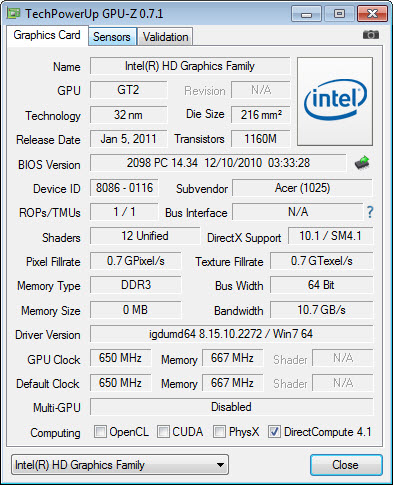
The main GPU-Z view answers the identity question in detail. The chip and its codename, the revision of that chip, the manufacturing process, die size, transistor count, the firmware version on the board, the device identifiers the system uses, and the subvendor, meaning whoever assembled the card around the chip.
That last field explains why two cards with the same name perform differently. The chip came from one maker and the board, cooling and power delivery from another, and the second decides how the first behaves under load.
For an inventory of the whole machine rather than a deep look at one component, a general system information tool covers everything at less depth.
Detecting a card that is not what it claims
Here is the use nobody expects until they need it, and it has saved a great many people from a bad purchase.
Cards are sometimes sold as something they are not. An older chip with modified firmware reports a newer model name, and the buyer sees an impressive name in the system information and a bargain that was not one. GPU-Z reads the actual chip rather than the claimed name, so the mismatch appears immediately.
Validation goes further, producing a signed record of what the card really is, which is the standard way of proving a card’s identity when something looks wrong.
Anybody buying a card second-hand should run this before the seller leaves. Thirty seconds of checking against what the card should contain settles the question that photographs and descriptions cannot.
The memory chips, and why they matter
GPU-Z reports memory type, size, bus width and bandwidth, and then the field enthusiasts actually came for, which is the manufacturer of the memory chips themselves.
Two cards with identical specifications can carry memory from different suppliers, and those suppliers differ in how far their chips will run beyond the rated speed. That is not printed on the box and no retailer publishes it, so a card that overclocks well and one that does not can be indistinguishable until this tells you what is on the board.
The same principle applies to system memory, where a tool that reads the chips behind the label on a memory module answers the equivalent question for what is in the slots.
The bus link, and the render test beside it
GPU-Z reports how the card is connected, meaning the generation of the link and how many lanes it is using.
This matters because a card can end up in the wrong slot, or in a slot sharing lanes with something else, and run at half its intended width. Performance suffers, nothing reports an error, and the machine simply feels slower than it should.
The complication is that cards drop the link to a lower state when idle to save power, so reading the field on a desktop shows a reduced figure that looks alarming and is correct behaviour. The render test beside it loads the card briefly so you can see the link at full speed, which is the number that matters.
Confirming actual performance against other cards of the same model is the next step, and 3DMark provides the comparable figure.
The sensors tab, and the field nobody reads
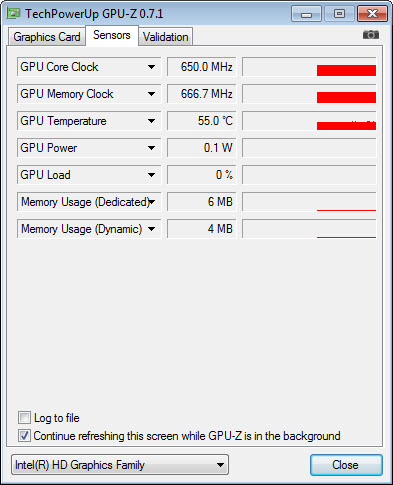
GPU-Z monitors core and memory clocks, temperatures including the hot spot and the memory itself, fan speed, power draw, voltage, load percentages, all logged over time rather than shown as instantaneous values.
One field there is the most useful thing in the entire program and almost nobody looks at it. The performance cap reason states why the card is not running faster at that moment, distinguishing a power limit, a temperature limit, a voltage limit, or simply having no more work to do.
That single field answers the question people spend hours guessing at. A card sitting below its advertised boost clock is either too hot, out of power headroom, or not being asked to do anything, and knowing which of the three changes what you would do about it entirely.
For an overlay showing the same data inside a running game rather than in a window beside it, MSI Afterburner puts the figures on screen where the workload actually is.
The firmware functions
GPU-Z reads the card’s firmware and saves it to a file, which is a small feature with two real uses.
The first is insurance. Anybody intending to modify a card’s firmware should hold a copy of the original first, because recovering from a bad flash without one ranges from difficult to impossible.
The second is diagnosis. A card behaving oddly can be compared against what the same model should be running, and a firmware version that does not match anything the manufacturer published is informative in itself.
The program reads and saves rather than writing, which keeps it on the safe side of an operation that can leave a card unable to display anything.
What it deliberately does not do
Nothing in GPU-Z changes a setting. There are no clocks to raise, no fan curves to draw, no voltages to adjust and no profiles to save.
That restraint is the point. An instrument that only reads can be run on anything without consequence, which is why it ends up on every technician’s stick and why people paste screenshots of it into forum threads when asking for help.
Adjusting what it measures is a separate job, and EVGA Precision X1 covers the tuning side for cards from one of the three manufacturers.
Conclusion
GPU-Z is the first thing to open when a question about a graphics card needs a factual answer. What chip is actually present, what memory surrounds it, how it is connected, how hot it is running and precisely why it is not going faster are all here, for cards from any manufacturer, in a program that installs nothing.
Two of its features deserve to be better known. Checking a second-hand card against what it claims to be takes thirty seconds and prevents an expensive mistake, and the performance cap reason turns an afternoon of speculation about throttling into a single readable field. Neither is advertised prominently, and both are worth the download on their own.
Features & benefits
Pros & Cons
- Works with cards from all three graphics manufacturers rather than one
- Reports the actual chip and revision rather than the marketing name
- Detects rebadged cards sold as models they are not
- Names the memory chip manufacturer, which determines overclocking headroom
- Render test shows the bus link at full speed rather than its idle state
- Performance cap reason explains exactly why a card is not boosting higher
- Saves a copy of the card firmware before anybody modifies it
- Portable, tiny, and it changes nothing on the system
- Reports and measures without adjusting anything at all
- The fields assume you already know why they matter
- Idle link states confuse anybody who has not found the render test
- Sensor logging is basic compared with dedicated monitoring software
- Nothing here tests performance, only reports configuration and state
Frequently asked questions
Yes, covering all three graphics chip makers, which is its main advantage over the tools each brand supplies for its own hardware. Whatever card is in the machine, it reads and reports it.
By reading the chip itself rather than the name the firmware reports. A rebadged older card announces a newer model while the actual chip identifier remains what it always was, and that mismatch shows immediately.
The most useful field in the program. It states why the card is not running faster at that instant, distinguishing a power limit from a temperature limit, a voltage limit or simply no workload. That answers the question people otherwise guess at.
Because cards reduce the link when idle to save power. The render test loads the card briefly so the link rises to its full state, and that reading is the one worth trusting.
Because suppliers differ in how far their chips run beyond the rated speed, so two apparently identical cards can overclock very differently. Nothing on the packaging tells you which you bought.
No. It reads, reports, saves firmware to a file, with nothing to configure and no setting altered. That is why it can be run on any machine without consequence.


