

SuperF4
About SuperF4
There is a specific kind of Windows frustration this application exists to solve. A program freezes. Alt+F4 does nothing because the application is not in a state where it can respond to the close message. Task Manager opens slowly, sometimes behind a fullscreen game that has captured the keyboard. Right-clicking the taskbar entry produces an unresponsive context menu.
You sit watching a hung window, knowing exactly what you want to happen, but every standard route to making it happen is blocked by the application itself.
SuperF4 is a tiny utility that bypasses the entire chain. It adds a global hotkey (Ctrl+Alt+F4 by default) that kills the foreground window’s process immediately, without asking the application’s permission, without waiting for a response, without going through the routes that a frozen application can ignore.
The implementation is small enough that the source code fits in a single file, but the technical distinction between what this does and what Alt+F4 does is the whole reason the utility exists.
Why Alt+F4 fails when you actually need it most
Alt+F4 is a polite request. The keystroke sends a WM_CLOSE message to the foreground window, which is the operating system asking the application “please close yourself in whatever orderly way you prefer.” Well-behaved applications respond by saving their state, prompting about unsaved work, releasing handles, and exiting cleanly. The user gets a graceful shutdown. This is what Alt+F4 is supposed to do, and most of the time it is what you want.
The failure mode is what happens when the application is not in a state to respond. A fully frozen process is not running an event loop, so the WM_CLOSE message sits in a queue that the application never reads. An application stuck in a tight loop or waiting on a blocked system call may technically be running but is not processing window messages.
A fullscreen game in exclusive mode often does not see the Alt+F4 keystroke at all because its input layer never passes it to the standard message pump. In all these cases, the request was made, the application ignored or never received it, and the close did not happen.
SuperF4 does not send WM_CLOSE. It identifies which process owns the foreground window and calls TerminateProcess on it directly. TerminateProcess is a kernel-level operation, the operating system itself stops the process and reclaims its resources, with no involvement from the application’s own code. The application cannot refuse, cannot delay, cannot intercept. The window disappears, the process is gone, the desktop returns.
The trade-off, which is real
The same difference that makes this work is also the cost. Killing a process via TerminateProcess gives the application no chance to save state. Unsaved documents are lost. Open files may end up in inconsistent states because the application did not get to flush its buffers. Database connections close without their normal teardown sequence. Network operations terminate without notifying the remote end.
For an application that is actually working, this is a worse outcome than Alt+F4 because you lose work you could have saved. For an application that is frozen and going nowhere, this is the only available outcome because there is no work to save, the freeze already prevented that.
The utility’s value depends entirely on using it when the application is past the point of recovery, and being honest with yourself about whether that point has been reached.
Task Manager’s “End Task” uses the same TerminateProcess call under the hood and has the same trade-off. The difference is the activation cost, SuperF4 triggers from one keystroke that the frozen application cannot intercept, while Task Manager requires you to navigate to and use a separate window, which is not always possible when something has the keyboard captured.
The click-to-kill mode for indirect targets
The default Ctrl+Alt+F4 hotkey targets the foreground window. There is also an optional click-to-kill mode (Win+F4 by default) that changes the cursor to a skull icon and waits for you to click on a window. Whatever window you click loses its owning process to TerminateProcess.
This is the more flexible mode for situations where the problem window is not the one currently in focus, a hung background window blocking notifications, a misbehaving system tray application, a renderer process that is part of a larger app but is the specific piece causing the issue. The click-to-kill mode borrows directly from a long-standing Unix utility called xkill, which serves the same purpose on Linux desktops. The naming of the utility itself is partly a reference to this lineage.
For more nuanced process management beyond the kill-and-be-done model, Process Explorer and Process Hacker offer the full view, process tree, handle inspection, thread state, signature verification, ability to suspend rather than kill. The kill-by-hotkey approach and the full process explorer approach solve different problems.
SuperF4 is the right tool when the problem is “this needs to die now,” the larger tools are the right answer when the problem is “I need to understand what is going on.”
The fullscreen game scenario, which is the most common real use
The scenario that brings most users to this utility is a fullscreen game or application that has frozen with the keyboard captured. Standard Alt+F4 does not work because the game is not processing input. Task Manager opens but is hidden behind the fullscreen window and may not steal focus. Win+Tab and the desktop are not accessible because the game’s display mode prevents them. The system feels locked even though Windows itself is fine.
SuperF4 runs as a low-level keyboard hook, which means its hotkey is captured before the foreground application sees the keystroke. The fullscreen game does not intercept Ctrl+Alt+F4 because the keystroke never reaches it. The process dies, the fullscreen mode releases, the desktop returns.
For games that the user wants to run in a mode where this kind of recovery is possible at all times, Borderless Gaming converts exclusive fullscreen to borderless windowed mode, which preserves keyboard accessibility for other tools, but the kill hotkey works against both modes once the utility is running.
The admin elevation limitation
This is the limitation that catches users off guard. SuperF4 runs at the privilege level it was launched with. If you start it as a normal user, the TerminateProcess calls it makes also run as a normal user, and they can only kill processes owned by your user account at the same or lower integrity level. Trying to kill a process running as administrator from a non-elevated SuperF4 silently fails, the hotkey fires, the API call returns access denied, and the target process keeps running.
The fix is to run the utility as administrator, either by right-clicking and choosing “Run as administrator,” or by configuring the shortcut or scheduled task to start with elevation. Running it elevated allows it to kill any process the user has the rights to terminate, including admin-elevated apps and most system services.
This is a one-time setup choice, not something to think about during use, but skipping it produces the confusing “the hotkey does not work” experience that users report when their target is a UAC-elevated application.
The footprint and what running it costs
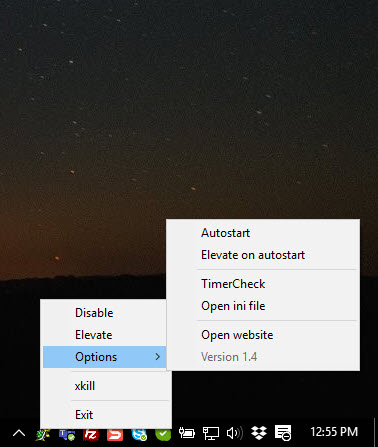
The utility consumes a few hundred kilobytes of memory at all times, registers two global hotkeys, and otherwise does nothing until activated. There is no installer, no background telemetry, no update agent, no scheduled scan. The executable runs from wherever you put it and creates a tray icon you can right-click to access settings or exit.
For users who already have AutoHotkey installed for other automation tasks, the same TerminateProcess functionality can be scripted in a few lines, but most people who would use this utility do not have AutoHotkey running and would rather drop a tiny dedicated executable on their machine than maintain a script for one function.
The choice is between dependency footprint and customization flexibility, and for the specific use case both options work fine.
Conclusion
SuperF4 is the utility you install hoping you will rarely need it, knowing that the moments when you do need it will be exactly the moments when nothing else works. The technical distinction between sending a close request and ordering the kernel to terminate a process is small in code and large in effect, and the application’s whole value comes from making that capability available through a keystroke that a frozen application cannot intercept.
The trade-off is real and worth respecting. The hotkey kills without saving, without confirming, without giving the target any chance to recover, which is precisely why it works when nothing else does and precisely why using it on a healthy application is destructive.
For users who routinely deal with hung programs, fullscreen games, or applications that refuse to close normally, the utility belongs in the same mental category as a fire extinguisher, idle most of the time, indispensable when the situation actually calls for it.
For users whose applications behave normally, the same tool sits in the tray doing nothing, and that idle state is the entire point.
Pros & Cons
- Bypasses Alt+F4's WM_CLOSE limitation by calling TerminateProcess directly
- Works on frozen and unresponsive applications that cannot process window messages
- Hotkey is captured by a low-level keyboard hook before fullscreen games can intercept it
- Optional click-to-kill mode covers background and indirect targets
- Tiny portable executable, no installer, no telemetry
- Open source, runs from a single file
- TerminateProcess gives the target no chance to save work or close cleanly
- Cannot kill admin-elevated processes unless the utility itself is running elevated
- The kill is unconditional, no confirmation prompt, an accidental hotkey ends whatever was in focus
- Configuration options are minimal, the utility expects sensible defaults will suit most users
- Low-level keyboard hooks occasionally conflict with other tools that monitor keystrokes
- The data-loss risk is the same as Task Manager's End Task, just easier to trigger by accident
Frequently asked questions
Alt+F4 sends a WM_CLOSE message to the foreground window, which is a request that the application must process. Frozen or unresponsive applications cannot process the request and therefore ignore it. SuperF4 calls TerminateProcess on the foreground window's owning process, which is a kernel-level operation the application cannot refuse or intercept.
Yes, both call the same TerminateProcess function and produce the same result. The difference is access speed and reliability. The hotkey works even when the keyboard is captured by a fullscreen game, while Task Manager requires you to reach a separate window that may not surface above the frozen application.
The most common cause is that the target process is running with administrator privileges while the utility is running as a normal user. The TerminateProcess call requires the calling process to have equal or greater privilege than the target. Restarting the utility as administrator fixes this for all subsequent kills.
Yes, the same as Task Manager's End Task. The process is terminated without any opportunity to flush buffers, save documents, or run cleanup code. This is acceptable when the application was frozen anyway, problematic if you triggered the hotkey on a working application that you could have closed normally.
The default hotkey targets the foreground window. Click-to-kill targets whatever window you click after activating the mode. This is useful when the problem window is in the background, when a system tray icon is misbehaving, or when you need to kill a specific child process inside an application that has multiple windows.
No. It runs from a single executable file you can place anywhere on the system. It creates a tray icon when running and exits when you close it. There is no installer, no registry footprint beyond optional configuration values, and no uninstall procedure beyond deleting the file.
Yes. Right-clicking the tray icon opens a settings dialog where the hotkeys can be reassigned. Changes apply immediately without restart. The configuration is stored in a small file alongside the executable.


