

VideoPad
About VideoPad
VideoPad is a video editor built for people who want to make a finished movie without first earning a degree in video editing. You drag your clips, photos, and music onto a timeline, trim what you do not want, drop in a few transitions and titles, and export. The whole thing is arranged around getting a watchable video out the door quickly, which is exactly what most people actually need.
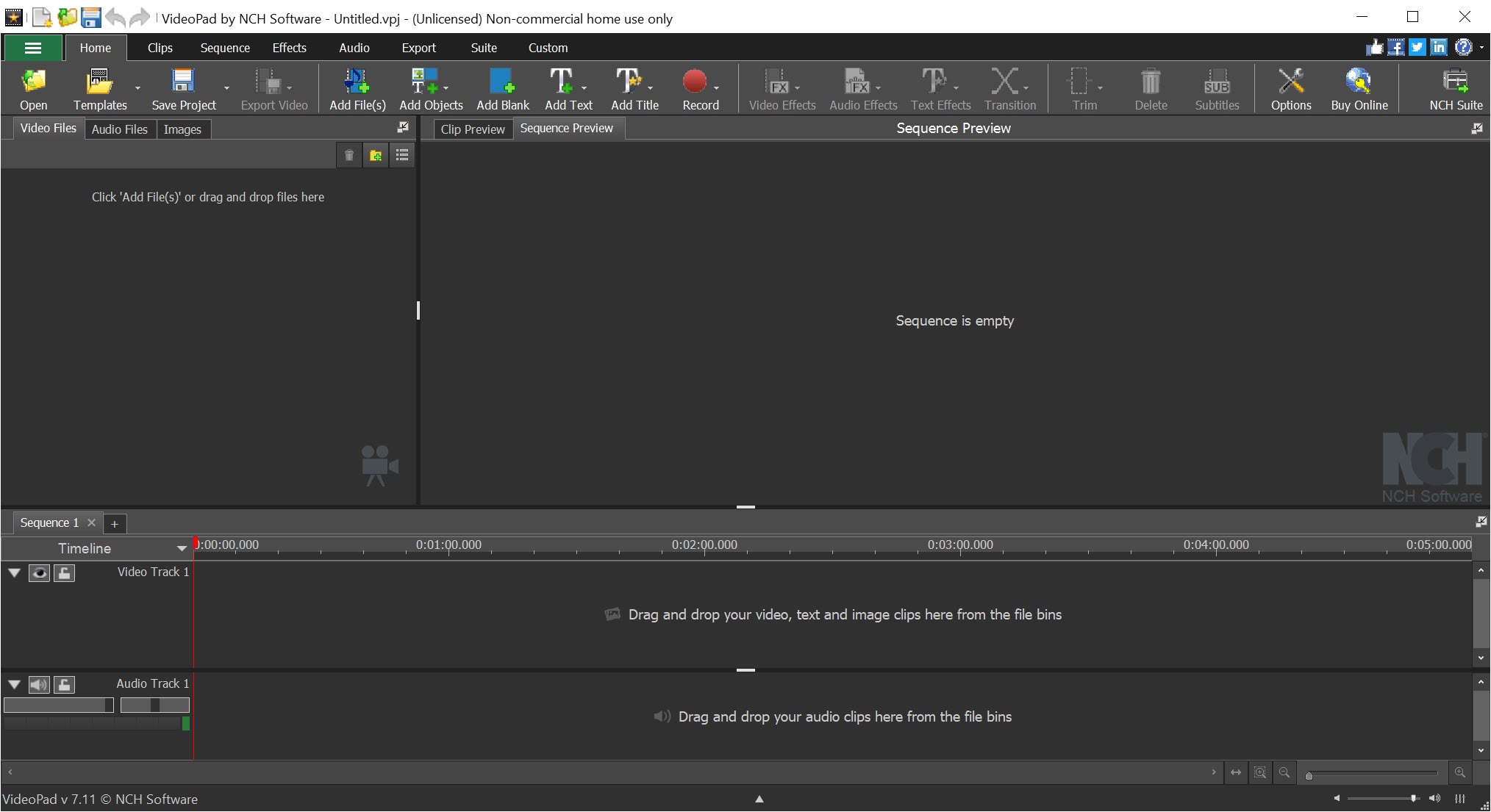
It works on a track-based timeline like the serious editors do, but it softens the intimidation factor in a clever way. VideoPad has a storyboard mode that lays your clips out as a simple sequence of cards, ideal when you just want to string footage together in order, and a full timeline mode for when you need real layering and precise control.
You can move between the two depending on how fiddly the job is, which makes the same program suit both a quick holiday montage and a more involved project.
Two preview windows sit at the top, and the split is helpful once you understand it. One shows the raw clip as you brought it in, the other shows the processed result with your effects, transitions, and titles applied. Being able to see before and after side by side takes a lot of the guesswork out of editing.
The editing toolkit covers the essentials and then some
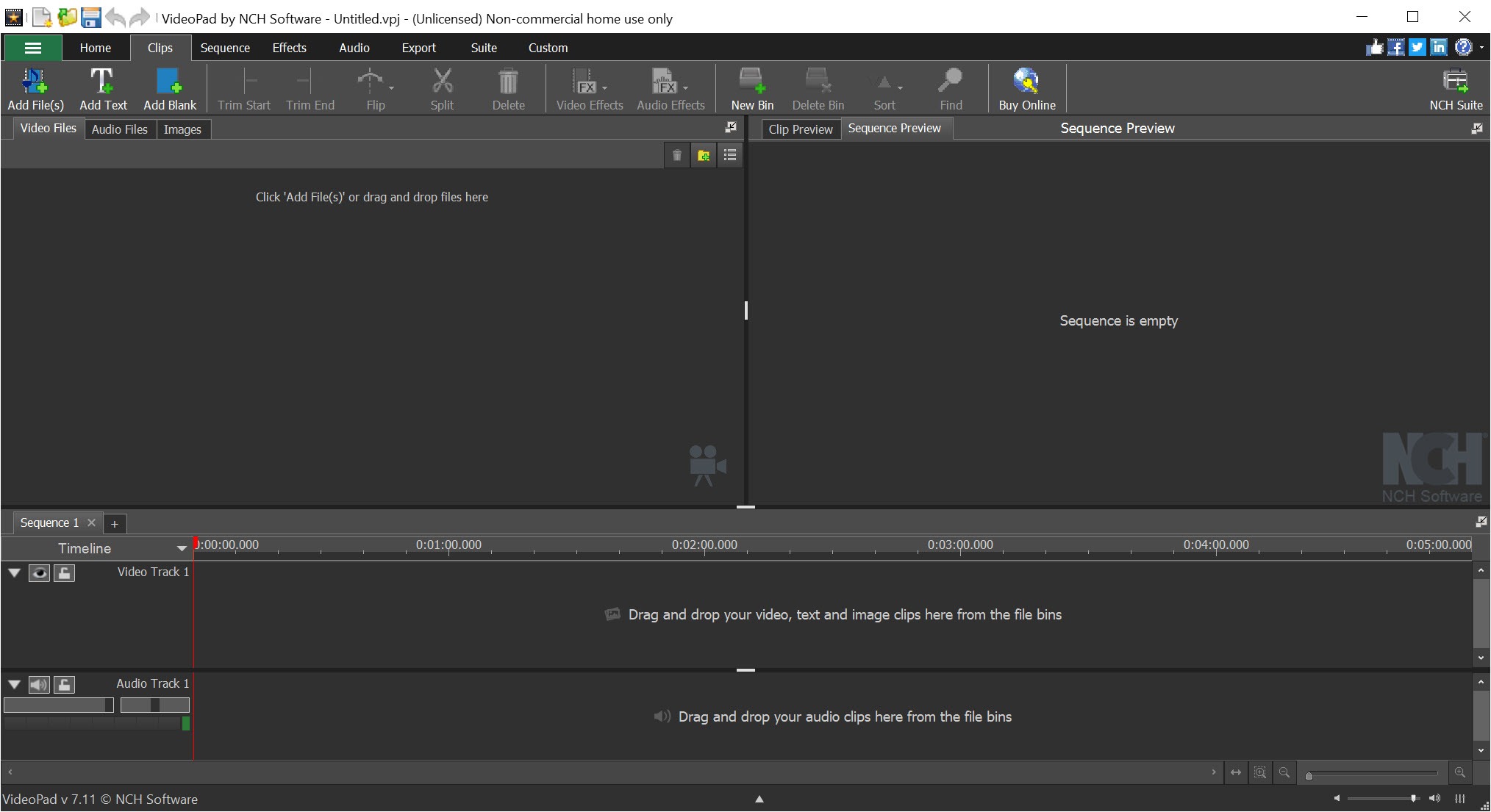
The core editing is what you would expect and it is all here. Cut, copy, split, trim, and duplicate, plus the ability to change clip speed for slow motion or fast forward, reverse a clip, and stabilize shaky handheld footage. That last one matters more than it sounds, because shaky phone video is the single most common thing that makes home movies look amateur, and a built-in stabilizer saves you from re-shooting.
On top of that, VideoPad carries a library of visual effects and filters running into the dozens. You get the practical color-correction tools, temperature, hue, exposure, brightness, saturation, color curves, and the more playful artistic filters like ripple, blur, two-tone, and x-ray for when you want a particular look. Effects apply to whichever clip you have selected, and you can fine-tune their strength rather than just switching them on and off.
Transitions get the same treatment, with dozens of fades, wipes, slides, and zooms available, and you can adjust how long each one runs. That variety lets a beginner make polished scene changes without thinking too hard about it.
Green screen, titles, and keyframes
Chroma key is the feature that punches above the program’s weight class. Shoot something against a solid green or blue background, and the tool can knock that background out and drop in whatever you like behind it. For a consumer-level editor to include proper green-screen compositing is unusual and useful, and it opens the door to effects that look far more advanced than the rest of the workflow.
Titles and text are well covered too. You can add captions and credits, build a storyline with on-screen text, and pull from animated title templates rather than building everything from scratch.
And for anyone ready to go a step further, there is keyframing support, which lets you animate properties over time, the building block of moving a title across the screen or having an effect ramp up gradually. It is a surprising amount of control for a tool aimed at beginners.
Audio is not an afterthought
A lot of easy editors treat sound as a checkbox. VideoPad takes it more seriously. You can stack a generous number of audio tracks, so your background music, narration, and the original clip sound all coexist, and each track gets its own volume control. Better still, there is a volume envelope you can draw directly on a track, raising and lowering the level at exact points, which is how you duck the music under someone talking without it sounding clumsy.
Recording narration happens right inside the program with a click, and there are audio effects like reverb, echo, and pan to shape the sound. There is even a text-to-speech feature that turns typed words into a spoken track, handy when you do not want to record your own voice. A bundled library of sound effects rounds it out.
Exporting and getting your video seen
When the edit is done, the VideoPad export options are broad. You can save to common formats like MP4, AVI, MOV, and WMV, target specific resolutions including HD and 4K, and tune the output for a particular device or platform. H.264 compression keeps file sizes reasonable without wrecking quality.
Beyond plain files, you can upload straight to YouTube and Vimeo from inside the program, burn a project to a DVD with menu templates, and batch export several versions at once.
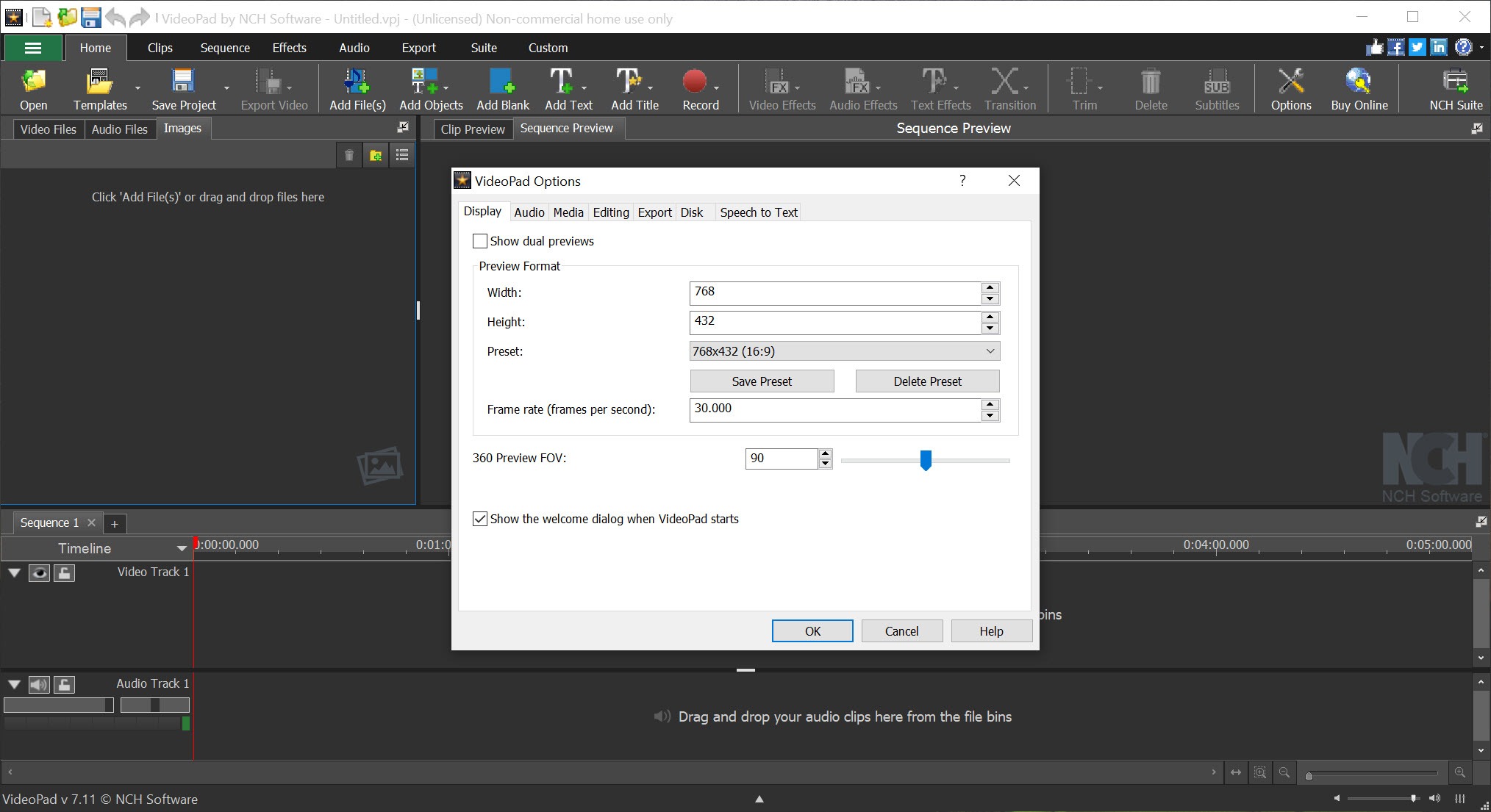
There is even 360-degree and 3D video editing for the more adventurous, letting you work with immersive footage and export it for a headset. For most people the everyday MP4 export is all they will touch, but the breadth is there when a project calls for it.
Where it fits and where it frustrates
In the crowded field of approachable editors, this lands in a useful middle. It is friendlier to a true beginner than the deep open-source options like Shotcut or VSDC, which pack in power but expect more patience. It is also far less daunting than a professional suite like DaVinci Resolve, which is enormously capable but overkill for trimming a few clips together. If your ambitions sit between those poles, this is a sensible place to be.
The frustrations with VideoPad are worth being honest about. The interface looks dated, with a busy, button-heavy layout that has not had a modern facelift, and newcomers can find it cluttered at first.
Stability can wobble too, with occasional crashes or export hiccups on bigger projects, so saving often is wise. None of that erases the value, but it does mean the experience is functional rather than slick.
Conclusion
VideoPad is for the hobbyist, the family-video maker, and the casual creator who wants to turn raw footage into something polished without a steep climb. It hits a practical sweet spot, more capable than the bare-bones tools, far less intimidating than the professional suites, and it throws in genuine extras like green screen and proper audio control that you would not expect at this level.
It is not the most modern-looking software, and it can stumble on heavier projects, so temper your expectations on polish and stability. But if your goal is to edit holiday clips, a YouTube video, or a simple project and actually finish it, this gets you there with room to grow. For a great many everyday editors, that balance of ease and capability is exactly the right fit.
Pros & Cons
- Drag-and-drop editing with both a simple storyboard and a full timeline mode
- Dozens of transitions and visual effects with adjustable strength and duration
- Built-in stabilization rescues shaky handheld and phone footage
- Chroma key green-screen compositing, unusual at this level of editor
- Serious audio handling with many tracks, volume envelopes, and narration recording
- Broad export options including HD, 4K, direct upload, DVD, and even 360 video
- The interface looks dated and can feel cluttered to newcomers
- Stability can wobble, with occasional crashes or export hiccups on larger projects
- Deeper effects work still lags behind dedicated professional tools
- The sheer number of buttons can overwhelm before the workflow clicks
Frequently asked questions
Yes. The drag-and-drop workflow and the simple storyboard mode make it approachable, while the full timeline and keyframing are there for when you want more control later.
Yes. It includes chroma key compositing, so you can shoot against a solid color background and replace it with another image or video behind your subject.
It exports to common formats such as MP4, AVI, MOV, and WMV, at resolutions up to HD and 4K, and can also upload directly to platforms or burn to DVD.
Yes. You can use multiple audio tracks, draw volume envelopes to fine-tune levels, record narration, apply audio effects, and even generate speech from text.
Yes. A built-in stabilization tool reduces camera shake, which is one of the quickest ways to make handheld or phone video look more professional.
Yes. It supports both 360-degree and 3D stereoscopic editing, letting you work with immersive footage and export it for compatible headsets.


