

VSDC Video Editor
About VSDC Video Editor
VSDC Video Editor treats a scene as a canvas rather than a strip of film. Instead of clips sitting end to end on one track, every element is an object you place anywhere in the frame and anywhere in time, resize and rotate, then blend against the others.
Drop three videos, a photo and a text block into one scene and they all coexist as separate objects with their own start points and their own properties. That approach is the reason the application feels strange for the first hour and powerful afterwards.
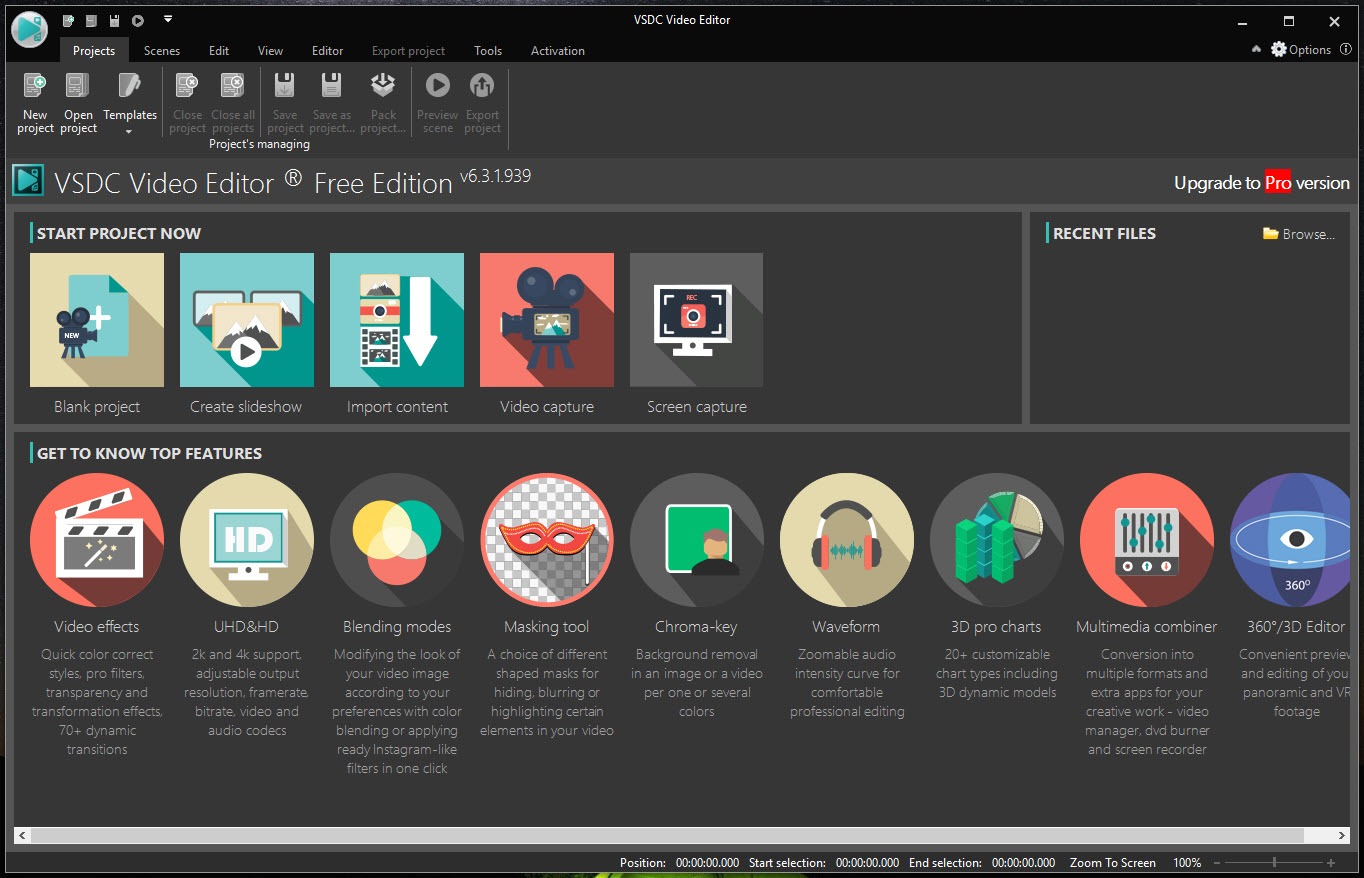
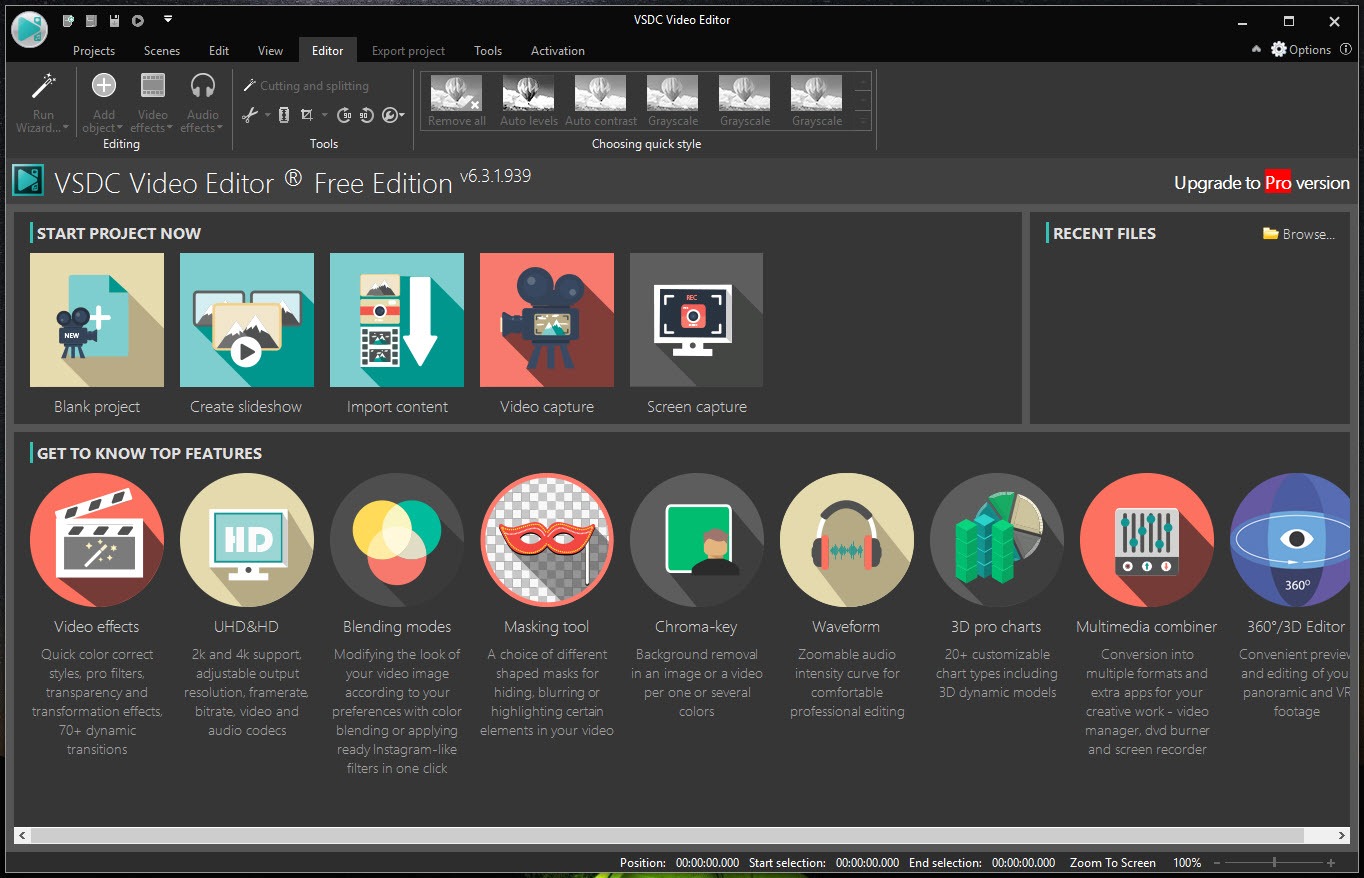
The rest of the package is unusually broad. A built-in converter opens practically any file you throw at it, including 4K and higher, 360 degree footage and 3D formats, so footage from an action camera needs no preparation. There is a screen recorder, a webcam recorder, a video downloader and a slideshow builder, all bundled rather than sold separately.
Export covers a long list of formats with per-parameter control over codec, resolution, frame rate and quality, plus ready-made profiles for the usual social platforms.
Objects on a canvas, not clips on a track
Each object in a VSDC Video Editor scene carries its own timeline inside the main one. Drag a video into the workspace and you can move it to any coordinate, scale it, rotate it, set its transparency and choose a blend mode against whatever sits beneath. Picture in picture is not a special feature here, it is just what happens when you put one object on top of another.
Scenes can be nested inside scenes, which is how complicated projects stay manageable. Build a title sequence as its own scene, then drop that scene into the main project as a single object.
It is the same idea as a composite shot in a dedicated effects application, and it is why HitFilm Express users find the mental model familiar even though the interfaces share nothing.
Discoverability suffers for it. Properties live in a panel on the right that changes depending on what is selected, and important controls sit several clicks deep. Expect to search for things you know exist.
Effects, plus grading and the chroma key
The VSDC Video Editor effects library runs past 200 entries covering transitions, distortions, glitch looks and elemental overlays, and a set of one-click filters aimed at social media. Colour work gets proper wheels, curves and LUT support, which is more than most editors at this level offer, and the grading panel now includes scopes for anyone matching shots by eye rather than by feel.
Chroma key is the split that matters. The basic keyer handles a single colour and does a respectable job on evenly lit footage. Multicolour keying, which is what you need when the screen has shadows or two shades of green, belongs to the paid tier. Masking works the same way, with simple shape masks available and the more capable masking tools gated.
Motion tracking attaches an object to something moving in the footage, so text follows a car across frame, and that is a paid feature as well. It works well when it works, but it needs high-contrast subjects and it will drift on a busy background.
The preview problem
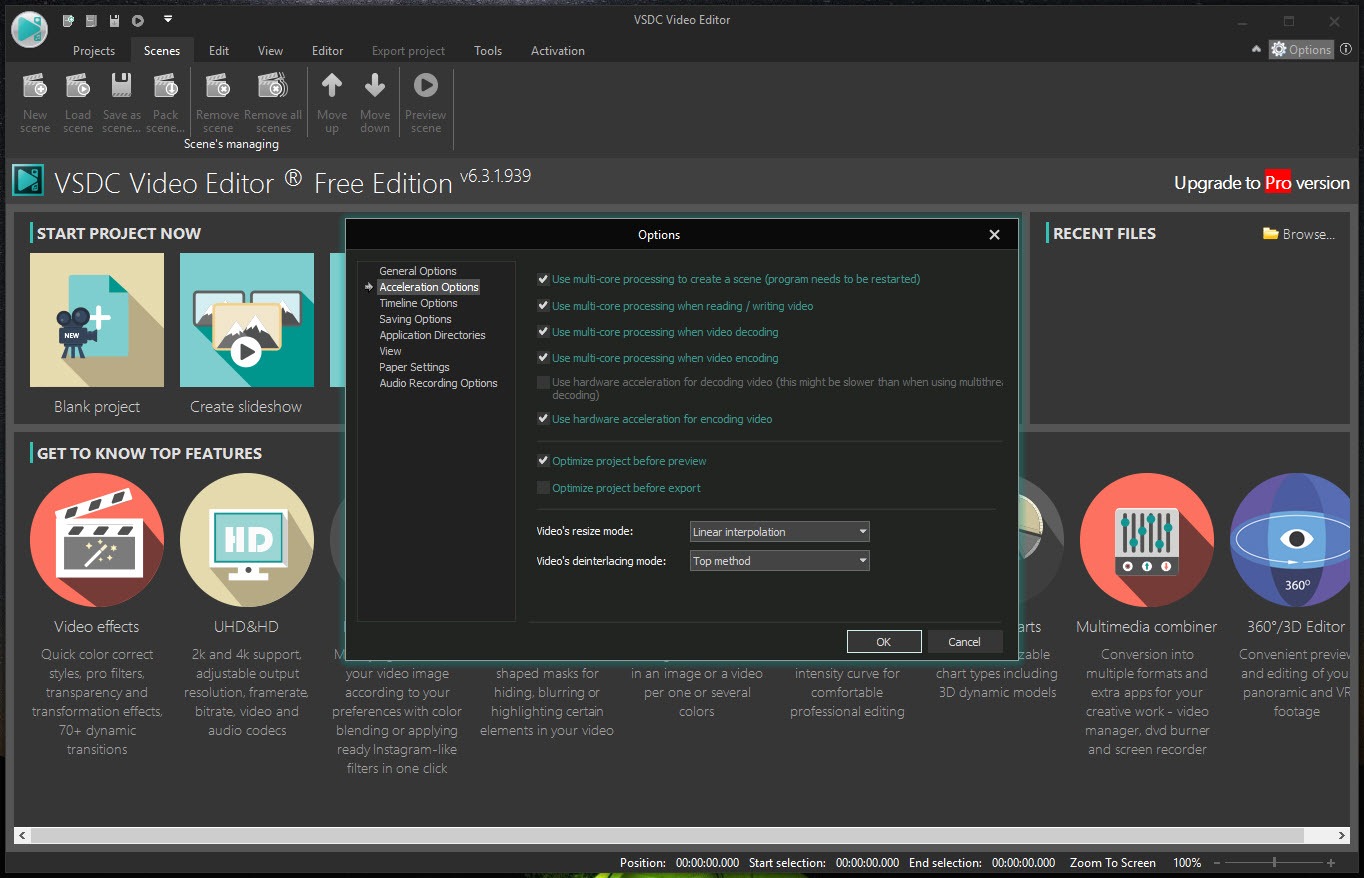
One complaint appears in almost every user thread. Playback of a complex scene inside the editing window is unreliable, and people report the preview opening in an external player rather than in the panel, which breaks the rhythm of editing badly. The root cause is usually processing load, since hardware acceleration sits behind the paid tier.
There are ways around it. Lower the preview quality from the dropdown above the window, use proxy files for high-resolution footage, and pre-render sections you have finished.
On 4K material without acceleration, editing turns into a slideshow no matter what you do, and that single limitation decides whether VSDC Video Editor works for you more than any feature on the list.
Audio, and what it does not do
Audio in VSDC Video Editor gets its own effects, including amplitude adjustment, normalisation, noise gate and a handful of filters, plus voice over recording. Multiple audio tracks layer the same way video objects do.
The waveform display, which is how you sync audio to picture, is a paid feature. Editing to the beat without seeing the waveform is an awkward exercise, and it is the gating decision most likely to annoy someone who arrived expecting a complete editor.
For music-led work, a timeline editor with visible waveforms will get you there faster even if it does less elsewhere.
Exporting, and the machine underneath
The VSDC Video Editor export dialog is one of the most detailed in this bracket. Pick a profile or set every parameter by hand, queue several outputs, and send the result straight to a video platform from the interface. No watermark appears on the output at any tier, which many rivals cannot claim.
System demands are modest and the application runs on hardware that would defeat DaVinci Resolve before it finished loading. That is the real argument for it, that an old laptop can do layered compositing here and nowhere else.
Stability is the counterweight. Crashes during long sessions with large files come up often enough in user reports that saving frequently is not paranoia, it is procedure.
Conclusion
VSDC Video Editor suits someone on modest hardware who wants layered compositing rather than simple cuts, and who is willing to spend an evening learning where everything hides. Slideshow makers, social media editors and anyone building motion graphics on an old laptop get capability here that rivals reserve for machines twice as powerful.
It is a poor fit for fast-turnaround cutting, for music-led editing without the waveform, and for anyone who expects the preview to keep up with 4K footage. Test your own material early, because the difference between this being excellent and unusable is almost entirely about what your machine can play back.
Pros & Cons
- Objects placed freely in space and time rather than locked to a track
- Nested scenes keep complicated projects organised
- Opens practically any format without conversion, including 4K, 360 and 3D
- Colour wheels, curves, LUT support and scopes included
- Screen recorder, webcam capture and downloader bundled in
- No watermark on exported video at any tier
- Preview playback struggles without hardware acceleration
- Audio waveform display and multicolour keying sit behind the paid tier
- Controls buried in context-sensitive panels are hard to find
- Crashes reported during long sessions with large files
- No speed curve for gradual slow motion ramps
Frequently asked questions
The scene is too heavy for software-only playback. Drop the preview quality, use lower-resolution proxy files, and pre-render finished sections before continuing.
Every element is an object you can place at any position in the frame and at any point in time, layered over the rest and blended with them, rather than a clip locked into a single track.
Yes. Export resolution is not capped and no watermark is applied. Editing 4K comfortably is the harder part, since acceleration is a paid feature.
Only in the paid tier. Without it, syncing cuts to music means working by ear and by timecode.
Add both to the same scene and position the upper object where you want it. Set its size and transparency, then its blend mode, in the properties panel. No separate picture-in-picture tool is needed.


Too slow to create the video in the free version. Not good at all in that.