

BlackFog Privacy
About BlackFog Privacy
BlackFog Privacy watches the traffic leaving your computer rather than the traffic arriving. That inversion is the whole idea. An antivirus tries to stop something bad getting in. This application assumes something already did, or that an ordinary program is quietly phoning home, and it blocks the outbound connection before any data reaches the other end.
Ads, trackers, ransomware command servers, cryptomining pools, Tor exit points and whole countries can all be cut off at the packet level, for every program on the machine, with no browser extension involved.
That puts it next to outbound firewalls and system-wide ad blockers rather than next to a security suite. GlassWire shows you the same outbound traffic and asks you to decide. BlackFog Privacy decides for you from its own lists and behaviour rules, then shows you what it blocked.
It is meant to run beside an antivirus, not replace one, and it does nothing about a virus that stays on the disk and never talks to anyone.
Blocking by destination, not by file
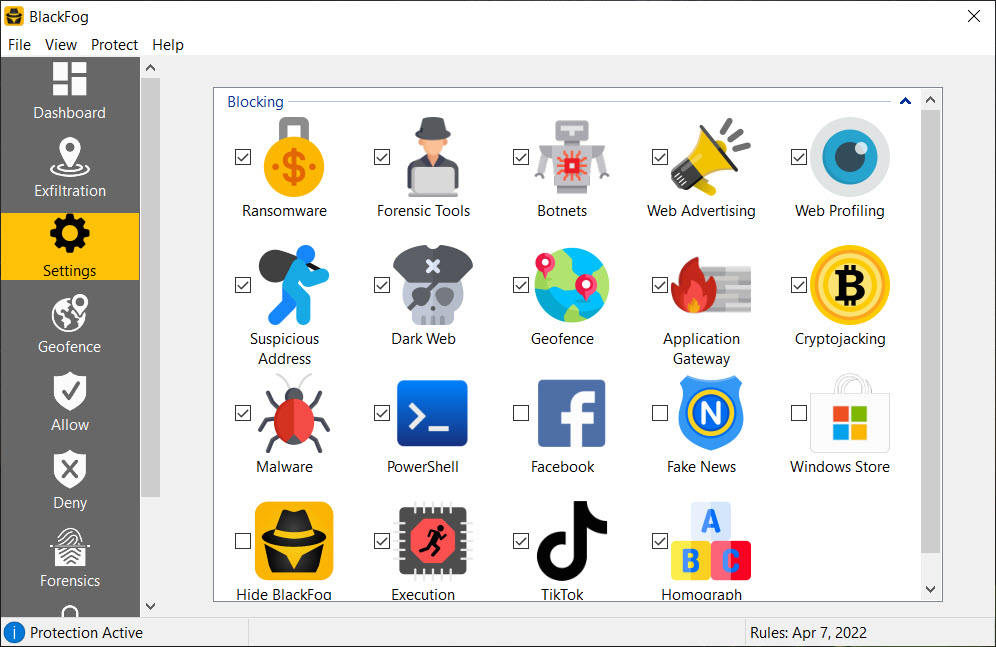
The core engine inspects every outbound packet, on every port and interface, and matches the destination against categories you toggle in Settings. Advertising and web profiling cover the tracker networks and behavioural data collectors, and they work in every browser and in desktop programs that embed ads, because the block happens below the browser.
The empty banner frames stay on the page, which a system-wide ad blocker hides more cleanly, but the request never leaves the machine.
The ransomware, botnet and phishing toggles, plus the cryptojacking one, draw on a list the application quotes at more than 26 million addresses, including known command and control servers. Suspicious IP blocking refuses connections made straight to a numeric address with no domain name, on the reasoning that malware does this and ordinary software almost never does.
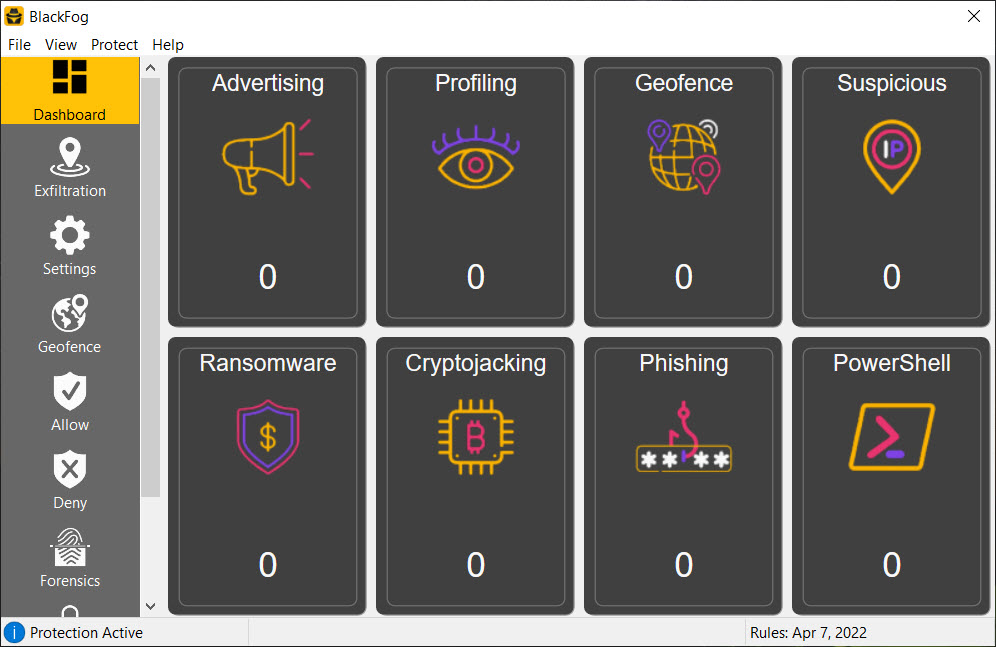
Dark web blocking stops any program reaching Tor, which also means Tor Browser stops working while it is on. Each category has a tile on the dashboard showing how many blocks it made, and clicking through lists the date and hostname of every one, with the process and port beside them.
Geofencing and the exfiltration map
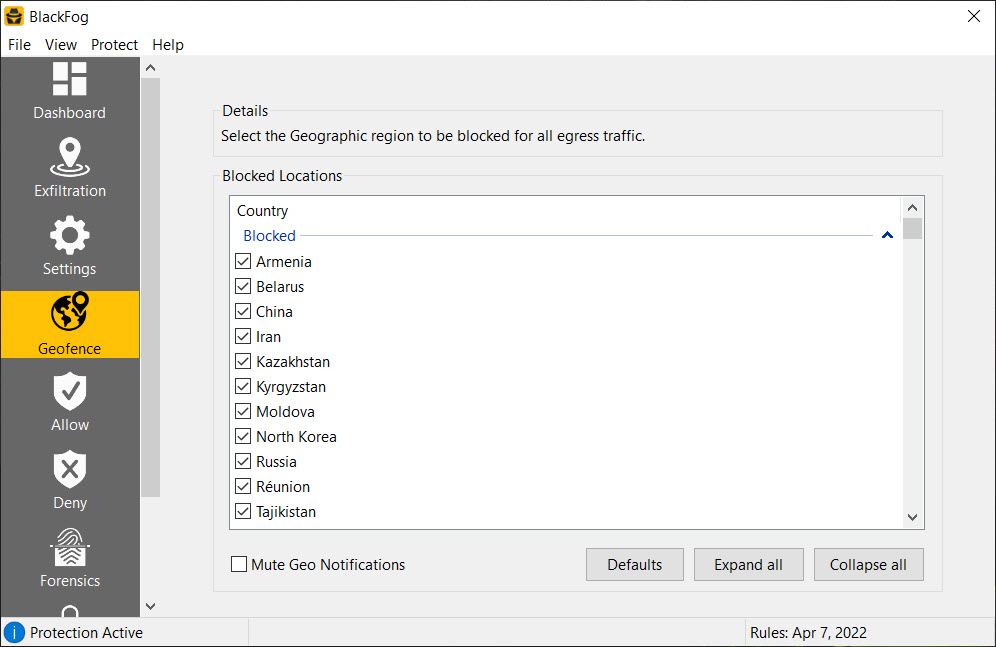
Geofencing is the feature nobody else in this bracket offers. Pick countries from a list and no data leaves the machine for servers located there, regardless of which program is sending it. The obvious use is cutting off the handful of countries where most attacks originate. The less obvious one is finding out which of your installed programs talk to servers somewhere you did not expect, because the geofence tile will tell you.
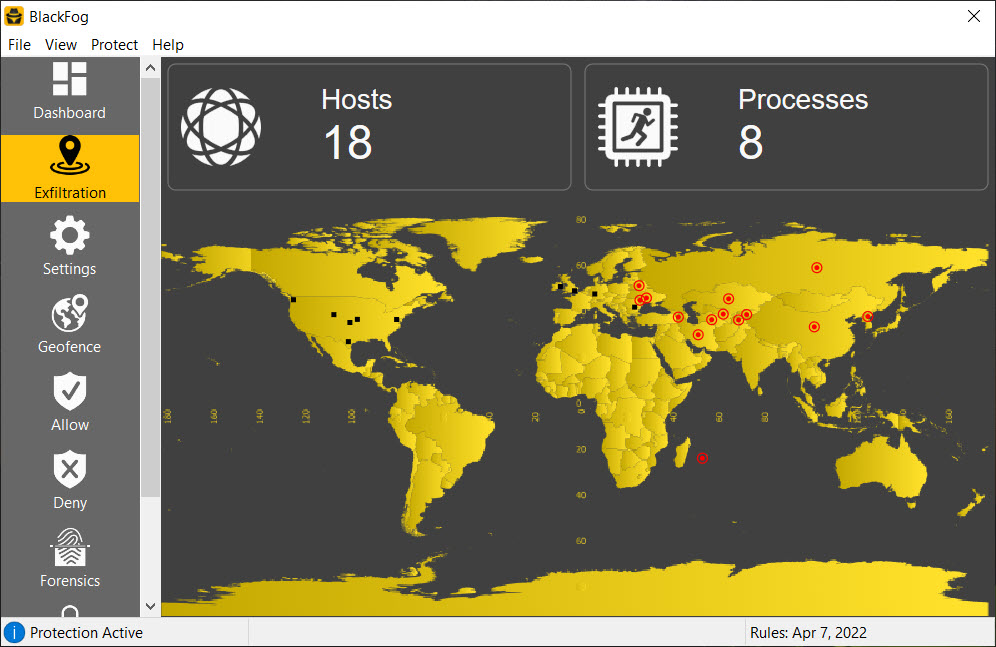
The exfiltration map draws that as a world map, updated every 60 seconds with up to 100 destinations shown as black squares and your geofences as red circles. Click the Hosts or Processes icon and a window lists each destination with its domain and country and the process that sent the traffic.
It is the most useful screen in BlackFog Privacy for understanding a machine, and it is also the reason many people keep the application running after the novelty fades. Daily and weekly traffic views and a CSV export of network traffic round it out.
GlassWire draws a similar live picture of connections but leaves every block decision to you.
Behaviour rules and the forensics angle
A second layer in BlackFog Privacy works on behaviour rather than addresses. PowerShell protection watches for scripts that launch straight into memory and pull down a payload, kills them, and lets ordinary scripts run. Execution prevention validates executables and flags processes that have been spoofed or hijacked. Application gateway blocks non-web traffic tunnelled over the web ports, a common trick for slipping past a plain firewall.
There is also a switch that detects and terminates third-party forensic and remote access tools, including some that laptop makers preinstall, which is an unusual thing to find in consumer software and a useful one on a second-hand machine.
Then there is the Forensics window, which is a privacy cleaner. It wipes browser history and cookies, plus cache and crash reports, on a schedule, every four hours by default, with a choice of secure deletion method up to a multi-pass wipe.
It is not as thorough as a dedicated file shredder for individual files, and it does not clean application junk the way a system cleaner does. Treat it as a bonus.
Allow lists, install mode and the things that break
Blocking this aggressively has consequences, and BlackFog Privacy gives you the tools to live with them. The Allow list exempts domains you need, and the Deny list adds your own. Install Mode suspends all policies for 15, 30 or 60 minutes so an installer that needs to phone home can finish. You will use it, because the direct IP block and the geofences do trip legitimate software. Cloud sync clients hosted in a fenced country, game launchers connecting by IP, and remote desktop tools have all been reported hitting the wall.
Two toggles deserve particular care. The Facebook profiling block stops the tracking pixel on every site, and also stops you opening Facebook at all. The fake news block works from a curated list of sites, and what counts as fake news is somebody else’s editorial judgement, so check the Events log before assuming a site is down.
The dashboard and the resources it uses
The interface is a fixed-size window with a strip of icons on the right for Dashboard, Exfiltration, Settings, Geofence and the rest. It cannot be resized, it is English only, and there is no dark theme. The Events view keeps the most recent 256 blocks with timestamp, type, domain or IP and port, which is enough for troubleshooting and not enough for an audit. Resource use is small, with memory in the tens of megabytes and CPU that sits at a percent or two on a busy machine.
An outbound firewall such as Fort Firewall gives you finer per-program rules with no lists at all, and the two approaches suit different temperaments.
Conclusion
BlackFog Privacy is for someone who wants to know where their computer is sending data and to stop most of it, and who already has an antivirus for the part this application ignores. People handling sensitive files, anyone who has been through a ransomware scare, and the curious who want to see the map will get the most from it.
It is not a set-and-forget product for someone who wants everything to keep working silently. The first week involves the Allow list and Install Mode more than you would like. After that it settles down, and the outbound view it gives you is one that nothing else in the home security bracket offers as directly.
Pros & Cons
- Blocks outbound traffic by category for every program, without browser extensions
- Geofencing cuts off whole countries and reveals which programs talk to them
- Exfiltration map shows every destination with the process that sent the data
- PowerShell and execution prevention catch fileless attacks by behaviour
- Install Mode and allow lists make the aggressive defaults liveable
- Blocked ads leave empty frames on the page
- Direct IP and geofence blocks interrupt legitimate cloud and game clients
- Fixed-size window, English only, no theme options
- Events log stops at 256 entries
- Facebook block makes Facebook itself unreachable
Frequently asked questions
No. It blocks outbound connections and suspicious behaviour but does not scan or remove files from disk. Run it beside an antivirus.
It is probably connecting straight to an IP address or to a server in a geofenced country. Check the Events log, then add the domain to the Allow list or use Install Mode for the installer.
Yes. Open Geofence, add the country and toggle it on. Every outbound connection to servers located there is blocked and counted on the dashboard.
Yes. Blocking happens at the network level below the browser, so ads and trackers, along with phishing sites, are blocked in any browser and in desktop programs too.


