

VoiceMeeter Banana
About VoiceMeeter Banana
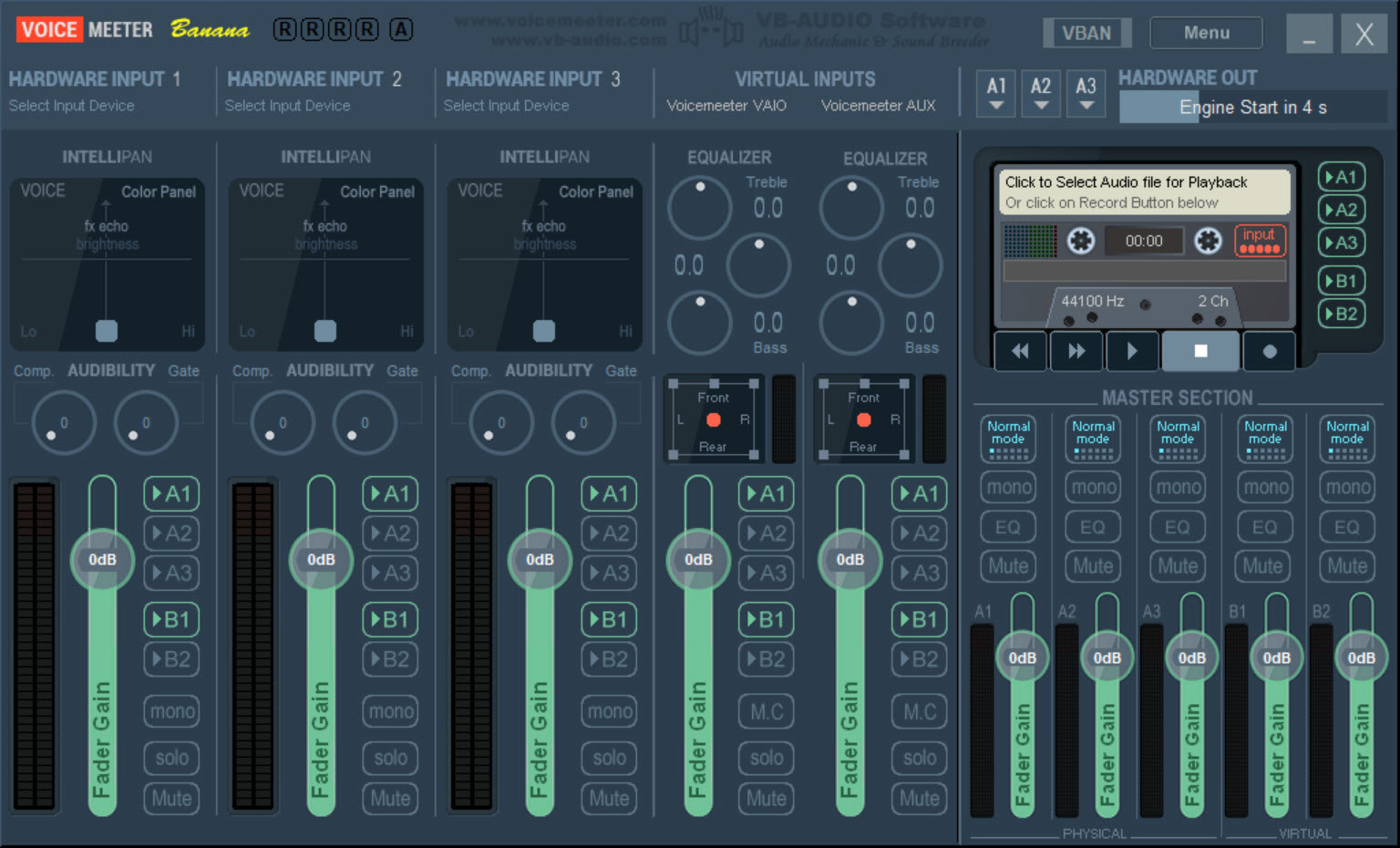
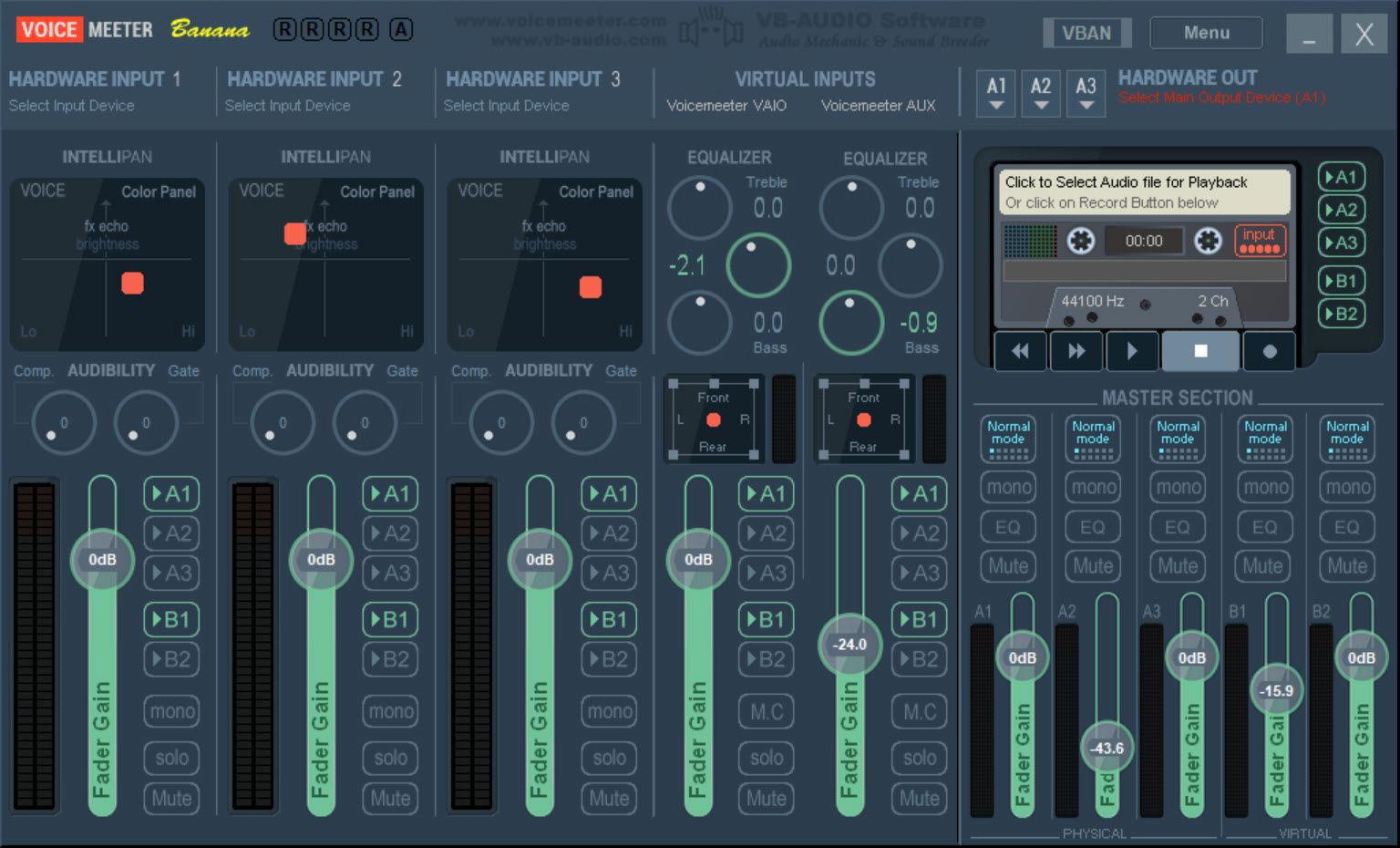
VoiceMeeter Banana is a mixing desk that lives in software. Five input strips run down the left, three for physical devices such as microphones and capture cards and two virtual ones that programs can send sound to. Five output buses sit on the right, three for physical devices, A1 to A3, and two virtual ones, B1 and B2, that other programs can record from as if they were microphones. Every strip has a fader and five buttons, one per bus, and pressing them decides where that strip’s sound goes. That is the entire model, and everything the tool does follows from it.
The reason it exists is that a computer normally has one output and one microphone input, and a streamer, a podcaster or anyone on a call wants more. Game audio in the headphones but not in the voice chat. Music the stream hears at one level and you hear at another.
A microphone with a gate and compressor before it ever reaches the meeting software. VoiceMeeter Banana installs virtual audio devices that appear in the system’s sound settings, so any program can be pointed at a strip or a bus, and the routing happens in the mixer window.
Strips and buses across the routing grid
Each VoiceMeeter Banana hardware strip takes a device from a dropdown, with the same device often listed several times under different driver types. WDM is the one to choose for low latency and stability, MME the fallback for stubborn USB hardware, and ASIO for interfaces that provide it. The two virtual strips receive whatever programs are pointed at the virtual inputs, so one carries system sounds and a game while the other carries a voice chat client, and they can be treated separately.
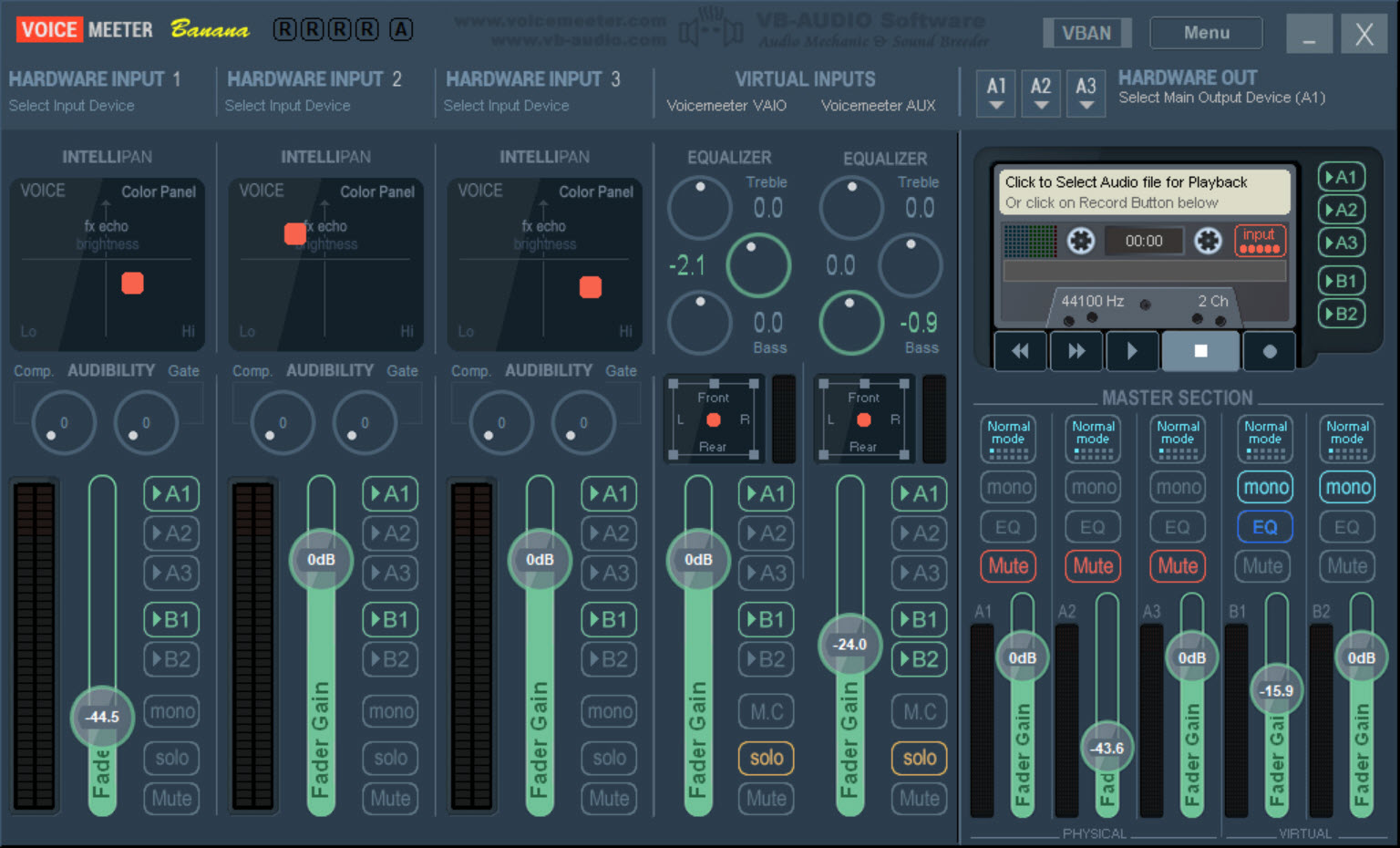
The A1 to A3 and B1 and B2 buttons on each strip are the routing grid. Send the microphone to A1 to hear yourself in the headphones, to B1 so the streaming software receives it, and leave B2 off so a second program does not. Send the game to A1 and B1 but not B2, and the chat client on B2 hears your voice without the game.
A fresh install routes everything everywhere, which is why the first launch produces echo and confused callers. Turning buttons off is the first task, and renaming strips by right-clicking their labels is the second.
Processing on every strip
The VoiceMeeter Banana hardware strips carry a gate, a compressor and a colour panel. The gate silences the microphone below a threshold, which removes keyboard clatter and fan noise between sentences. The compressor evens out the difference between a whisper and a laugh so the level stays steady.
The colour panel is a two-dimensional pad that tilts the tone towards bass or treble and adds a controlled reverb, a quick fix for a thin microphone or a boxy room. A mono button sums a single-capsule microphone to both channels so it does not sit in one ear.
Each bus has a parametric equaliser with several bands, so the headphone mix can be tuned for the headphones and the stream mix left flat. The equalisers are capable and the interface for them is dense, and most people set them once and never touch them again. Anyone who wants system-wide equalisation outside the mixer can layer a system-level equaliser on top, though for the buses here the built-in one is enough.
The recorder and the macro buttons
A cassette-styled recorder in the middle of the VoiceMeeter Banana window captures a bus or a strip to disk in WAV, MP3, AIFF and other formats, and plays files back into the mix. It is the quickest way to check what the stream is actually hearing, and it doubles as a jingle player for anyone who wants a stinger under a button. Recordings of a whole call, with each side on its own bus, come out clean enough to edit afterwards.
A separate macro button application installs alongside and gives you a grid of buttons that fire scripted actions, mute this strip, switch that bus, load a preset, with keyboard shortcuts or a MIDI controller as triggers. It is how a push-to-talk key or a controller scene change ends up driving the mixer, in a small script language the manual documents.
Latency and the two settings that matter
Two settings decide whether VoiceMeeter Banana runs cleanly. The output device on A1 sets the master clock, and a stable device there, ideally a real sound card or a good USB interface, keeps everything in time. The buffer size in the system settings menu trades latency against stability, and lowering it until crackles appear, then backing off one step, is the tuning method. Outputs A1 to A3 are not perfectly synchronised with one another, so the same signal on two hardware outputs can drift slightly, and the manual says so.
Restart after installation, and again after a system update that touches audio drivers, because the virtual devices sit at the driver level. When a microphone stops arriving, the cause is almost always a driver type that changed, a device that renamed itself, or a strip whose bus button was knocked off. For switching the default output device quickly outside the mixer, a tray switcher pairs well with it.
Where it gets awkward
The VoiceMeeter Banana window looks like a hardware console and offers no explanation for anything, so the manual is compulsory reading, particularly its opening setup steps. Five strips and five buses are enough for most desks and not for everyone, and the larger sibling adds more of both.
Programs that grab an audio device exclusively can fight the virtual inputs, and a change of default device by a game or a browser update can silently reroute sound until you notice.
None of that goes away with practice, and the first week involves more troubleshooting than most utilities demand. For routing a single program’s output to a chosen device without a mixer, a per-application audio router is the lighter option.
Conclusion
VoiceMeeter Banana suits streamers and podcasters, and anyone whose calls and games and music need to reach different ears at different levels. Once the strips are named and the routing buttons are set, it does the work of a hardware mixer and a rack of processors, and the recorder and macro buttons turn it into something closer to a small studio.
It demands an evening with the manual and a tolerance for driver quirks, and people who only want one program on one output should not install it. For the desk that has outgrown a single stereo pair, it is the standard answer, and the reasons it became the standard are all in the routing grid.
Pros & Cons
- Three hardware and two virtual inputs routed to three hardware and two virtual buses
- Gate and compressor, plus a colour panel, on every hardware strip
- Parametric equaliser on each output bus
- Built-in recorder and player for checking mixes and firing jingles
- Macro buttons with keyboard and MIDI triggers for scripted control
- Virtual devices work with any program that selects an audio device
- Interface explains nothing, and the manual is mandatory
- Default routing sends everything everywhere and causes echo until fixed
- Hardware outputs are not perfectly synchronised with each other
- Driver changes and updates can silently break the routing
Frequently asked questions
The virtual input carrying system sound is routed to the bus your call software records from. Turn off that bus button on the game strip and leave it on for the microphone only.
The microphone strip is routed to your headphone bus. Turn off A1 on the microphone strip unless you want to monitor yourself.
WDM for most devices, since it has the lowest latency and best stability. Use MME only for hardware that misbehaves, and ASIO for interfaces that provide it.
Yes. The built-in recorder captures any bus or strip to WAV, MP3 and other formats, so each side of a call can go to its own bus and be recorded separately.


