

SymMover
About SymMover
SymMover moves an installed program or game to another drive and leaves a symbolic link where it used to be. The system, the launcher and the program itself keep looking in the old place, find the link, and are quietly redirected to the new one, so nothing has to be reinstalled and no registry entry has to be edited. It exists for the machine with a small solid-state boot drive, a large data drive, and a games folder that has quietly eaten the first.
It is one of a handful of tools built on the same trick, alongside FolderMove and the Steam-specific movers, and the underlying command has been in the operating system all along. What SymMover adds is a two-pane window that keeps track of what you moved, lets you move it back with one click and shows the free space on both drives changing as you go.
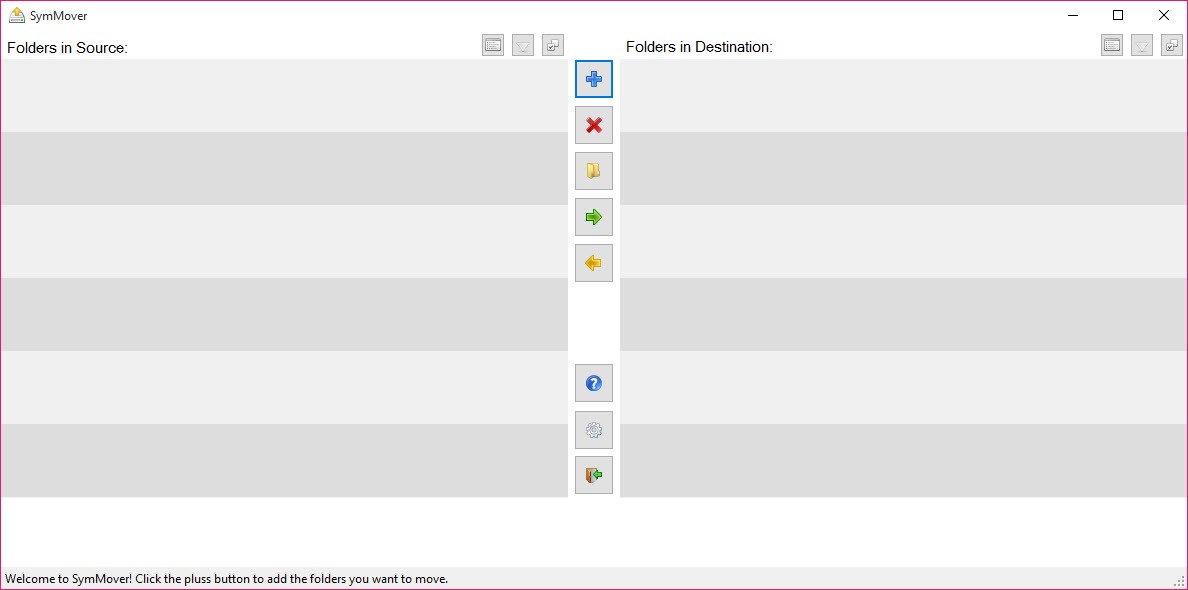
Two panes and a free-space readout
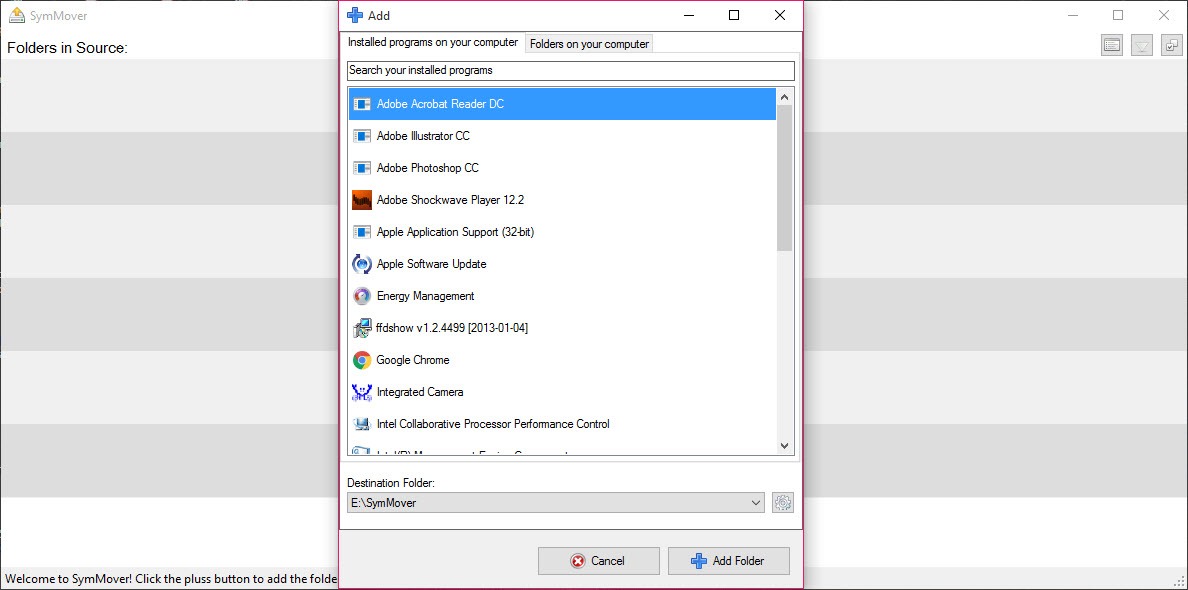
The left pane of SymMover lists the folders you have chosen to manage and the right pane shows where they live now. Add opens a list of installed programs so you can pick one by name, or you can browse to any folder, since the tool does not care whether the folder contains a program at all. The destination defaults to a folder named after the program on the second drive, and all moved folders gather under that one parent unless you change it.
Between the panes sit two arrow buttons. One moves the selected folder out and creates the link, the other reverses it, deleting the link and moving the files home. Above them, the free space on the source and destination drives is shown live, which turns the whole exercise into watching one bar shrink while the other grows.
Move a folder while its program is running and the operation fails part-way with files still locked, so close the program first.
What follows the link, and what refuses to
The redirection is transparent to almost everything. Shortcuts, uninstallers, save-game paths and launchers follow the link without knowing it is there. Two categories cause trouble. A few anti-cheat systems and copy-protected launchers check the real path of the executable and refuse to start from a linked folder, and folders belonging to the operating system or the user profile should be left alone, since updates and store applications resolve those paths in ways a link does not always satisfy.
For the profile folders there is a proper relocation setting in the folder’s own properties, which is the correct route.
One inventory of where everything went
The other consequence people forget is that the files now live in two places conceptually and one place physically. Reformat the boot drive and the links vanish while the data on the second drive remains, orphaned. Delete the destination folder by hand and the link points at nothing.
SymMover keeps its own list of what went where, and that list is the only inventory you have, so do not clear it.
Where it falls short of the built-in command
The link type created is the standard directory symbolic link, which is why administrator rights are needed on every launch and why both drives must be NTFS. There is no option to create a junction instead, which some older programs tolerate better, and no way to move a single file or a folder inside an application while leaving the rest, since the unit is always a whole top-level folder. For anything finer than that, the mklink command in a prompt does the job with more control and less comfort.
Moving in SymMover is a plain file copy followed by a delete, with no verification pass and no pause and resume. On a large game folder that means a long wait and a strong preference for not touching the machine until it finishes.
If the copy itself is the worry, a copier that verifies every file after the transfer can do the move, after which this tool’s link-only mode has nothing to offer, since it always moves and links together.
Conclusion
SymMover is for the owner of a small boot drive who has two or three large games or suites they would rather relocate than reinstall, and who wants a window that remembers where everything went. For that person it does exactly one job and undoes it just as easily.
Anyone who needs to move dozens of items, verify the copies or pick and choose inside a folder will outgrow it quickly and end up at the command prompt, which is where the trick came from in the first place.
Pros & Cons
- Moves whole program folders between drives without reinstalling
- One-click move back that removes the link and restores the original layout
- Live free-space display for both drives during the operation
- Works on any folder, not only recognised installations
- Whole top-level folders only, no partial moves
- No verification of the copied files
- Symbolic links only, with no junction option
- Some anti-cheat launchers refuse to run from a linked folder
Frequently asked questions
Almost always because the program in that folder is still running and holding files open. Close it, including any background updater or tray helper, and run the move again.
Better not. Profile folders and system folders resolve paths in ways a symbolic link does not always satisfy. Use the Location tab in the folder's own properties, which relocates it properly.
The links on the boot drive are wiped with everything else, while the moved folders stay intact on the second drive. The programs will need reinstalling, but their data and settings inside those folders survive, which is more than a normal wipe leaves you.


