

WD Universal Firmware Updater
About WD Universal Firmware Updater
Drives run their own software, and occasionally the manufacturer issues a corrected version of it. WD Universal Firmware Updater finds Western Digital drives attached to the machine, checks whether a newer firmware exists for each one, and applies it.
The WD Universal Firmware Updater scope is fixed by the brand. Drives from Western Digital are recognised and drives from anybody else are not, so this belongs on a machine holding that manufacturer’s hardware and nowhere else.
Before running it at all, the question worth answering is whether you should.
Firmware is not like other updates
Here is what makes a WD Universal Firmware Updater run different from every other kind of update, and it is the reason to read before clicking.
A driver update that goes wrong can be rolled back. An application that misbehaves after updating can be reinstalled. Firmware is written into the drive itself, and a write that fails partway can leave the drive unable to start at all.
That outcome is rare and it is not theoretical. Power lost during the write, a machine that sleeps mid-update, or a cable knocked loose are each capable of producing a drive that no longer identifies itself.
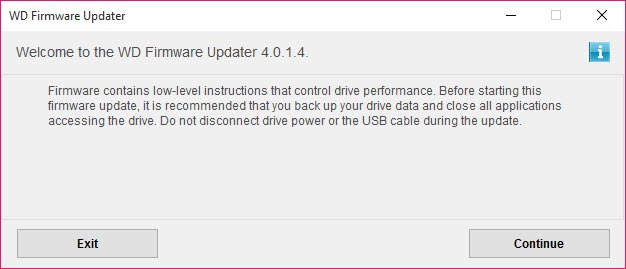
So the precautions are not ceremony. Back up anything irreplaceable first, use mains power rather than a battery, close everything else, and do not touch the machine until it finishes.
Checking the drive’s condition beforehand is the sensible first step, and CrystalDiskInfo reports the health attributes and the exact model in seconds.
Update when there is a reason, not on principle
This is where storage differs from the general advice, and it decides whether to open WD Universal Firmware Updater at all.
Security software should always be current. Firmware should be updated when the update fixes something that affects you.
Drive firmware releases usually correct specific behaviour, meaning a compatibility problem with certain controllers, a performance fault under particular conditions, or in the serious cases a bug that can corrupt data. Reading what a release addresses tells you whether it describes your situation.
If it does not, the update is risk without benefit. If it does, particularly where data integrity is involved, it is worth doing carefully rather than avoiding.
That reasoning is the opposite of the habit most people apply to software, which is why the advice needs saying rather than assuming.
On an external drive, treat it more carefully still
One case deserves separate mention, because it is where a WD Universal Firmware Updater run goes wrong most often.
External drives sit behind a bridge chip converting one connection type to another, and they draw power through the same cable that carries data on many models.
That makes an interruption more likely rather than less. A cable that moves, a port that cannot supply steady power, or a hub between the drive and the machine all introduce failure points that an internal drive does not have.
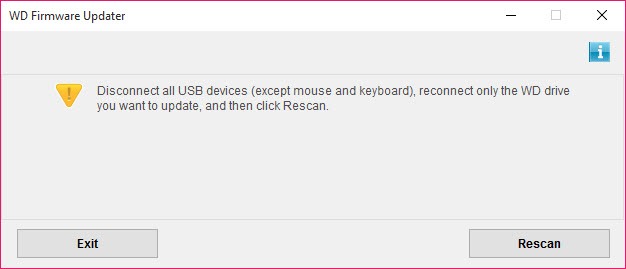
Connecting an external drive directly to the machine rather than through a hub, on a cable that will not be disturbed, removes most of that.
And if the worst happens without a backup in place, a recovery tool that previews what it finds before restoring is where the evening goes instead.
After it finishes
Confirming the WD Universal Firmware Updater result takes a minute and closes the loop.
The drive should report the new firmware version and its health attributes should look as they did before. A drive that comes back reporting errors it was not reporting previously deserves attention rather than assumption.
If the drive is behaving oddly afterwards, a file system check is the next step rather than a second firmware attempt, and CheckDiskGUI runs the system’s own check from a window with the options labelled.
Conclusion
WD Universal Firmware Updater does a narrow job simply, finding the manufacturer’s drives and offering whatever firmware is available for them without you hunting model numbers.
The decision about whether to run it matters more than the software. Firmware is the one update category where a failure is not recoverable, so back up first, connect properly, and update because a release fixes something that affects you rather than because a newer number exists.
Pros & Cons
- Finds the manufacturer's drives automatically rather than requiring model numbers
- Covers internal and external drives from the same brand
- Single tool rather than hunting a separate package per drive
- Free, from the same source as the hardware
- Works with one manufacturer's drives only
- A failed firmware write can leave a drive unusable, unlike a driver update
- External drives introduce extra interruption risks through cables and hubs
- Updating without a reason is risk with no corresponding benefit
- Nothing here tells you what a particular release actually fixes
Frequently asked questions
No. Unlike security software, firmware should be updated when the release fixes something affecting you, since a failed write can leave the drive unusable and an unnecessary update carries that risk for no gain.
The drive can be left unable to start. That is why mains power, a cable that will not be disturbed and leaving the machine alone during the process are genuine precautions rather than formalities.
No. It recognises one brand's drives, and other manufacturers supply their own equivalents for their own hardware.
Somewhat, because power and data share a cable on many models and a hub adds another point of failure. Connecting directly to the machine on an undisturbed cable removes most of that.


