

Simple Video Compressor
About Simple Video Compressor
Simple Video Compressor makes video files smaller and asks two questions on the way. How much smaller, as a percentage of the original size or as one of ten quality presets, and which files.
Drop them in, press Compress Videos, and each comes out as a new file with the same picture at a fraction of the size. Ready for an email, a chat upload or a phone with a full memory. There is a built-in player to check the result, a right-click entry to skip the window entirely, and a command line for people who want it in a script.
That is the whole product, and it is aimed squarely at people who found HandBrake with its hundred settings and closed it again. Simple Video Compressor hides every one of those settings behind a slider and a preset list.
What you gain is a job done in three clicks. What you give up is any say over how, which matters for some videos and not at all for most.
Adding files and choosing how much to shrink
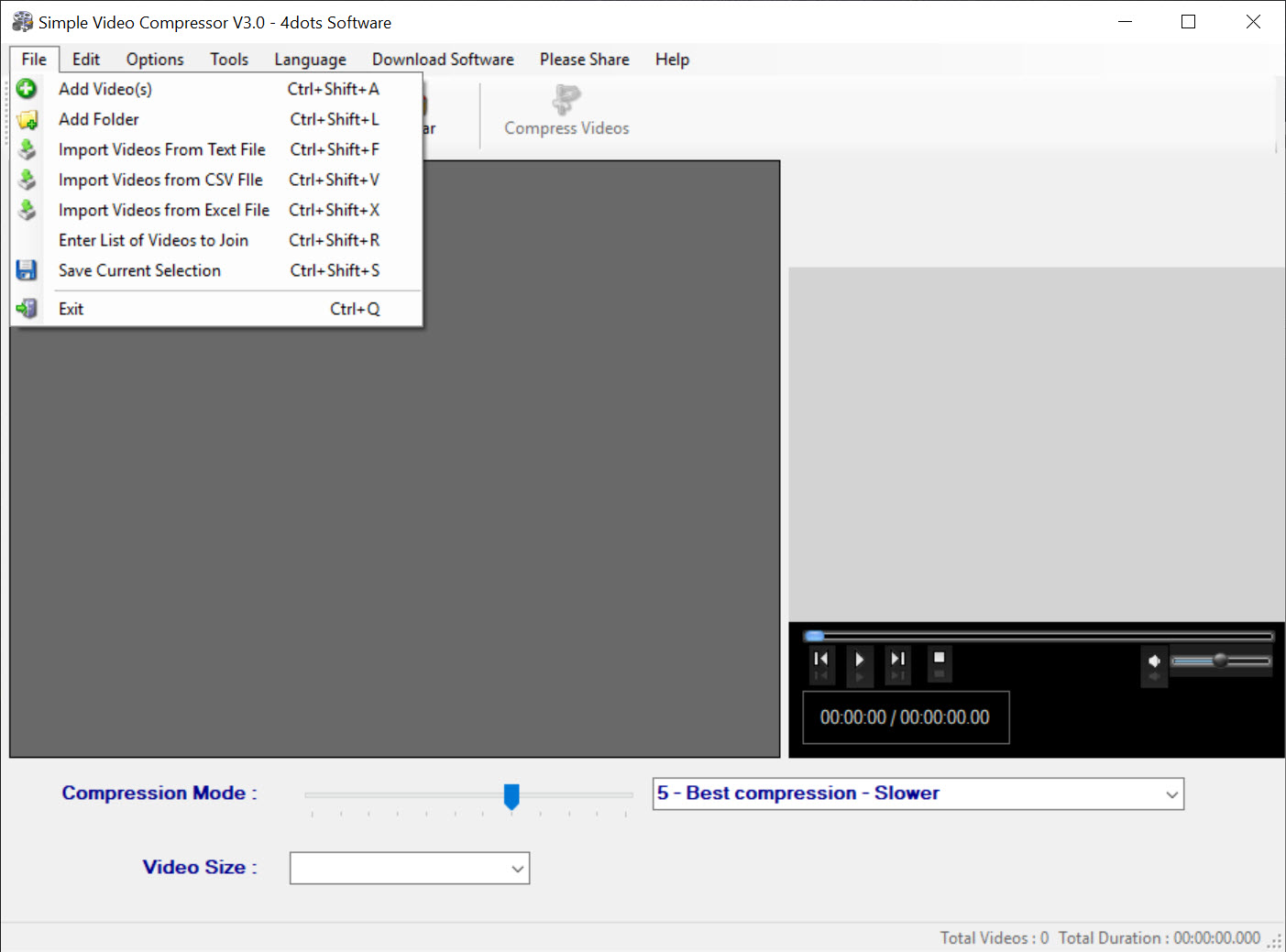
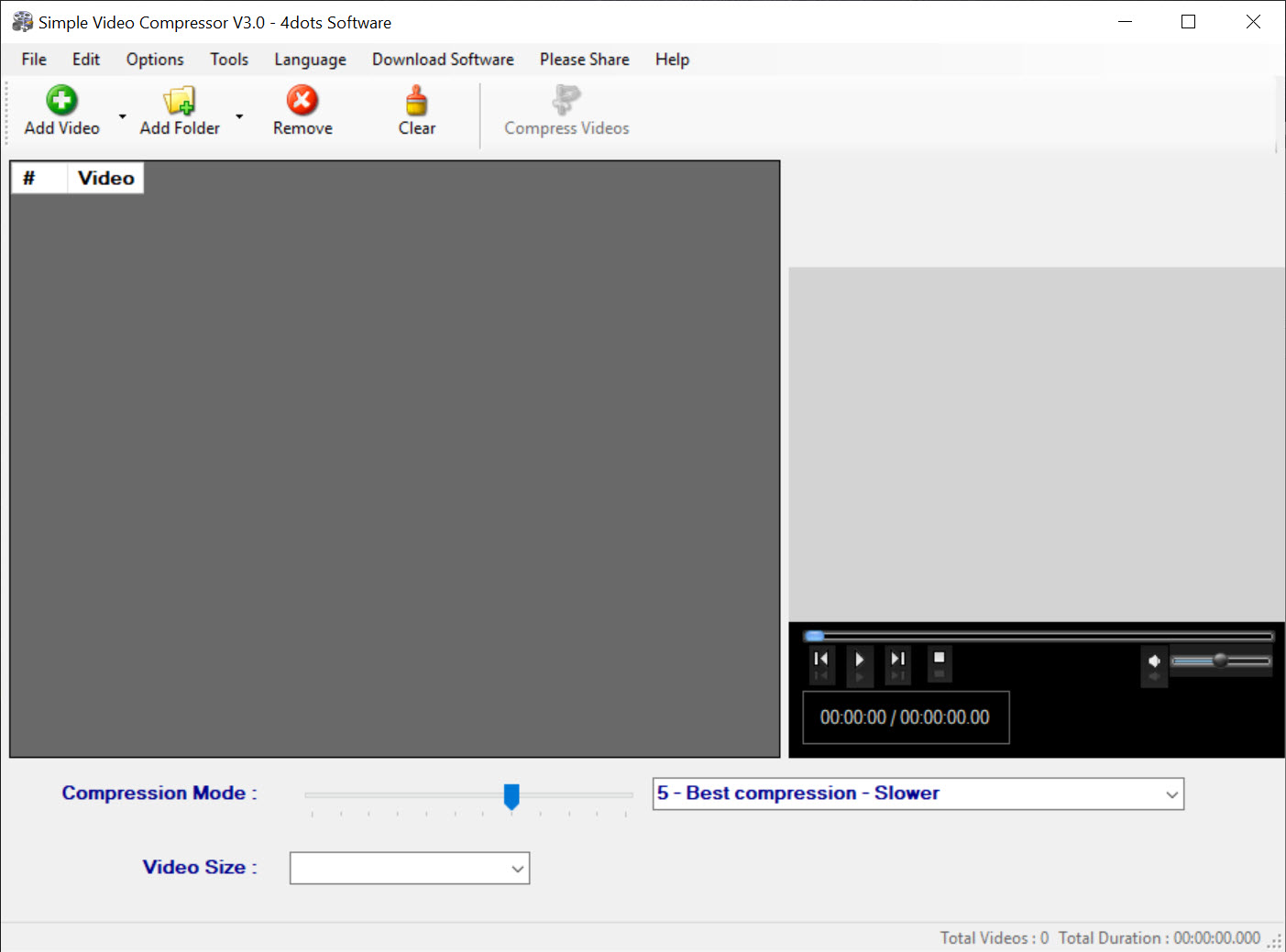
Files arrive in Simple Video Compressor through Add File, Add Folder or by dragging them onto the window, and a folder brings every video inside it. The common formats are all accepted, MP4, MOV, AVI and the MTS files from camcorders among them. A list shows each file with its size, so you can see what you are about to compress.
Then the choice. A slider sets the target as a percentage of the original size, so 50 percent aims for half. Alternatively a preset from a list of ten trades quality against processing time, from a fast pass that keeps most of the detail to a slow one that squeezes hardest.
The percentage is the more useful control when a service has a size limit, since you can work out the number you need. The presets are for when you simply want it smaller and do not care exactly how much.
What comes out and how it looks
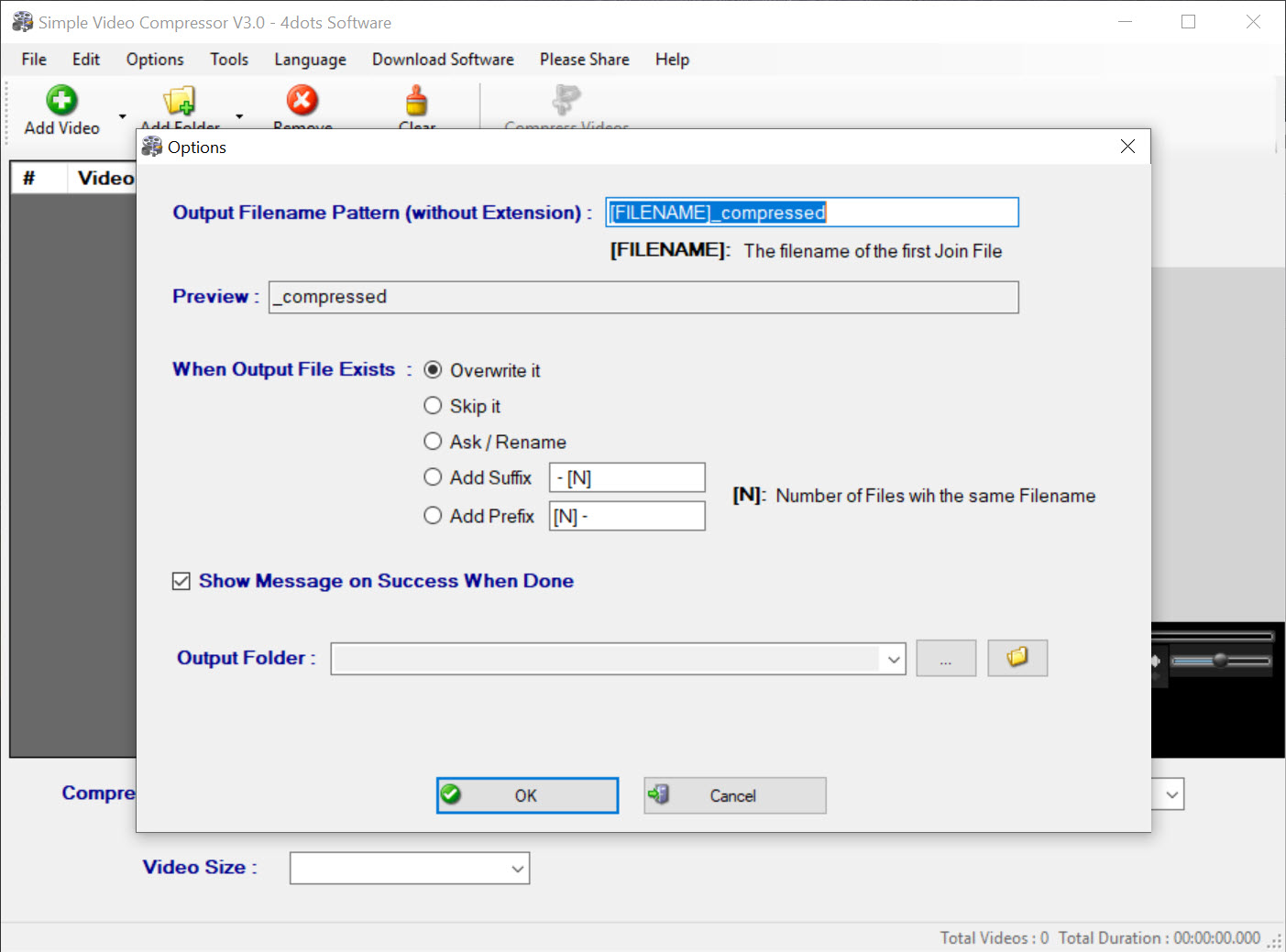
Simple Video Compressor output lands beside the original or in a folder you set, as a new file, so the original is never touched. Resolution stays as it was unless the compression is severe, and the encoder handles the rest without asking. On a talking-head recording or a phone clip, a 60 percent reduction is hard to tell from the source on a laptop screen.
On fast-moving footage with fine detail, sport or a game capture, the same setting shows blocking in the busy areas, and that is where the absence of any bitrate or encoder control shows. There is no second attempt with different parameters. You pick a smaller percentage and run it again.
The built-in player opens the compressed file so the check happens without leaving the window. It is a plain player, but it is the right place for it, since the question after every compression is whether the result is still watchable.
Batch, right-click and command line
Everything in the list processes in one run, one file after another, with a progress bar per file, and a folder of holiday clips can be left to finish overnight. The context menu entry, added at install if you tick it, puts a compress command on the right-click menu of any video file. For a single file that is faster than opening the window. The command line accepts a file and a percentage and returns when the compression ends.
That is enough to compress every file a camera dumps into a folder from a scheduled task.
What it does not do
It will not cut, trim, rotate, convert between formats on request or change the resolution deliberately. It will not let you pick an encoder, set a bitrate or choose a two-pass encode. It compresses, and the trade for that simplicity is that every decision about how has been made for you.
For trimming a clip before compressing it, a cutter that trims without re-encoding does the first job, and this program does the second. For anyone who wants to tune the encode, the settings are in the fuller tools and not here.
Conclusion
Simple Video Compressor is for anyone who needs a video to fit under a limit, on a phone or through an email. They want that done in three clicks rather than after learning what a bitrate is. Parents sharing clips, teachers uploading lessons and anyone emptying a camera onto a drive will use it as intended and never open the settings, because there are none.
People with fast-moving footage, a specific device to target or an interest in how the encode is done should reach for a full encoder. This one makes the choice for you, and most of the time the choice is fine.
Pros & Cons
- Compress by target percentage or one of ten quality presets
- Batch processing of whole folders in one run
- Right-click menu entry and command line for quick or scripted use
- Built-in player to check the result immediately
- Originals are left untouched
- No control over encoder, bitrate or resolution
- No trimming, rotation or format conversion
- Fast-moving footage shows artefacts at aggressive settings
- Only English interface
Frequently asked questions
Divide the limit by the file's current size to get a percentage, set the slider slightly below it and compress. Check the result's size and run again with a smaller percentage if needed.
Not deliberately. The picture dimensions stay the same and the compression works on the encoding. Very aggressive settings may reduce quality visibly but do not resize the frame.
No. It only compresses. Cut the video in another tool first, then compress the result here.


