

Meshmixer
About Meshmixer
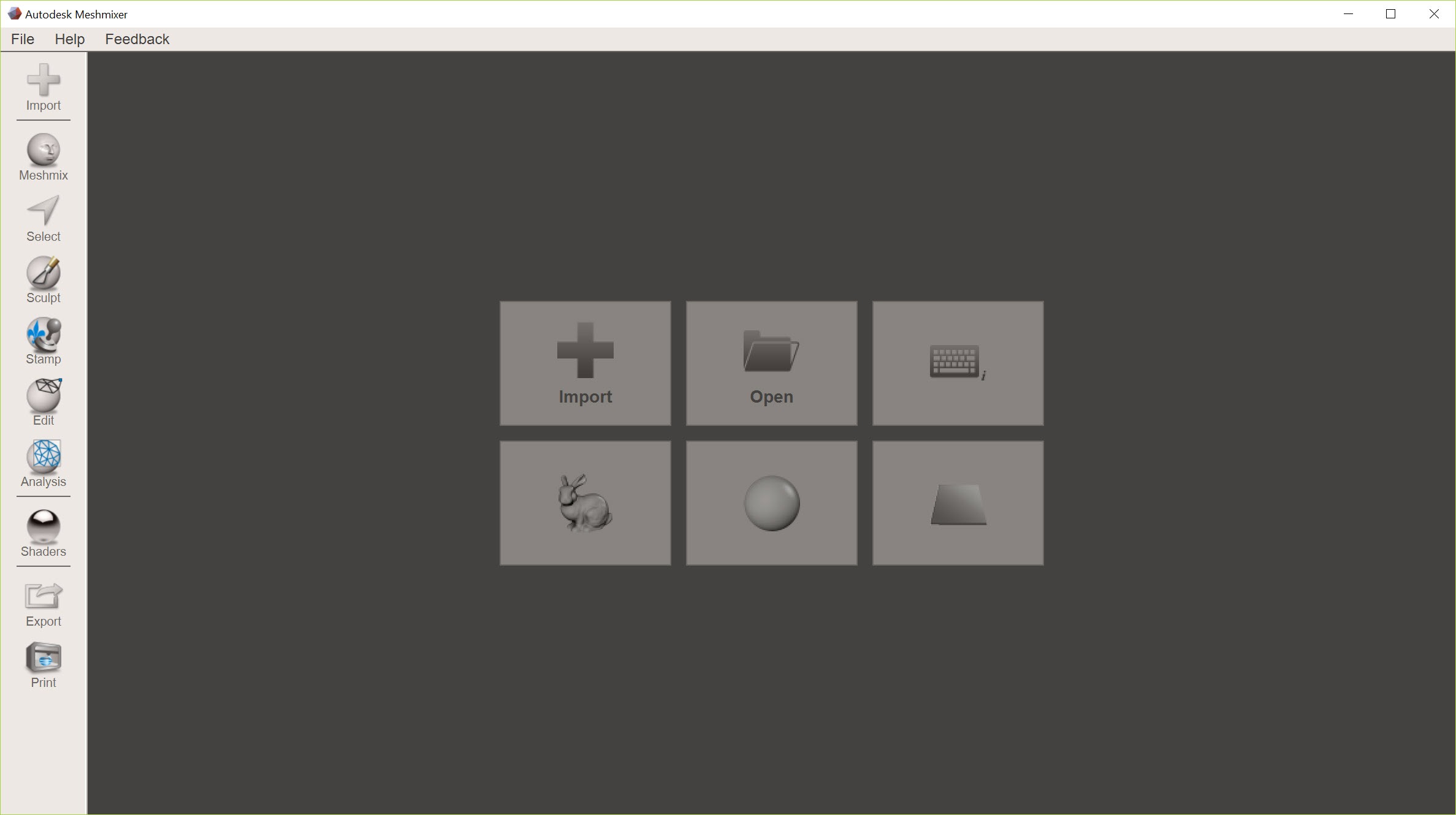
Meshmixer works on the triangle mesh itself. Where a CAD program builds a part from sketches and constraints, this one takes a finished STL or OBJ, the kind you download or scan.
It lets you push it around, cut it, hollow it, fuse it with another, patch its holes and grow supports under it before the file goes to a slicer. It is the repair shop between the model library and the printer, and for a decade of desktop printing it was the one nearly everyone had installed.
It still is, with one thing to know. Development stopped some time ago, and the program is exactly what it was when it stopped. Nothing about a mesh has changed since, so the tools still work, but there are no fixes coming for the parts that were always rough, and the Booleans in particular were always rough. Blender has since grown a print toolbox that overlaps much of this.
Meshmixer remains quicker to learn and quicker for the five-minute fix, which is why it refuses to go away.
Inspector and the one-click repair
Open a downloaded model in Meshmixer and run Analysis, Inspector. Every hole gets a coloured pin, every flipped patch of triangles another, every disconnected fragment a third. Click a pin and it is fixed with the fill type you chose, minimal, flat or smooth, and Auto Repair All does the lot in one pass.
Small floating shells, the debris that scanners and careless exports leave behind, are deleted rather than filled.
Most slicing errors trace back to one of those three faults, so this tab alone pays for the install. What it cannot fix is a mesh that is fundamentally broken, self-intersecting in a hundred places or made of overlapping shells. For those the answer is the next tool.
Make Solid, the repair of last resort
Make Solid in Meshmixer throws the original triangles away. It samples the model as a grid of voxels at a resolution you set, decides what is inside and what is out, and builds a new watertight surface from that. Overlapping shells merge, self-intersections vanish, and a scan that no repair tool could close comes out as a printable solid.
The trade is detail. At low resolution edges soften and small features disappear, and at high resolution the mesh grows large and the operation takes minutes. Accurate mode with a small cell size and an offset of zero gets close to the original on most models.
It is also the workaround for the Boolean problem. Union two objects with Make Solid instead of the Boolean tool and the result is always closed, if slightly rounded at the seam.
Booleans, plane cut and the seams they leave
Boolean Union, Difference and Intersection do what the names say to two selected objects, with a slider for how the seam is resolved. On clean models they work. On models with any defect they fail, either loudly with an error or quietly with a non-manifold edge along the join.
That quiet failure is the most repeated complaint about Meshmixer in every forum that discusses it. Run Inspector after every Boolean.
Plane Cut is the more dependable cousin. Drag a plane through the model, choose to keep one side, both sides or slice into two objects, and fill the cut face or leave it open. It is how a large print is split to fit a bed, how a base is flattened and how a broken scan is trimmed, and it rarely misbehaves.
Separate Shells then splits a multi-part object into individual pieces for exporting.
Sculpting with adaptive remeshing
Meshmixer Sculpt mode offers brushes in two families. Volume brushes move the surface, Inflate, Drag, Flatten, Pinch, Crease, Bubble Smooth and the much-used RobustSmooth among them, with sliders for size and strength and falloff, and a symmetry option.
Surface brushes paint colour or stamps. Underneath, the mesh remeshes as you work, adding triangles where you push detail in and removing them where you smooth it out, so a low-resolution model does not tear when stretched.
It is real sculpting, and it is where a scanned face gets its noise smoothed away or a figurine gets a repositioned arm blended in. Serious sculptors will find it shallow beside a dedicated sculpting tool such as Sculptris, with no layers and a limited brush set. For cleaning and reshaping a print it is more than enough, and the adaptive remeshing makes it forgiving.
Meshmix, the parts library
Drag a shape from the Meshmix panel, an ear, an arm, a bolt, a primitive, onto the surface of your model and it attaches there, oriented to the surface. A handle moves and scales it, and a blend melts the join.
Any object in the scene can be added to the library, so a set of your own connectors or logos becomes a palette. It is the tool that gave the program its name and it is oddly satisfying to use, though the results need a Make Solid pass before printing.
Edit tools round out the modelling side. Extrude thickens a selected patch and Offset moves a surface in or out. Erase and Fill replaces a selection with a smooth patch, Bridge spans a gap between two selections, and Smooth Boundary tidies a jagged edge. Selection is by brush, lasso or expanding to connected triangles, and it drives all of them.
Hollowing, supports, print analysis
Meshmixer Hollow carves an inner shell at a wall thickness you set, adds drain holes where you click and reports the material saved, which for resin printing can be most of the model. Analysis, Overhangs then grows supports.
These are the branching tree supports Meshmixer became known for, thin trunks that fork towards the model and touch it at tips of a chosen size. They are editable by dragging nodes and deletable one by one, and they use far less material than the pillars most slicers generate. Convert them to mesh and export, and the slicer sees them as part of the model.
The other analyses are about whether the print will survive. Thickness colours walls below a minimum, Stability shows the centre of mass and whether the part stands, Strength highlights weak regions under load, and Orientation tries rotations to minimise overhangs.
Measure and Units take real-world dimensions, and Layout packs several objects onto a bed. Between them they catch the failures that only show up after eight hours of printing.
Formats, export, missing pieces
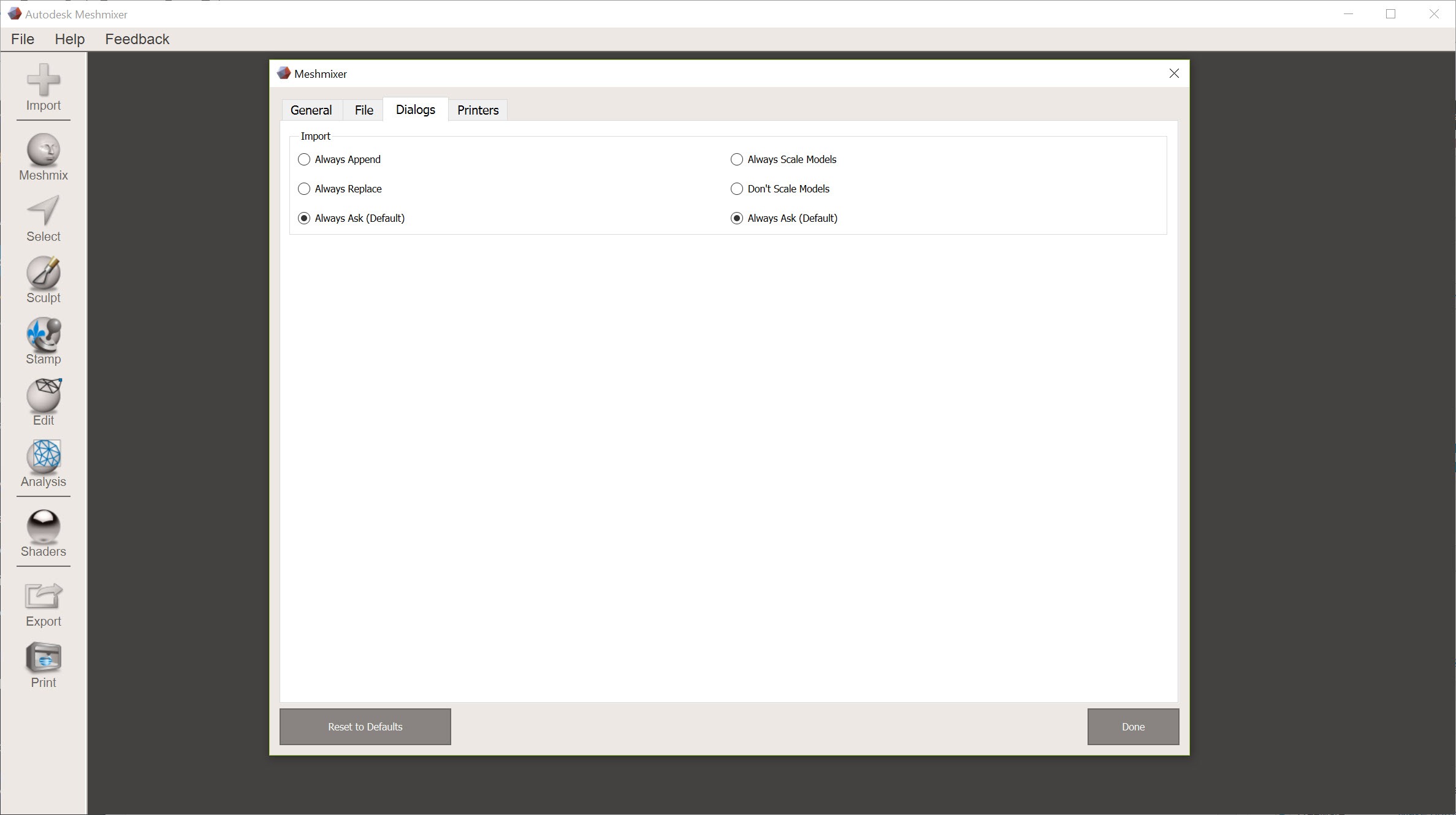
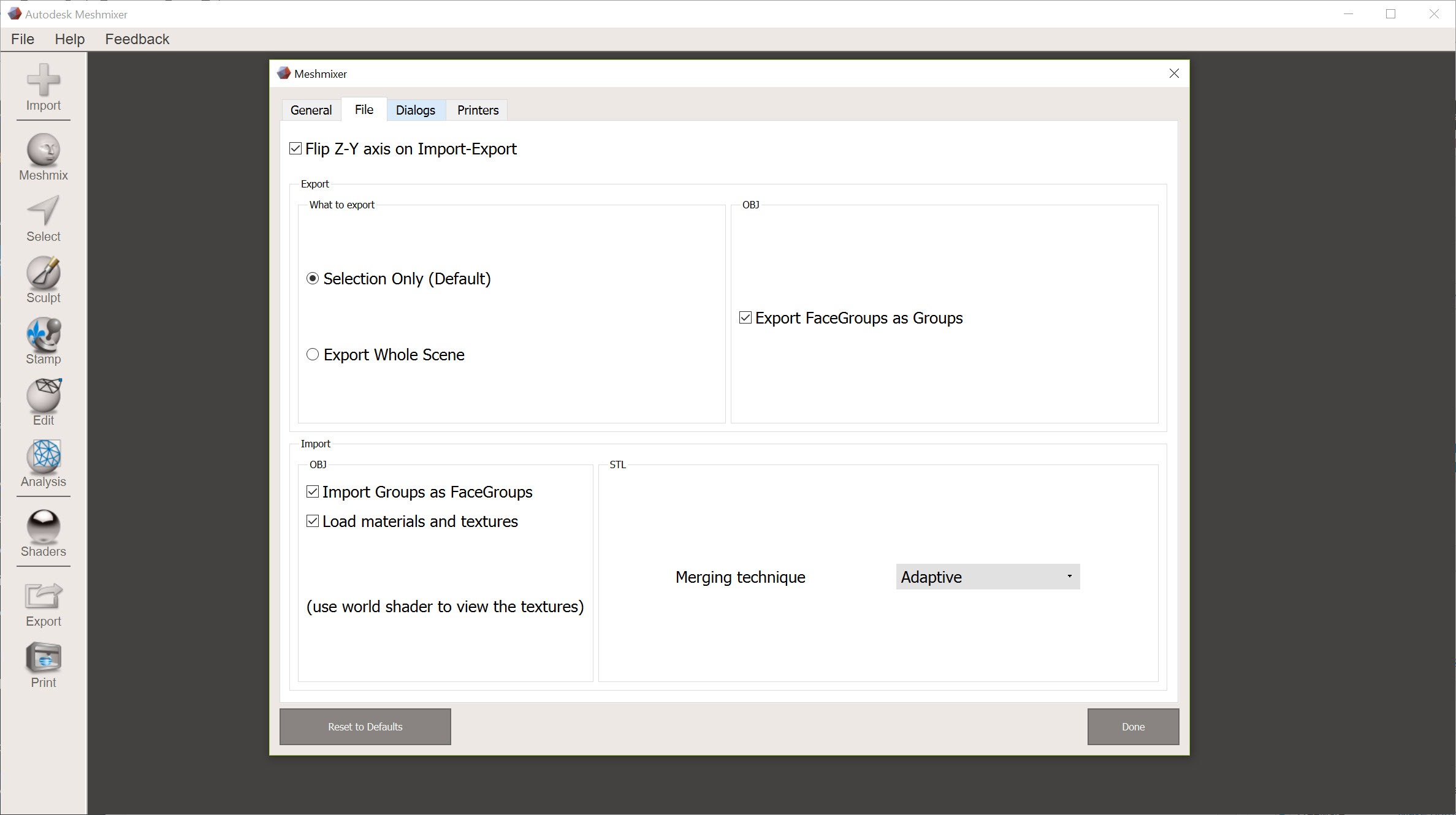
Files come into Meshmixer as STL, OBJ, PLY, AMF and 3MF, plus the program’s own MIX project format that keeps the scene and history. They go out the same way, straight to a chosen slicer through a Print button that hands the file over. There is no slicing here and no printer control, and the natural next step is a slicer that turns the mesh into printer instructions.
What is missing is anything parametric. There is no dimensioned sketching, no editable feature history and no way to type a hole diameter and have it stay that diameter. A functional part designed from scratch belongs in a CAD tool and comes here only for repair and print preparation.
And the interface, friendly as it is, hides half its tools behind a hotkey list that the menus never quite reveal.
Conclusion
Meshmixer is for anyone who prints downloaded or scanned models and needs them repaired, hollowed, cut down to size or propped on supports before slicing. It suits people who want those jobs done in minutes rather than after a week of tutorials. Inspector, Make Solid, Hollow and the tree supports are still the fastest route from a dodgy STL to a good print.
Anyone designing parts from dimensions, or relying on clean Booleans for kit-bashing, should build elsewhere and bring the result here for the last mile. Frozen as it is, it remains the repair shop most printers keep next to the slicer.
Pros & Cons
- Inspector finds and fixes holes, flipped normals and stray shells in one click
- Make Solid rebuilds any broken mesh into a watertight printable solid
- Branching tree supports that are editable and light on material
- Hollow with drain holes and a material saving readout
- Sculpting with adaptive remeshing that adds detail only where needed
- Plane Cut plus thickness, stability and orientation analysis for print preparation
- No longer developed, so long-standing faults will stay
- Boolean operations leave non-manifold seams on imperfect models
- No parametric or dimension-driven modelling
- Make Solid softens detail at practical resolutions
- Many tools are reachable only by hotkey
Frequently asked questions
One or both objects have defects the Boolean cannot resolve. Run Inspector on each first and repair them, then retry. If it still fails, combine the objects and use Make Solid instead, which always produces a closed result.
Import it, open Analysis, Inspector and choose Auto Repair All. If the slicer still complains, apply Edit, Make Solid in Accurate mode with a small cell size, which rebuilds the mesh as a single watertight shell.
Select the model, open Edit, Hollow, set the wall thickness and offset, and place drain holes by clicking on the surface. Accept, and the readout shows the volume removed.
Yes. Edit, Plane Cut with the Slice option divides the model into two objects along a plane you position, with the cut faces filled so both halves print as solids.
No. Development has stopped and the program is no longer changing. It continues to work as it did, but bugs that existed at the last release, including the Boolean weaknesses, remain.


