

AIM Toolkit
About AIM Toolkit
AIM Toolkit does two things that both end with a new drive letter appearing in the file manager. It creates RAM disks, drives that live entirely in memory and vanish or save themselves when the computer shuts down, and it mounts disk image files, so an ISO, a virtual hard disk from a hypervisor or a raw dump of a drive opens as if it were a disc in the tray or a disk in the bay.
Both jobs run through a kernel driver, and the one here is the Arsenal Image Mounter driver, which is signed and accepted by current systems, which is the reason this toolkit exists at all.
It is the successor to ImDisk Toolkit, built because the old driver had grown incompatible with recent systems. The graphical tools are the ones ImDisk users know, a RamDisk Configuration window and a Mount Image File dialog, and the command-line tools are there for scripts.
AIM Toolkit requires a 64-bit system and the .NET Framework for the image mounting part, and anyone arriving from the older toolkit will find their configuration carries across through saved registry parameters.
The sections below take the RAM disk and the image mounting in turn, then the installer, then where the whole thing stops.
Building a RAM disk
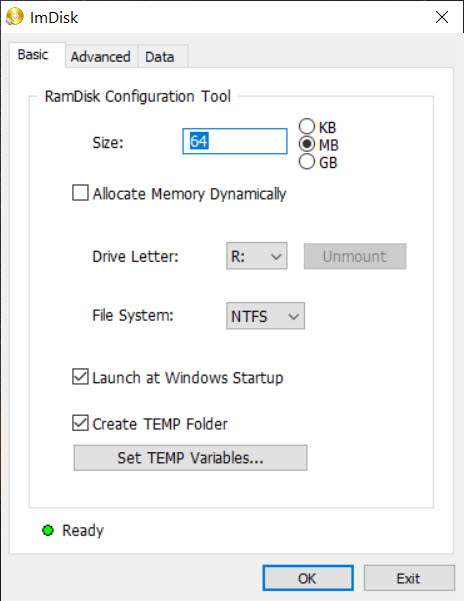
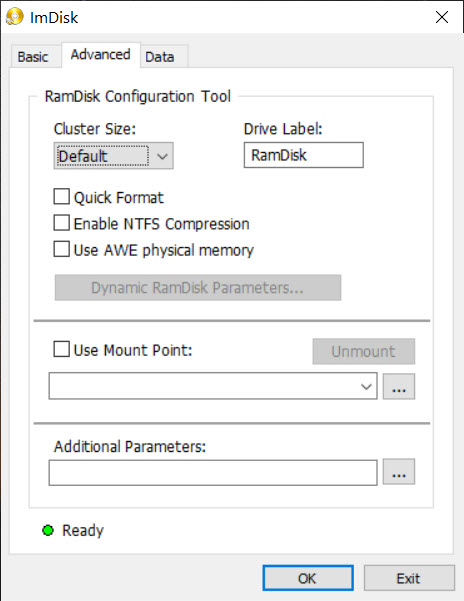
The AIM Toolkit RamDisk Configuration window sets a size, a drive letter or a mount folder, a file system from FAT, exFAT or NTFS, a volume label and a handful of flags. A RAM disk can present itself as a removable drive or a fixed one, which changes how some programs treat it. Memory can be allocated in full at creation or grown dynamically as the disk fills, so a 4GB RAM disk that holds 200MB of files does not lock up 4GB of memory. Several RAM disks can exist at once, each with its own settings.
The practical uses are the ones RAM disks have always had. Redirecting the temporary folders onto one keeps browser caches, installer scratch files and build output off the SSD and makes them faster, and the window offers to set the temporary variables for you.
Scratch space for video editing, a working folder for a database under test and a place to unpack archives all benefit from a disk that reads and writes at memory speed. The limit is obvious, since whatever sits on a RAM disk is gone at shutdown unless it is saved.
Saving the RAM disk across reboots
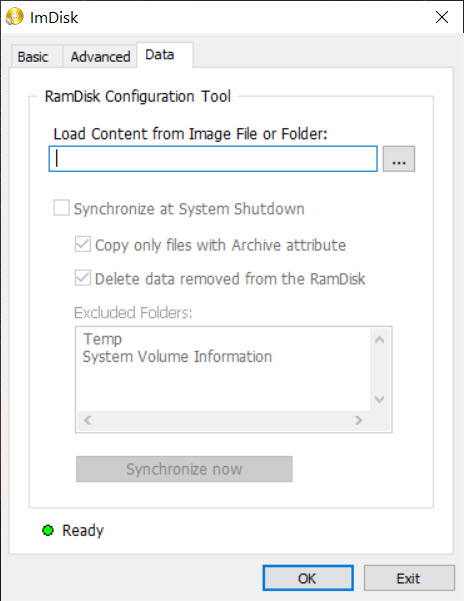
That saving is built into AIM Toolkit. A RAM disk can load its contents from an image file at startup and write them back at shutdown, synchronising the memory copy with the file, so a folder of frequently used tools or a cache appears pre-filled every morning and persists overnight. The write-back can be set to happen only when something changed, and the image can be any size the disk is. A folder’s contents can be copied into the RAM disk at creation as an alternative to an image.
The downside is a longer shutdown while the data writes out and the risk that a crash or a power cut loses whatever changed since the last save. For a cache that is easy to rebuild, that risk is nothing. For anything irreplaceable, a RAM disk is the wrong home even with the synchronisation on, and the documentation says so plainly.
Mounting image files
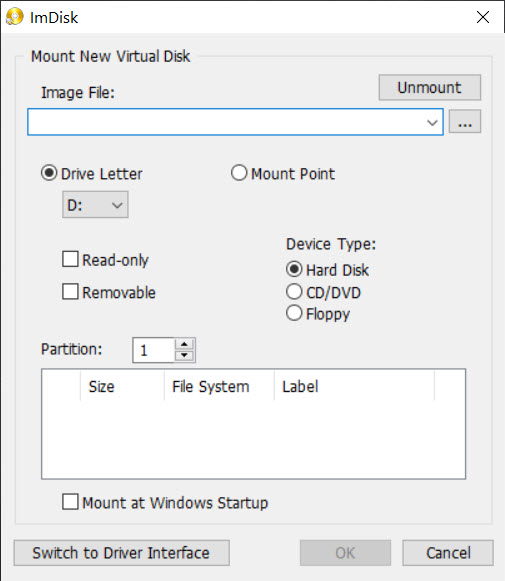
The AIM Toolkit Mount Image File dialog takes a file and presents it as a drive. Optical images in ISO, NRG and BIN form appear as a CD or DVD drive. Hard disk images in VHD, VHDX, VDI and VMDK form, including the dynamic and multi-part variants that hypervisors produce, mount as a hard disk with their partitions readable, and raw images and floppy images mount too. A mounted image can be read only, which protects a forensic copy or a master image from accidental change, or writable, which turns a virtual disk file into a working drive.
An entry in the file manager’s right-click menu mounts an image in one step, and the dialog can be skipped entirely with default settings. Image mounting needs the .NET Framework present, since the format support comes from a library that depends on it, and that is the one prerequisite the installer asks about.
For optical images alone, DAEMON Tools Lite presents a friendlier picture of virtual drives and nothing like the hard disk format coverage here.
The command line, the installer and silent deployment
Every operation the AIM Toolkit dialogs perform is also a command, so a script can create a RAM disk at logon, mount a set of images for a test and dismount them afterwards. The installer accepts switches for silent installation, for a chosen folder, for forcing a component on or off and for silent removal, which suits a technician rolling the toolkit onto several machines.
A Save Parameters button in the general settings writes the current configuration to the registry, and the installer recreates the services and every configured RAM disk from those values on a fresh system, which is how a build moves between computers. For writing an image to a physical USB stick rather than mounting it, Rufus is the right tool, and the two sit side by side in most technicians’ kits.
Where it stops
AIM Toolkit supports only 64-bit systems, and anyone on an older 32-bit installation has to stay with the predecessor. Image mounting cannot work without the .NET Framework, so a stripped machine needs it installed first. There is no encryption of the RAM disk or the mounted images, and anyone wanting that pairs the toolkit with an encrypted volume tool and mounts the container through that instead.
The interface is plain dialogs with many fields and short labels, which rewards reading the help once, and the dynamic memory allocation adds a little latency compared with a fully pre-allocated disk, which only matters under heavy sustained writes.
Conclusion
AIM Toolkit suits anyone who wants a RAM disk for caches and scratch work, anyone who opens virtual disk and optical images without a hypervisor or a burner, and everyone who ran the old toolkit and watched it stop working on a current system. The signed driver, the synchronised RAM disks and the breadth of image formats cover those jobs in one small package. Technicians who keep a library of disk images for testing, and anyone whose SSD is filling with caches, get the most daily use from it.
It is for 64-bit machines with the .NET Framework present, and it offers no encryption of its own. Save the parameters once, keep irreplaceable data off the RAM disk, and it quietly provides drives that the hardware never had. The predecessor’s users will feel at home within minutes, since the dialogs barely changed.
Pros & Cons
- RAM disks with FAT, exFAT or NTFS, dynamic memory allocation and several at once
- Synchronises a RAM disk with an image file so its contents survive a reboot
- Temporary folder redirection set from the configuration window
- Mounts ISO, NRG, BIN, VHD, VHDX, VDI, VMDK, raw and floppy images, read-only or writable
- Signed driver that current systems accept, replacing the old incompatible one
- Command-line tools and silent installer switches for scripting and deployment
- 64-bit systems only
- Image mounting requires the .NET Framework
- No encryption of RAM disks or mounted images
- Plain dialogs with terse labels
Frequently asked questions
Yes. It is the direct successor, built on a signed driver that current systems accept, and saved parameters from the older toolkit carry across.
Yes. Set it to load from an image file at startup and write back at shutdown, and the contents persist.
ISO, NRG and BIN optical images, VHD, VHDX, VDI and VMDK hard disk images including dynamic and multi-part ones, plus raw and floppy images.
The .NET Framework is missing. The format library depends on it, so install it and mounting becomes available.


