

InstallerClean
About InstallerClean
InstallerClean does one job, and it’s a job almost nobody knows needs doing. Every system keeps a hidden folder, C:\Windows\Installer, where copies of installers and patches accumulate from the day the machine is set up, and the system never cleans it.
On ordinary computers it quietly grows to tens of gigabytes, and on machines with heavily patched suites, the big PDF and office packages are the classic culprits, it has been found north of a hundred. This small open-source tool scans that folder, identifies the files nothing references anymore, and removes them safely, with the emphasis firmly on safely.
The discovery moment is always the same. A disk-space map from a tool like TreeSize shows a mysterious mass inside the system directory, a search explains that deleting from that folder by hand breaks uninstallers and updates, and the search also surfaces this tool as the modern answer, picking up where the long-unmaintained PatchCleaner left off.
What it finds, and why the files are junk
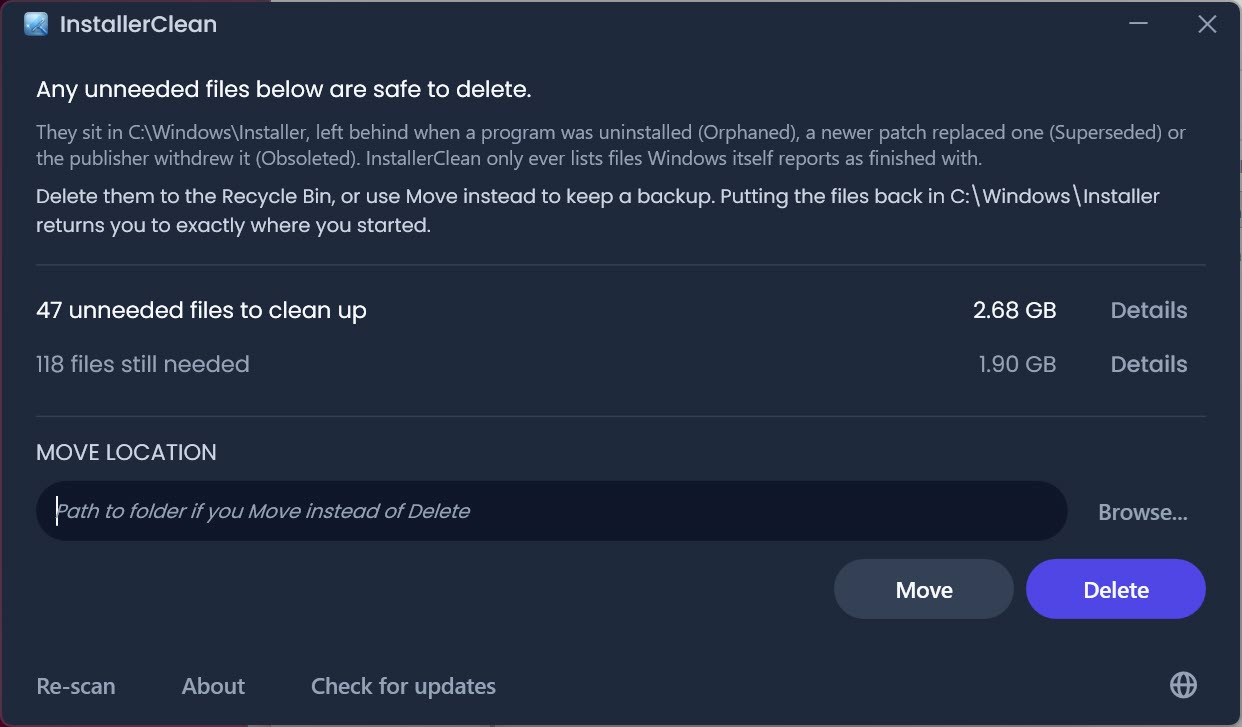
InstallerClean flags three kinds of dead weight. Orphaned files are the installers and patches left behind after software was uninstalled, still occupying space although nothing references them.
Superseded patches are older update files that newer patches replaced, marked as obsolete in the system’s own database yet never deleted, and frequently patched software accumulates them indefinitely. Obsoleted patches are the ones a publisher withdrew outright, recorded as such and likewise abandoned in place.
The distinction matters because it’s the difference between guessing and knowing. The tool asks the installer subsystem itself, through its official interfaces, which files are no longer referenced, and only those get flagged. When the database is incomplete it falls back to registry cross-referencing, and anything doubtful stays untouched.
That conservatism is the entire safety story, and it’s the right one, since a wrongly deleted installer surfaces later as a program that refuses to uninstall, repair, or update.
The scan, the report, and the two ways out
The scan runs automatically at launch and finishes in moments, ending in a plain verdict, how much space is reclaimable and from what. Each file in the list carries its size, the product it belonged to, and the specific reason it qualifies for removal, with digital signature details a click away for the curious. The tool even warns when a pending restart could affect scan accuracy, a small touch that signals how carefully the edge cases were considered.
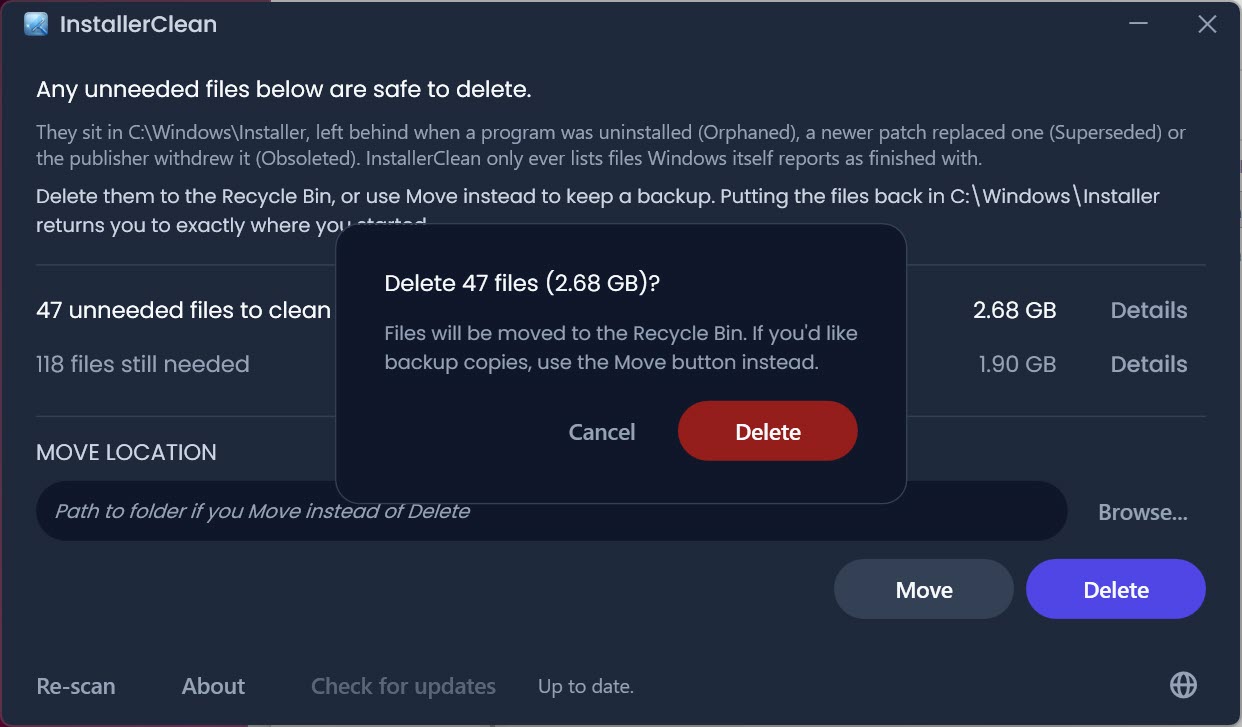
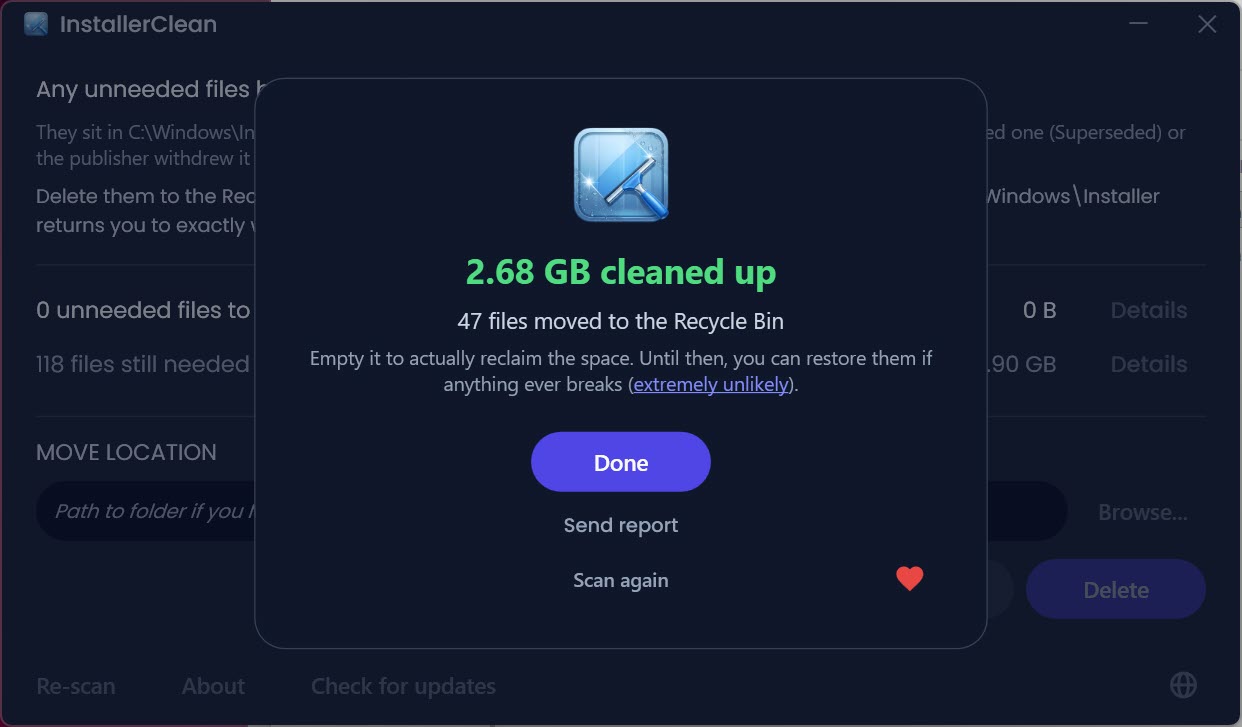
Removal offers two paths, and the choice is the user’s insurance policy. Delete sends files to the recycle bin, recoverable until emptied, while Move relocates them to a folder you pick, the cautious option that lets a technician park the files for a month before committing.
After either, empty subfolders get swept too. For scripted maintenance across many machines, a command-line companion runs the same scan and cleanup unattended, which administrators fold into their routine jobs.
What it deliberately doesn’t touch
The focus is surgical, and everything outside the Installer folder stays outside the tool’s interest. Browser caches, temp files, and the general crumbs of daily use belong to a broad cleaner like BleachBit.
Leftovers from sloppy uninstallations, meanwhile, are the territory of Geek Uninstaller, which hunts them per-program. This tool’s single-folder discipline is why it can afford to be so careful, and combining it with those neighbors covers the whole cleanup spectrum without overlap.
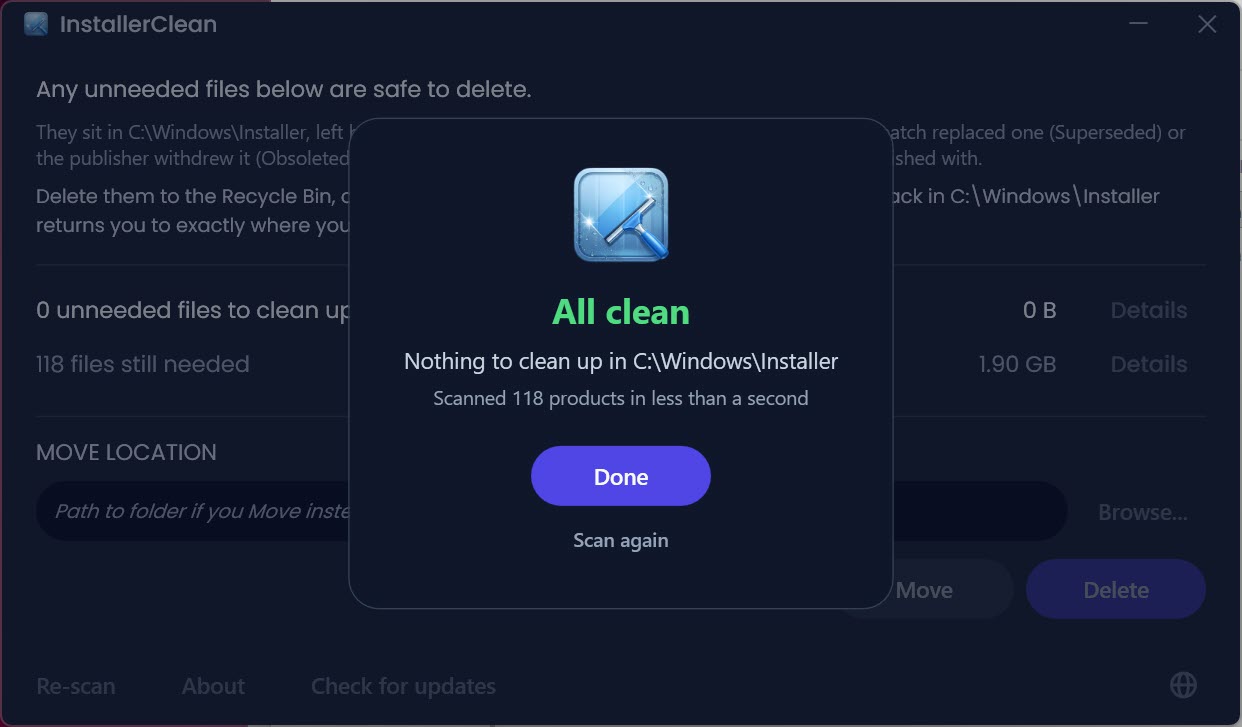
Expectations deserve one calibration. The junk accumulates slowly, so this is an occasional tool, not a weekly ritual, and a machine cleaned today may have nothing worth removing for a year.
The payoff concentrates on smaller SSDs, where thirty recovered gigabytes changes daily life, and on long-lived work machines with years of patch history, where the first run routinely produces the biggest single space recovery the computer will ever see.
Conclusion
InstallerClean is for owners of smaller SSDs watching every gigabyte, administrators tending long-lived machines with years of patch sediment, and anyone whose disk-space map just revealed the system directory eating a suspicious share of the drive. The first run is routinely spectacular, and the safety design makes it a cleanup you don’t have to hold your breath through.
People wanting an everything-cleaner should pair it with broader tools, since this one will never leave its single folder. Within that folder, nothing else currently does the job this carefully.
Pros & Cons
- Reclaims space from a hidden folder the system never cleans itself
- Flags only files the installer subsystem confirms are unreferenced
- Move option parks files safely instead of deleting, for the cautious
- Per-file details show product, size, and the exact removal reason
- Portable, open source, with a command-line mode for scripted maintenance
- Single-purpose by design, touching nothing outside the Installer folder
- Worthwhile findings accumulate slowly, so runs are occasional
- A rare unusual registry state can still make removal affect repair flows
- Requires the .NET runtime to be present
Frequently asked questions
It's far less risky than any manual approach, since it removes only files the installer subsystem itself reports as unreferenced, and deletions go to the recycle bin. The Move option adds a further safety net.
The system stores copies of installers and patches for repair and uninstall purposes and never removes the outdated ones. Frequently updated software piles up superseded patches for years.
Occasionally, a few times a year at most. The junk grows slowly, and the first run on an older machine recovers by far the most space.
Delete sends flagged files to the recycle bin. Move relocates them to a folder you choose, so you can wait a few weeks, confirm everything still installs and uninstalls fine, then discard them.
Yes, the command-line companion performs the same scan and cleanup from scripts, which suits administrators maintaining fleets during scheduled maintenance.


