

Minimal Image Viewer
About Minimal Image Viewer
Minimal Image Viewer is what happens when a developer takes the “do one thing and do it well” philosophy literally and ships a Windows image viewer that compiles to roughly 100 KB. For context, the standard Windows Photos app is around 50 MB and IrfanView‘s installer sits in the 3-5 MB range. This one fits in the space of a small JPEG.
The stripped version of the executable is 21 KB, which is closer to the size of a Word document than to any image viewer most people have ever installed.
The project is open source under GPL-3.0, written entirely in C++ against native Win32 APIs with no third-party dependencies, and developed by a single maintainer who has shipped 19 releases since starting the project.
It packs in features that most lightweight viewers don’t bother with, including OCR, EXIF metadata display, an eyedropper, non-destructive editing, and support for RAW camera formats. Whether that combination makes sense for you depends on how seriously you take both file size and feature breadth at the same time.
What 100 KB actually means in practice
Size matters for reasons beyond bragging rights. A 100 KB executable launches almost instantly on any hardware released in the past fifteen years, even from a slow USB stick or a network share. There’s no splash screen, no loading bar, no waiting for a runtime to spin up. Double-click an image and the viewer is open before you’ve finished moving your hand off the mouse.
This is the kind of difference you notice when you’ve gotten used to Windows Photos or a similar UWP-style viewer taking a measurable beat to come up. The native rendering, the absence of frameworks like Electron or .NET, and the minimal memory footprint (under 10 MB for most images) all add up to an experience that feels closer to a command-line tool’s responsiveness than to a desktop application’s.
The architecture is the reason. Minimal Image Viewer builds on Direct2D for hardware-accelerated rendering, DirectWrite for text, and the Windows Imaging Component (WIC) for image decoding.
These are the same low-level APIs that Microsoft’s own image handling uses internally. The viewer just calls them directly without wrapping anything in cross-platform shims or component frameworks.
Format support through Windows Imaging Component
By leaning on WIC, the application gets a wide format list for almost no code overhead. JPEG, PNG, BMP, GIF, TIFF, ICO, WebP, HEIF, AVIF, and many RAW formats (Canon’s CR2, Nikon’s NEF, Adobe’s DNG among others) all load natively if the right codecs are present on the system. This is the same codec infrastructure that lets Windows Explorer show thumbnails for these formats, so if Explorer recognizes a file, Minimal Image Viewer can usually open it.
Animated GIFs play correctly with per-frame delays read from the metadata, which is one of those table-stakes features that some minimalist viewers still get wrong. RAW format support depends on whether you have the camera manufacturer’s codec pack installed. If you regularly work with RAW files, FastStone Image Viewer handles more RAW formats out of the box without external codecs, but the trade is significantly larger software footprint.
Loading is asynchronous and uses background threads to pre-fetch the next and previous images in the directory you’re browsing, so navigation feels instant once you’ve opened the first file.
The pre-loading runs on two separate threads to keep the UI responsive, which is a detail you’d expect in a heavier application but here it just works.
The keyboard-driven workflow
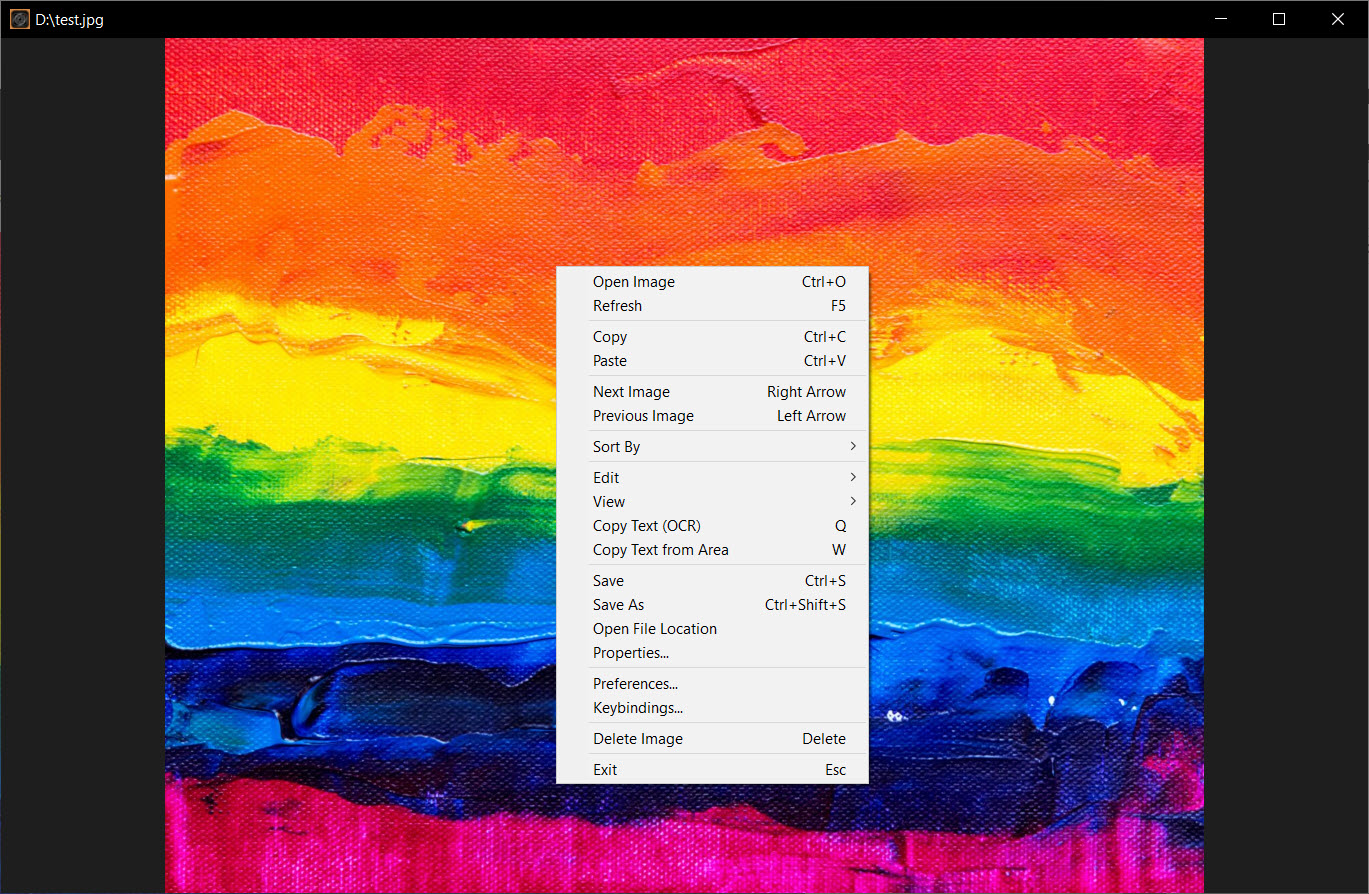
The interface is sparse on purpose. There’s a single window, an image area, and almost no UI chrome. Most operations happen through keyboard shortcuts rather than menu navigation, with right-click providing access to less common functions.
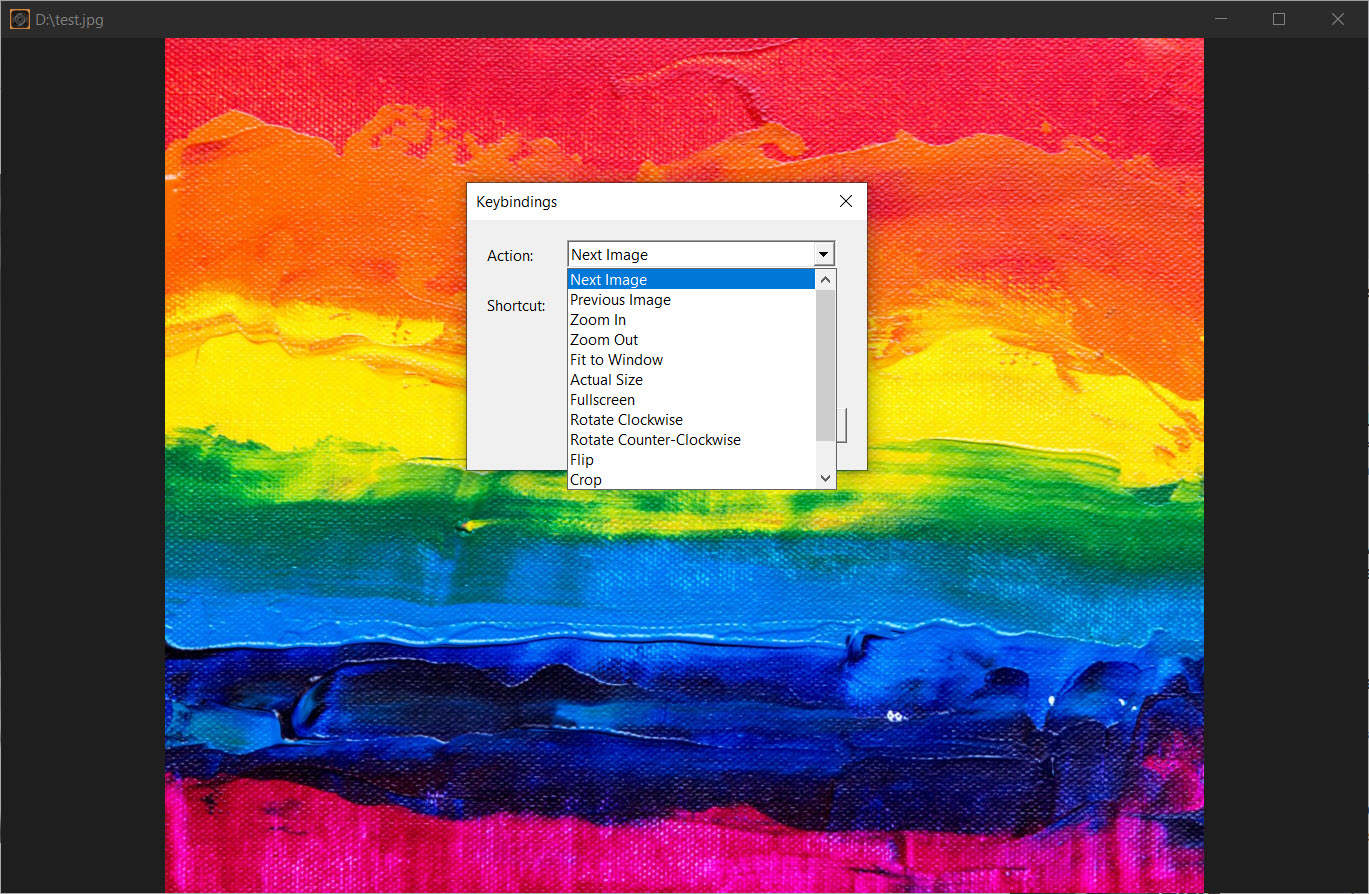
Zoom is Ctrl plus mouse wheel for smooth scaling, double-click for fit-to-window, Ctrl+0 for the same, and Ctrl+* for actual 100% size. Arrow keys cycle through images in the current folder, sorted by name, date, or file size depending on what you’ve picked in the right-click menu. Rotation is up and down arrows (clockwise and counter-clockwise), flip is F, crop is C (then click-and-drag to select, Enter to confirm). The viewer learns out of the way quickly because there’s not much to learn.
F11 toggles fullscreen, Escape exits, and I toggles an on-screen display overlay showing the current file’s metadata. The eyedropper tool activates by holding Alt, displaying RGB and Hex values for the pixel under your cursor, with a click to copy the hex value to the clipboard. That last feature alone is more thoughtful than what most much-larger image viewers offer.
OCR built into a 100 KB viewer
This is the feature that genuinely surprises people. Press Q to OCR the entire image and the recognized text drops into your clipboard. Press W to OCR a selected region instead. The OCR runs locally without any cloud calls or network activity, which fits the project’s privacy stance.
Real-world OCR accuracy depends heavily on the source image quality. Clean screenshots of text or scans at decent resolution come through accurately. Photos of paper documents with skewed angles or poor lighting are less reliable, as is true of any OCR engine. For quick “grab the text from this screenshot” use, it works well enough that you stop reaching for separate OCR tools.
The fact that this fits inside the executable rather than calling out to an external service or library is part of the technical accomplishment. Most OCR implementations rely on multi-megabyte machine learning models. The viewer manages to ship something usable within its tight footprint.
Non-destructive editing
Beyond viewing, the application includes a small but useful editing layer. Crop, rotate, flip, grayscale, and resize all work on the loaded image, with edits previewed in real time and only applied to the file when you explicitly save. Ctrl+S overwrites the original, Ctrl+Shift+S saves to a new file in PNG, JPEG, or BMP.
The resize uses Fant interpolation, which is one of the better-quality scaling algorithms for downsampling. Aspect ratio locking is supported, and the dialog is simple enough to not require explanation. The grayscale filter is non-destructive and reversible until you save.
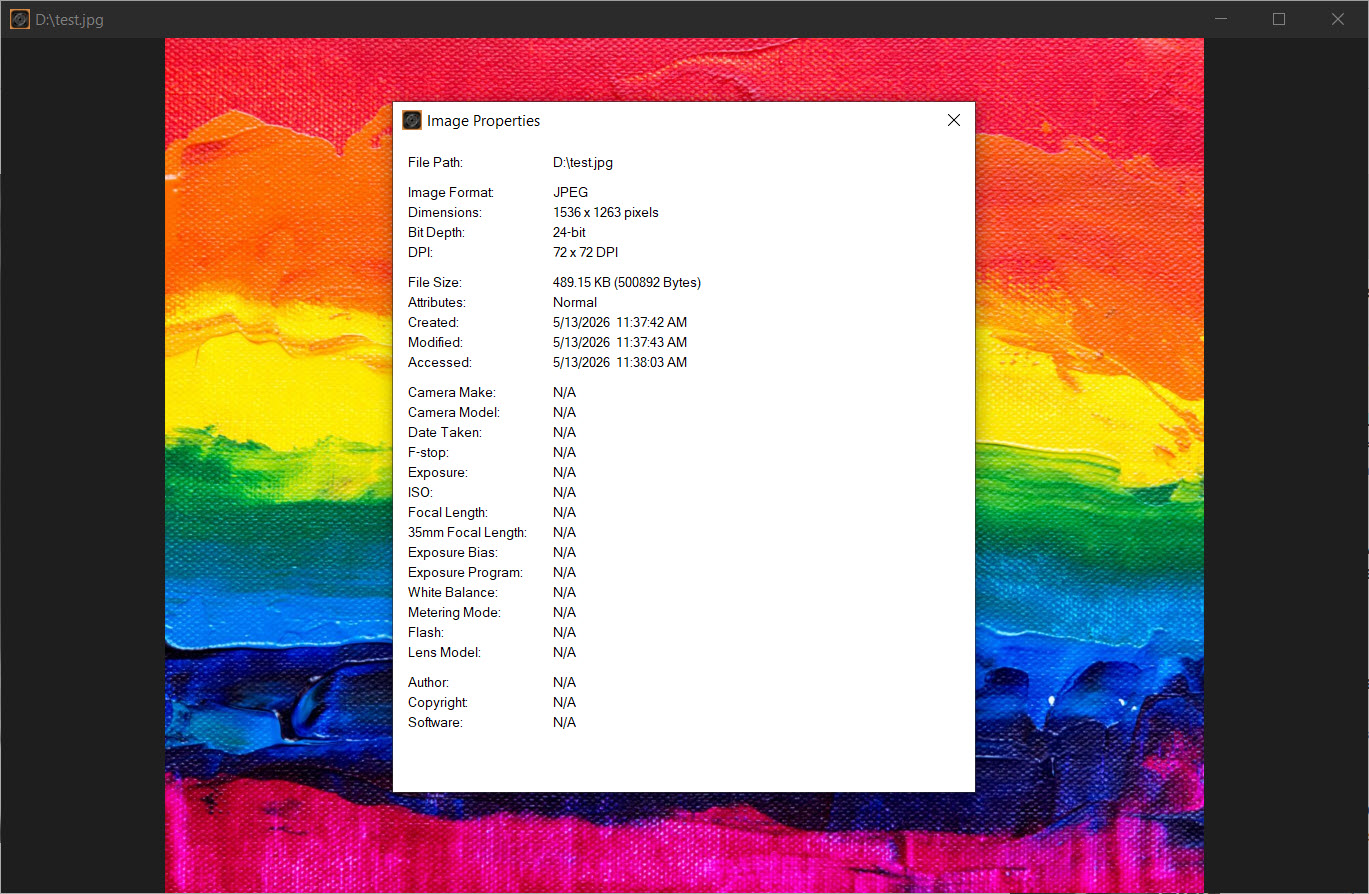
There’s also an Image Effects dialog with sliders for contrast, brightness, and saturation. None of this competes with a real editor like GIMP or Paint.NET, but for quick adjustments before saving a copy somewhere, it covers the common cases. EXIF metadata viewing works through a separate properties window showing camera, lens, and shot settings.
Privacy and the portability angle
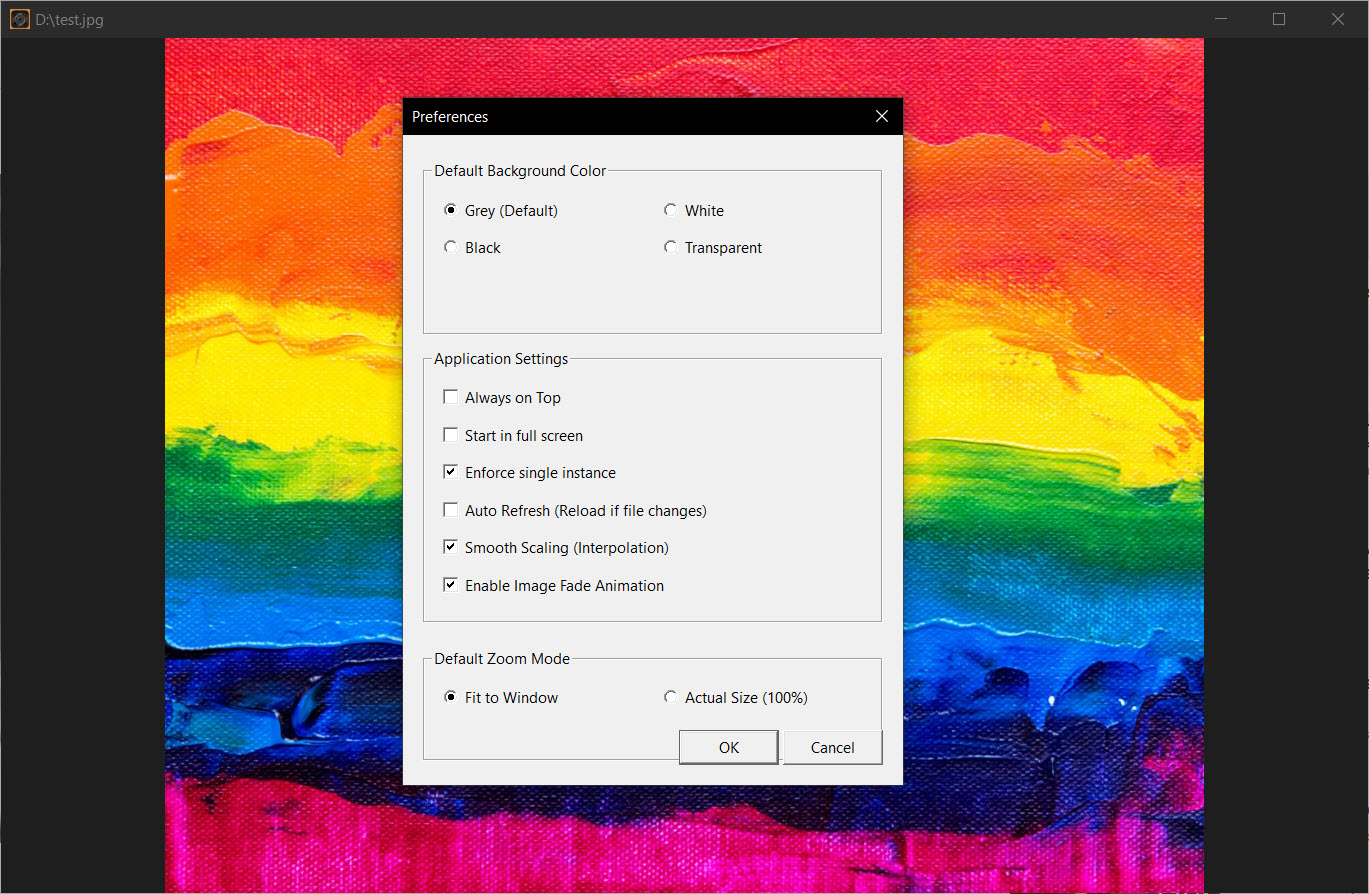
The project’s stance on user data is uncompromising. Zero network activity, zero telemetry, zero registry use. Settings are saved to a minimal_image_viewer_settings.ini file in the same directory as the executable, which means the entire application (settings, preferences, window state) can be moved between machines on a USB stick without leaving traces on the host system.
This matters for users in OpSec-sensitive environments, for portable installs that need to leave no footprint, and for anyone tired of seemingly innocuous software phoning home.
The minimal attack surface is also a real consideration. Relying only on hardened, audited Windows APIs rather than large third-party libraries means there are fewer code paths that could introduce vulnerabilities. The whole binary is small enough that a determined reader can audit it themselves.
For comparison, IrfanView is the long-standing minimalist viewer most users grew up with, and it has optional telemetry and registry-based settings. Minimal Image Viewer takes the same lightweight philosophy further by stripping anything that touches state outside its own folder.
Where it fits vs the established alternatives
The image viewer category on Windows is mature, with several well-known options that have been around for decades. IrfanView is the classic minimalist choice with a massive format list and plugin ecosystem.
FastStone Image Viewer is the polished freeware option with thumbnail browsing, batch processing, and a more polished UI. ImageGlass is the modern dark-mode-friendly viewer that fits well into Windows 11 aesthetics. Image Eye is another minimalist option that’s similar in spirit.
What Minimal Image Viewer offers that none of those do is the combination of extreme size minimalism (100 KB), genuinely zero telemetry, portable INI-based config, native Direct2D rendering, and a feature set that includes OCR and basic editing. For users who want the lightest possible viewer that still does real work, it’s the standout choice.
The trade is that the UI is less discoverable. There’s no toolbar showing you all available functions. New users will need to learn the keyboard shortcuts or right-click around to find features. For experienced users this is barely a friction. For casual users who like seeing buttons, FastStone or ImageGlass will feel more familiar.
Limitations to know about
The project is a single-developer effort, which is both a strength (focused vision, fast updates) and a limitation (bus factor of one, no commercial support). For most users this doesn’t matter, but it’s worth knowing if you’re picking software for a managed environment.
Batch processing is minimal. Resize, save, rotate operations work on the currently open image. If you need to convert hundreds of files at once, IrfanView’s batch tools handle that scenario better. The same applies to thumbnail browsing across a folder structure, which Minimal Image Viewer doesn’t offer in the way file-explorer-style viewers do.
The viewer also lacks some advanced features that aren’t strictly necessary but some users miss. There’s no slideshow timer, no built-in slideshow with transitions, no integration with cloud photo services, no facial recognition or tagging. The minimalist philosophy means those features aren’t going to arrive either.
Conclusion
Minimal Image Viewer is the right install for users who genuinely value software minimalism, who appreciate native code over framework-wrapped abstractions, and who want a viewer that does its job and disappears. The 100 KB executable size isn’t a gimmick. It translates to instant launch times, near-zero memory use, and a portable footprint that other viewers can’t match.
The fact that this same tiny binary includes OCR, non-destructive editing, EXIF reading, an eyedropper, and Direct2D-accelerated rendering is borderline impressive.
For users who want toolbars showing them every available feature, who need batch processing across thousands of files, or who prefer a familiar Windows Photos-style experience, the established alternatives will fit better.
For users who’ve gotten tired of bloated viewers, who care about privacy and want zero telemetry, or who just want the fastest possible launch from double-clicking a JPEG to seeing the image, this is the viewer that delivers on those specific values without compromise.
Pros & Cons
- Native Win32 with Direct2D and WIC for fast, hardware-accelerated rendering
- Wide format support including RAW formats through Windows Imaging Component
- OCR for whole images or selected regions, running entirely locally
- Non-destructive editing with crop, rotate, flip, grayscale, and high-quality resize
- Eyedropper, EXIF properties, and on-screen display add genuine utility
- Zero telemetry, zero network activity, zero registry use
- Portable INI settings make the application fully transportable
- UI relies heavily on keyboard shortcuts and right-click menus rather than visible toolbars
- No batch processing for converting or resizing many files at once
- No thumbnail browser for navigating large folder structures visually
- OCR accuracy depends on image quality and isn't on par with dedicated OCR tools
- Some advanced viewer features (slideshow with transitions, cloud integration, tagging) aren't included
- RAW format support requires camera manufacturer codecs to be installed separately
Frequently asked questions
The full version compiles to roughly 100 KB. A stripped-down stable release is available at around 21 KB. For comparison, the Windows Photos app is 50 MB and most freeware image viewers run 3 to 30 MB.
The viewer leverages Windows Imaging Component, which gives native support for JPEG, PNG, BMP, GIF, TIFF, ICO, WebP, HEIF, AVIF, and many RAW camera formats including CR2, NEF, and DNG. Some RAW formats require the manufacturer's codec to be installed.
Pressing Q runs OCR on the entire loaded image and copies recognized text to the clipboard. Pressing W lets you select an area first and OCR only that region. The OCR runs locally on the system without any network calls.
Yes. The project includes instructions for setting it as the default image viewer for various file types in Windows settings.
Edits are non-destructive and only previewed in the viewer until you explicitly save. Ctrl+S overwrites the original file, Ctrl+Shift+S saves to a new file in PNG, JPEG, or BMP format. Until you save, the original file is unchanged.
No. The viewer is single-image focused with arrow-key navigation between files in the current folder. For visual thumbnail browsing across folders, other tools handle that better.
The minimalist focus is sharper. The size is much smaller, telemetry is fully absent, settings are portable, and the UI is more spartan. IrfanView has been around longer, has more batch features, broader plugin support, and a more traditional menu-driven interface.


