

Electron
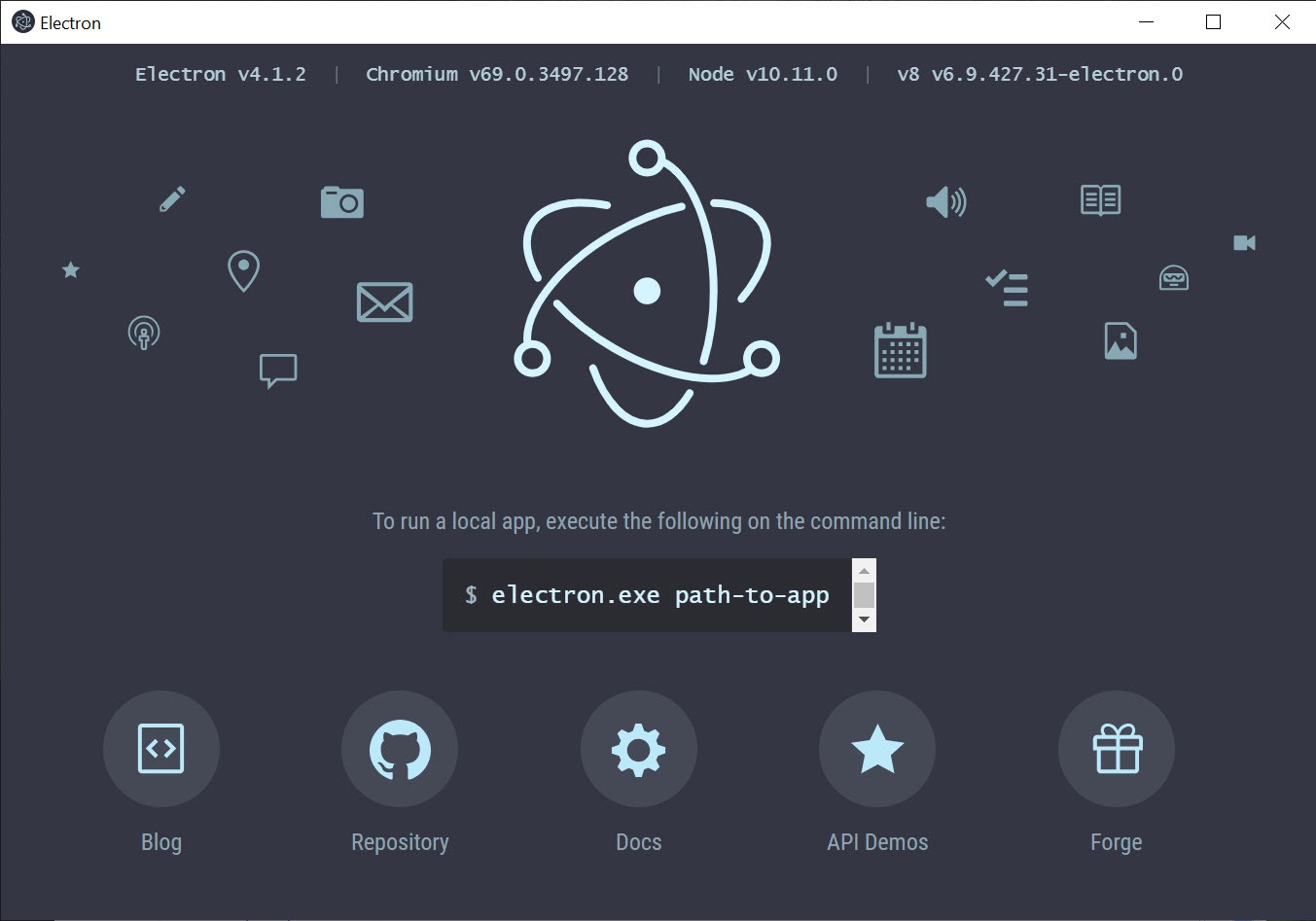
About Electron
If you’ve used Visual Studio Code, Slack, Discord, Notion, or Figma’s desktop client, you’ve already used Electron without knowing it. The framework is the layer underneath a surprising amount of the desktop software shipped in the last decade, the reason a single team can put out a Windows version, a macOS version, and a Linux version of the same application without writing three separate codebases.
Electron lets developers build desktop applications using JavaScript, HTML, and CSS, the same tools they’d use for a website. It bundles a stripped-down Chromium browser and a Node.js runtime into a single package, so the application runs as a native window on the user’s machine while behaving like a web app underneath.
That trade-off (faster development, larger installs, higher memory use) is the defining tension of every Electron app and the reason the framework has both passionate fans and equally passionate critics.
How the framework actually works
Electron combines two upstream projects you’ve almost certainly heard of. The first is Chromium, the same engine that powers Chrome, Edge, and Brave. The second is Node.js, the JavaScript runtime that runs on servers. The framework glues them together so a single application gets both a full browser rendering engine and direct access to the operating system through Node APIs.
A running Electron app has at least two processes. The main process is a Node.js environment, and it controls the application lifecycle, native menus, system dialogs, file access, and anything else that needs to talk to the OS. The renderer process is a Chromium browser window, and it handles everything visible to the user.
Communication between the two happens over an IPC (inter-process communication) channel, which is where most security best practices and architectural decisions land.
This split is the part that catches new developers off guard. Code that touches files or runs shell commands has to live in the main process. Code that updates the UI lives in the renderer. Passing data between them requires explicit message-passing through ipcMain and ipcRenderer, or the newer contextBridge API for security-conscious setups. It’s not as immediate as writing a web page, but it forces a separation that pays off in larger applications.
The applications you already use
The clearest argument for Electron is the list of applications running on it. Visual Studio Code is built on it. So are Discord, Slack, Signal Desktop, WhatsApp for PC, Skype, and GitHub Desktop. Electron itself was extracted from the development of Atom, which is where the original codebase came from, before it became its own project and went far beyond the editor that spawned it.
The reason these companies chose Electron is rarely technical purity. It’s economics. One team of web developers ships to three operating systems with one codebase. The same UI components, the same business logic, the same designers and frontend engineers can produce a desktop client that looks and behaves consistently everywhere.
Compare that to maintaining native Win32/WPF for Windows, AppKit for macOS, and GTK or Qt for Linux. The math is hard to argue with for any company that values shipping speed over runtime efficiency.
Native OS integration that’s actually deep
A common misconception is that Electron apps are “just web pages in a window.” They’re not. The Node.js side has access to almost everything a native application would: file system reads and writes, child processes, native modules compiled in C++, system tray icons, jump lists, dock badges, global shortcuts, custom protocol handlers, auto-launch on startup, native notifications, and full window chrome customization including frameless windows with custom title bars.
The dialog module opens real native file pickers. The Menu and MenuItem classes build actual OS menu bars that respect platform conventions. BrowserWindow exposes native window controls including transparency, vibrancy effects on macOS, and acrylic blur on Windows. Drag-and-drop from the OS into the app works the way users expect. The framework also supports printing, screen capture and power monitoring.
This level of access is what separates a real desktop application from a wrapped website. It’s also what makes Electron genuinely useful, because the alternative for a JavaScript developer who wants to ship to desktop has historically been a much steeper learning curve.
The memory and bundle size question
This is the part of every Electron discussion that turns into an argument. The framework ships a full Chromium runtime inside every application. That means installing five Electron apps means installing five copies of Chromium, taking up disk space and running five separate browser engines simultaneously when they’re all open.
A minimal Electron application, with no real code yet, weighs around 150 MB on disk and uses roughly 100-150 MB of RAM at idle. A real-world app like Slack or Discord with a few open channels easily climbs to 400-800 MB of memory, sometimes more with many workspaces or servers loaded. On a machine with 8 GB of RAM and three or four such apps running alongside a browser, the math gets uncomfortable.
Electron has worked on this over the years. Improvements include better V8 garbage collection tuning, process sandboxing that reduces overhead, and ASAR archiving that packs application code into a single file for faster loading. Some apps now share renderer processes between windows or use the V8 snapshot mechanism to reduce startup time. But the baseline cost of bundling Chromium isn’t going away. It’s the tax you pay for the development model.
Security model and the things you have to get right
Electron exposes Node.js APIs to JavaScript that can be rendered inside the same window as remote content. That combination, if mishandled, creates serious vulnerabilities. The framework has a strong security model when used correctly, but “used correctly” is doing a lot of work in that sentence.
The current defaults are sane. nodeIntegration is off by default in renderer processes, contextIsolation is on, and sandbox mode is encouraged for any renderer that loads untrusted content. The contextBridge API gives you a controlled way to expose specific functions from the main process to the renderer without handing over the whole Node API.
Apps that load remote URLs (especially anything user-controlled) need Content Security Policy headers, careful handling of navigation events, and explicit denial of new window creation by default.
Where this falls down is in older codebases or quick-and-dirty internal tools. An Electron app written by someone copying a tutorial from a decade ago, with nodeIntegration: true in the main BrowserWindow, is a real liability. The framework has documented the migration path, but anyone maintaining an older codebase needs to do the work.
When it makes sense and when it doesn’t
Electron is the right choice when you already have web developers, when your application needs to ship to all three major desktop platforms, when the UI is genuinely complex and benefits from CSS and modern web frameworks like React or Vue, and when the memory cost is acceptable for your audience. Code editors, messaging apps, design tools, and developer utilities all tend to fit this profile.
It’s the wrong choice for tools that need to be ultra-lightweight, for system utilities that should idle at single-digit megabytes of RAM, for applications that need direct GPU access or other low-level performance features, and for anything that has to run on memory-constrained hardware. A simple disk cleaner has no business shipping Chromium with it.
A text-editing tool like Notepad++, written in native C++, runs on a fraction of the resources an Electron equivalent would need.
The alternatives are real now. Tauri uses the OS’s built-in webview instead of bundling Chromium, dropping bundle sizes dramatically at the cost of cross-platform rendering consistency. .NET MAUI and Flutter offer different trade-offs. But none of these have Electron‘s mature ecosystem, its huge collection of working examples, or its documentation depth.
Conclusion
Electron is the right tool for the specific job of shipping a feature-rich desktop application across three operating systems with one web-development team. The framework’s success is hard to argue with when the list of apps built on it includes most of the desktop software people actually use to communicate, write code, and collaborate.
The criticism is also fair. A world where every desktop app carries its own Chromium copy is a wasteful world, and the memory math gets uglier the more apps you keep open. But the alternative, for most teams that have picked Electron, was never a leaner native app. It was no desktop app at all. The framework’s existence is the reason a lot of software has a desktop presence in the first place, and that’s the trade-off it asks you to accept.
Pros & Cons
- Full native OS integration, including menus, dialogs, system tray, and notifications
- Huge ecosystem with thousands of working examples and well-documented patterns
- Modern web framework support means React, Vue, Svelte, and others all work directly
- Strong security defaults when developers follow current best practices
- Backed by industry adoption from major companies, with frequent stable releases
- Each application bundles its own Chromium copy, so installs are large and memory use is high
- Idle memory footprint starts at 100-150 MB before any application code runs
- Multiple Electron apps open at once compete for memory and CPU on modest machines
- Security requires explicit care, older apps with nodeIntegration enabled are vulnerable
- IPC model adds complexity compared to a pure web page or a pure Node script
- Performance ceiling is lower than native code for CPU-heavy or graphics-heavy workloads
Frequently asked questions
Electron is used to build desktop applications with web technologies (JavaScript, HTML, CSS) that run as native windows on Windows, macOS, and Linux. The same codebase produces all three desktop versions.
Visual Studio Code, Slack, Discord, Signal Desktop, WhatsApp for PC, Skype, GitHub Desktop, Notion, and Figma's desktop client all run on Electron.
The framework bundles a full Chromium browser engine and a Node.js runtime inside each application. That means every app effectively runs its own copy of a browser, which sets a floor of around 100-150 MB of RAM before any application code executes.
No. Electron uses Node.js as one of its two components, but it also includes Chromium for rendering. Node.js by itself runs JavaScript on the command line or on a server, while Electron combines it with a browser engine to produce desktop applications.
The main process runs Node.js and controls the application lifecycle, window creation, and OS-level features. Each window runs in a separate renderer process, which is a Chromium browser instance. The two processes communicate through IPC channels.
Tauri (uses the system webview instead of bundling Chromium), .NET MAUI, Flutter Desktop, Qt, and platform-native frameworks like WPF or AppKit are the main alternatives. Each trades development speed for runtime efficiency in different ways.
Yes. Once installed, the application runs locally without needing internet access. Whether a specific app works offline depends on what that app does, since many (like Slack or Discord) are inherently network-based.


