

Hamachi
About Hamachi
Hamachi makes computers in different places behave as if they were plugged into the same router. Create a network, give its name and password to friends or colleagues, and every machine that joins receives an address on a private virtual network, sees the others in a list, and can reach them the way it would reach a laptop in the next room. File shares, game servers, remote desktop sessions and printers all work across it without anyone opening a port or touching a router’s settings, because the connections are set up through a service that brokers the introduction and then, where it can, lets the two ends talk directly.
That brokered introduction is the whole point and the whole trade. The service handles the hard part of reaching a machine behind a home router, which is why a group of friends can host a game that was only ever meant for a local network, and why a small office can give a remote colleague access to a shared folder in an afternoon.
Hamachi is not a VPN in the sense of hiding your browsing or appearing to be in another country, which is what Whoer VPN and its kind do, and it does nothing for streaming catalogues. It is a private network that happens to cross the internet, encrypted end to end, and its entry tier allows five computers per network, with the larger tiers raising that ceiling for teams.
Creating and joining a network
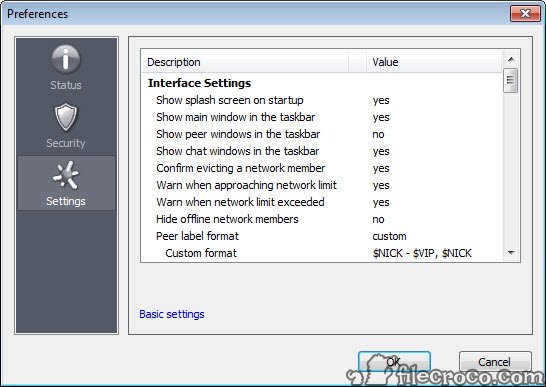
The Hamachi client is a small window with a power button, your virtual address and a list of networks and their members. Create a network with a name and a password, and anyone with both can join from their own client, with an option to require your approval first. Members appear in the list with a coloured dot beside each name, and a right-click on a member offers a ping, a chat window, a browse of their shared folders and a copy of their address,
The dot is the thing to watch. Green means a direct tunnel between the two machines, which is what you want. Blue means the two could not reach each other directly and the traffic is being relayed through the service’s servers, which works but adds latency that a game feels immediately. Yellow means the tunnel failed, usually because a firewall on one side is blocking the client, and that is the most common first-day problem.
Direct versus relayed, and what decides it
Whether a Hamachi tunnel goes direct depends on the routers at both ends. Most home routers allow the hole-punching the client uses, and the dot goes green. A strict router, a corporate firewall or a mobile connection behind carrier-grade address sharing blocks it, and the traffic falls back to the relay, which is slower and shared with every other relayed user.
For a file share the difference barely registers, and for a game it is the reason people call the tool laggy.
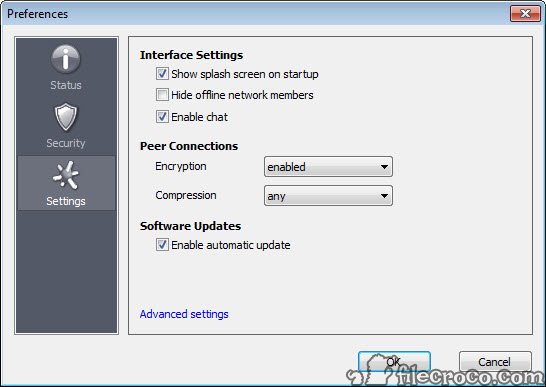
The fixes are the usual ones. Allow the client through the firewall on both machines, make sure the virtual adapter it installs is enabled and set as a private network, and where a router offers it, turn on the automatic port opening. When nothing turns the dot green, the relay is what you have, since no setting in the client changes the router at the other end.
Mesh, hub-and-spoke and gateway networks
Three Hamachi network shapes cover different jobs. Mesh connects every member to every other member, which is what a group of friends or a small team wants, since anyone can reach anyone. Hub-and-spoke designates some members as hubs that everyone can reach and leaves the spokes unable to see each other, which suits a shared server that several people use without those people needing access to one another’s machines.
Gateway turns one permanently online computer into a door to its whole local network, so a remote member reaches not only that machine but the printers, network drives and other devices behind it, none of which run the client. It is the shape for reaching an office from home, and it carries rules of its own, including that the gateway machine can belong to no other network. Hub-and-spoke and gateway networks are created and managed through the web account rather than from the client, which is where the team features live.
Managing networks from the web
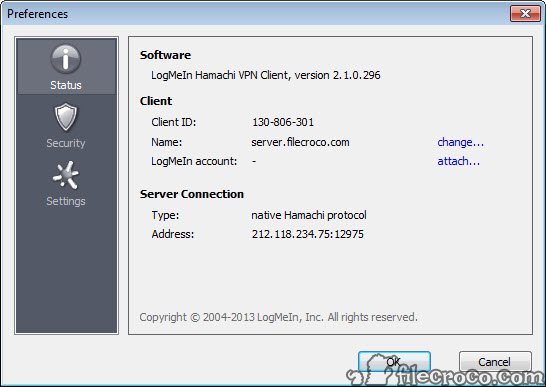
A Hamachi web account lists every network and client, lets you approve join requests, rename and remove members, and set whether a network is open or locked. The larger tiers add unattended installs that attach to an account automatically, which is how a technician rolls the client onto a dozen machines, and network-level settings such as default permissions.
For a five-computer mesh among friends, none of this is needed and the client alone suffices, and anyone who only wants one remote machine’s screen rather than its whole network is better served by Distant Desktop. For a small business, the web console is where the work happens, and it ties into the same account that manages the maker’s remote access tools.
Where it falls short
Five computers per Hamachi network in the entry tier is a tight ceiling for anything beyond a household or a gaming group, and the next tier up is aimed at businesses. The relay is slow when it kicks in, and a growing share of connections land on it as carrier-grade address sharing spreads.
The client installs a virtual network adapter that occasionally grabs a priority it should not have, slowing ordinary internet traffic until its metric is adjusted or it is disabled between sessions, which is the other classic complaint. And the whole arrangement depends on the service staying up, since the broker is central even when the tunnels are direct.
For a private network without a central broker, a self-hosted VPN server does the same job with more setup and no member limit.
Conclusion
Hamachi suits groups of friends resurrecting a game that only knows local networks, households sharing files between homes, and small teams who need a colleague to reach a shared drive without anyone learning port forwarding. The status dots tell you instantly whether a connection is healthy, and the three network shapes cover the realistic cases from a gaming party to an office door.
It is the wrong choice for anonymity or streaming, and the five-computer ceiling plus the relay fallback are the two facts that decide whether it fits. Check the dots after joining, fix the firewall on the yellow ones, and accept the relay as the limit on the blue ones, and it remains the easiest private network most people will ever build.
Pros & Cons
- Private virtual network across the internet with no router configuration
- Members appear in a list with a status dot showing direct, relayed or failed tunnels
- Mesh, hub-and-spoke and gateway shapes for groups, shared servers and office access
- Gateway mode reaches printers and drives that do not run the client
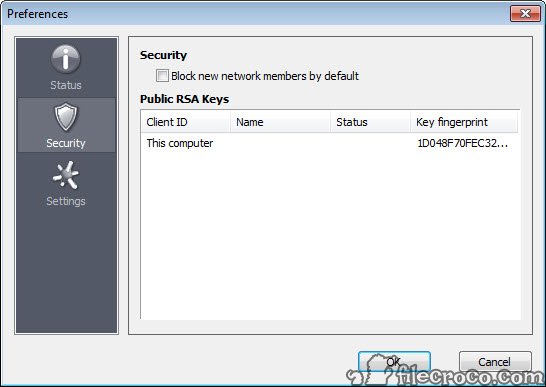
- Encrypted end to end, with join approval and network passwords
- Web console for approving members and managing several networks
- Entry tier limited to five computers per network
- Relayed tunnels add noticeable latency when a direct one cannot form
- Virtual adapter can slow ordinary traffic until its priority is adjusted
- Hub-and-spoke and gateway setup requires the web account
- Depends on the maker's service for every connection
Frequently asked questions
Green is a direct tunnel between two members, blue means traffic is relayed through the service and slower, and yellow means the tunnel failed, usually because a firewall is blocking the client.
Five in the entry tier. The paid tiers raise the limit to 32 or 256 members per network.
The connection is relayed rather than direct, shown by a blue dot. Allow the client through both firewalls and enable automatic port opening on the routers. If the dot stays blue, the router at one end is blocking direct connections.
Mesh connects every member to every other member. Gateway makes one always-on computer a door to its whole local network, including devices that do not run the client.


