

Folder Size
About Folder Size
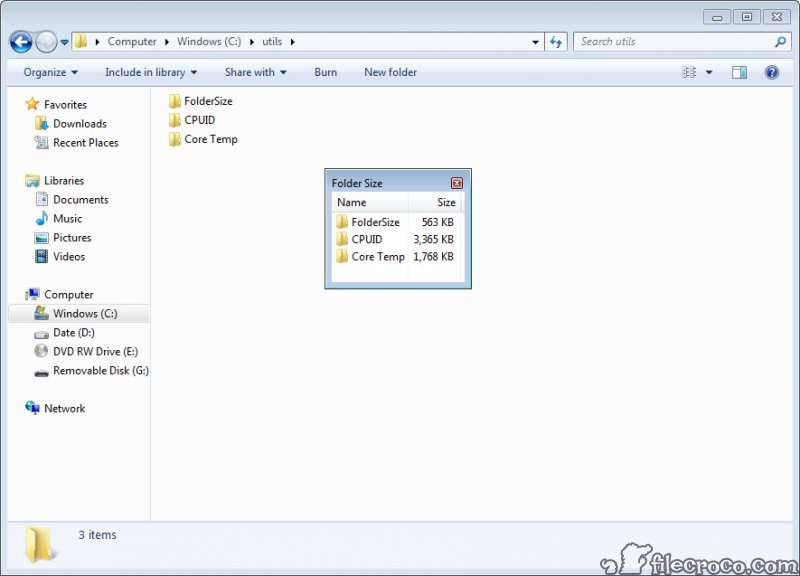
Folder Size fills a gap the file manager has always had. It shows files with their sizes and folders with nothing, so finding which folder has quietly grown to forty gigabytes means right-clicking each one and waiting for the Properties box to add it up. This small utility was built to put a real size next to every folder, computed in the background and kept up to date as files change, so you can see at a glance where the space has gone.
It works by running a background service that scans folders and caches their sizes, then reports them as you browse. On older systems that meant a genuine size column for folders in the file manager’s details view, sitting beside Name, Date and Type, sortable like any other. On current systems that column integration no longer takes, and Folder Size instead shows its results in a separate panel that opens alongside the file manager.
Knowing which of those you will get decides whether this is the right tool, and the sections below explain both.
The background scanner
The scanning is the clever part, with no wait for a full drive scan before anything appears. As soon as you open a folder, sizes start showing, and large folders keep scanning in the background while you carry on browsing, with the figures updating as they finish. Results are cached, so a folder you have looked at before shows its size instantly next time, even after the panel is closed.
The scanner is also polite about disk activity, and it hands the drive to a file copy utility or anything else busy with it. When other programs are reading and writing heavily to the same drive, it pauses and waits for them to finish, so it does not slow down a large copy or a game loading its data.
When you stop browsing for a while, the background scanning stops too rather than running forever.
The column, and the companion panel
Where the column integration works, enabling it is a matter of right-clicking the column headers in the details view and ticking the new size column. The new column then shows each folder’s total, and clicking its header sorts by size, which is the fastest possible way to find the biggest folder in a directory.
On current file managers that column cannot be added, so the program opens a small panel beside the file manager that lists the folders and their sizes for wherever you are browsing. Double-clicking a folder in that panel opens it.
Users find the panel clumsy, since it stays on top of everything else, resizes itself to fit the longest name in the folder, and cannot be sorted from smallest to largest, and some report that the figures it shows are not always exact on newer systems.
It still tells you roughly where the space is, but it is a compromise rather than the built-in column the program was designed around.
When a dedicated analyser is the better choice
Because of that compromise, a dedicated disk space analyser is usually the better tool on a current machine. These scan a whole drive and rank every folder by size, which shows the biggest space hogs far more clearly than a list beside the file manager. TreeSize gives a folder tree sorted by size.
Faster scanners and treemaps
For a picture of the whole drive, a treemap disk visualiser draws it as coloured blocks you can click into. For sheer speed on a large drive, a fast disk space scanner reads the drive’s file table directly and lists everything in seconds.
Where Folder Size still has an edge is in staying out of the way, showing sizes as you browse rather than asking you to open a separate program and run a scan.
Conclusion
Folder Size suits anyone who wants each folder’s total to appear as they browse, especially on older systems where it adds a proper sortable column to the file manager. The background scanner, the cache and the way it steps aside when the disk is busy make it a thoughtful little tool, and it barely touches system resources.
On a current system, though, its fallback panel is awkward and the column it was built for cannot be added. For a modern machine, reach for a dedicated disk space analyser that maps the whole drive, and keep this one for quick checks on older setups where its column still works.
Pros & Cons
- Shows the real size of each folder while you browse, without a full scan first
- Background scanning with a cache that remembers previous results
- Pauses when other programs are busy with the same drive
- A true sortable column on the systems where integration works
- Very small and light on resources
- Its size column cannot be added on current file managers
- The fallback panel stays on top and resizes itself awkwardly
- The panel cannot be sorted from smallest to largest
- Sizes are reported as not always exact on newer systems
- No longer developed
Frequently asked questions
On older systems, yes, as a sortable column in the details view. On current file managers the column cannot be added, so the program shows sizes in a separate panel instead.
A background service scans folders as you view them and caches the results, so sizes appear immediately and update as large folders finish scanning.
It is designed to stay on top and resize to the longest name in the folder, and those behaviours cannot be turned off. Resize it by hand to suit.
On a current machine, a dedicated disk space analyser that ranks a whole drive by size is usually clearer. This tool suits quick checks while browsing.


