

GOM Player
About GOM Player
GOM Player is a media player that grew its audience around a specific promise: play any video file users throw at it without forcing them to wrestle with codec packs or convert files. The application bundles a wide range of decoders into the installation, handles most common video and audio formats out of the box, and tries to find solutions for whatever it can’t play natively.
That last part, the codec finder service, is the feature that historically distinguished it from minimalist alternatives like MPV Player and codec-bundled options like VLC.
The category itself has shifted significantly over the years. Modern operating systems handle more formats natively, modern browsers handle most streaming, and the gap that media players used to fill has narrowed.
GOM Player still occupies a distinct position by leaning into features that pure playback tools don’t bother with: 360-degree video support, robust subtitle handling with online subtitle search, A-B segment looping for language learners and music transcribers, and a screen capture system that records playback frames or video segments without needing external tools.
The codec finder and how it handles broken files
When the application encounters a file it can’t decode, it offers to search for the missing codec online and either guide the user to install it or download the necessary component automatically. The codec finder service queries a database of known codecs against the file’s container and stream information, then returns a specific recommendation rather than the user having to guess.
For users who deal with files from varied sources (older formats, regional codecs, unusual container types), this is genuinely useful. Most users hit a missing codec problem rarely, but when they do, the alternative is either reading through technical forums to identify what the file actually contains or installing comprehensive codec packs like the K-Lite Codec Pack Full hoping one of them covers the gap.
The trade-off is that the codec finder requires network access and sends information about the file (container type, stream metadata, sometimes a hash) to the lookup service. For privacy-sensitive users, this is worth knowing. The feature can be disabled, in which case the application falls back to its built-in codec set and reports unplayable files without phoning home.
Subtitle handling and language learning features
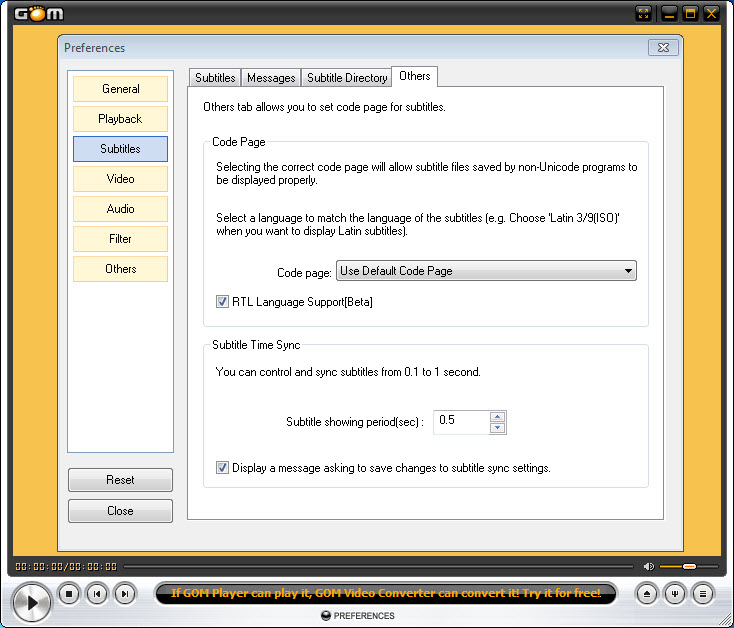
The subtitle system is more sophisticated than what minimalist players offer. The application loads subtitle files automatically when they share a filename with the video, supports the standard formats (SRT, SUB, SMI, IDX/SUB), and includes display options for font, size, color, outline, position, and timing offset. The timing offset matters specifically because subtitle files frequently don’t sync perfectly with video files (different release encodings, frame rate mismatches, missing intro sequences), and a per-file timing adjustment that the application remembers between sessions is more useful than it sounds.
Online subtitle search queries community databases for subtitles matching the loaded video, returning available languages and quality indicators. For users watching foreign films or anime where local subtitle availability matters, this is the kind of feature that saves significant manual work compared to opening a browser, searching subtitle sites, and downloading files manually.
The A-B repeat feature locks playback to a specific segment of the file, looping between two marked timestamps indefinitely. Language learners use it to practice listening to short dialogue segments. Musicians use it to transcribe parts of a song.
Sports analysts use it to review specific plays. The implementation is simpler than dedicated tools but covers most practical uses without launching another application.
360-degree video and the VR angle
This is one of the more distinctive features and one that most general-purpose players don’t handle. GOM Player can detect equirectangular 360-degree video files and render them with mouse-controlled viewpoint navigation, letting users look around inside the video as it plays. The application also includes integration with VR headsets through their respective runtime systems, so a 360 video can be watched through a connected headset with proper stereo rendering and head tracking.
The feature scope is narrower than dedicated VR players, and serious VR users typically reach for tools built specifically for the platform. For casual 360 content (the kind that appears on social platforms and gets shared as standalone files), the application’s built-in handling means users don’t need separate software for occasional immersive playback.
It also handles the file types that come from 360 cameras directly, which is a niche but real use case for users with those devices.
Performance and resource handling
Resource usage during playback runs higher than minimalist players but stays reasonable on modern hardware. The application uses hardware acceleration through DirectX Video Acceleration and modern API paths where available, which keeps CPU load low even on 4K content. For systems without dedicated GPUs, the software decoder falls back gracefully but with the expected higher CPU usage on demanding files.
The application loads quickly compared to media center applications like Kodi, making it suitable for casual one-off video viewing where launching a full media center would feel like overkill. Memory consumption sits in the moderate range for media players, with the resident footprint expanding when playing high-resolution files but releasing cleanly when playback ends.
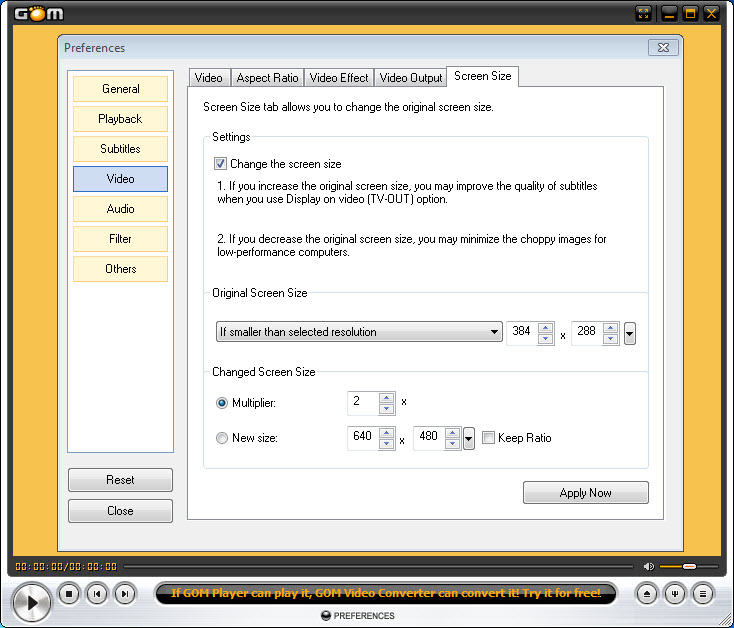
The interface is responsive enough for most users, though it carries more visual chrome than minimalist players like MPV. The window can be resized to small sizes for picture-in-picture style viewing, and the floating window can be set to always-on-top for users multitasking with video content in the corner of their screen.
Free version, ads, and the Plus variant
The free version of the application includes advertisements in the interface. The placement varies but generally appears as a banner or panel within the main window, with occasional promotional notifications for the paid Plus variant.
For users who want a cleaner interface without advertisements, the Plus version removes the ads and adds some additional features. Whether the difference justifies the cost depends on how often the user actively engages with the application’s interface (heavy users see more value, casual users see less).
The advertising approach has been controversial over the years, with some users finding it more intrusive than they expect from a free media player. Alternatives like PotPlayer and the VLC media player offer ad-free playback as their default experience, which is the trade-off users navigate when choosing between players in this category.
Conclusion
GOM Player is the right choice for users who want a feature-dense media player with subtitle handling, codec discovery, and specialty features like 360-degree playback and segment looping all in one application. The target audience covers casual film and TV watchers who appreciate automatic subtitle loading, language learners using A-B repeat for listening practice, users dealing with mixed file formats from varied sources, and people watching 360 content without a dedicated VR player.
It’s the wrong choice for users who want a minimalist ad-free playback experience (where MPV, VLC, and PotPlayer cover that ground better), for privacy-sensitive users who don’t want a codec finder service phoning home with file metadata, or for users whose playback needs are simple enough that the application’s feature density feels excessive.
The decision between this and the alternatives in the same category usually comes down to whether the specialty features justify accepting the advertising in the free version, and whether the codec discovery capability matters for the specific files the user typically encounters.
Features & benefits
Pros & Cons
- Built-in codec support handles most video and audio formats without requiring separate codec packs
- Codec finder service identifies missing decoders for unusual file types and recommends specific solutions
- Subtitle handling covers automatic loading, timing offsets, online search, and the standard subtitle formats
- 360-degree video playback with mouse navigation and VR headset integration
- A-B repeat segment looping useful for language learners, musicians, and analysts
- Screen capture system records playback frames or segments without external tools
- Free version includes advertisements within the interface
- Codec finder service requires network access and sends file metadata to the lookup service
- Heavier interface and resource footprint than minimalist players like MPV
- Some users find the visual chrome and feature density excessive for simple playback needs
- Recurring promotional prompts for the Plus variant can feel intrusive
- The codec installation flow occasionally tries to install bundled components that not all users want
Frequently asked questions
The application plays video and audio files in most common formats, with built-in codecs covering the majority of cases. Additional features include subtitle handling with online search, 360-degree video support, A-B segment looping, and a screen capture system.
Most playback failures result from codec mismatches between the file's encoding and what the application has built-in. The codec finder service identifies what's needed and recommends specific solutions, or alternatively the application can fall back to system codecs already installed on the machine.
Both players cover wide format support. VLC is open-source, ad-free, and minimalist in its default interface. GOM Player adds features like online subtitle search, 360-degree video, and more elaborate display customization, while carrying advertisements in its free version.
The Plus variant is a paid version that removes advertisements and adds some additional features. The core playback capabilities are the same in both versions.
Yes. The application loads SRT, SUB, SMI, and IDX/SUB subtitle files automatically when they share a filename with the video, with controls for font, size, color, position, and timing offset. Online subtitle search queries community databases for available subtitle files matching the loaded video.
Yes. The screen capture system records frames or video segments from the active playback. The captured output goes to a chosen folder in standard image or video formats.
A-B repeat locks playback to a chosen segment of the file, looping between two marked timestamps. Language learners use it for short dialogue practice. Musicians use it for transcription. The feature works on any file format the application can play.


