

SARDU
About SARDU
SARDU builds one bootable USB stick that holds a whole toolkit of rescue and install media. Instead of a drawer full of labeled discs, one for the antivirus scanner, one for the partition tool, one for each operating system installer, you put them all on a single drive and pick what you need from a menu when the machine boots. For anyone who fixes computers, that consolidation is the entire appeal.
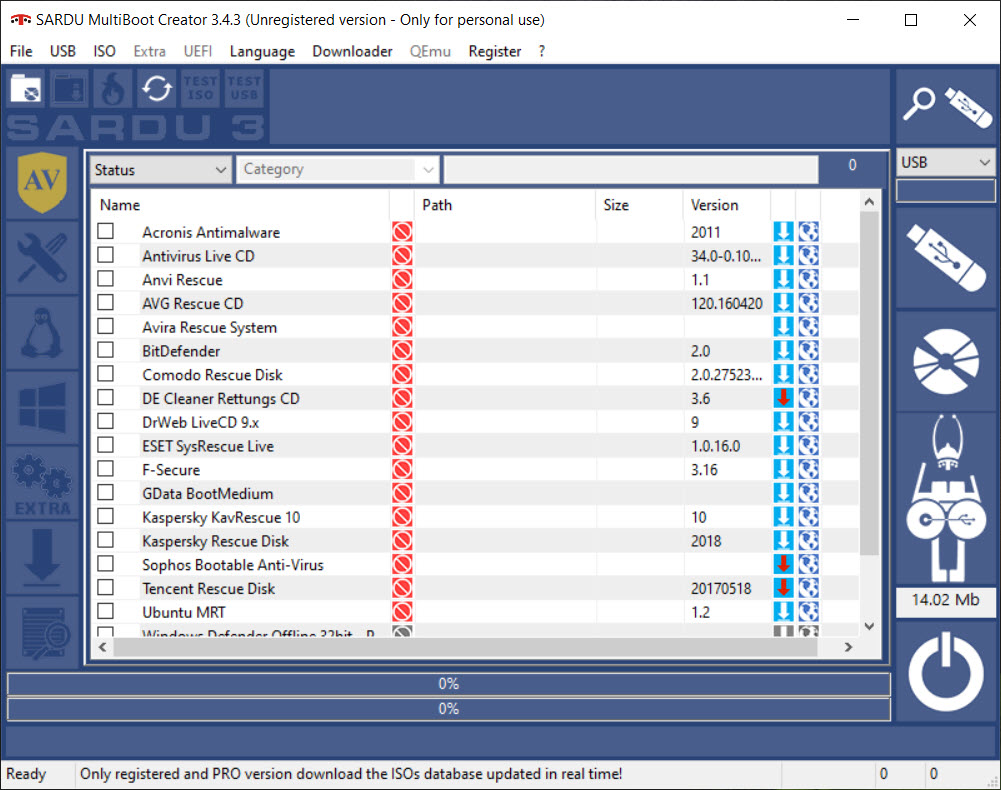
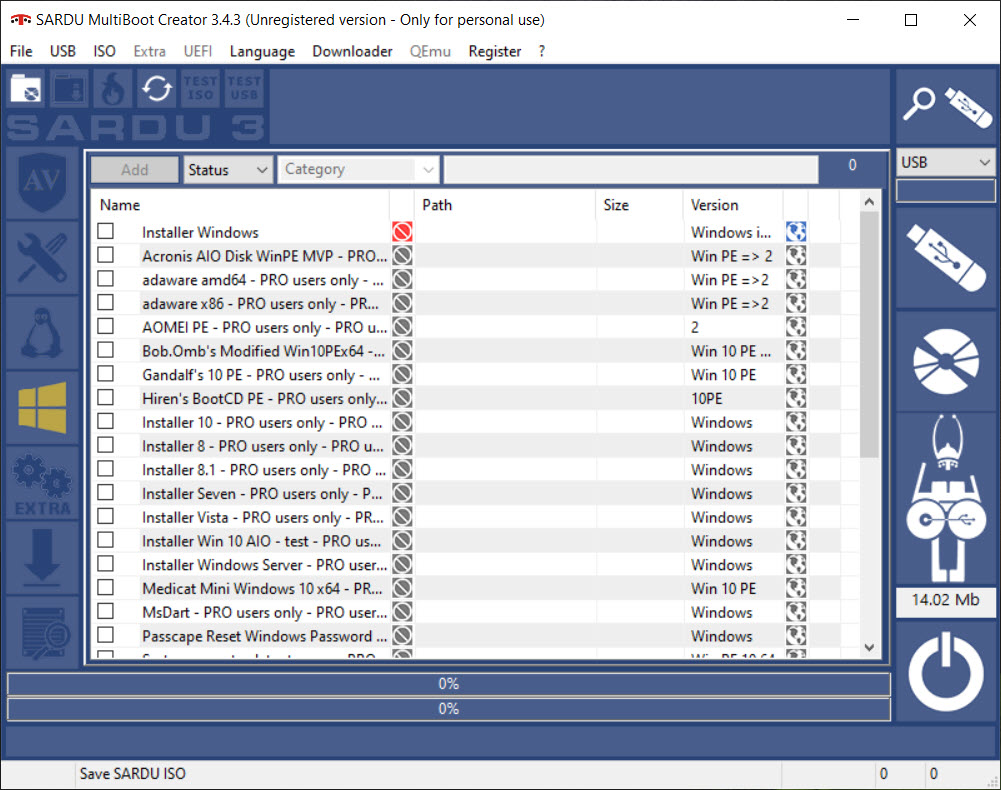
The full name says a lot about its origins. SARDU stands for Shardana Antivirus Rescue Disk Utility, and that rescue-disk heritage still shapes it. The program is organized around categories that map to the jobs a technician actually faces. Antivirus rescue environments for cleaning an infected machine that will not boot normally, utilities for partitioning and diagnostics, live environments to work from, and installer media for putting a fresh operating system on a drive.
What separates it from a simple write-one-image tool is that it is built from the ground up for the many-tools-on-one-drive scenario. It does not just copy an ISO onto a stick. It extracts what each image needs, examines it, and weaves everything into a unified boot menu so the finished drive presents a clean list of choices at startup.
The built-in downloader does the hunting for you
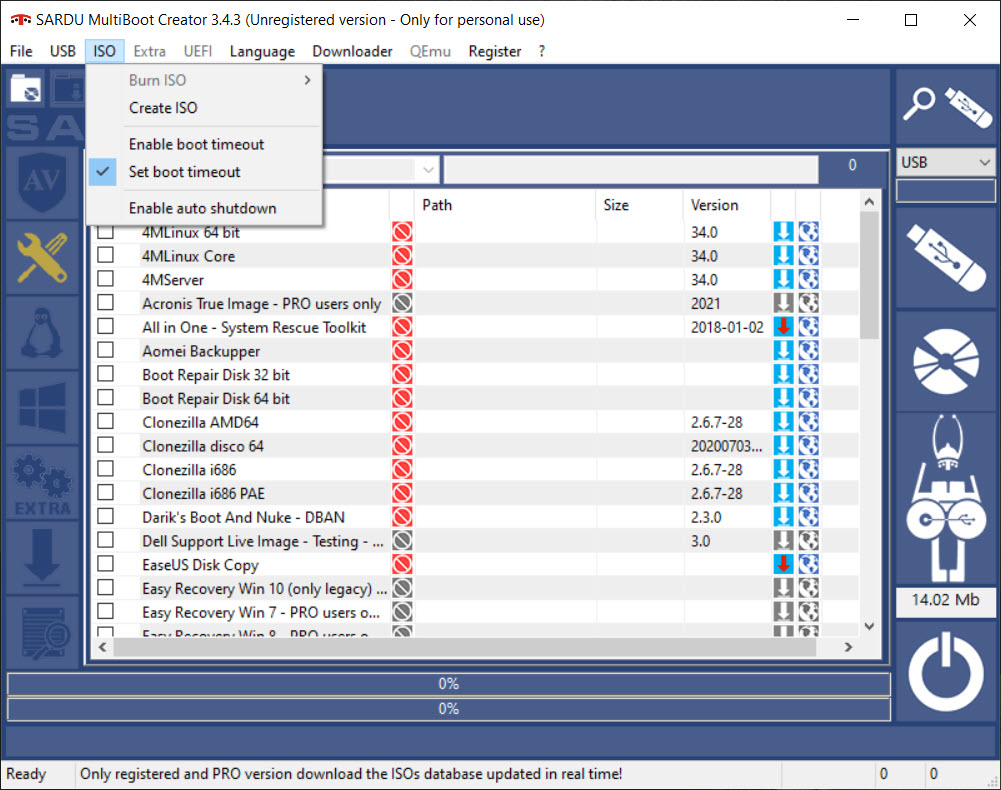
One of the more thoughtful touches is that you do not have to go scavenging for ISO files yourself. SARDU ships with a catalog of supported bootable images, hundreds of them, sorted into its category tabs. Find the rescue tool or live environment you want in the list, click its download button, and the program fetches the image and slots it into the right place automatically.
That catalog is large, spanning antivirus rescue disks from many well-known security vendors, a long list of live distributions, memory testers, disk health checkers, password recovery tools, and installer media.
For a technician assembling a do-everything drive, having a curated menu of options to tick off is far faster than tracking each one down separately. You can also drop in your own ISO files manually if something you need is not in the catalog.
Building the drive and how the menu comes together
The workflow is methodical. You connect a drive, the program detects it, you tick the images you want from the categories, and then it processes them one at a time, extracting each and adding it to the boot menu. When it finishes, you have a single drive that boots to a tidy menu split into those macro categories, and from there you launch whatever the situation calls for.
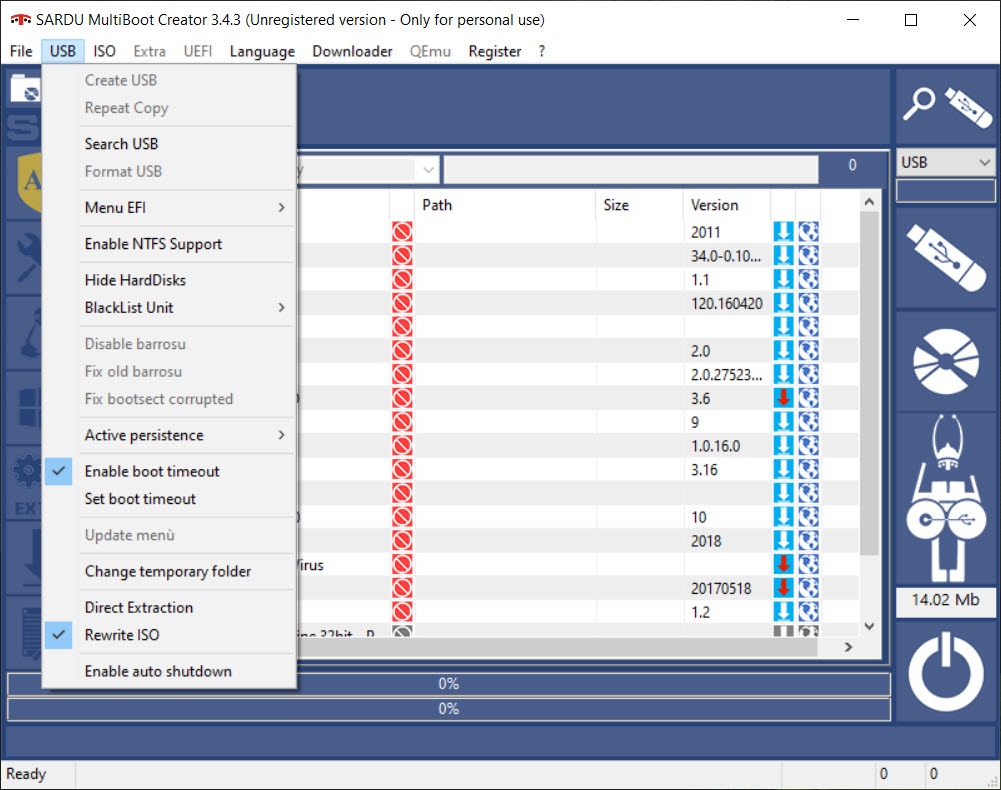
A practical strength of SARDU is that the build is incremental. You are not forced to wipe and rebuild from scratch every time your needs change. You can come back later, add a new tool or remove an old one, and the program updates the menu accordingly. If the menu itself ever gets damaged, there is an option to rebuild just the menu without touching the images, which saves a lot of time.
It also covers both the older Legacy BIOS boot style and modern UEFI, so the drive you build works across a wide range of machines. There is even a built-in way to test the finished menu in a virtual machine before you rely on it in the field, a detail that betrays its technician-focused design.
Who it is built for
This is a tool for repair work, plain and simple. If your day involves walking up to broken machines, scanning for infections, recovering data, resetting passwords, checking failing hardware, or reinstalling an operating system, this puts every one of those jobs on one stick you can carry in a pocket. The SARDU category structure mirrors a repair workflow, and the downloader removes the tedious part of gathering the pieces.
For a casual user who just wants to make one install drive, it is more machinery than the task needs. Writing a single image is simpler with a focused tool like Rufus. And the multiboot approach itself now has rivals like YUMI and the famously simple Ventoy, the latter letting you just copy ISO files onto a drive with no per-image processing at all.
Where this one holds its ground is the curated rescue-disk catalog and the structured, category-based menu, which some technicians prefer to a flat list of files.
Where it shows its age
Be honest with yourself about the trade-offs. Because SARDU extracts and processes each image rather than simply copying it, building a drive takes longer and feels more involved than the newer drag-and-drop tools. The interface is functional rather than modern, organized around its category tabs in a way that works but does not win any beauty contests.
It also leans heavily on its own catalog and downloader. When that catalog is current and has what you want, the experience is smooth. When you need something outside it, you are back to sourcing ISOs yourself and adding them by hand.
And as with any boot tool, some installs require disabling Secure Boot in your firmware first, a step worth knowing before you are standing over a machine wondering why it will not start.
Conclusion
SARDU is a technician’s tool through and through. It takes the scattered collection of rescue disks, diagnostic utilities, and installers that anyone doing repair work accumulates, and folds them into a single bootable drive with a sensible, category-based menu. The built-in catalog and downloader turn the tedious job of gathering all that media into a few clicks, which is where it saves real time.
It is not the choice for someone making one quick install drive, and it shows its age beside the newer copy-and-go tools. But for the specific, recurring task of carrying a full repair kit on one stick, organized the way a repair job actually unfolds, it remains a capable and purpose-built option. If fixing machines is part of your life, it earns its place in your toolbox.
Pros & Cons
- Combines many rescue, utility, and installer images on a single bootable drive
- Built-in downloader fetches supported ISOs from a large curated catalog
- Category-based menu mirrors a real repair workflow
- Incremental builds let you add or remove tools without starting over
- Supports both Legacy BIOS and UEFI boot, plus a built-in menu tester
- Custom ISOs can be added manually when the catalog lacks something
- Processes each image rather than copying, so builds are slower and more involved
- The interface looks dated next to modern drag-and-drop creators
- Relies heavily on its own catalog for the smoothest experience
- Some installs require disabling Secure Boot first
Frequently asked questions
It builds a single bootable USB drive or disc that holds many rescue tools, utilities, live environments, and operating system installers, all reachable from one boot menu organized into categories.
It includes a built-in downloader with a large catalog of supported images. You pick what you want from the category tabs and it fetches and adds them for you, or you can add your own ISO files manually.
A single-image tool puts one bootable system on a drive. This one combines many, processing each image and building a unified boot menu so you can choose between them at startup.
Yes. The build is incremental, so you can add new images or remove old ones later, and even rebuild just the boot menu if it gets damaged, without redoing everything.
Yes. It builds drives that boot in both Legacy BIOS and UEFI modes, though some installs may require disabling Secure Boot in your firmware first.
Technicians and anyone who repairs computers, since it consolidates antivirus, recovery, diagnostic, and install media onto one drive that replaces a stack of separate discs.


