

NTLite
About NTLite
NTLite lets you rebuild the Windows installation image itself, so the system you install is already the system you wanted. Instead of setting up a fresh machine and then spending an evening uninstalling preloaded apps, disabling features, hunting drivers, and clicking through setup questions, you do all of that once, to the image, before installation ever happens.
Load the install media, strip out what you don’t want, bake in updates and drivers, pre-answer every setup prompt, and write out a new image. Every install from that image comes out clean, patched, and configured from the first boot.
That’s a fundamentally different approach from the usual debloating routine, and it’s worth pausing on why. Cleanup tools scrub a running system, and their work partially undoes itself with major updates and completely disappears with the next reinstall. NTLite moves the work upstream.
The unwanted components aren’t removed from your system, they were never installed in the first place, and that permanence is the entire value proposition. One well-built image serves every machine you set up afterward.
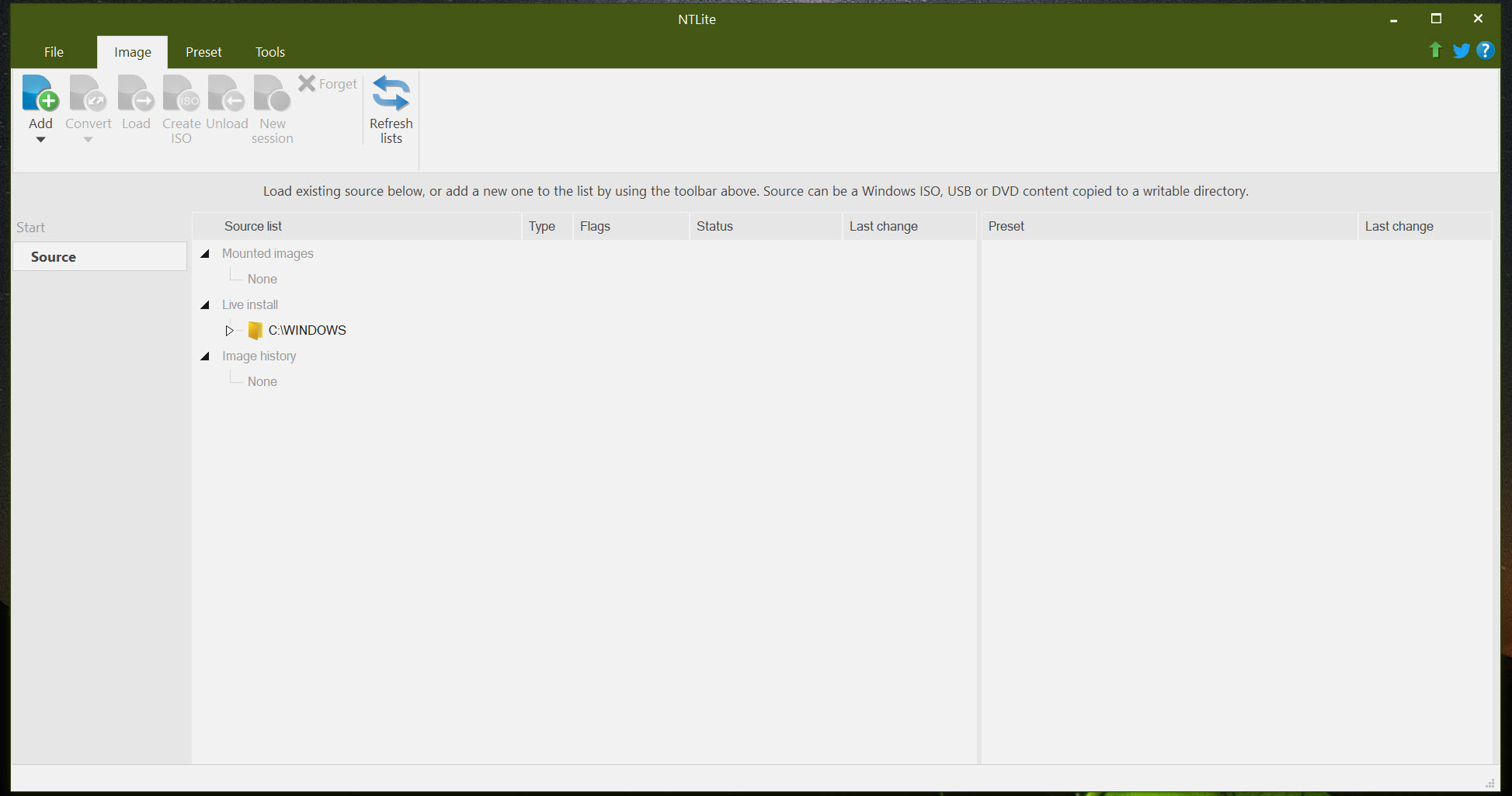
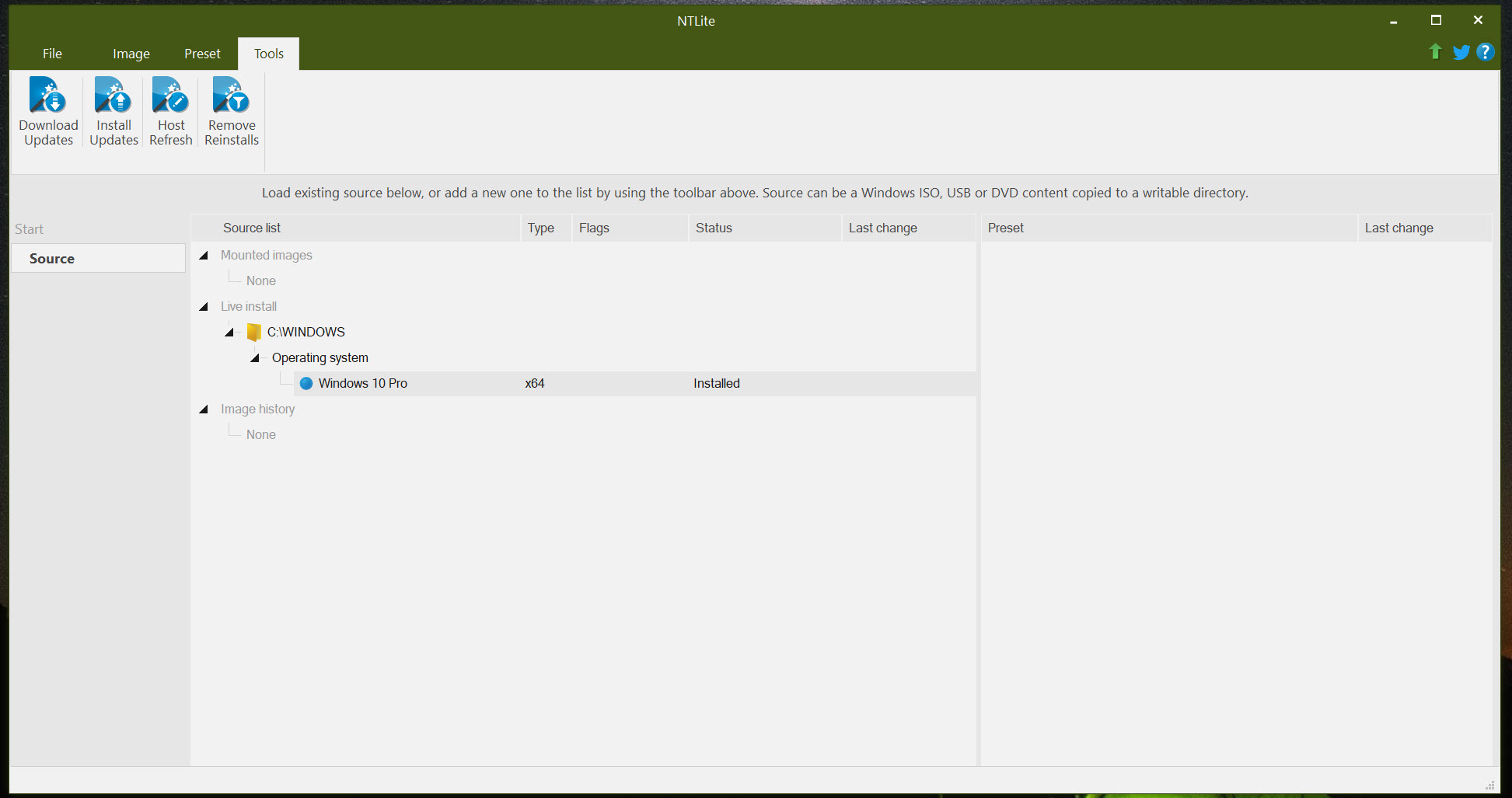
The tool can also operate on the live, currently installed system rather than an image, applying the same component removal and tweaking to the machine you’re using. It’s the less celebrated mode, but for a system you can’t reinstall right now, it brings much of the same surgery to a running patient.
Component removal, with guardrails
The headline feature is stripping Windows down. NTLite presents the image’s contents as a tree of removable components, from preinstalled apps you’d delete anyway to background services, optional features, and the newer AI additions that have been accumulating in the system. Untick what you don’t want and it’s gone from the image. The appeal ranges from reclaiming disk space and memory on modest hardware to simply owning a system that contains only what you chose.
The part that separates it from reckless stripping scripts is the compatibility engine. Components depend on each other in undocumented ways, and removing the wrong one silently breaks updates, apps, or setup itself. The tool tracks these dependencies and warns you when a removal would take something important down with it, and its protective defaults are the reason a careful beginner can build a working slim image on the first attempt.
The freedom to ignore the warnings remains, as do the consequences. Removed components can also block future feature updates from installing cleanly, which is the classic trap of aggressive slimming, and a reason to prune with judgment rather than enthusiasm.
Updates, drivers, and the unattended answer file
Integration is the quieter half of the job. NTLite slipstreams updates directly into the image, so a fresh install starts current instead of spending its first hour downloading patches. Drivers integrate the same way, and the tool can harvest the drivers from the machine it’s running on and fold them into the image, which turns “reinstall this exact laptop” into a genuinely painless operation, network and all, working from the first boot. Anything still missing afterward is a job for Snappy Driver Installer on the installed system.
Then there’s the unattended setup, the feature that converts installation from a series of questions into a fire-and-forget process. Account name, locale, keyboard, privacy answers, partitioning choices, all pre-answered in the image, so installation runs start to finish without you touching it.
Combined with post-setup tasks that install your applications automatically after Windows lands, a well-built image takes a machine from blank drive to fully working, personalized system with essentially zero interaction.
For anyone who sets up computers regularly, this is the feature that changes the math.
From image to bootable install media
The end of every session is writing out the result, and the tool rebuilds a proper bootable ISO with your changes applied. Getting that ISO onto a USB stick is the one step outside its scope, and Rufus handles it in minutes, or Ventoy if you’d rather keep several custom images on one drive and choose at boot. The full chain, customize, rebuild, write, install, sounds elaborate the first time and becomes routine by the second image.
Sessions do ask for resources. Image editing means unpacking, modifying, and repacking gigabytes, so expect real disk space usage and processing time on each rebuild, and expect your first image to involve some learning and probably a test install before you trust it.
The sensible workflow is to keep notes, or use the tool’s own saved presets, so the second image takes a tenth the effort of the first.
Who actually needs this
The honest boundary is effort versus payoff. If you reinstall once every few years on one machine, post-install cleanup with something like ShutUp10 for the privacy switches covers most of the benefit with none of the image-building investment. NTLite pays off when installs repeat, a household of machines, a small fleet at work, a tinkerer who reinstalls often, or old hardware where every removed component buys back usable performance.
The edition split matters too. The free tier covers a solid core of the functionality, while the deeper component removals and some automation conveniences sit in paid licenses, so heavy strippers should check which capabilities their plans require. And a note of respect for the danger.
This tool edits the operating system itself, and an over-aggressive image produces problems that surface weeks later in the least convenient ways. Conservative first, aggressive only with experience.
Conclusion
NTLite turns the operating system from something you receive into something you specify, and for the right person that’s addictive. Repeat installers, fleet maintainers, old-hardware rescuers, and control enthusiasts get a clean, patched, pre-configured system from first boot, every time, from an image they built once.
It demands respect and some study, punishes greed with broken updates, and reserves its deepest cuts for paid tiers. Fair terms, honestly stated. For the single-machine casual user it’s more tool than the job needs, but for anyone who installs Windows more than once a year, it quietly becomes the most valuable step in the whole process.
Pros & Cons
- Removes unwanted components from the install image so they never exist on the system
- Dependency warnings protect against removals that would break updates or setup
- Integrates updates and drivers, including the host machine's own driver set
- Unattended setup pre-answers everything for fully automatic installation
- Post-setup tasks can install your applications without any interaction
- Aggressive component removal can block future feature updates
- Deeper removals and some conveniences require paid editions
- Each image rebuild consumes real disk space and processing time
- The first image involves a genuine learning curve and a test install
Frequently asked questions
Permanence. Cleanup on a running system erodes with updates and vanishes at reinstall, while components removed from the image are simply never installed. One good image keeps paying off across every machine and every reinstall.
It can if you ignore its warnings. Components have hidden dependencies, and the tool flags removals that would damage updates or setup. Respect the flags and stay conservative on the first image, and the results are reliably stable.
Yes, it has a live edit mode that applies component removal and tweaks to the installed system rather than an image, useful when a full reinstall isn't on the table.
That's the unattended feature. Accounts, locale, privacy prompts, and partitioning get pre-answered inside the image, and post-setup tasks can install your applications afterward, taking a blank machine to a working desktop without interaction.
Monthly updates generally install fine on sensibly built images. Removing too many components is what jeopardizes the larger feature updates, which is the strongest argument for pruning with restraint.


