

Quick Access Popup
About Quick Access Popup
Quick Access Popup puts your favourite folders one click away from wherever you happen to be. Press the middle mouse button, or a keyboard shortcut, and a menu of the folders and documents you use most, and the programs too, appears under the pointer.
Pick a folder while the file manager is in front and that window jumps to it. Pick one while a Save As or Open dialog is in front and the dialog jumps there instead, the trick people install it for. The menu is built from favourites you add, and it grows into submenus and groups, and live folders, as your collection does.
Every file manager has a favourites bar, and every one of them stops working the moment you are inside another program’s dialog box, which is exactly where the hunting through folder trees happens. Quick Access Popup sits outside any particular window and answers the same way everywhere, so the path to a project folder is the same two gestures whether you are saving a spreadsheet, attaching a file to an email or browsing in the file manager. It is a dense utility that rewards learning a handful of its habits.
Opening the menu, and what happens when you choose a folder
The default Quick Access Popup triggers are the middle mouse button anywhere on the desktop or in a file manager window, and the key combination of the system key with W. Both can be changed, and the mouse trigger can be blocked in programs where a middle click already means something by pointing the tool at that window once. Choose a favourite folder and the behaviour depends on what is active. In the file manager, the current window changes to that folder. On the desktop, a new window opens. In a dialog box, the dialog itself moves to the folder, provided the option for dialog boxes is turned on in the settings.
That works with every program using the standard file dialogs, which is most of them, and the delay inserted while the dialog catches up is adjustable. Documents open in their default program, applications launch, and a web link opens in the browser.
Submenus fold the collection into categories, and a search box inside the menu finds a favourite by typing part of its name when the list has grown past memory.
Twelve kinds of favourite
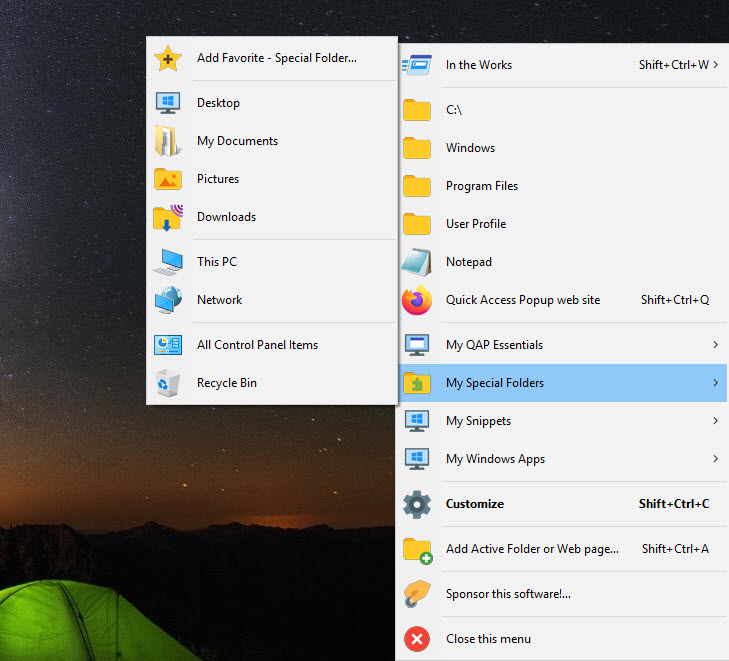
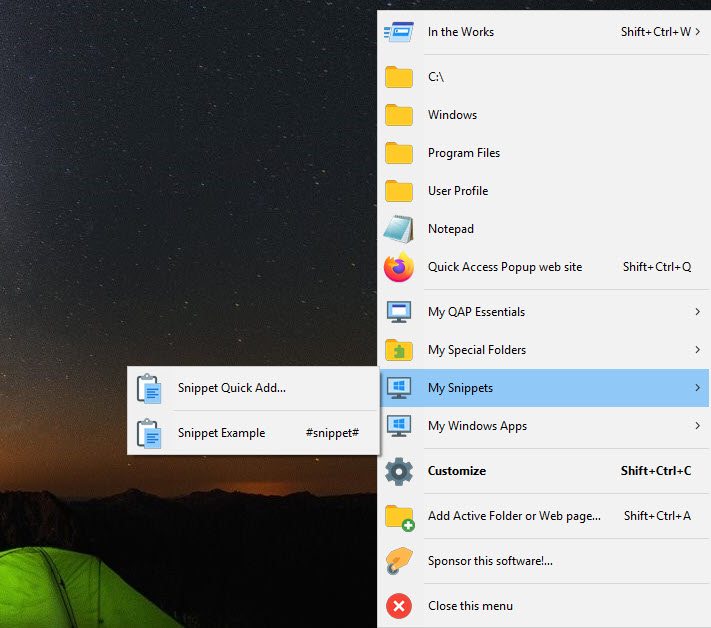
Folders and documents are the obvious Quick Access Popup entries, applications close behind. Special folders cover more than fifty system locations such as the downloads folder, the startup folder, the recycle bin and recent items, picked from a list rather than typed as a path. Web links open in the browser, and FTP sites open in the file manager or in Total Commander or Directory Opus, since the tool knows how to drive both of those file managers as well as the standard one. Text snippets paste a block of text wherever the cursor is.
Groups launch several favourites at once, so a project group can open its folder, its document and its application in one click, each with its own window position. Live Folders turn a real folder into a submenu whose entries are its contents, updated automatically.
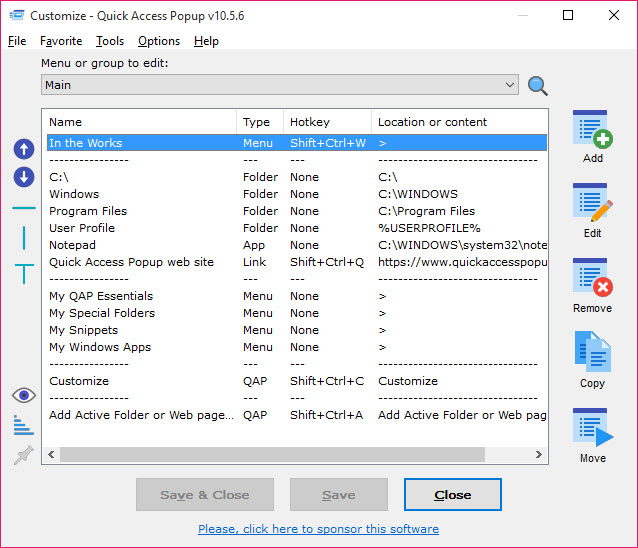
Shared menus let a team keep a common set of favourites in a file that each person’s copy reads, and the built-in features such as the drives list and the recent folders list can themselves be placed as entries. Favourites are added from a Customize window or straight from the file manager’s right-click menu, and settings export so a tuned menu moves between machines.
Dynamic menus that build themselves
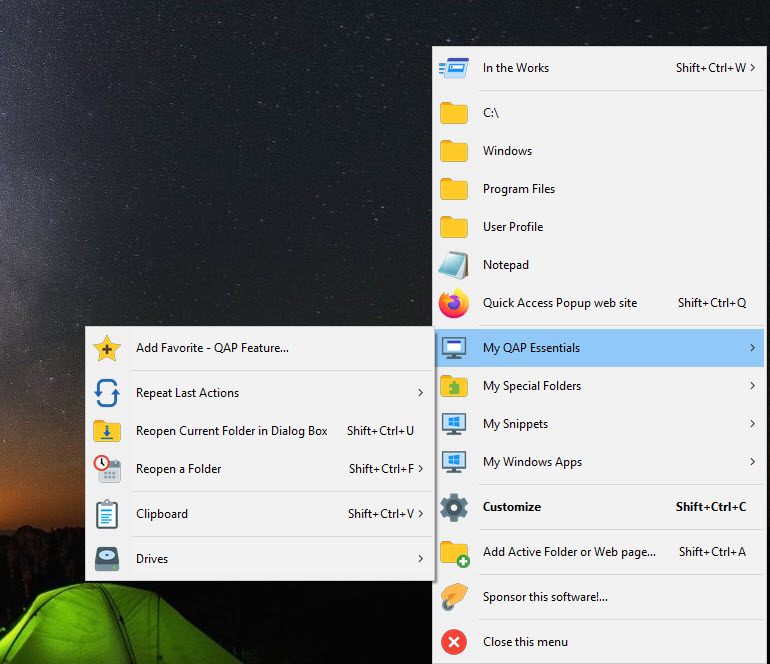
Alongside the favourites you add, Quick Access Popup carries lists it builds for you. Recent Folders and Recent Files show the last locations you touched, with the count adjustable. Frequent Folders ranks by use. Drives lists every mounted volume. Current Windows lists the file manager windows open right now and switches to one. Reopen a Folder lists folders open elsewhere so a dialog can jump to one of them, and Reopen Current Folder in Dialog Box takes a dialog straight to whatever folder the file manager last showed.
Clipboard history is there too, offering recent clipboard entries as a menu. Those lists can sit inside the main menu or detach as their own, and they do a surprising share of the daily work, since the folder you want is often one you were just in.
The Alternative menu and the hotkeys
Hold Shift with the Quick Access Popup trigger and a second menu appears, the Alternative menu, holding actions to perform on a favourite rather than opening it. Edit it, copy its path, run it as administrator, open its containing folder or delete it from the menu, and after choosing the action the main menu appears so you can pick which favourite it applies to. Keeping those actions behind one modifier means the ordinary menu stays uncluttered.
Any favourite, submenu or group can have its own keyboard shortcut or mouse shortcut, so the project folder you open twenty times a day gets a key of its own. Hotstrings do the same when a short abbreviation is typed anywhere. A manage hotkeys window lists every shortcut in one place, and a suspend option turns them all off when a game needs the keys. Anyone who automates with AutoHotkey will recognise the lineage, since the tool is built on that engine.
Where it asks care
The breadth of Quick Access Popup is the difficulty. Twelve favourite types, a dozen dynamic menus, two popup menus, hotkeys and hotstrings, and an options dialog with many tabs add up to a tool that takes an evening to understand, and the documentation, while thorough, is organised as a long FAQ. The middle-button trigger collides with middle-click behaviour in some programs until an exclusion is set.
The dialog box jumping depends on timing and occasionally needs the delay raised on a slow machine. None of this stops it being the fastest way to reach a folder from inside a dialog, but a user who wants only a launcher will find a simple application dock less to think about.
Conclusion
Quick Access Popup suits anyone who saves and opens files across many folders all day and has grown tired of clicking through the same tree inside every dialog box. The dialog jumping alone repays the install, and the dynamic lists and groups, with hotkeys on top, turn it into a launcher that follows how you actually work.
It is more than a casual user needs, and its many parts take time to learn. Set up a dozen favourites, turn on the dialog box option, exclude the one program that uses middle click, and let the rest arrive as the need for it does.
Pros & Cons
- Jumps file dialogs and file manager windows to any favourite folder with one gesture
- Twelve favourite types including groups and live folders, plus snippets and shared menus
- Dynamic lists of recent and frequent folders, and of folders currently open
- Alternative menu for editing, copying paths and running as administrator
- Per-favourite hotkeys and hotstrings, with a window to manage them all
- Right-click adding from the file manager, plus import and export of settings
- Dense options and many concepts take an evening to learn
- Middle-click trigger conflicts with some programs until excluded
- Dialog box jumping relies on timing and may need its delay adjusted
- Documentation is thorough but spread across a long FAQ
Frequently asked questions
Yes. With the dialog box option enabled, choosing a folder from the menu while a standard Open or Save As dialog is active moves the dialog to that folder.
Click the middle mouse button on the desktop or in a file manager window, or press the system key with W. Both triggers can be changed in the options.
A second menu, opened with Shift and the trigger, that lets you edit a favourite, copy its path, run it as administrator or open its containing folder.
Yes. An exclusion option lets you click in the offending window once, and the trigger is then ignored there.


