

SyncFolders
About SyncFolders
SyncFolders keeps two folders matched. Point it at a source and a destination, choose how they should relate, and it copies whatever needs copying so the two agree. The folders can sit on the same drive, on different drives, on a USB stick or across the network, and each pairing is saved as a rule, so a documents backup, a music library copy and a shared project folder can each have their own settings in one list.
Three modes cover the common needs. Copy sends new and changed files one way. Backup does the same and also removes files from the destination that no longer exist at the source, producing an exact copy. Synchronize Two-Way keeps both folders current when changes happen on either side.
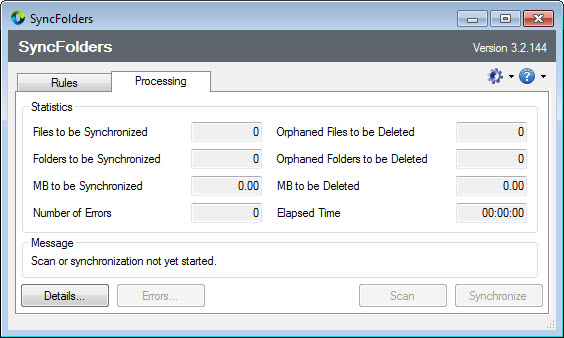
SyncFolders tracks what it has done in a small local database, which is what lets it tell a deleted file from a new one, and it shows every planned action in a preview before it touches anything.
Two-way sync that understands deletions
Two-way sync is the hard case for any tool, and it is where this one earns its reputation. When a file is deleted on one side, a naive tool sees it missing and copies it back from the other side, undoing the deletion. Because SyncFolders records the state of both folders after each run, it recognises that the file was removed on purpose and deletes it on the other side too. It also detects renames instead of treating them as a delete and a new file.
When the same file changes in both places between runs, that is a conflict, and the tool flags it rather than silently picking one.
A default action can be set for conflicts, keep the newer file, keep both or ask, and the preview lets you override any single decision before the run starts.
Rules and filters
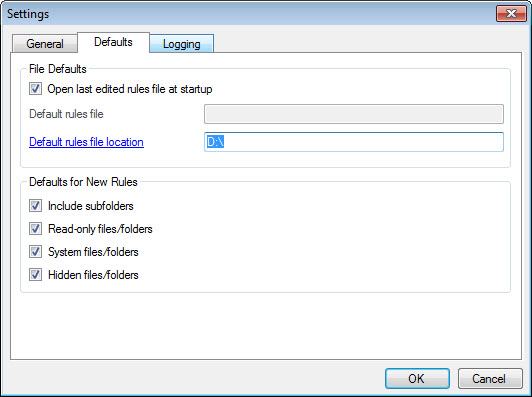
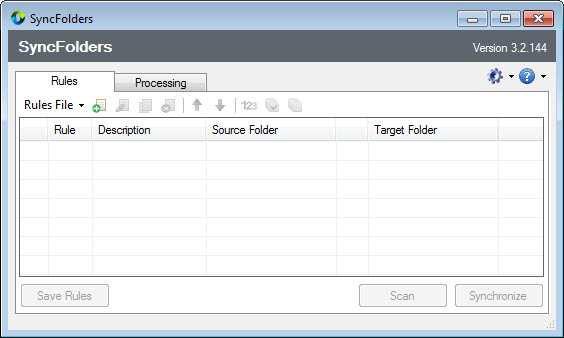
Each rule holds its source and destination, its mode and its options, and many rules live in one rules file that can be saved and reloaded. Filters include or exclude files and folders by name or wildcard, and by size, so a rule can skip temporary files, cache folders or anything over a chosen size.
Files are compared by date and size by default, which is fast, or by content, which is slower and catches changes that keep the same timestamp, the approach another sync tool with visual comparison also offers.
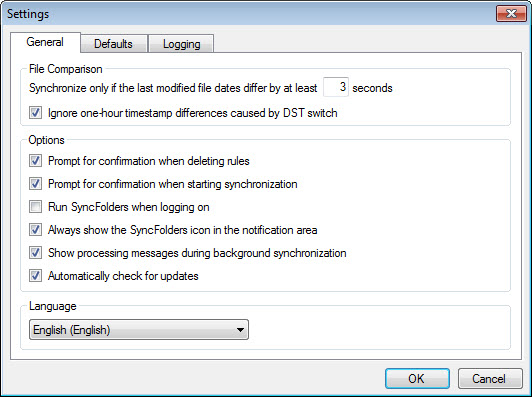
A time-only comparison exists too. An option ignores the one-hour timestamp differences that daylight saving causes on FAT-formatted drives, a quirk that otherwise makes every file on a USB stick look changed twice a year.
Safety nets for deleted and overwritten files
What happens to files SyncFolders removes or overwrites is configurable. They can be deleted outright, sent to the recycle bin, or moved into a time-stamped history folder inside the destination, which works as a simple version history. History files can be cleaned up automatically after a period you set, so the safety net does not grow forever. That history folder is the reason to trust a Backup rule, since a deletion made by mistake at the source can still be recovered from the destination.
For comparing two folders by hand before deciding what to do, a folder comparison tool shows the differences side by side, though this tool’s preview covers most of the same need.
Scheduling, the command line and network paths
Rules can run on demand, from a schedule through the system’s task scheduler, or from the command line, which suits scripts and unattended backups. Network shares are supported by their full path as well as by mapped drive letter, and long file names and files of any size are handled.
Scheduled tasks sometimes need the program run as administrator to start reliably, and mapped network drives behave differently under elevated rights, so a scheduled rule that fails silently is usually one of those two.
For full disk images, a disk imaging tool covers what file sync cannot.
Conclusion
SyncFolders suits anyone keeping an exact backup on another drive or a working folder in step between two computers, and it is especially strong at the two-way case that trips up simpler tools. The deletion tracking, the preview and the history folder together make it a sync tool you can trust with real files.
It does not watch folders in real time, and its scheduled rules need a little care around administrator rights. Set up one rule at a time, read the preview before the first run, keep the history folder on for Backup rules, and it quietly keeps the folders that matter in agreement.
Features & benefits
Pros & Cons
- Copy, Backup and Two-Way modes for any number of folder pairs
- Two-way sync tracks deletions and renames instead of resurrecting files
- Preview of every action with per-item override
- Recycle bin or time-stamped history folder for removed files
- Filters by name or size, with content comparison
- Scheduling through the system task scheduler and command-line runs
- Scheduled rules may need administrator rights to start
- Mapped network drives behave differently when elevated
- No real-time sync that watches folders continuously
- Interface is plain and options take some exploring
Frequently asked questions
Yes. It records each folder's state after a run, so a deliberate deletion on one side is applied to the other rather than copied back.
Copy sends new and changed files one way. Backup does the same and also removes destination files that no longer exist at the source, making an exact copy.
Yes. Overwritten or deleted files can move to a time-stamped history folder in the destination, cleaned up automatically after a set period.
Scheduled tasks often need administrator rights, and mapped drives may not be visible when elevated. Run as administrator and use full network paths.


