

Recuva
About Recuva
Recovery programs all present the same optimistic screen. Hundreds of found files, names intact, sizes listed, everything looking perfectly healthy. Then you recover them and half open as garbage, because a directory entry surviving says nothing about whether the data behind it still exists.
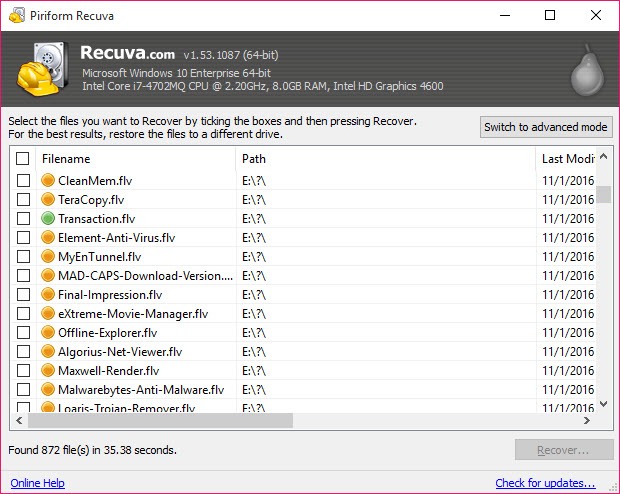
Recuva solves that by telling you first. Every file in its results carries a condition rating, marked excellent, poor or unrecoverable, calculated from whether the space that file occupied has since been written over. You know before you start which files are worth the effort.
That single column is the reason it remains the recommendation years after its development slowed, and it is a better piece of design than most of what the category has produced since.
The wizard, and what sits behind it
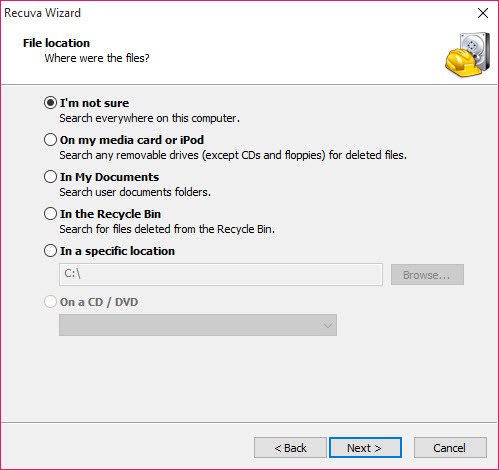
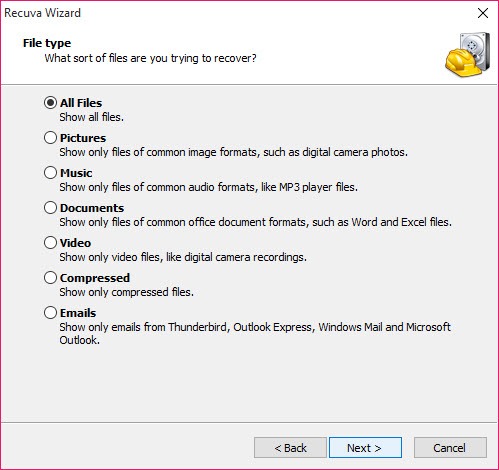
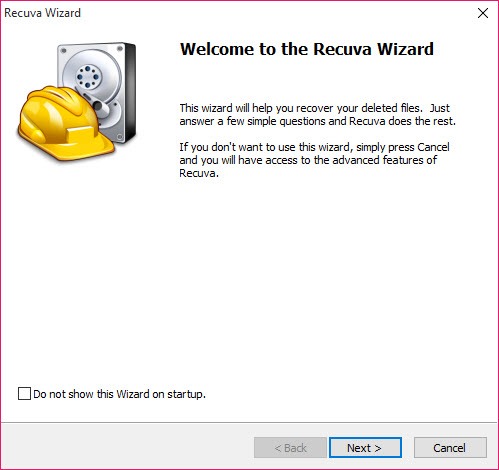
Opening Recuva starts a wizard asking two questions. What kind of file are you looking for, and roughly where was it. Answer those and it scans, which is the correct approach for somebody who deleted a photograph an hour ago and wants it back.
Behind that sits the full interface, reachable by declining the wizard, and it is where anybody doing this seriously will work. File type filtering, path filtering, a search box, the deep scan toggle and the option to show files whose contents are securely deleted rather than merely removed.
The two modes serve different people entirely, and the wizard does not condescend to those who skip it, which is more than most software here manages.
Quick scan against deep scan
The Recuva quick scan reads the file system’s records and finds entries marked as deleted. It takes a minute or two, and it returns files with their names and their original folders, which is what makes results readable.
The deep scan abandons those records and searches the drive for the patterns that mark the start of known file types. It finds files whose directory entries have gone entirely, and it takes hours on a large drive.
The trade is everything except the data. A signature scan knows it found a photograph and knows nothing about what it was called or where it lived, so results arrive as thousands of numbered files grouped by type. That is still a recovery, and sorting through it is an afternoon’s work rather than a click.
Where the problem is a partition rather than files, meaning a drive that has become unreadable or lost its structure entirely, TestDisk repairs the structure so everything inside becomes accessible again, which is a better outcome than recovering the contents file by file.
Reading a large result set
A deep Recuva scan on a used drive produces an unmanageable number of results, and the filtering is what makes it usable. Results narrow by file type, by path, by name, and the condition rating sorts as a column so the recoverable files group together.
Image previews render inside the program, which confirms visually what the condition rating asserts. A photograph that previews correctly is definitely intact, and one that previews as coloured noise is telling you the rating was optimistic.
Recuva also shows files deleted securely by other software, marked as such, which stops people wasting time on entries that were deliberately destroyed rather than merely removed.
It destroys files too
The same understanding that recovers files also removes them beyond recovery, and Recuva carries both. Secure overwrite writes over the space a file occupied, with a choice of how many passes, so nothing in this program or any other will find it afterwards.
That pairing makes sense. Anybody who has just learned how easily deleted files come back tends to think immediately about the machine they are about to sell, and the answer is in the same window.
One pass is sufficient on any modern drive, whatever the higher options imply. For shredding as a routine habit rather than a one-off, Eraser integrates into the right-click menu and schedules the job.
The two things that decide everything
Neither has anything to do with Recuva, and both matter more than which program you choose.
Stop writing to the affected drive immediately. Deleting marks space reusable, and every subsequent write may land on the file you want back. That means installing the recovery tool somewhere else and recovering to somewhere else, because a program that saves recovered files onto the drive it is reading from is overwriting the rest of what you were rescuing.
The portable build exists precisely for this. Running it from a stick writes nothing to the affected drive, which is the correct way to approach a serious recovery.
The second is harder to hear. Solid state drives erase deleted blocks themselves, usually within minutes, so recovery from a modern system drive frequently returns nothing at all. That is the storage rather than the tool, and no program overcomes it. Mechanical drives, memory cards and external drives behave the old way and remain recoverable.
When to stop and do something else
If the drive is clicking, disappearing or throwing errors, pointing Recuva at it is the wrong move. A deep scan reads every sector and keeps a failing mechanism under load for hours, which is how a recoverable situation becomes a permanent one.
Check the drive’s condition before scanning, and a health tool reporting reallocated and pending sector counts answers that in seconds. A drive with a rising pending count needs imaging rather than scanning, and the recovery then runs against the image where nothing you do can make things worse.
Development has been quiet
The honest note to end on. Recuva has not seen meaningful development for a long time, and while it continues to work, a tool in this category benefits from keeping pace with file systems and storage behaviour.
For the ordinary case, an accidentally deleted file on a mechanical drive or a memory card, it remains an excellent first attempt and the condition rating still beats what most competitors show you. For newer file systems, unusual situations or anything where the first attempt fails, MiniTool Power Data Recovery is actively maintained and worth trying second.
Running two recovery programs against the same drive is fine, incidentally, provided both are reading rather than writing to it.
Conclusion
Recuva earned its reputation on one idea executed better than anyone else managed, which is telling you which files are actually recoverable before you spend an hour recovering them. The condition rating turns a hopeful list into a plan, and the wizard means somebody who has just deleted a photograph can use it without reading anything.
Two caveats belong with any current recommendation. Development has slowed considerably, so a maintained alternative deserves a second attempt when this one comes up short. And the things that decide whether recovery works, meaning stopping writes to the drive immediately and understanding that a modern solid state drive has probably already erased what you want, have nothing to do with the software at all.
Run the portable build from a stick, recover to a different drive, and sort by condition before you touch anything.
Features & benefits
Pros & Cons
- Condition rating tells you whether a file is intact before you attempt recovery
- Wizard for simple cases with a full interface behind it for everything else
- Quick scan returns names and folder structure within a couple of minutes
- Deep scan finds files whose directory entries no longer exist
- Image previews confirm visually what the condition rating claims
- Identifies files that were securely deleted, so you stop wasting effort on them
- Secure overwrite included for destroying files rather than recovering them
- Portable build runs from a stick without writing to the affected drive
- Development has been quiet for a long time
- Deep scan results lose filenames and folder structure completely
- Recovery from a modern solid state system drive usually returns nothing
- Nothing here repairs a damaged partition structure
- Scanning a physically failing drive risks finishing it off
Frequently asked questions
Whether the space that file occupied has been written over since deletion. Excellent means the data appears intact, poor means it has been partly overwritten, and unrecoverable means the contents are gone even though the entry remains listed.
Quick first, always. It takes minutes and returns files with names and folders intact. Move to the deep scan only when the quick one fails to find what you need, and expect results without names or structure.
Usually not. Modern drives erase deleted blocks on their own shortly after deletion, so there is nothing left to find. Mechanical drives, memory cards and external drives still work the way recovery software expects.
Because the entry survived while the data behind it was overwritten. The condition rating exists to warn you about exactly this, which is why sorting by it before recovering saves a great deal of pointless effort.
Yes, through a secure overwrite that writes over the space a file occupied. One pass is enough on any current drive, and this is the function to use before selling or passing on a machine.
Not meaningfully for some time. It works well for ordinary deletions on mechanical drives and memory cards, and anything unusual is worth attempting with a maintained alternative as a second try.


