

PDF24 Creator
About PDF24 Creator
PDF24 Creator is a desktop toolbox that installs a virtual PDF printer and then piles about forty separate tools on top of it. Merging, splitting, page extraction, compression, OCR, password protection, signing, watermarks, format conversion. The printer means any application that can print can produce a PDF, and the toolbox means the file you just made can be reworked without opening anything else.
The part that matters more than the tool count is where the work happens. Everything runs on your machine, so documents are not uploaded anywhere to be processed, which is the whole reason people install this instead of using a browser tab.
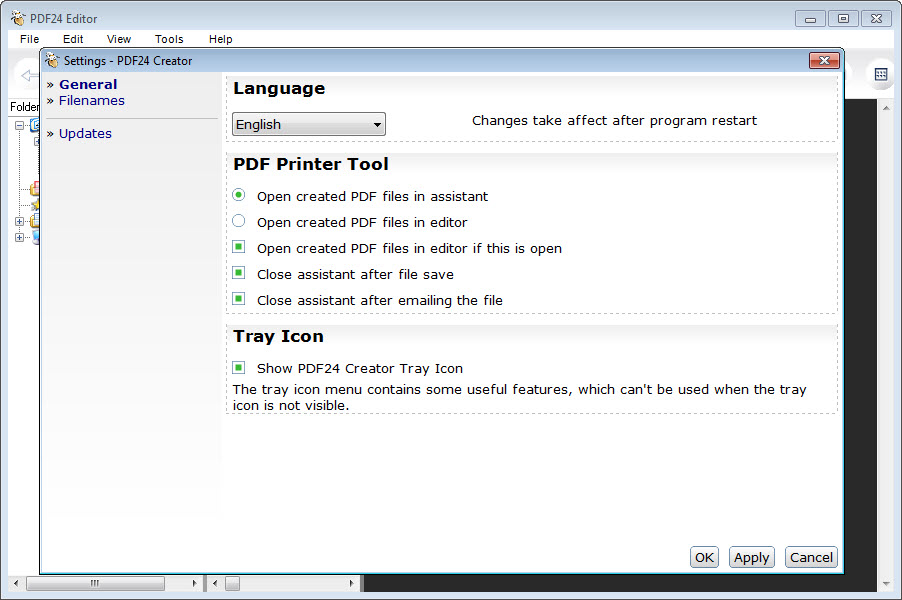
There is one exception buried in the settings, a fallback to an online converter when no local converter exists for a given format, and it can be switched off.
One virtual printer is the default, several is the point
Most print-to-PDF tools give you a single printer. PDF24 Creator lets you create as many as you like, each with its own configuration, which is where it pulls ahead of PDFCreator for repetitive work.
Set up one printer that always saves to a specific folder at maximum quality and never asks a question, keep another that opens the assistant so you can choose, and you have removed a dialog from a job you do fifteen times a day.
Each printer connects through its own named pipe. The first one uses PDFPrint, the next PDFPrint-1, and so on. That matters because the single most common failure with this software is print jobs piling up in the queue and never converting, and the fix is almost always either the background service having stopped or a printer pointing at the wrong pipe.
Output profiles, and what compression is actually doing
Quality settings live in output profiles rather than being scattered through dialogs. Two come ready to use, one aimed at good output and one at best, and you can save your own and then apply it from anywhere in the application or from a script.
The compression tool in PDF24 Creator exposes the three levers that actually change file size. Target DPI, colour model, and image quality. Downsampling scanned pages from 600 DPI to 150 will collapse a file dramatically and there is a visible point where text starts looking soft, so it pays to test one document rather than batch a hundred and discover the result afterwards.
Image-to-PDF conversion has a detail I appreciate. By default JPEGs pass through untouched instead of being decoded and re-encoded, so wrapping photos in a PDF does not quietly degrade them. If you override that, quality defaults to 100 and resolution to 144 DPI.
There is also a web optimisation command that restructures a file for progressive loading, useful if the PDF is going on a site rather than into an inbox.
OCR you can actually tune
Text recognition in PDF24 Creator runs on Tesseract and produces a proper text layer over the original scan, so the page still looks like the scan but you can search and copy from it. Language packs are fetched on demand rather than shipped, which is the one place the size restraint shows.
The options are what make this usable on a real pile of documents. Skip files that already contain text, or skip only the pages that do, and a mixed folder of scans and born-digital PDFs processes correctly without you sorting it first. Deskew straightens pages that went through the scanner crooked and it makes a bigger difference to accuracy than any other setting here. Background removal helps on grey or textured paper. Auto-rotate fixes pages fed in sideways by reading the text orientation.
Resolution defaults are conservative and 300 DPI is the number to use for anything you care about. You can also raise the number of parallel jobs, which on a multi-core machine turns an overnight batch into a lunch break.
Encryption strength and permission control
Encryption in PDF24 Creator goes through qpdf rather than Ghostscript, and that choice is deliberate, because qpdf handles AES-256 where the alternative tops out lower. You can set a user password that gates opening the document and an owner password that gates what can be done once it is open, then switch off printing, copying or modification independently.
Signing is handled through a certificate manager, and you can generate a self-signed certificate on the spot if you just need to mark a document as yours internally. That will not satisfy anyone requiring a recognised authority, so treat it as a stamp rather than a legal signature.
If encryption is all you need and the rest of the toolbox is dead weight, a print driver with encryption built in does that one job in a fraction of the footprint.
Getting documents in without touching a file dialog
PDF24 Creator has four input routes, and most people find one and never learn the others. The clipboard route takes whatever you have copied and hands it straight to the assistant. The scanner route pulls directly from any TWAIN device, so a flatbed or a document camera feeds pages in without a separate scanning application.
Screen capture is more configurable than it first appears. You can grab the whole screen, the desktop area excluding the taskbar, the active window, just that window’s client area, or an area you drag out. The capture can go to the assistant, straight to the clipboard, or straight to a file.
And the shell integration puts the tools on the right-click menu for files, for folders, and for empty space inside a folder. Each of those three can be disabled separately if your context menu is already a skyscraper.
The command line is the best-kept secret
PDF24 Creator ships a document tool that drives almost everything from a script, and nobody mentions it. Join a set of files, split a document page by page, extract specific pages, convert to or from PDF, apply a profile, optimise for web, auto-rotate, or attach the result to an email. All from arguments.
Two flags make it properly useful for bulk work. Directory expansion walks a folder, optionally recursing into subfolders, so you can point it at a tree instead of listing files. And sorting by name before joining means a folder of scan-001 through scan-120 merges in the right order rather than whatever order the filesystem felt like.
The Toolbox interface is a browser wearing a coat
Here is the part that ages the software badly. The Toolbox in PDF24 Creator is drawn with a legacy browser rendering component rather than a native interface, and it needs JavaScript enabled plus permission for its own internal URL scheme to talk to the application underneath.
When that goes wrong the symptom is bizarre and gives you nothing to work with. The file drop boxes appear greyed out and clicking them does nothing at all, with no error message anywhere. On a locked-down machine where a policy has disabled scripting in that component, the Toolbox is simply inert. The rest of the tools keep working, which makes it worse, because you will assume the whole install is broken.
Settings live in the registry, with user values in one hive overriding machine values in another, and a prefix character that reverses the priority so an administrator can force a setting and have it stick. Combined with silent install switches and a packaged installer, that is a well-thought-out deployment story hiding behind a dated interface.
Conclusion
This one suits people who handle documents in volume and would rather not send them to a website to do it. The compression controls, the OCR options and the scriptable document tool are the parts worth the disk space, and the multiple-printer trick alone justifies the install if you produce PDFs from the same application all day. What it will not do is edit the text already sitting in a page, so anyone planning to rewrite a sentence inside a contract wants PDF-XChange Editor or something in that class.
Anyone who just wants a print-to-PDF button should look at something single-purpose instead, because four hundred megabytes and a tray icon is a strange way to buy one menu item. Know which of those two you are before installing and PDF24 Creator is hard to be disappointed by.
Pros & Cons
- Multiple virtual printers, each with independent settings and output folders.
- OCR with deskew, background removal and per-page skipping, plus parallel processing.
- AES-256 protection with separate user and owner passwords and granular permissions.
- Command-line document tool covers joining and splitting, page extraction, conversion, plus profile application.
- Registry-level configuration and silent installers make fleet deployment practical.
- Files are processed locally, with the online converter fallback switchable.
- The installer passes 400 MB for what most people use as a print driver.
- The Toolbox depends on a legacy browser component and fails silently when scripting is blocked.
- No editing of existing PDF text, only overlays.
- Conversion to office formats degrades badly on complex layouts.
- Print jobs can stall in the queue when the background service stops.
Frequently asked questions
The background service that receives print data has almost certainly stopped, so start it again and clear the stalled jobs. If it recurs, check that the printer is bound to the correct named pipe in its port settings, since a mismatch there produces exactly the same symptom.
No, the tools run locally. The one exception is a fallback that sends a file to an online converter when no local converter exists for that format, and you can disable it in the settings if nothing should ever leave the machine.
No. You can add text, images or shapes on top of a page and rearrange or delete pages, but existing paragraphs cannot be clicked into and rewritten. That needs a full editor built around a text layout engine.
Because the interface is rendered by a legacy browser component that needs JavaScript and its own internal URL scheme permitted. Where a policy has blocked either, the Toolbox loads but does nothing, and the other tools carry on working normally.
Set the resolution to 300 DPI, turn on deskew, and add background removal for grey or textured paper. Enabling skip-pages-with-text also stops the engine wasting effort re-reading pages that already carry a text layer.


