

Mini Mouse Macro
About Mini Mouse Macro
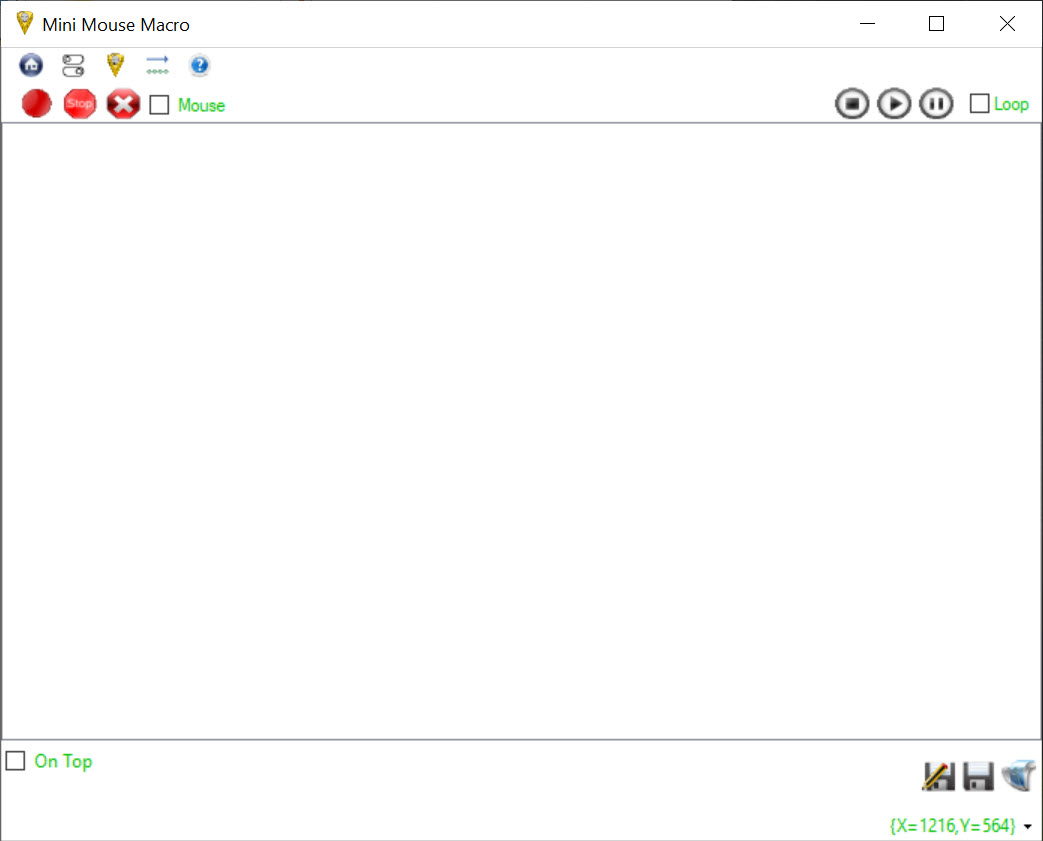
Mini Mouse Macro records what you do with the mouse and keyboard and plays it back on demand. Press the red record button, click through a task the way you normally would, press stop, and the sequence appears as a list of actions with their coordinates and timings.
Press play and the pointer retraces the route, clicking where you clicked and typing what you typed. Set it to loop and the same job repeats until you stop it. Nothing has to be typed in as coordinates or chosen from menus, because the recorder watches the real thing.
That live recording is what separates it from the macro tools that make you build a sequence action by action. A form that has to be filled in forty times, a game that wants the same clicks every few minutes, a report that is exported through the same six menus every morning, all of them become a recording made once and replayed.
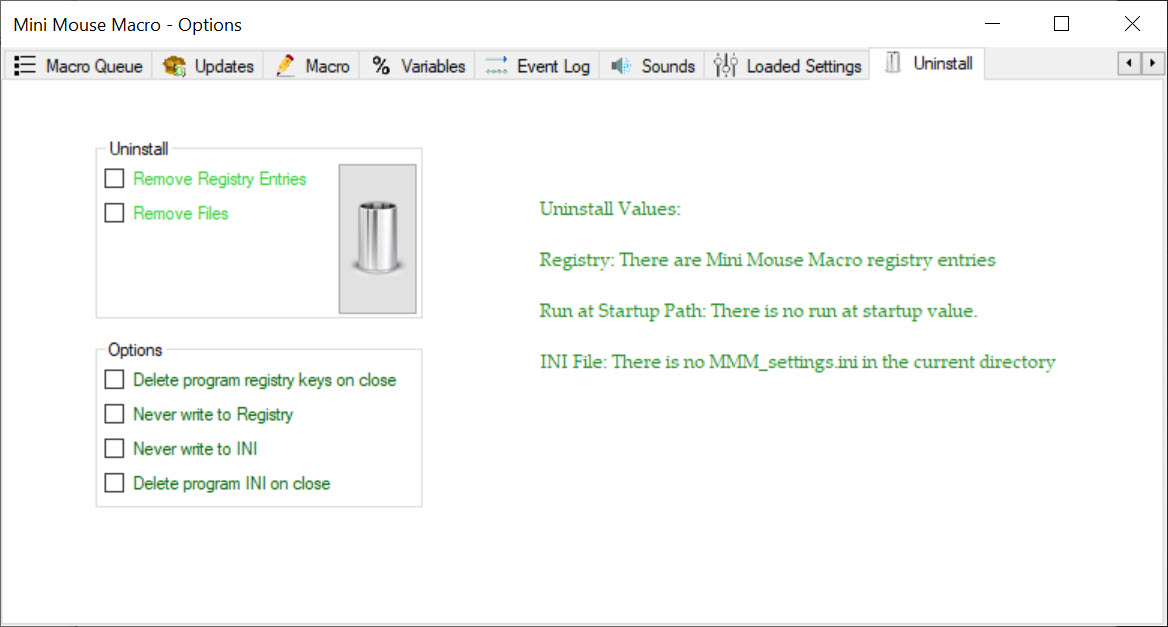
Mini Mouse Macro is a single portable executable that runs from a stick with nothing to install, and its interface is a list, a few buttons and a settings panel, which keeps the first macro under a minute from download to playback.
Recording and playing back
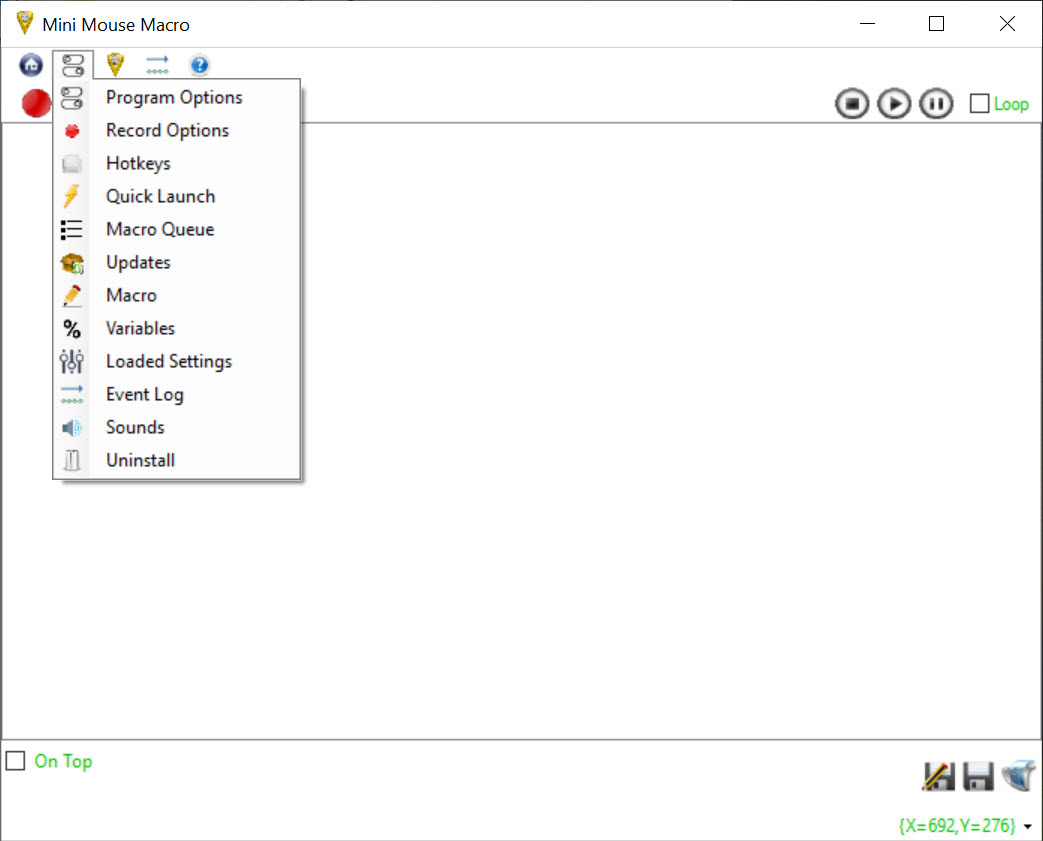
Mini Mouse Macro recording captures clicks, key presses and, if enabled, the path the pointer took between them, with the time between each action. The list shows every step as a row, and rows can be deleted, reordered or edited, so a stray click recorded by mistake is removed without starting over. A delay row pauses the playback for a chosen time, which is how a macro waits for a page to load.
Playback runs the list once or on a loop, with a hotkey to stop it when something goes wrong. An option animates the pointer so you can watch where it is going, which is useful while testing and distracting once the macro is trusted.
Macros save to small files that load back later, and several can be kept for different tasks, dragged onto the window to load.
Building actions by hand
Not everything needs recording. A single action can be added by hand, choosing a click type or a keystroke and typing the position, which suits precise placements that a recorded pointer wobbles around. Scripted additions go further, with conditions that check the screen before acting, so a macro can wait until a window appears, or stop when a colour at a point changes, rather than clicking blindly on a schedule.
Conditions, and where the Pro edition begins
Those conditional steps are where Mini Mouse Macro stops being a simple recorder and starts being an automation script, and they are also where the tiers divide. Basic recording and editing, with looping and saving, are available to everyone. Image detection, more of the conditional logic, scheduling, email sending and database commands sit in the Pro edition, which is a separate edition aimed at people automating business tasks rather than repeating clicks.
For full scripting without a graphical recorder, AutoHotkey is the deeper tool in exchange for learning its language.
Scheduling and triggers
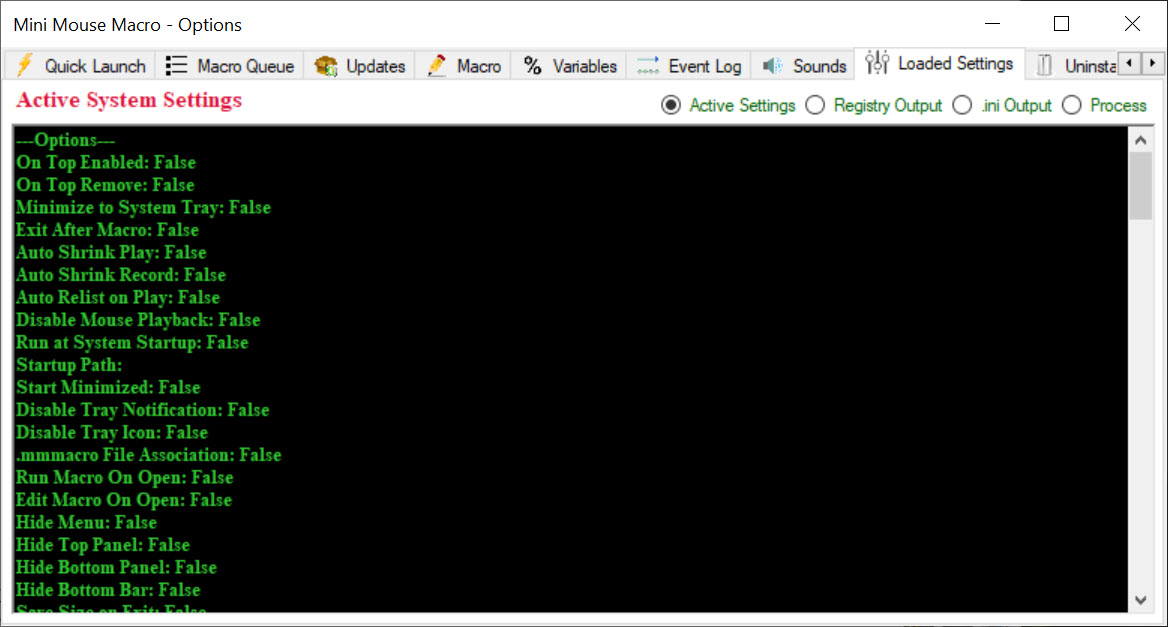
Mini Mouse Macro macros can run on a schedule, so a report export happens at seven every morning without anyone at the desk, and triggers start a macro when a system event occurs. A hotkey starts a saved macro from anywhere, which turns a common ten-click job into one key. Logging records what each run did, which is the thing to read when a scheduled macro misbehaved overnight.
The usual caution applies to anything that clicks on a screen unattended. A window that opens in a different place, a dialog that appears unexpectedly or a slower load than the recording allowed for sends the clicks to the wrong targets.
Adding generous delays, using the screen conditions where available and testing with the animation on are the habits that keep a scheduled macro honest, and anyone who needs automation that reads the target program rather than screen positions should look at a scripting language with window automation.
Where it stops
A recorded macro replays positions on the screen, so it breaks when a program’s window moves, resolutions change or a program updates its layout, and it cannot read what is on the screen beyond the conditions it offers. Games with anti-cheat sometimes detect synthetic input. The Pro edition holds the features that make macros resilient, and the basic build is best kept for tasks whose screens do not change.
Anyone who wants an even smaller recorder with nothing beyond record and play will find TinyTask covers that.
Conclusion
Mini Mouse Macro suits anyone with a repetitive click-and-type task who wants it recorded once and replayed without learning a scripting language. Office routines, data entry across fixed forms and the repetitive parts of games are the natural uses, and the portable executable means it travels to any machine where the chore lives. Testers who have to walk the same interface path a hundred times, and anyone filling the same form from a spreadsheet, will recover the setup time within the first afternoon.
It is a recorder of positions, and that is both its ease and its limit, since a moved window undoes it. Keep the delays generous, test with the animation on, and reserve the Pro edition for tasks that need the macro to look at the screen before it acts. For everything simpler, the basic recorder already does the job.
Pros & Cons
- Records real mouse movement and clicks, plus keystrokes, rather than asking for coordinates
- Recorded steps can be edited or reordered, with delays added between them
- Loop playback with a hotkey to stop and an animation to watch the pointer
- Save and load macros, with drag and drop onto the window
- Scheduling and triggers for unattended runs, with a log of each
- Single portable executable
- Recorded positions break when a program's window moves or its layout changes
- Image detection, deeper conditions and scheduling extras need the Pro edition
- Synthetic input may be flagged by some games
- Unattended macros need careful delays to stay reliable
Frequently asked questions
Both, if movement recording is enabled. Otherwise it records clicks and key presses with the timing between them and jumps the pointer between positions.
Yes. Each step is a row in the list that can be deleted, reordered or changed, and delays or hand-made actions can be inserted.
Yes. Macros run at set times or on triggers, with a log of what each run did.
The target window moved or loaded more slowly than during recording. Add delays, keep program windows in fixed positions and use the screen conditions where available.


