

WizTree
About WizTree
A drive fills up and the obvious question has no obvious answer. Something is using two hundred gigabytes and no folder view will tell you what. Disk analysers exist to answer that, and most of them take several minutes to do it because they walk through every folder asking what it contains.
WizTree does not walk anything. It reads the table the file system already keeps describing every file on the volume, extracts the sizes from it in one bulk operation, and presents the answer in seconds. A terabyte drive is analysed before you have finished reading the progress bar.
That speed is not the only thing separating it from the alternatives, though it is the one people notice first. The more interesting difference is that its numbers are correct in a way the others are not.
Reading the table instead of walking the tree
The file system maintains a master record of every file it holds, because it cannot function without one. Conventional analysers ignore that record and enumerate folders individually, which means thousands of small operations and a wait proportional to how many files exist.
Reading the record in bulk removes all of that. The same drive that takes a conventional scanner half a minute to two minutes is done here in a few seconds, and on a spinning disk rather than a solid state one the gap widens dramatically because each of those small operations requires a physical seek.
WinDirStat is the classic tool that works the traditional way, and it received significant speed improvements after a long quiet period. It is still not close, and the reason is architectural rather than a matter of optimisation.
Three views of the same scan
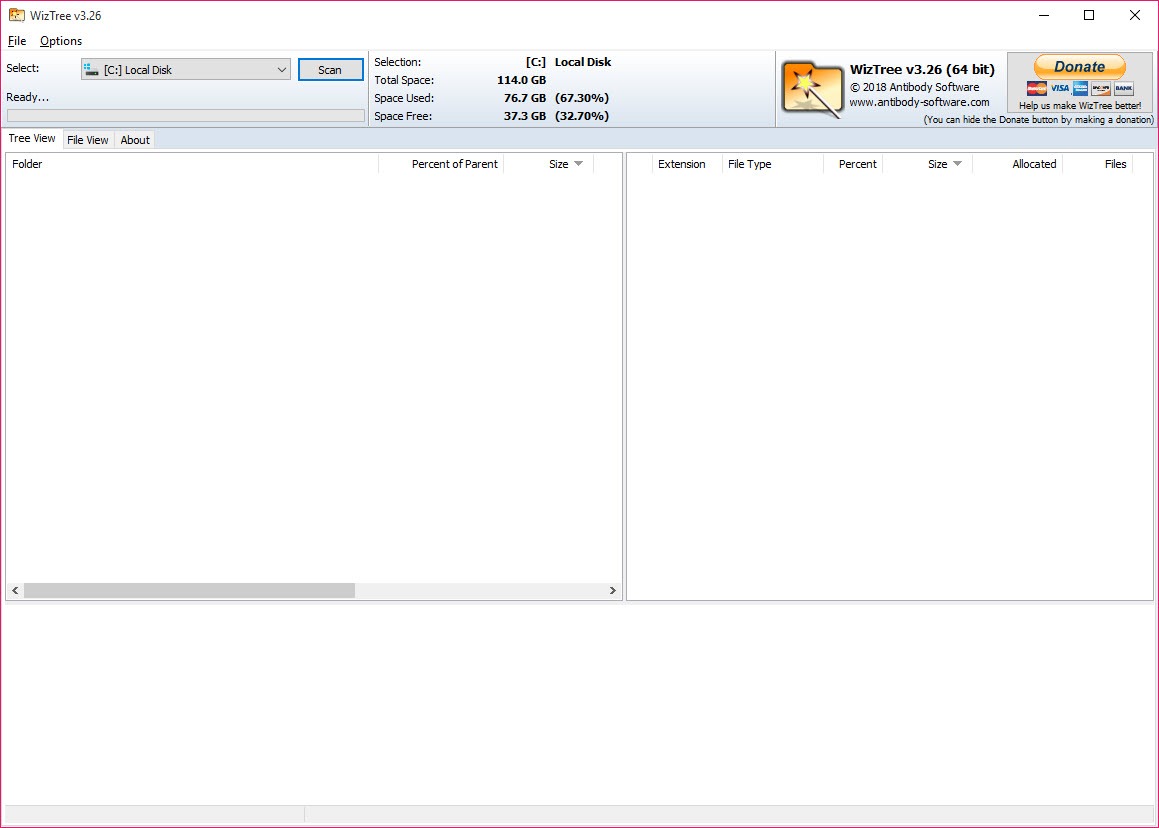
WizTree presents results three ways and each answers a different question. A tree view walks the folder hierarchy with sizes attached. A file view lists every individual file in size order, which finds the single enormous item immediately. And the treemap draws the whole drive as coloured rectangles scaled by size.
The treemap is the one that earns its place, because it finds the problem a sorted list hides. A folder holding forty thousand small files occupies a large area made of tiny blocks, visibly different from one huge file, and no list sorted by size will ever surface that. Colouring by file type adds another layer, so a wall of one colour tells you which kind of content is responsible before you read a single name.
File type statistics summarise the same information numerically. For a purely visual approach with a different feel to the interaction, a treemap tool you drill into by clicking covers similar ground.
Hard links, and why the total actually reconciles
This is the detail that separates a correct tool from an approximate one, and almost nobody checks it.
A hard link means two directory entries pointing at the same data on disk. An analyser that counts naively sees both and adds the size twice, so the total it reports exceeds what the drive actually holds. Modern systems use hard links extensively for their own components, so this is not an edge case.
WizTree counts linked files once, with the consequence that the total it reports matches what the system says the drive is using. That sounds like pedantry until you have spent an evening hunting for thirty gigabytes that a less careful tool invented, which is a specific and common waste of time.
Duplicates, found as a side effect
Since the scan already holds every filename and size, finding duplicates adds almost nothing. Matching runs on name and size, with date as an optional third criterion, and duplicates appear expandable beneath the entry they match.
Understand what that is and is not. It compares names and sizes rather than contents, so a file copied and renamed will not be found, and two different files that happen to share a name and a size will be flagged incorrectly. For a photo library where the same image sits under three different names, this approach finds none of them.
Proper duplicate hunting compares contents, and dupeGuru does that including fuzzy matching for images and music. The detection here is a useful bonus rather than a replacement for it.
What else it will scan
The WizTree fast path applies to the journalled file system on local drives. Everything else is scanned conventionally, which is slower and still works, covering older file systems, network shares, removable media and even phones and cameras connected over the media transfer protocol.
That last capability is more useful than it sounds when somebody hands you a phone that claims to be full. Scanning it directly is quicker than working through folders on a small screen.
Filtering and searching run across the results with wildcards, and folders or file types can be included or excluded, so a scan can be narrowed to one kind of content across a whole drive.
Exporting, comparing and scripting
Results export to a comma-separated file or straight to the clipboard, and the underlying file table can be dumped to a file of its own. Both can be imported back afterwards.
That import capability is the feature nobody notices and the one that changes what the tool is for. Export a scan today, export another next month, and comparing the two shows precisely what grew rather than what is currently large. On a machine that fills up repeatedly, knowing which folder is expanding is a different and better question than knowing which folder is biggest.
Command-line operation covers both export types, so WizTree can run from a scheduled task and drop a monthly report into a folder without anybody opening it. For an administrator tracking storage across a set of machines, that turns it from a diagnostic tool into a reporting one.
It tells you what is big, not what you may delete
Here is the limitation that matters more than any feature, and it is a limitation of the category rather than the program. A disk analyser measures. It does not know what anything is for.
The file view will happily show you a large file in a system folder, and WizTree will delete it if you ask. Nothing in it distinguishes a virtual machine disk you need from a cache you do not, or a system component from a forgotten download. That judgement is entirely yours, and the confident presentation of a sorted list makes it easy to forget.
The safe pattern is to use it for identifying and something else for removing. A cleaner that knows which caches and temporary files are safe to clear handles the routine recovery without you deciding anything, and the analyser is for the cases that tool cannot explain.
One last note for anyone impressed by the speed. The same technique underlies Everything, which reads the identical structure to build an instant filename index. Running both, you stop accepting that either searching or measuring a drive should take minutes.
Conclusion
WizTree is the disk analyser to install, and the speed is only half the reason. Getting an answer in seconds changes the tool from something you run when desperate into something you check casually, and counting hard links correctly means the answer reconciles with reality rather than sending you looking for space that was never lost.
Remember what it is measuring rather than judging. It will show you the largest thing on the drive with complete confidence and no opinion about whether it should be there, so pair it with a cleaner for routine recovery and reserve the analyser for the times something has grown that you cannot explain.
Export a scan occasionally too, because the useful question on a drive that keeps filling is what changed, and the tool answers that only if you gave it something to compare against.
Pros & Cons
- Analyses a full drive in seconds by reading the file table in one bulk operation
- Counts hard-linked files once, so the reported total reconciles with the drive itself
- Treemap exposes folders of many small files that a sorted list cannot show
- Tree view, file view and file type statistics answer three different questions
- Duplicate detection comes along with the scan that already happened
- Exports and re-imports scans, so two scans can be compared over time
- Command-line operation suits scheduled reporting across several machines
- Scans network shares, removable media and connected phones as well as local drives
- The fast path needs administrative rights, falling back to slow scanning without them
- Duplicate matching uses names and sizes rather than contents, so renamed copies are missed
- It identifies large files without any sense of which are safe to remove
- The treemap becomes hard to read on a very full drive with deep nesting
- Non-journalled volumes and network shares get no speed advantage at all
Frequently asked questions
Because it reads the file system's own record of every file in one operation rather than walking through folders individually. The difference is architectural, so no amount of optimisation brings a conventional scanner close.
For the fast path, yes, since reading the volume record directly is a privileged operation. Without elevation it still works by scanning conventionally, which is considerably slower and produces the same results.
Because it counts hard-linked files once instead of adding the same data twice. Systems use those links extensively, so tools that count naively report a total larger than the drive actually contains.
It matches on name and size, optionally with date, which finds exact copies kept in different folders. It does not compare contents, so a renamed copy goes undetected and a dedicated duplicate finder is the better tool for that job.
Yes, along with older file systems and removable media, using conventional scanning rather than the fast path. Scanning a connected phone directly is often quicker than browsing its folders on the device.
Through its command-line options, which export results or the file table itself without the window opening. Combined with the ability to import a previous export, that supports tracking how storage changes month by month.


