

Bulk Rename Utility
About Bulk Rename Utility
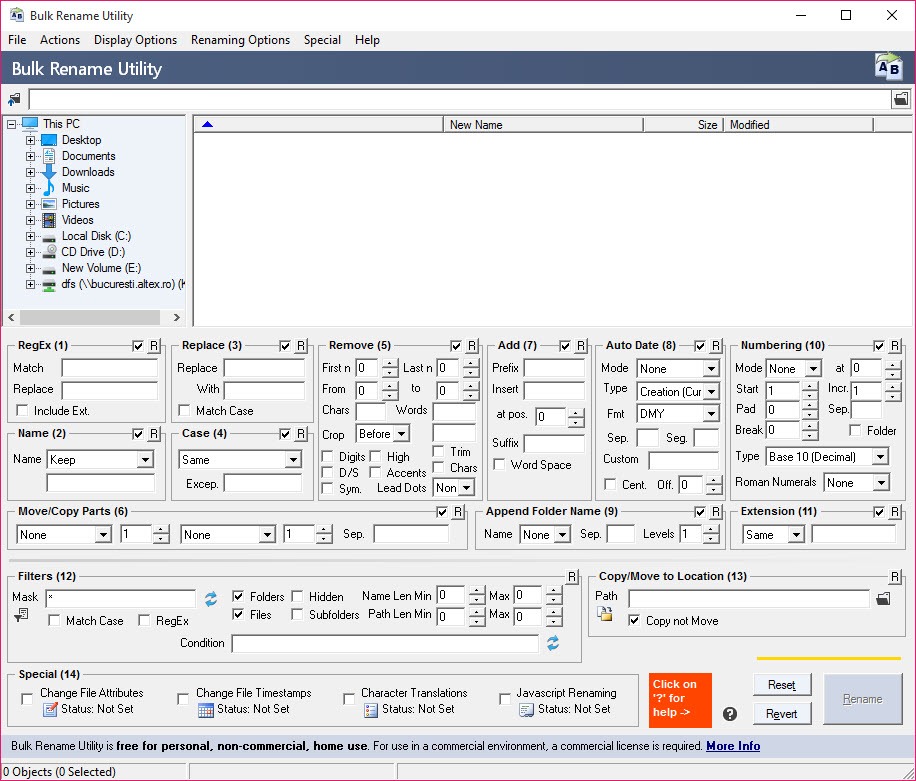
Bulk Rename Utility renames hundreds or thousands of files at once by stacking rules on top of each other. Point it at a folder, select the files, and fill in whichever panels the job needs. Remove the first five characters here, replace an underscore with a space there, add a number at the end, change the case. As you type, a column beside each file shows its new name, so you see the result before anything happens on disk. When it looks right, one click renames the lot.
The window is famously crowded. It shows more than a dozen numbered panels at once, each a separate kind of rule, plus a file list and a preview. Newcomers often close it in alarm. Stay a minute and the logic appears. Every panel is optional, and the numbers show the order in which the rules are applied.
Bulk Rename Utility reaches far past the basics, into regular expressions and a JavaScript engine, renaming from a list, photo and music metadata, and file timestamps. The sections below walk through the panels in the order you will need them, and say where the program’s habits catch people out.
The panels, and the order they run in
Each Bulk Rename Utility panel handles one kind of change, and each has a small number in its title. RegEx is panel 1, Numbering is panel 10, and the others sit in between. That number is the order of processing. A rule in panel 3 sees the name panel 2 produced, not the original. Most surprising results come from forgetting that, such as a number added before a replacement that then removes it.
Leaving a panel at its defaults does nothing to the result, so you can ignore the ones you do not need. A small R button on each panel resets just that panel, which is quicker than starting over. Settings can be saved as favourites and recalled for the next batch. An optional entry in the file manager’s context menu opens the program on the folder you right-click, which is the fastest way in. When the files are scattered across a drive, an instant file search tool gathers them first.
Text and numbering
The everyday Bulk Rename Utility panels cover most jobs. Remove cuts characters from the start or end, a set number of positions or between two points. Replace swaps one piece of text for another, with case sensitivity if you want it. Add inserts a prefix, a suffix or text at a position, and can bring in the parent folder name. Case converts names to upper, lower, sentence or title case, with a list of exceptions for words that should stay as they are.
Numbering adds a sequence at the start, the end or a chosen position. You set the starting value, the step and the padding, so 1, 2, 3 becomes 001, 002, 003, and the count can restart in each folder. Extensions can be changed or removed in their own panel. Together these handle the classic job of turning a folder of scanner output into tidy, sequential, readable names.
Regular expressions, JavaScript and lists
For patterns the text panels in Bulk Rename Utility cannot express, the RegEx panel takes a regular expression and a replacement, with captured groups that can be rearranged. That is how a name like “Artist – Title” becomes “Title – Artist” across a whole folder. A simpler pattern mode helps those who find full expressions daunting.
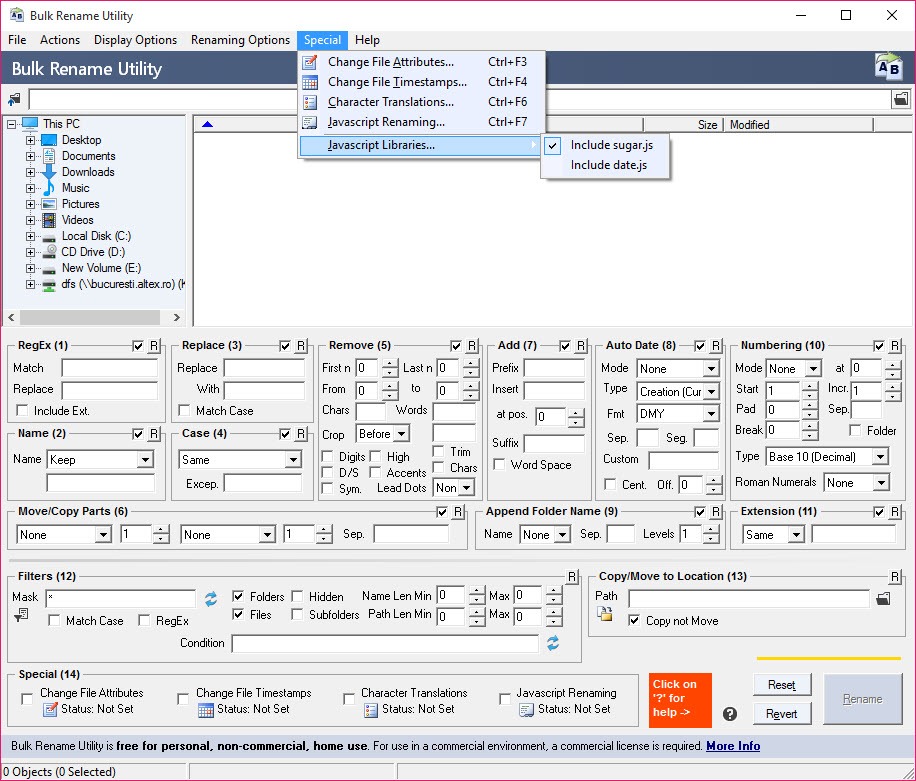
Beyond that sits a JavaScript engine. A short script receives each name and returns a new one, so any logic you can write in code becomes a rename rule. There is also a renaming mode driven by a text list, where a CSV file supplies the new names, which suits matching files to a spreadsheet of codes.
Filters choose which files are touched at all, by wildcard, name length, path length, a regular expression or a script condition.
Metadata and file dates
Bulk Rename Utility reads the EXIF data inside JPEG photos once the option to extract it is switched on, so names can be built from the date taken, the camera model or the resolution. A holiday folder of camera numbers becomes dated, readable names in one pass. It can also write a new date taken into the EXIF data.
Music is the place to watch. The program reads only the oldest version of the MP3 tag format, versions 1 and 1.1, so files tagged in the modern format may come up blank. Fix the tags first in Mp3tag, or build names from file properties instead. Those properties, read from the system, cover things like video length and dimensions. A separate panel changes the timestamps of files and folders, from the creation date to the last access.
Preview and undo
The Bulk Rename Utility preview column is the heart of the design, and differences in the new name are highlighted so a change is easy to spot. Nothing is renamed until you press the button. If you change your mind afterwards, an undo command reverses the last batch.
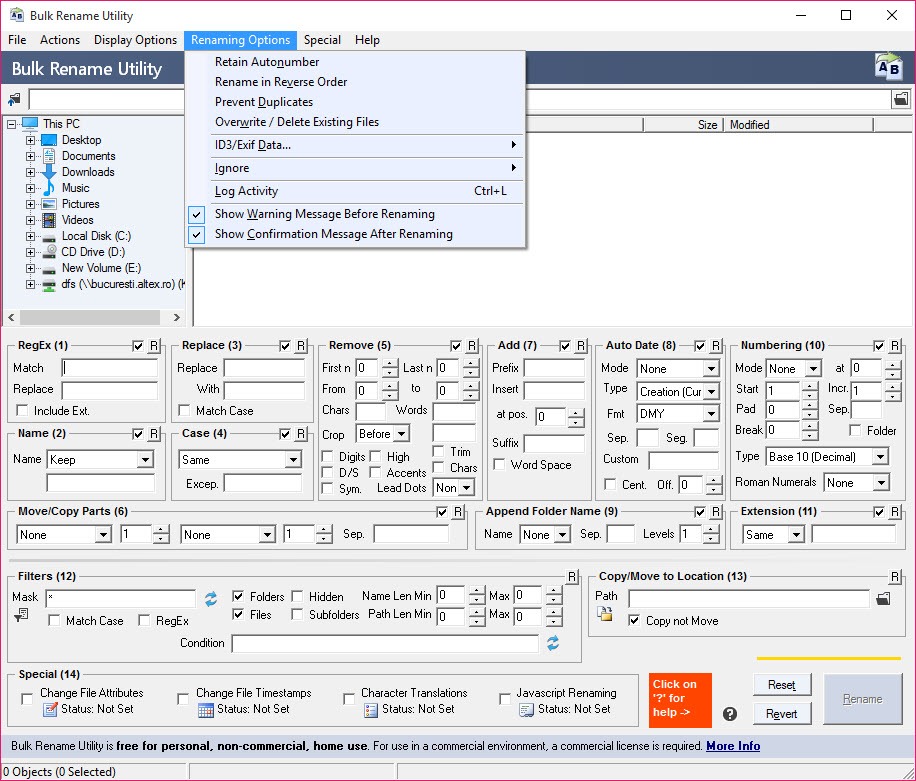
For larger jobs the program can also write an undo batch file before renaming. Keep that file and the whole operation can be reversed later, even after the program is closed. A log records every rename. Those three habits, preview first, write the undo file, keep the log, make even a job of ten thousand files low-risk.
Where it asks patience
The Bulk Rename Utility interface is the obvious hurdle. A dense grid of small panels and checkboxes is efficient once learned and overwhelming at first sight. There are no thumbnails of the files being renamed either, which makes photo and video jobs harder to check by eye. The order of processing confuses newcomers until it clicks. The music tag support is limited to the old format.
None of that matters much once you have done one job with it. For a gentler interface with a restore option, Rename Expert suits simpler batches.
Conclusion
Bulk Rename Utility suits anyone who renames files in quantity, from a photographer sorting a shoot by date to an administrator renaming exports to a spreadsheet of codes. The numbered panels, the live preview and the undo file make it fast and forgiving once the layout is familiar.
The interface asks for a few minutes of patience, and music tags in the modern format need fixing elsewhere first. Learn the processing order, write the undo file on big jobs, and it turns an afternoon of renaming into seconds.
Pros & Cons
- Stackable numbered panels applied in a clear, fixed order
- Live preview with highlighted differences before anything is renamed
- Regular expressions, a JavaScript engine and CSV list renaming
- Builds names from JPEG EXIF data and writes a new date taken
- Changes file and folder timestamps
- Undo command, undo batch file and a full rename log
- Crowded interface that overwhelms at first sight
- Reads only the old version 1 and 1.1 MP3 tags
- No thumbnails for checking photos or videos by eye
- Order of processing confuses newcomers
Frequently asked questions
The panels run in numbered order, so a later panel works on the result of an earlier one. Check which panel changed the name first, and use the R button to reset a panel you did not mean to use.
Yes. The undo command reverses the last batch, and an undo batch file written before renaming can reverse the whole operation later.
It reads only versions 1 and 1.1 of the MP3 tag format. Files tagged in the modern format need their old tags filled in first.
Yes. Switch on EXIF extraction, then use the date taken in the Add or Numbering panels to build the new names.


