

ShutUp10
About ShutUp10
Privacy settings are scattered across settings pages, group policy, services, scheduled tasks and the registry, and no two of them look alike. Tools that gather them into one list are common. What separates ShutUp10 from the scripts and one-click debloaters is that it tells you which changes are safe before you make them.
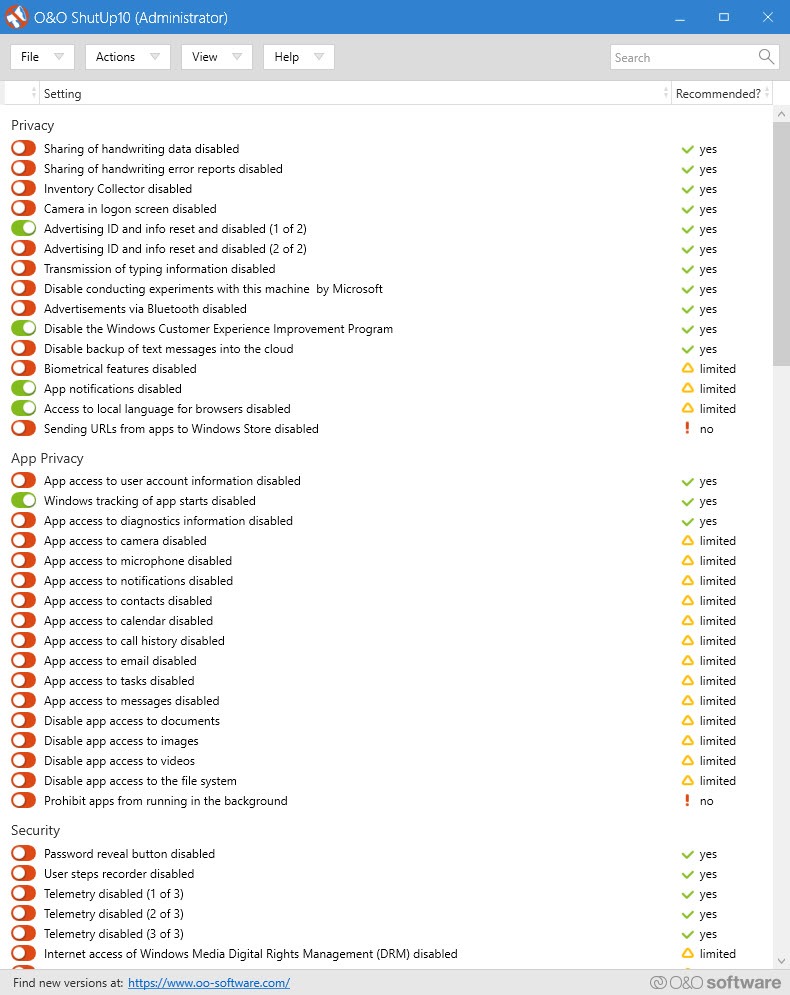
Every toggle carries a traffic light. Green means the change is safe and nothing should stop working. Amber warns that a convenience feature may behave differently afterwards. Red signals that flipping it can break something you might want.
That single piece of design is the reason to choose this over a batch file somebody posted on a forum, and everything else in the program is built around making the same distinction usable.
Each setting explains itself
Alongside the colour, every item expands into a description covering what the setting actually does, how the change is implemented underneath, and what might stop working if you apply it.
That matters because the names alone are useless. A toggle labelled as disabling a location service sounds harmless until the description mentions that the automatic screen colour temperature feature depends on it, which is exactly the sort of connection nobody discovers until a week later when the screen stops warming in the evening.
Reading them is the difference between hardening a machine and quietly disabling half of it. For a tool built around the same per-setting philosophy with a different presentation, Debotnet covers similar ground with its own grouping of the same territory.
Two scopes, stated explicitly
ShutUp10 separates settings that apply to your account from settings that apply to the whole machine, on two clearly labelled tabs. That distinction is missing from most tools in this category and it matters on any shared computer.
Changing something under your own account affects nobody else. Changing it machine-wide affects every user including ones created later. Making the scope explicit rather than implied removes a whole class of surprises, particularly on a family machine where somebody else complains about a feature you never meant to remove for them.
Applying in bulk without gambling
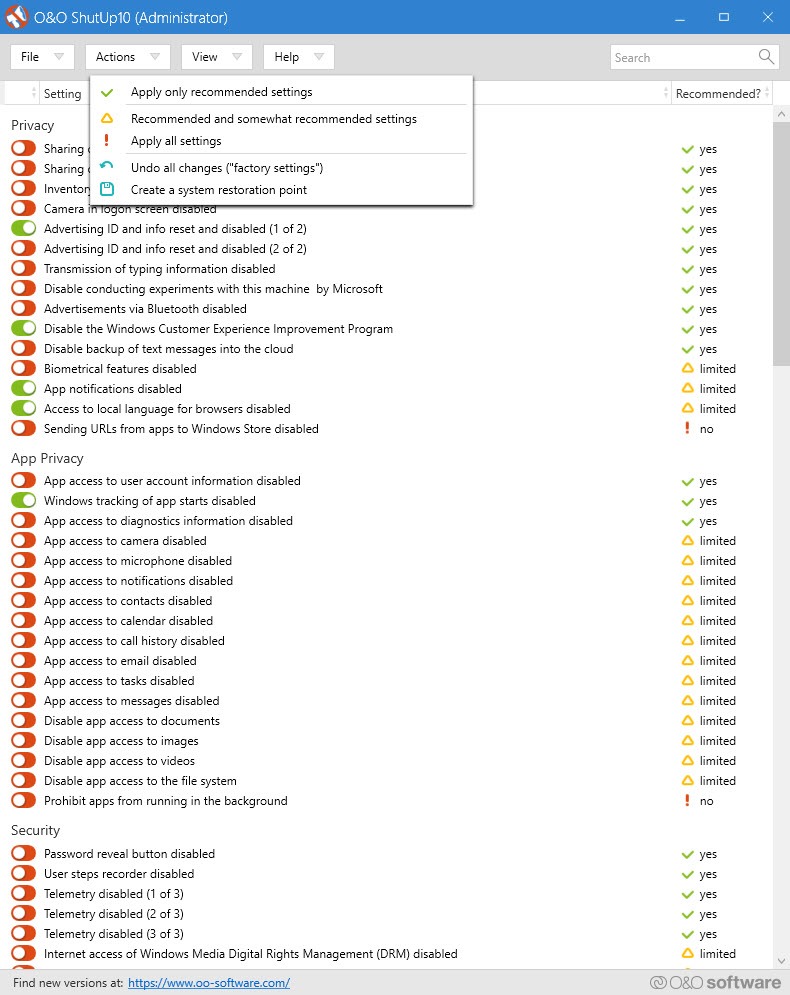
An actions menu applies all the recommended settings in one step, or extends that to include the partly recommended ones for anybody willing to accept small inconveniences. Those two cover almost everybody.
Before the first application, ShutUp10 offers to create a system restore point. Accept it. The changes are individually reversible and a restore point is the safety net for the case where you cannot work out which of forty settings caused the problem you noticed three days later.
The red settings sit there for people who know precisely what they are removing and accept the consequence. Using the bulk actions never touches them, which is the correct default.
Profiles turn one session into a policy
A configuration can be exported to a file and imported later, and this is the feature that turns the tool from a one-off tidy-up into something maintainable.
Two uses justify it immediately. After a reinstall, importing the file restores your entire arrangement rather than requiring you to remember which forty toggles you flipped last time. And across several machines, one exported profile gives every one of them the same posture without anybody clicking through the list again.
For finer control over individual settings with the same profile approach, W10Privacy goes deeper into the available switches, with a busier interface and rather less guidance about which are safe.
Why settings revert, and why some do nothing
Two behaviours confuse people and both are documented rather than mysterious.
Settings revert. Feature updates restore defaults, cumulative updates occasionally do the same, and certain scheduled tasks re-enable telemetry components on their own schedule. This is not the tool failing. The sensible routine is to run it again after any major update, import your exported profile, and accept that privacy configuration is maintenance rather than a one-time job. A tool that holds back the updates themselves reduces how often that happens, with the obvious consequence of not receiving patches.
Settings that appear to do nothing have a different explanation. Some apply only to a system generation you are not running, and some depend on policy mechanisms that consumer editions do not include, so the toggle exists and has nothing to act on. ShutUp10 is not misbehaving in either case, and knowing this saves an hour of trying to work out why a change had no effect.
Managed machines are the third case. Where policy is set centrally, it overrides anything applied locally, which is correct behaviour and explains a work laptop that ignores you.
What it configures, and what it cannot block
Everything here writes registry values, adjusts policies, disables services and removes scheduled tasks. That is a configuration tool, and its reach ends where configuration ends.
Consumer editions retain a floor of required diagnostic data that no setting removes, so the honest description of the result is substantially reduced collection rather than none. Anything beyond that means intervening in the traffic itself, and simplewall blocks at the network layer by deciding which programs may connect at all.
Blocking by destination rather than by program is the other approach, and a manager for the file that maps names to addresses handles that, with the standing caution that over-aggressive blocking there breaks services you actually use.
Conclusion
ShutUp10 is the privacy tool to recommend to somebody who is not certain what they are doing, which is most people. The traffic light and the per-setting explanations mean you can harden a machine substantially without the sinking feeling that something important has just been switched off, and the bulk action for recommended settings alone covers the majority of what anybody needs.
Treat it as maintenance rather than a fix. Updates will undo some of the work, a few toggles will do nothing on a consumer edition, and configuration alone cannot stop the required diagnostic minimum. Export your profile, keep it somewhere, re-run the tool after each major update, and pair it with something that works at the network layer if the reduced collection is still more than you want.
Pros & Cons
- Every setting carries a safety indicator, so risk is visible before you apply anything
- Descriptions explain what each change does and what may stop working afterwards
- Separate tabs for account-level and machine-wide settings make the scope explicit
- Bulk actions apply only the safe or moderately safe settings, never the risky ones
- Offers a restore point before the first application
- Configurations export and import, so a posture survives a reinstall or transfers to another machine
- Runs as a single portable executable with no installation and no background service
- Updates revert settings, so the tool has to be run again periodically
- Some toggles do nothing on consumer editions because the underlying mechanism is absent
- Red settings will break functionality, and nothing stops you applying them individually
- Cannot reduce collection below the floor built into consumer editions
- Configures the system rather than blocking traffic, so it is only half a privacy strategy
- Automatic reapplication after updates belongs to the paid edition
Frequently asked questions
Green marks a change that is safe and should break nothing. Amber warns that some convenience feature may behave differently. Red indicates the setting can break functionality, and the bulk actions deliberately leave those alone.
Because feature updates restore defaults, and some scheduled tasks re-enable telemetry components independently. Re-running the tool and importing your exported profile after each major update is the expected routine rather than a sign of failure.
Either it applies only to a system generation you are not running, or it depends on a policy mechanism that consumer editions lack. On a managed work machine, centrally applied policy also overrides anything set locally.
No. It runs as a single portable executable with no installation and no background service, which means it can be carried on a stick and run on several machines without leaving anything behind.
Yes, individually through the same toggles, or wholesale through the restore point it offers to create before the first application. Exporting your configuration beforehand gives you a third way back.


