

Wu10Man
About Wu10Man
Wu10Man is a control panel for the parts of the operating system that download and install updates on their own. It lists the five services involved, with a description of what each does and a switch for each.
It exposes the policy settings that decide whether updates install themselves or only notify you, and toggles the scheduled tasks that wake the machinery up. It also extends the built-in pause beyond the few weeks the settings page allows. A last tab removes the preinstalled applications nobody asked for.
It sits beside Windows Update Blocker, which does the blunt version of the same job with one button. Wu10Man does the explained version. Every switch has a paragraph beside it saying what the service is for and what breaks when it is off, which is the difference between blocking updates and understanding what you blocked.
It is no longer being developed, and the code is public, so what it does today is what it will always do.
The five services, explained
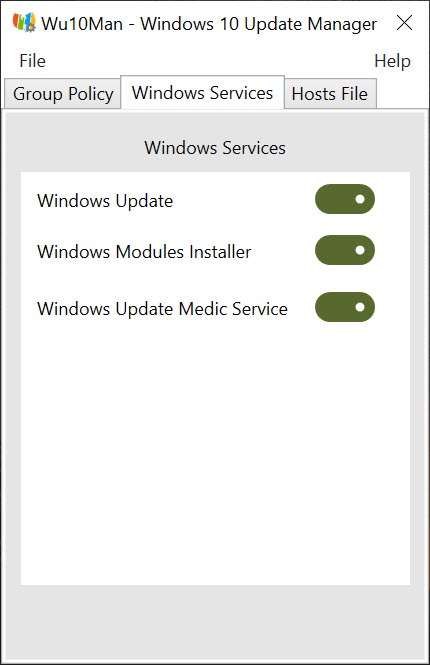
The first Wu10Man tab lists the update service itself, the module installer that applies system components, and the medic service whose job is to re-enable the update service when someone disables it. The remediation service that repairs the update machinery and the telemetry service complete the list. Each has its purpose written out on the left and a toggle on the right, plus buttons to disable or enable them all.
The medic service is the one that defeats most hand-made attempts to stop updates, and this tab is where people learn why their manual change kept reverting.
The descriptions also carry warnings. Disabling the module installer interferes with installing other things, including some graphics drivers, and the tab says so. The program does not hide the switch.
It tells you what you are about to turn off and lets you decide, and it keeps the original settings so that enabling everything again restores the machine to the state it found.
Policy, scheduled tasks and the long pause
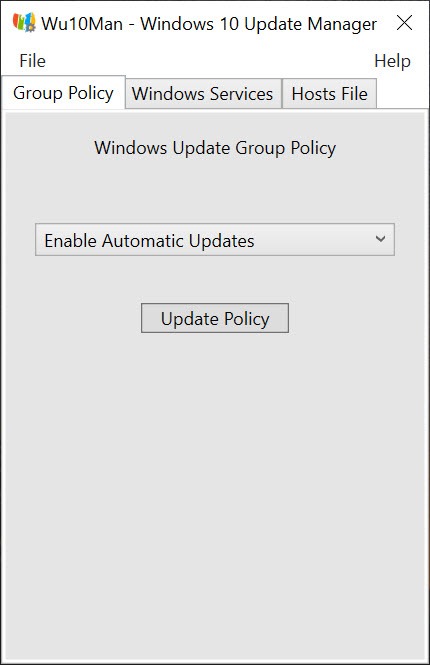
The Wu10Man policy tab offers the automatic update behaviours the operating system already supports but buries. Notify before downloading, download and notify before installing, download and install on a schedule, or leave it to the system.
Choosing the first turns forced updates into a prompt you can ignore for a while, which for many people is all they wanted. A scheduled tasks tab lists the update-related tasks and lets each be disabled, closing the routes by which a disabled service gets prodded back to life.
Pause Updates uses the built-in deferral and lets you set a date further out than the settings page allows. The author’s own note on this feature is blunt. It uses a mechanism the operating system controls and has overridden when it judged an update urgent. It is a delay rather than a wall, and the services tab is the dependable route.
Declutter, and the legacy hosts tab
The Declutter tab lists the preinstalled applications, the games, the store front ends and the partner apps, with a checkbox each and a Remove button. It is labelled as unfinished and behaves like it, working on most entries and leaving a few behind.
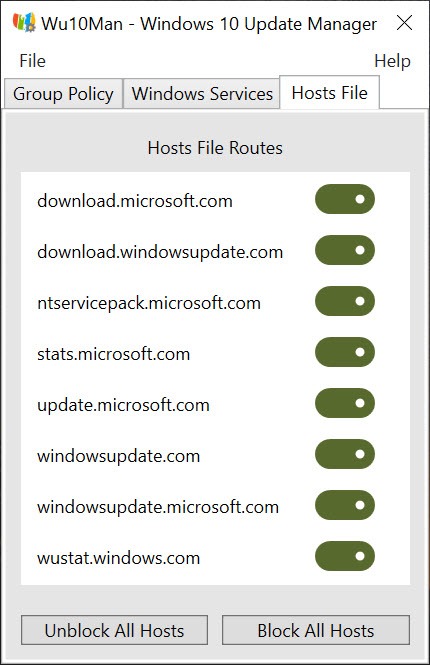
The hosts file tab, which blocked the update servers by name, has been moved to a legacy section. Editing the hosts file trips the built-in antivirus, which treats that action as a sign of malware and quarantines the program. It remains available for people who know what they are doing, with a warning in place of a recommendation.
The reason for caution
Everything here needs administrator rights and changes system settings, and the sensible sequence is a restore point first. The program is honest about the trade. Blocking updates also blocks security fixes, and a machine with the services off for months is a machine collecting unpatched holes. The descriptions and warnings on every tab are how Wu10Man says so without a nag screen.
For a schedule of manual updates rather than a block, a tool that lists available updates and installs the ones you pick is the complementary piece, and the two work well together.
Conclusion
Wu10Man is for the person who wants to stop forced updates and understand what they are stopping, rather than press a button and hope. The service descriptions alone explain the update machinery better than most articles, and the switches beside them do what the descriptions promise.
It is unmaintained and it asks for care, and anyone who leaves updates off for good is taking on the risk that comes with that. Used for a defined period, with a restore point behind it and the notify-only policy as the gentler option, it does the job with more candour than its rivals.
Pros & Cons
- Each update service described alongside its switch, with warnings where turning it off breaks other things
- Policy settings for notify-only updates exposed in plain language
- Scheduled tasks and the medic service handled, so changes hold
- Original settings restored when services are re-enabled
- Public source code with nothing hidden
- No longer developed
- Pause feature is a delay the operating system can override
- Declutter is unfinished and skips some applications
- Hosts blocking triggers the built-in antivirus
Frequently asked questions
The medic service or a scheduled task re-enabled it. Disable the medic service on the services tab and the update tasks on the scheduled tasks tab, and the change holds.
Disabling the module installer can interfere with installing system components and some drivers, and the tab warns about it. Leave that one enabled unless you have a reason, and re-enable everything before installing drivers.
No. It uses the operating system's own deferral, which the maker can override for updates it considers urgent. The services tab is the route for a block that holds.


