

Whale

 (21 votes, average: 3.10 out of 5)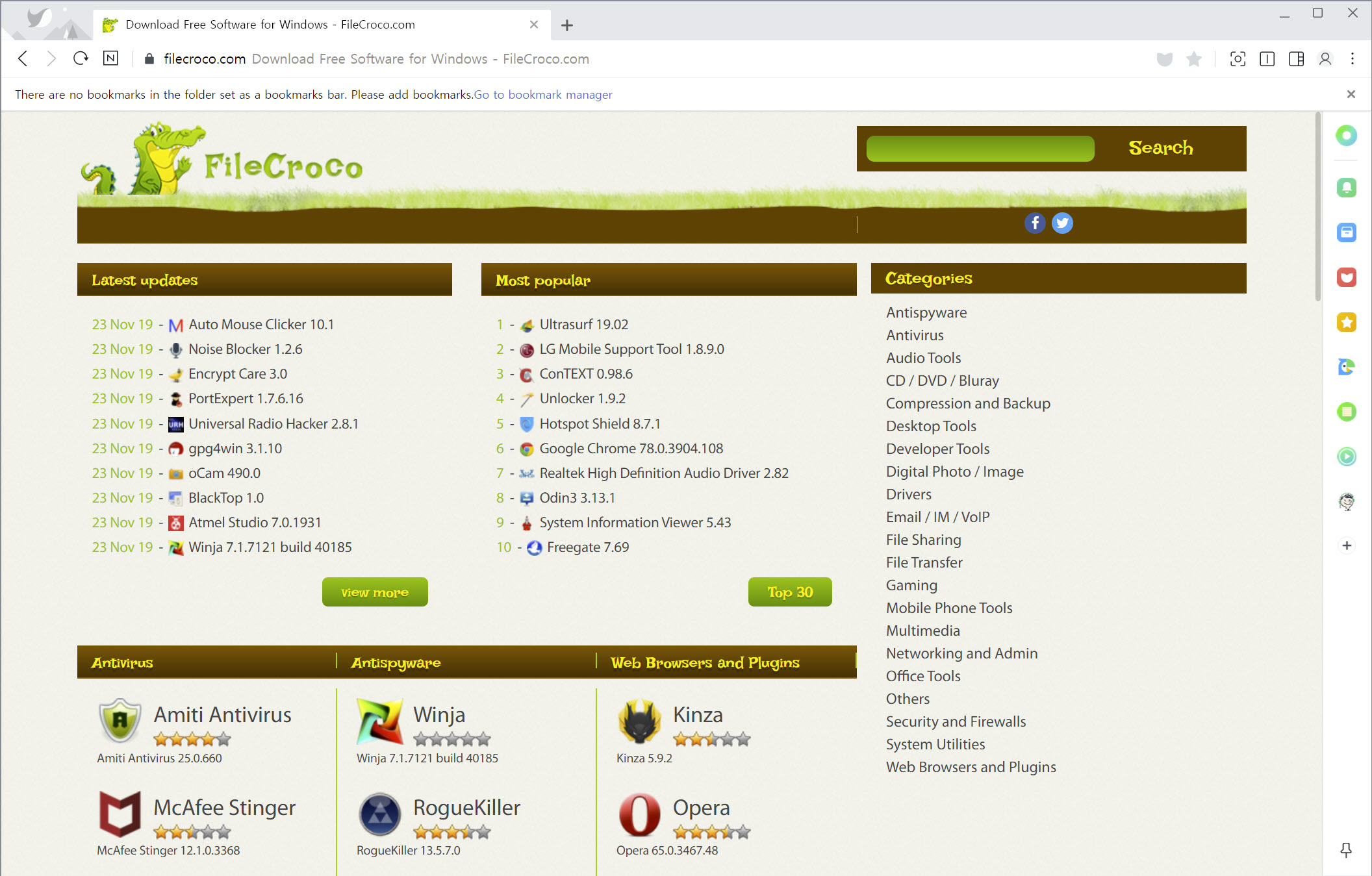
About Whale
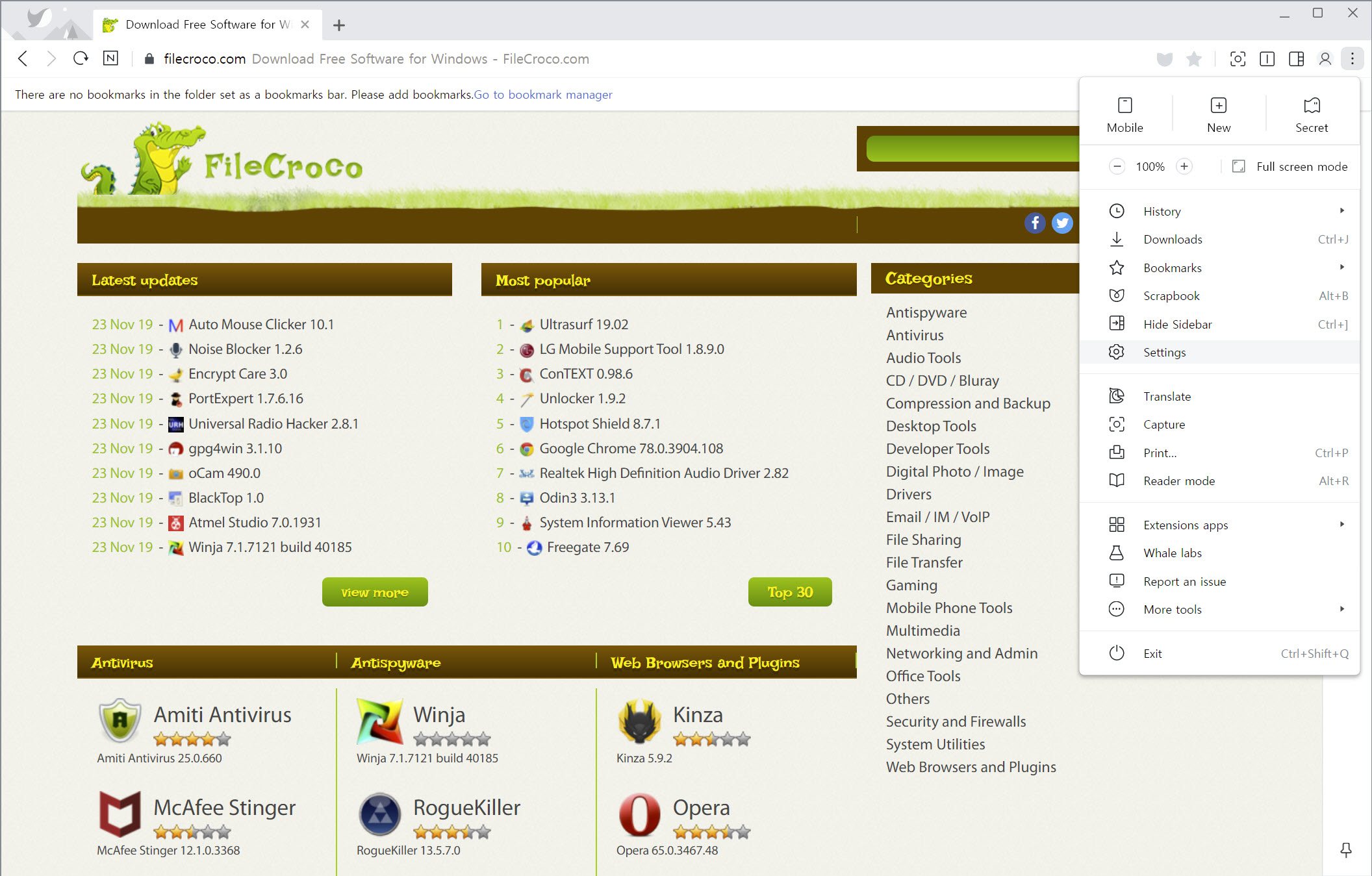
Whale is a web browser built on the idea that you rarely look at just one page at a time. Its headline trick splits a single tab into two side-by-side panes, so you can read an article on the left while taking notes on the right, or keep a reference open beside the document you are writing. Built on the same Chromium core that powers most modern browsers, it runs the sites and extensions you already know, then layers its own multitasking and convenience tools on top.
That layering is the whole pitch. Rather than reinventing how browsing works, Whale takes a familiar, fast foundation and adds the features people usually cobble together from a handful of extensions.
A sidebar of small tools, a quick way to search a word without leaving the page, built-in screen capture and notes. The result feels less like a stripped-down browser and more like a workspace that happens to render web pages.
What makes the split view worth it?
The split feature, sometimes called Omnitasking, is the reason most people try Whale in the first place. You divide the window into two panes inside one tab and load a different site in each. The divider can sit dead center or be dragged to favor one side, so you can give a long article most of the width and tuck a notes page into the rest.
Where this earns its keep is any task that involves comparing or referencing. Pricing two products against each other. Reading documentation while writing code in a web editor. Watching a tutorial on one side while following along on the other.
Doing the same thing with two separate browser windows means constant alt-tabbing and resizing, and the panes here stay put and resize together. Once you get used to working this way, going back to a single page feels oddly cramped.
A sidebar that replaces a pile of extensions
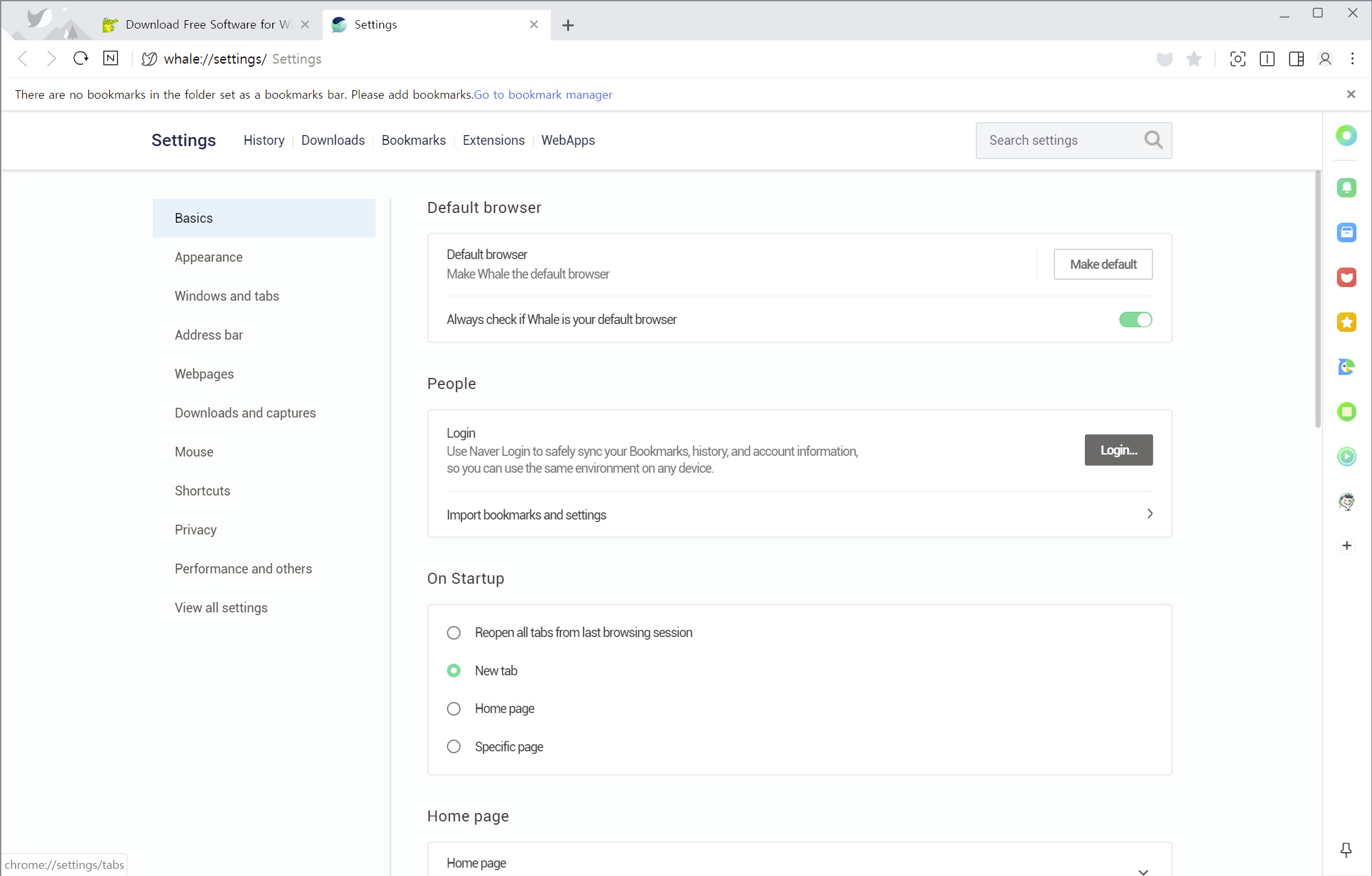
Running down one edge sits a collapsible sidebar stocked with small tools, and this is where the browser quietly saves you installs. Out of the box it includes a calculator, a countdown timer, a music player, and notes, the kind of utilities you would otherwise open a separate app or extension for. You pop the sidebar out when you need a tool and tuck it away when you do not, so it never crowds the page.
The honest read is that some of these are more useful than others, and how much you lean on them depends on your habits. But the principle is sound. A quick calculation or a timer is the sort of thing that breaks your flow if you have to leave the browser for it, and having them a click away is a small pleasure that adds up. The sidebar can be switched off entirely if you prefer a cleaner window.
For people coming from a heavily customized setup, a browser like Opera takes a similar built-in-tools approach, while plain Google Chrome leaves that work to extensions you add yourself.
Quick search, capture, and a peek at mobile layout
Two more touches show the browser’s productivity bent. Highlight or drag a word on any page and a quick-search popup appears with results, so you can check a term or a name without opening a new tab and losing your place. It is a tiny interaction, but it removes a surprising amount of friction from reading.
The built-in screen capture handles the common need to grab part of a page without a dedicated tool, and a clipping feature lets you save web content to revisit later across your devices. There is also a popup that shows you how the current page looks in a narrow mobile layout, which is handy if you build sites and want a fast check without fishing through developer tools.
These are not headline features, but they are the sort of conveniences that reduce the number of other programs you keep open.
Customization and the Chromium foundation underneath
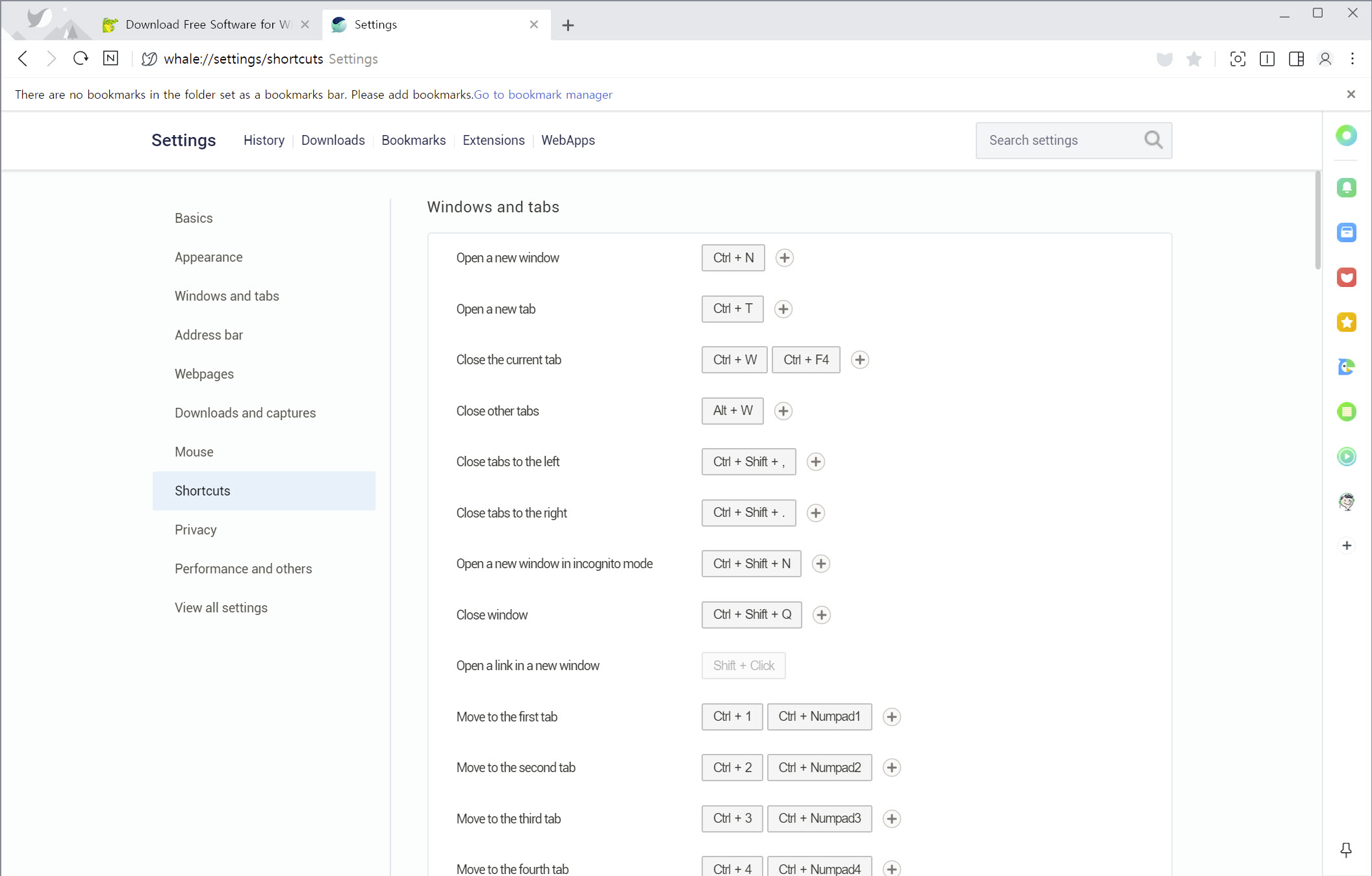
On looks, the browser leans into personalization. You can apply interface themes and wallpaper backgrounds, and the new-tab page offers more arrangement options than the usual blank grid, which is part of why the design draws comment. It is deliberately styled to feel inviting rather than utilitarian, without burying newcomers in options.
Underneath, the Chromium engine does the heavy lifting, so pages render the way they do everywhere else and compatibility is rarely a worry. Because it supports the Chrome Web Store, the entire library of extensions you might already rely on, from password managers to ad blockers, works here too.
If ad blocking specifically is your priority, a dedicated tool like AdGuard filters content across your whole system, and a privacy-first browser such as Brave Browser bakes blocking in by default. Whale instead bets on multitasking and built-in tools as its reason to switch.
Conclusion
Whale is for the person who treats a browser as a workspace rather than a window. If you regularly compare pages, reference one site while working in another, or reach for small tools mid-task, the split view and the sidebar turn habits that normally mean juggling windows and extensions into something built right in. The design is pleasant, the Chromium base keeps everything compatible, and nothing here demands a learning curve.
Whether it earns a permanent spot depends on how much you actually multitask. A casual browser who opens one page at a time will not find much that a mainstream option plus a couple of extensions cannot match.
But if your screen is usually split between two things and you are tired of stitching that workflow together yourself, this browser delivers it out of the box, and that focus is exactly what sets it apart.
Pros & Cons
- Split view shows two web pages side by side in a single tab for easy comparison
- Sidebar bundles a calculator, timer, music player, and notes without extra extensions
- Quick search lets you look up a word in a popup without leaving the page
- Built-in screen capture and web clipping reduce reliance on separate tools
- Chromium base means full site compatibility and Chrome Web Store extension support
- Theme and wallpaper options give the interface a more personal feel
- Some bundled sidebar tools will see little use depending on your habits
- The extra features add interface elements that minimalists may find unnecessary
- It offers little that a mainstream browser plus a few extensions cannot approximate
- Split view is most valuable on a large screen, less so on a small laptop display
Frequently asked questions
Its split view, also called Omnitasking, divides one tab into two side-by-side panes so you can view two web pages at once. This is built for comparing pages, referencing one site while working in another, or keeping notes beside your reading.
Yes. Because it is built on Chromium, the same engine behind many browsers, it supports extensions from the Chrome Web Store. Tools like password managers and ad blockers install and work the same way they would elsewhere.
The collapsible sidebar includes built-in utilities such as a calculator, a countdown timer, a music player, and notes. You can open it when you need a tool and hide it when you do not, or switch it off entirely for a cleaner window.
Yes. It includes a screen capture tool for grabbing part of a page without a separate program, along with a clipping feature that saves web content so you can return to it later across your devices.
It uses the same Chromium foundation as mainstream browsers but adds multitasking and convenience features on top, including split view, a tool sidebar, quick search, and capture, aiming to replace several extensions with built-in equivalents.


