

TinyTask
About TinyTask
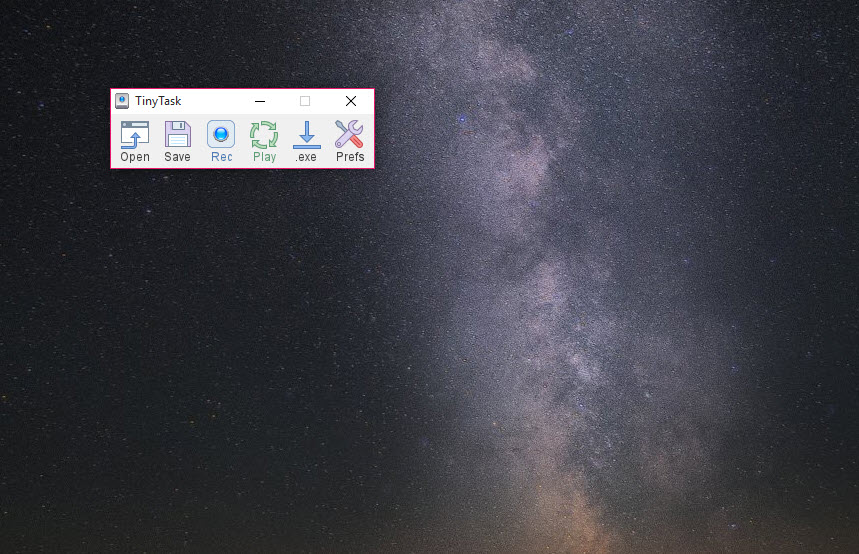
TinyTask is a macro recorder reduced to its smallest possible form. Press one hotkey, do something with the mouse and keyboard, press the hotkey again, and the sequence is captured with its original timing. Press a second hotkey and it plays back, once or in a loop, at normal speed or a hundred times faster. The whole program is a single tiny executable with a toolbar of six buttons, and it writes nothing to the registry and installs nothing.
That size is the point. It sits at the opposite end of the automation spectrum from AutoHotkey, where every action is a line of code, and even below recorders such as a macro tool that lets you edit the recorded steps afterwards. TinyTask records and replays, and does not edit, branch or think. For a surprising number of repetitive jobs, that is all anyone needs, and it explains why the name is searched so often.
Record, stop, play
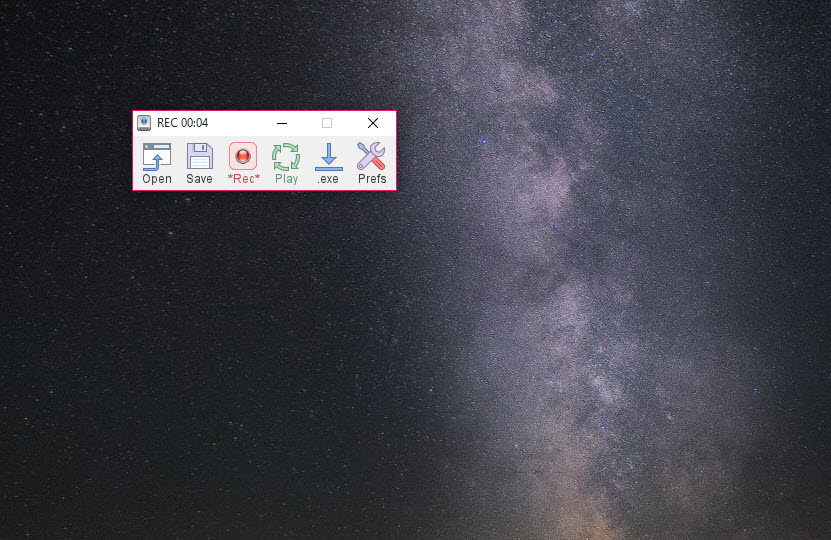
Ctrl+Shift+Alt+R starts recording and the same combination stops it. Ctrl+Shift+Alt+P plays the recording and stops it again mid-run. The four-key combinations are deliberately awkward so that nothing you do during the recording triggers them by accident. The toolbar has a red circle, a green triangle and a square to do the same with the mouse, plus Open and Save buttons for .rec files and a compile button covered below.
Everything is captured as absolute screen coordinates and millisecond gaps. Move the mouse to 840,412, wait 300 milliseconds, click, type a word, and that is exactly what comes back, at that position and with that pause.
It follows that the target window must be in the same place and at the same size when you play as when you recorded, and that a different screen resolution breaks the macro entirely. Record with the window maximised and the problem mostly disappears.
One trap catches every first-time user. If you stop the recording by clicking the toolbar’s stop button, that click is recorded too, and on playback the macro ends by clicking the toolbar. Stop with the hotkey instead.
Repeat counts and playback speed
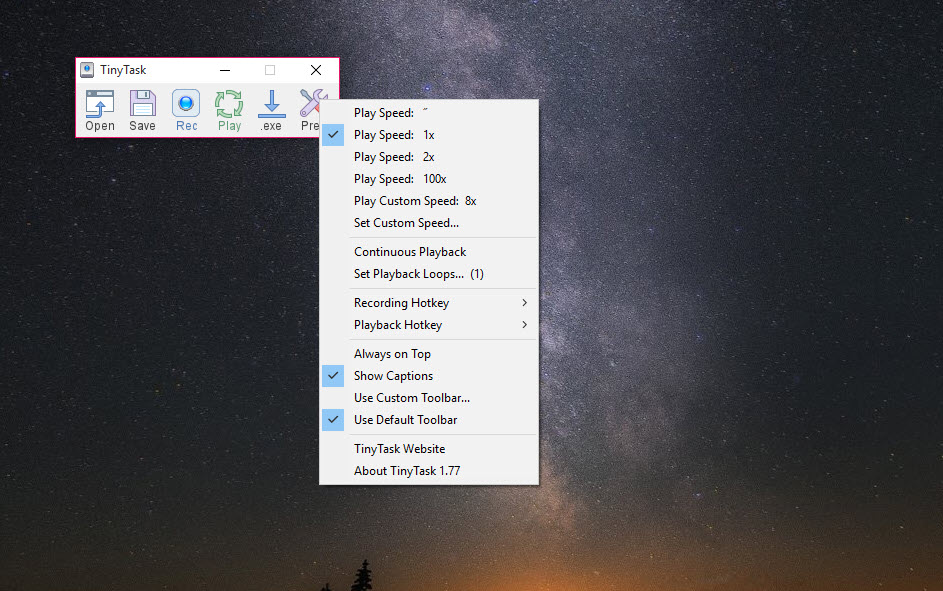
Right-click the toolbar and a small menu appears. Continuous Playback loops the recording until you stop it, and a repeat count spinner sets an exact number of passes for people who need a form filled fifty times rather than forever. The play speed offers presets of half speed, normal, double and 100x, plus a custom multiplier, and the setting is saved so a macro plays at the same speed next time.
The 100x setting is where TinyTask becomes an auto clicker. A two-second recording of a single click, looped continuously at 100x, is a click every twenty milliseconds, which is what most people searching for the program are after.
Bear in mind that the receiving application may not keep up, and that very short recordings at that speed once refused to stop cleanly, a bug since fixed. If clicking is the only requirement, a dedicated auto clicker with an interval setting gives you the number in milliseconds directly rather than through a speed multiplier.
Always watch the first loop. At normal speed a misplaced click is a nuisance. At 100x it is fifty wrong clicks before you reach the hotkey.
Compiling a macro into its own executable
The compile button turns the loaded recording into a standalone executable, barely larger than the recorder itself, that plays the macro when run and needs nothing else on the machine. The repeat count and play speed are baked in, so a compiled macro set to loop continuously at double speed does exactly that on a colleague’s PC with TinyTask absent. Pin one to the taskbar or drop it into a startup folder and a daily click sequence runs itself.
There is also a small setup helper that associates .rec files with the program, so double-clicking a recording plays it and exits, which suits people who keep a folder of macros rather than compiled copies. Neither route gives you a way to inspect what a file will do before it runs, and a compiled macro from somebody else is code you cannot read. Treat it accordingly.
What it deliberately leaves out
There is no editor. If step 14 of 40 is wrong, you record all 40 again, because the .rec file is not meant to be opened by hand and the toolbar has no timeline. There are no conditions, no waiting for a window to appear, no image recognition to find a button that has moved, and no variables. Playback is blind. If a dialog pops up unexpectedly, the macro types into it.
That is a description, not a complaint, since these omissions are why the program stays so small and why a novice can use it in a minute. But the moment a task needs to check anything before acting, the right tool is AutoHotkey, which trades the record button for a scripting language and never misses a target because a window shifted.
Antivirus warnings and copies of the wrong size
Because TinyTask hooks keyboard and mouse input at system level to record, and injects input to play back, heuristic scanners sometimes flag it as a keylogger or a trojan, and the compiled macros inherit the same suspicion. These are behavioural flags rather than signature matches, and adding an exception for the executable clears them. The genuine program is one small executable and nothing else.
If what you have comes with an installer or a folder of extra files, it has been repackaged with something else and is not this program.
Conclusion
TinyTask is for anyone with a repetitive, identical sequence of clicks and keystrokes and no interest in learning a scripting language to automate it. Data entry clerks, testers, and gamers who need a button pressed every twenty milliseconds get exactly that, from a program small enough to email.
Anyone whose task varies from run to run, even slightly, will hit the wall of blind playback within a day and should start with a scriptable tool instead. Know which kind of repetition you have before you download either.
Pros & Cons
- Records mouse movement, clicks and keystrokes with original timing
- Global hotkeys for record and play, so the toolbar can stay out of the way
- Repeat count, continuous loop and speed presets up to 100x
- Compiles any recording into a standalone executable
- Single file, no installer, no registry entries
- No editing of recorded steps, only re-recording
- Absolute coordinates break when a window or resolution changes
- No conditions, waits or image recognition, so playback is blind
- Heuristic antivirus flags on the program and its compiled macros
- Stopping with the toolbar button records the extra click
Frequently asked questions
Recordings store absolute screen positions. The window you recorded against has moved, been resized or is on a different resolution. Put it back where it was, ideally maximised, or re-record.
Press Ctrl+Shift+Alt+P, the same combination that started playback. Keep the toolbar set to Always on Top so the stop button is reachable if you cannot get to the keyboard.
You stopped recording with the mouse, and that click was captured. End recordings with Ctrl+Shift+Alt+R instead, or re-record and stop with the hotkey.
Yes. Use the compile button to produce a standalone executable of the recording. It carries the repeat and speed settings with it and needs no other files.


