

Task Killer
About Task Killer
Task Killer puts every running process, open window and service into a menu that pops up from the tray. Click the icon, pick the thing that has frozen and confirm, and it is gone. No task manager to open, no tabs to switch between, no waiting for a window to draw while the machine is already struggling. That speed is the whole point, and on a system where a hung program has made everything sluggish, it is exactly when a full window is least welcome.
Each process in the menu shows its memory use beside its name, so the one quietly eating two gigabytes stands out before you even read the list. Open program windows and services sit in their own sections of the same menu, which means one click reaches all three kinds of target.
The tray menu and how it is laid out
The menu is the interface of Task Killer. Processes, open program windows and services each get a section, and the layout is adjustable, from how many columns services spread across to how each list is sorted. System processes can be pinned to the top of the list and are colour-coded, so the ones you should not touch are visually separated from ordinary programs.
Closing a window and killing a process are different actions here, and that distinction matters. Closing a window asks the program to shut down politely, giving it a chance to save. Killing the process ends it immediately.
Try the window first when a program is merely slow, and reach for the process when it has stopped responding entirely.
Hotkeys that open the menu at the cursor
Hotkeys are off by default, and turning them on changes how the tool feels. Assign a key combination to each list and the menu opens right where your mouse pointer is, rather than down in the tray corner.
When a full-screen game freezes and the tray is out of reach, a hotkey is often the only way in. For the specific case of closing the active window with a keystroke, SuperF4 does that single job with no menu at all.
Confirmations and exclusions against mistakes
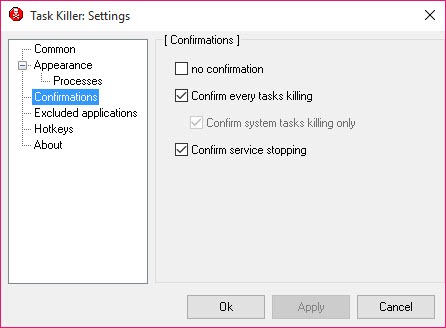
A tool that kills processes with one click can also kill the wrong one with one click, and Task Killer has two guards against that. Confirmation dialogs ask before anything is terminated. Exclusions remove chosen programs from the list entirely, which keeps security software and anything critical out of reach of a slipped finger.
Services work the same way, with the option to stop them from the menu. That is convenient for a service that refuses to release a file, and risky for anything the system depends on. Leave the colour-coded system entries alone unless you know what they do.
Anyone who needs to end several processes together should look at a process killer built for batch termination instead.
The limitation on current systems
This is the part to know before relying on it. On older systems the process list is complete. On current ones, it shows only a fraction of what is actually running, while program windows and services still list fully. That takes away much of the reason to use it, because the process you need to kill may simply not be in the menu.
The window and service sections remain useful, and closing a frozen window from the tray still works. For a complete view of every process on a current system, Process Explorer shows the full tree.
Conclusion
Task Killer suits anyone who wants to end a frozen program without opening a full window, particularly on older machines where its process list is complete. The tray menu with memory use beside each entry is fast in exactly the moment speed matters.
On current systems the incomplete process list is a real handicap. Keep it for closing hung windows and stopping stubborn services, and use a full process manager when the culprit is hiding somewhere the menu cannot reach.
Pros & Cons
- Tray menu reaches processes, open programs and services in one click
- Memory use shown beside each process name
- Hotkeys open the menu at the cursor position
- Confirmations and exclusions prevent accidental kills
- Colour-coded system processes stand apart from ordinary programs
- Process list is incomplete on current systems
- Hotkeys are disabled until set up manually
- No process tree, details or search
- Stopping the wrong service can destabilise the system
Frequently asked questions
On current systems its process list only includes a fraction of what is running. Open program windows and services still list fully, but a full process manager is needed to see everything.
Closing a window asks the program to shut down and gives it a chance to save. Killing the process ends it immediately with no chance to save.
Yes, once hotkeys are enabled in the settings. The menu then opens at the mouse pointer rather than in the tray.
Yes. Add them to the exclusion list and they no longer appear in the menu.


