

Subtitle Workshop
About Subtitle Workshop
Subtitle Workshop is a subtitle editor. It opens a subtitle file in any of more than sixty formats and shows every line in a grid with its start time, end time and duration. The video plays alongside so you can see where each line lands, and you fix the timing, the text and the format before saving. It also converts between those formats, which is the reason many people open it once and never again, and it checks a file for the errors that make subtitles unpleasant to read.
The category has two other names. Subtitle Edit has grown into the larger tool, with speech recognition and online translation built in. Aegisub is the typesetter’s choice for styled and karaoke subtitles. Subtitle Workshop sits between them as the plain, fast editor for the ordinary job.
That job is a downloaded subtitle that runs two seconds late, has a dozen typos and needs saving in a format the television understands.
The grid, the video and the waveform
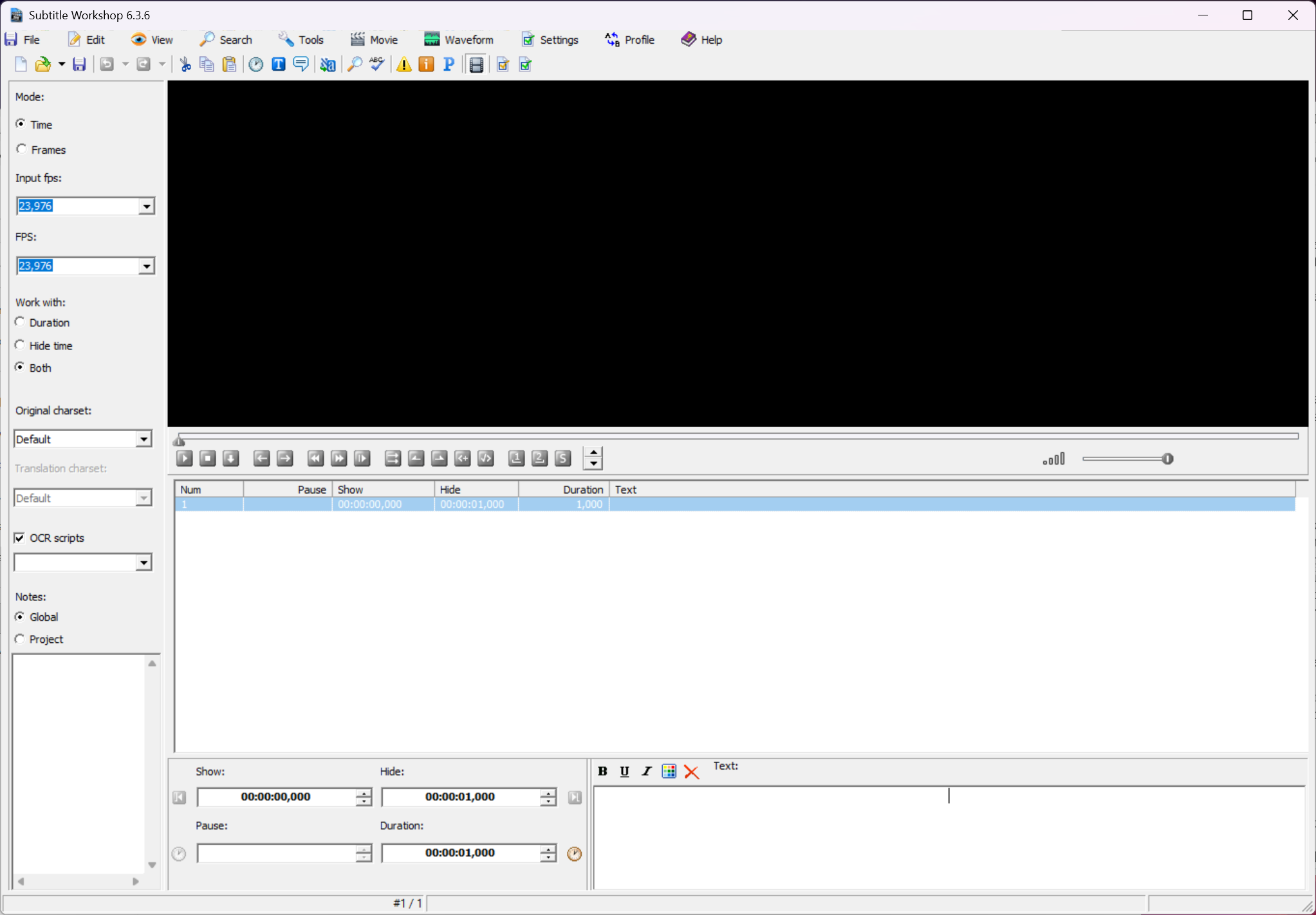
The Subtitle Workshop window is a list of subtitles with columns for the number, the start and end times, the duration and the text. An editing panel below holds the selected line’s times and text, which can be typed or nudged.
Turn on video preview and a player appears above the grid, with the subtitles drawn over the picture in a style you set, so a line can be checked against the frame it belongs to. The player uses whatever codecs the system has, so a file that plays elsewhere plays here.
A waveform panel shows the audio, with each subtitle as a block over the sound it covers. Dragging a block’s edge retimes the line to the moment speech starts or stops, which is faster and more accurate than typing times.
It is the same idea the larger editors use and it arrived here later, but it is present and it works, including deleting subtitles from within the waveform.
Timing tools and the sync everyone needs
Most subtitle problems are timing problems. The whole file is early or late by a fixed amount, or it drifts because it was made for a version of the video with a different frame rate. Subtitle Workshop covers both. Set delay shifts every line, or the selected lines, by a positive or negative amount. Adjust subtitles takes the first and last spoken lines, asks you where they actually fall in the video, and stretches everything between them to match, which cures the drift in one operation. A frame rate conversion handles the case where you know the source and target rates.
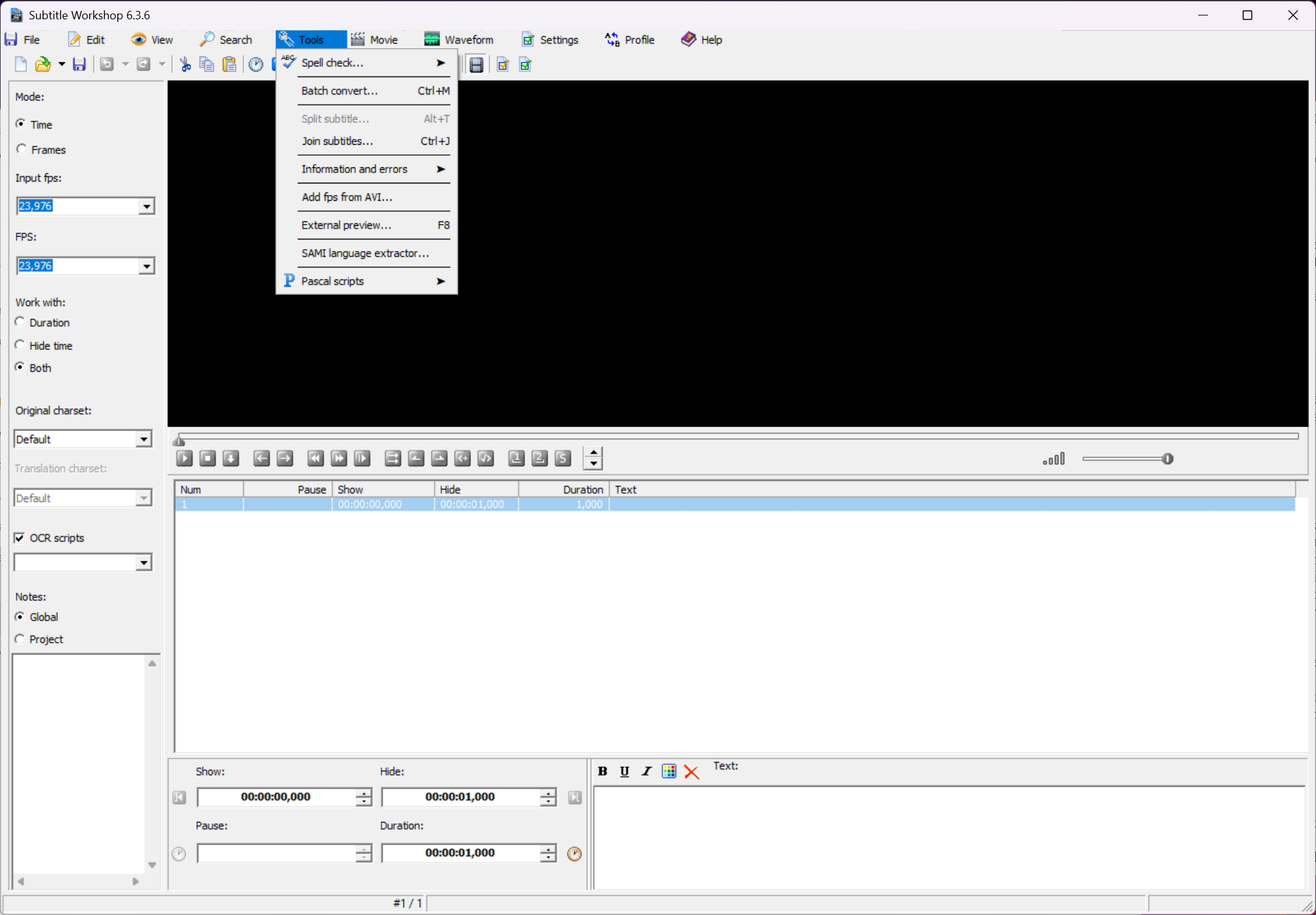
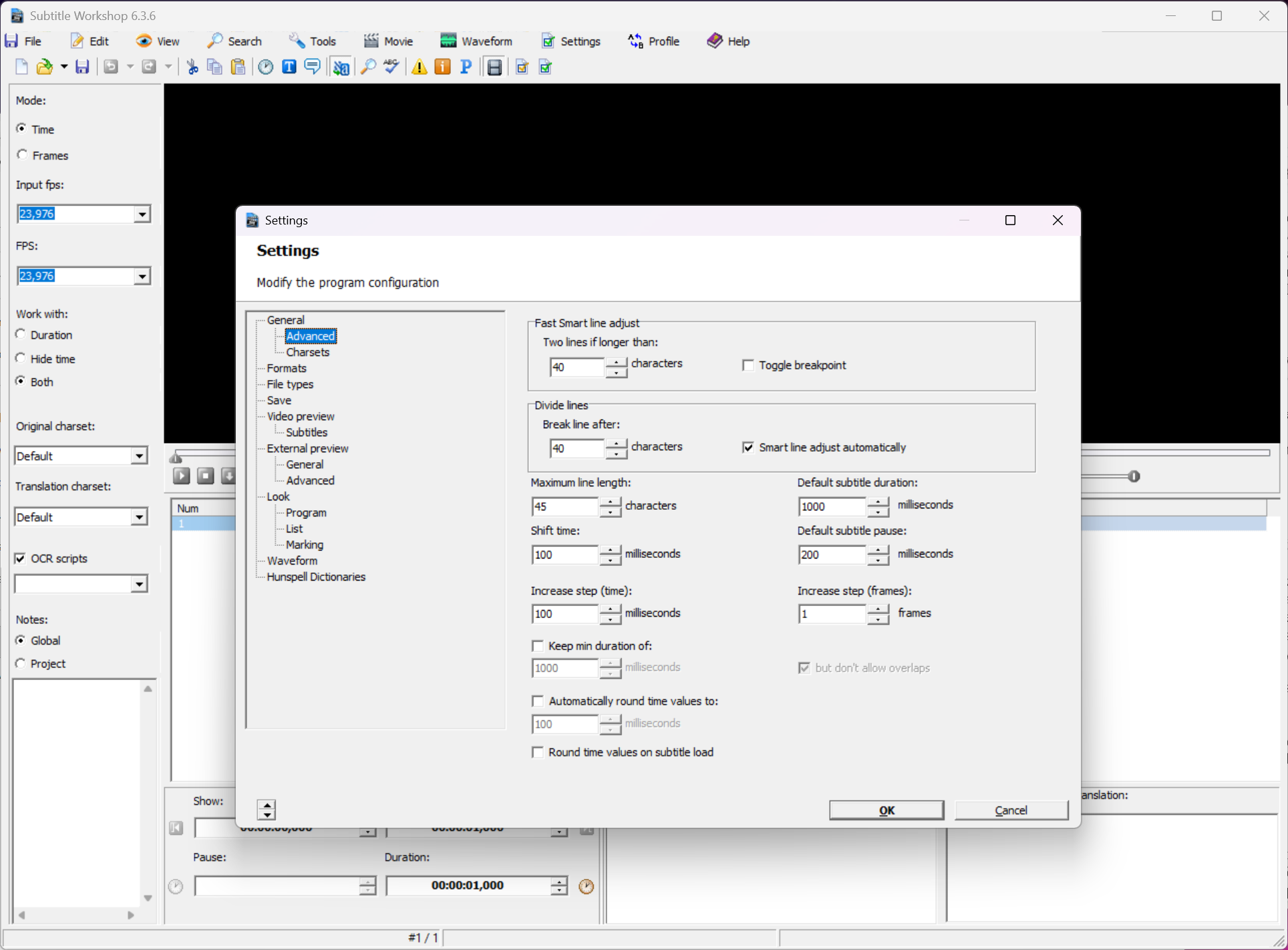
Beyond synchronisation there are automatic durations based on line length and a minimum gap between lines so two subtitles never touch. Smart line splitting handles text that runs too long, and a characters-per-second readout flags lines nobody could read in time.
The pause between subtitles is shown and editable, which the casual editors hide.
Finding and fixing errors
The Subtitle Workshop error checker is a list of rules, each of which can be switched on or off and, in many cases, set to fix automatically. Overlapping times, negative durations, lines too long or too short, too many characters and unnecessary spaces are all detected and marked in the grid. So are repeated characters, hearing-impaired tags, speaker names before a colon and the OCR errors in files produced by ripping a disc. A single command fixes everything it can, and the rest are highlighted for a hand pass.
The OCR error rules deserve a mention. Ripped subtitles arrive with an “l” where an “I” should be and a “0” where an “O” should be. The checker corrects those from a script of common substitutions that can be edited and extended.
A file that came out of a ripper full of those mistakes is cleaned in seconds. Spell checking uses the dictionaries of an installed office suite where one is present.
Translator mode and text tools
Translator mode in Subtitle Workshop adds a second text column beside the original. A translation is typed line by line with the source in view, and both are saved as separate files with identical timing. Inserting a line respects which column you are working in.
Search and replace runs across the file with regular expressions if wanted. Text tools convert case, divide a long line into two subtitles with the time recalculated, join lines and strip the trailing dots that some subtitlers use across line breaks. Style tags for bold, italic, underline and colour are read and written in formats that support them.
Where it stops is anything involving the audio’s content. There is no speech recognition, no machine translation and no way to generate subtitles from a video that has none, all of which the larger rival now does.
This editor assumes you have a subtitle file and want to make it right.
Formats, conversion, custom output
Opening a file in one format and saving it in another is a menu choice, and the list runs past sixty. SubRip, MicroDVD, SubStation Alpha and its advanced form, SAMI, Sonic Scenarist, DVD Subtitle, TMPlayer, SubViewer and dozens of obscure ones are all there, with output settings for the formats that have options. Frame-based and time-based formats convert into each other given a frame rate. Plain text can be loaded and given timings from scratch. And if a device needs a layout nobody has heard of, a custom format can be defined by describing its line structure and saved for reuse.
The one thing it does not do is put the subtitle inside the video. Muxing a finished SRT into an MKV, or burning it into the picture, is a job for a Matroska muxer or an encoder, and this editor ends where the file is saved.
Conclusion
Subtitle Workshop is for anyone who downloads subtitles that arrive late, misspelt or in the wrong format, and for translators who want the original in view while they type. The two-point sync, the error checker and the format list solve the everyday problems in minutes, and the waveform makes fine retiming quick.
People who want subtitles generated from speech, translated by machine or styled for anime should use the larger editors built for that. For a subtitle file that already exists and needs to be made right, this remains the quick way to do it.
Pros & Cons
- Opens and converts more than sixty subtitle formats
- Waveform and video preview for retiming lines against the picture
- Two-point synchronisation fixes drift in one operation
- Error checker with automatic fixes, including OCR substitutions
- Translator mode with a side-by-side column and separate output files
- No speech recognition or machine translation
- Spell check depends on an installed office suite
- Interface looks its age and hides some tools in deep menus
- Cannot mux or burn subtitles into video
Frequently asked questions
Use the adjust subtitles tool. Find the first and last spoken lines, enter the times where they actually occur in the video, and the program stretches every line in between. A constant offset is fixed more simply with the set delay tool.
The player relies on codecs installed on the system. Install a codec pack or a splitter for the file type and the preview works. The subtitle grid is fully usable without video.
Only by hand. Translator mode gives you a second column beside the original for typing a translation line by line. There is no automatic translation.
Open the file, choose Save As and pick the target format from the list. SubRip is the safest choice for most players. Check the output settings if the format offers any.


