

Razer Synapse
About Razer Synapse
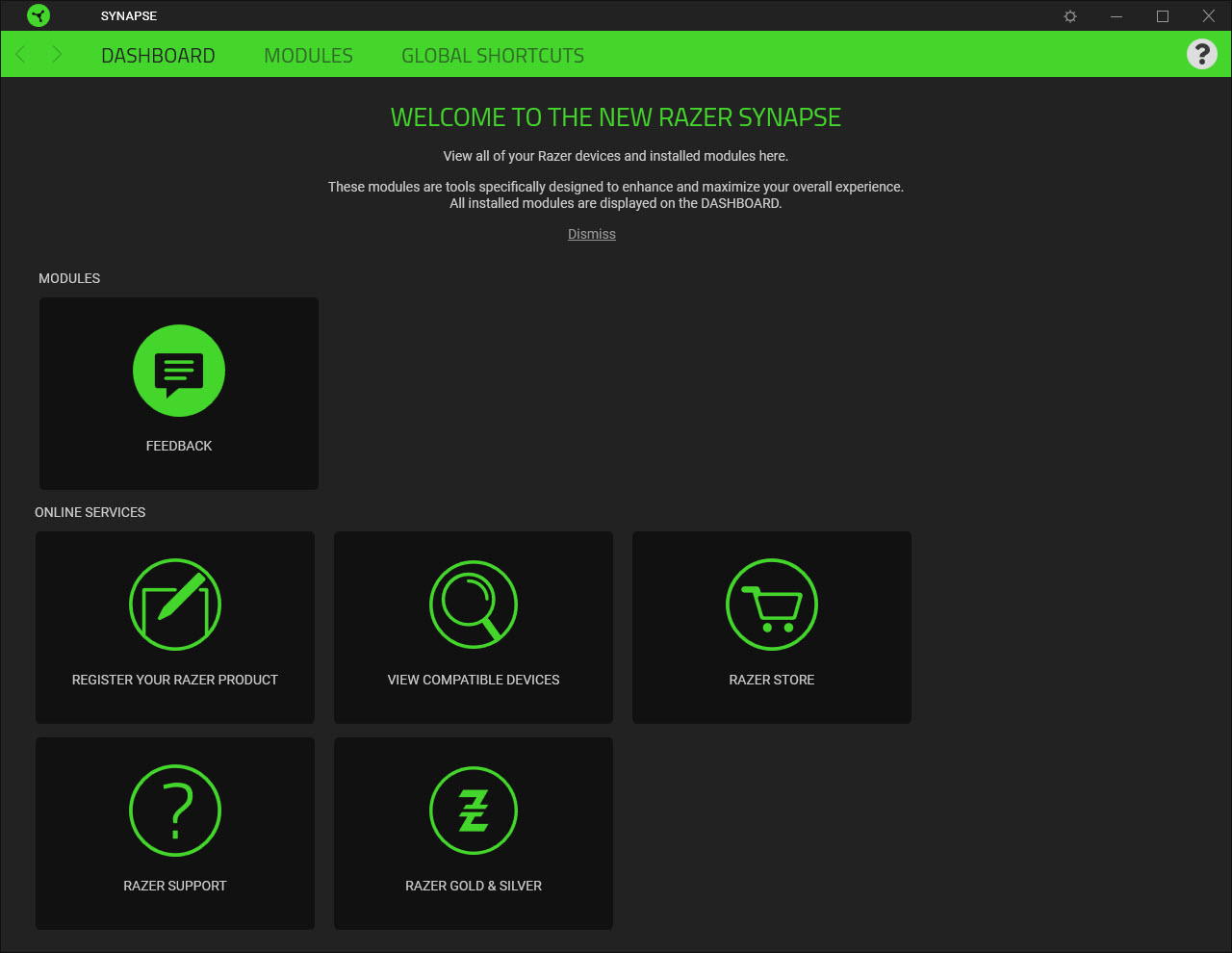
Razer Synapse is the configuration application for Razer peripherals, the central place where you remap buttons, build macros, adjust sensor settings, sync RGB lighting, and store profiles that follow your account across machines. The application handles mice, keyboards, headsets, mousepads, microphones, controllers, and the various other devices in the Razer ecosystem, presenting a single interface for hardware that would otherwise require separate utilities. If you own a Razer peripheral and want to use anything beyond its default behavior, this is the software that makes that possible.
The application sits in an interesting position. It’s a peripheral configuration tool that has grown into a substantial background service, with cloud sync, profile management, and an integration framework that lets third-party games and applications react to your hardware.
Competitors like Logitech G HUB, iCUE, and SteelSeries GG cover similar ground for their respective ecosystems, and the comparison between them often comes down to which hardware you own rather than which application has the better feature set.
Device detection and the connection model
The application uses a background service that runs continuously, scanning for connected Razer devices and loading the appropriate configuration for each one. When you plug in a mouse or keyboard, the service detects it within a few seconds and either applies the active profile or prompts you to set one up if the device is new. Unplug the device and the configuration unloads. Plug it back into a different USB port and the service finds it again.
This sounds simple and usually works that way, but the device detection is also where the application’s most common problems show up. Devices sometimes fail to register on first connection, requiring an unplug-replug cycle or a service restart.
Firmware mismatches between the device and the application can cause silent failures where the hardware works at its default settings but the configuration interface won’t recognize it. USB hubs, especially the unpowered variety, occasionally cause detection to fail in ways that don’t happen on direct connections. None of these problems are unique to Razer Synapse, but the application surfaces them more often than its competitors, partly because of how aggressively it tries to maintain a continuous connection to each device.
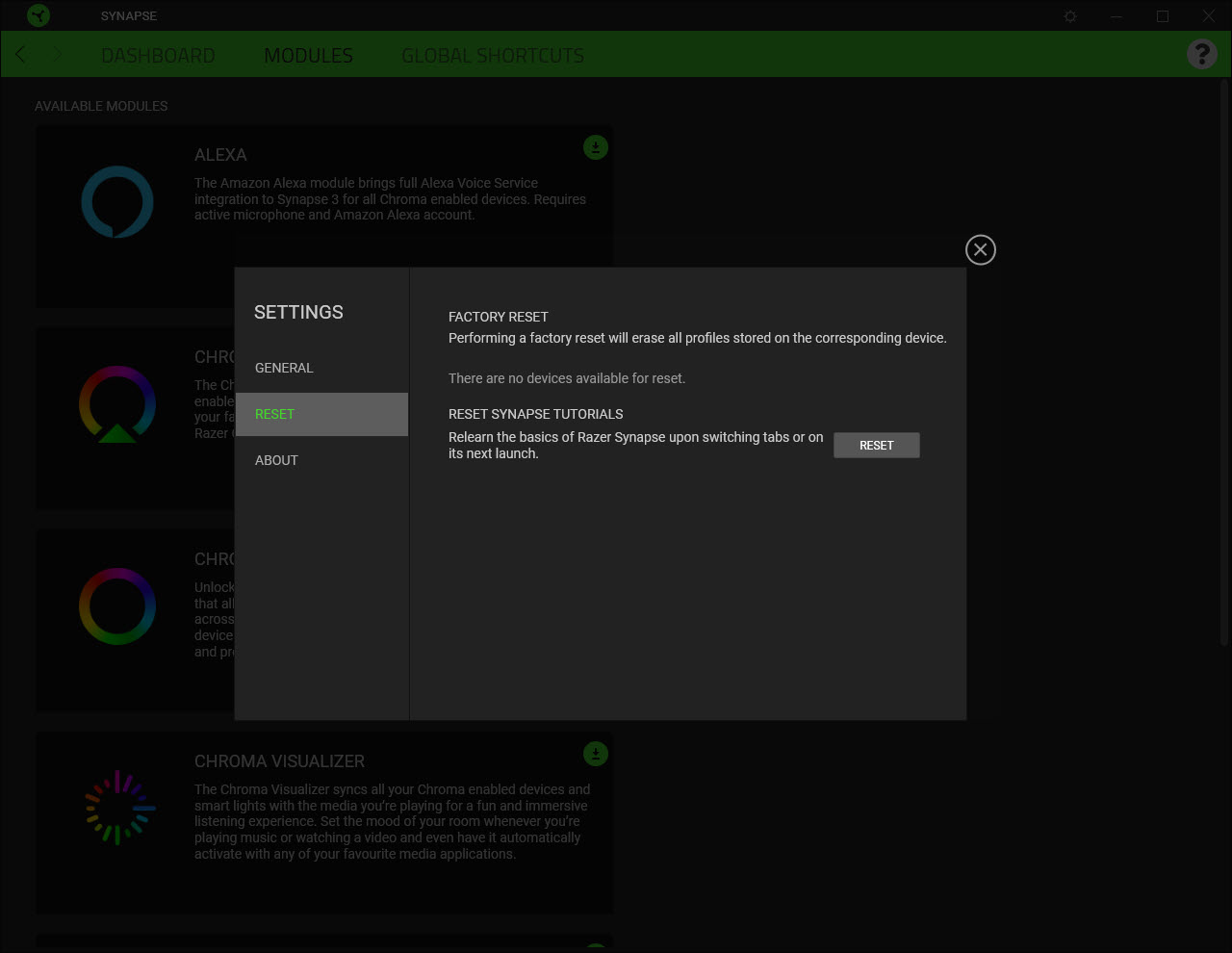
The fix path is usually predictable. Restart the service, reconnect the device, update firmware if a newer version is available. For chronic problems, a full clean reinstall (uninstalling everything Razer-related through standard removal followed by manual cleanup of leftover configuration folders) resolves most issues that the standard troubleshooting flow doesn’t.
Macro creation and the recording workflow
The macro system is one of the application’s strongest features and one of the main reasons users with non-Razer keyboards sometimes wish they had Razer keyboards. Macros are sequences of keystrokes, mouse clicks, delays, and other inputs that can be bound to a single key or button.
The macro editor lets you build sequences manually by adding actions one at a time, or record them live by activating the recorder and then performing the actions you want captured.
Recording captures both inputs and the timing between them, which matters for game macros where the rhythm of the sequence affects whether it works. The editor afterward lets you adjust individual delays, remove unwanted captured inputs (the inevitable accidental keystrokes during recording), and rearrange the sequence.
Loop options, conditional executions, and triggered runs (start on key press, end on key release, toggle on alternating presses) add flexibility for users who want more than linear playback.
The application supports per-game profile switching, automatically loading the right macro set when a specified game launches. This eliminates the manual swap between profiles that competitive players otherwise need to do, and it scales reasonably well for users with many games.
The Hypershift modifier (hold a designated key to access a second layer of bindings on every other key) effectively doubles the available macro slots on devices that support it.
Chroma RGB and ecosystem integration
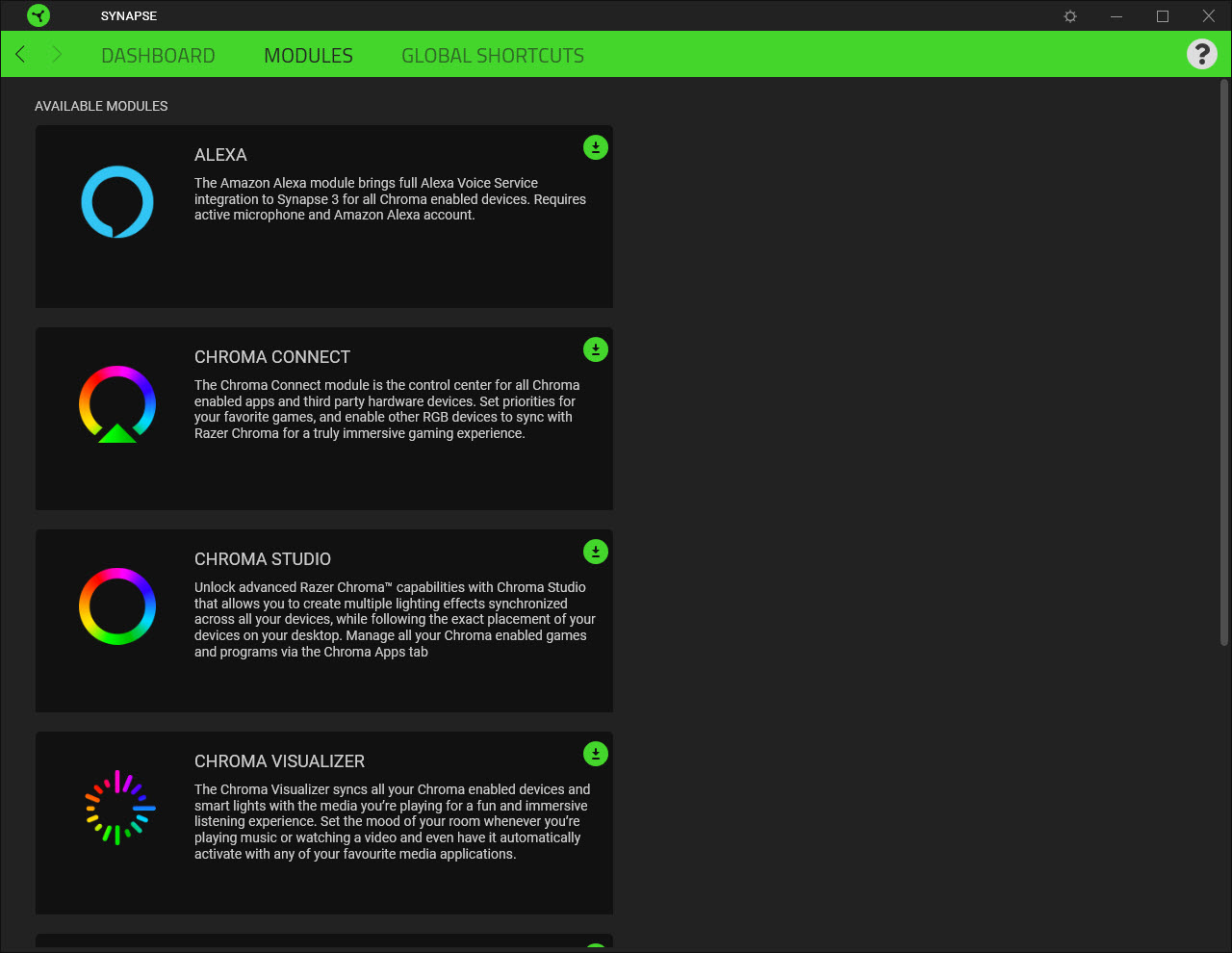
Chroma is the RGB lighting framework that Razer Synapse uses to control colors across compatible devices. The configuration interface lets you set static colors, build animated effects (breathing, wave, reactive, ripple), and synchronize lighting across all connected Razer peripherals so the keyboard, mouse, headset, and mousepad share a coordinated look. The effect library covers most patterns users want without diving into custom programming.
The interesting part of Chroma is the integration with games and applications. Compatible games can communicate with the framework to drive lighting based on in-game events: health bars that drain across the keyboard as your character takes damage, ammo counters reflected in number row colors, environmental effects (fire, water, weather) reflected in the lighting. The list of supported games is substantial for major titles and thinner for indie releases.
For users who want unified RGB control across hardware from multiple brands, SignalRGB and Aurora bridge the gap by talking to several manufacturer ecosystems simultaneously. The trade-off is that brand-specific features (the deepest hardware-specific controls) usually still require the manufacturer’s own application running alongside.
Resource usage and the background service question
This is the area where the application takes the most criticism. The background service, the various integration components, and the helper processes for individual device types collectively use noticeably more RAM and CPU than minimalist alternatives. Idle resource consumption typically runs higher than competing peripheral applications, which matters for users with limited memory or those who notice every background process.
The user-facing application itself launches slowly compared to lighter alternatives, especially the first launch after a system restart. Once running, it’s responsive enough, but the startup cost is real. Users who only configure their hardware rarely can quit the user application after making changes (the background service continues handling the active configuration), which reduces the steady-state footprint significantly.
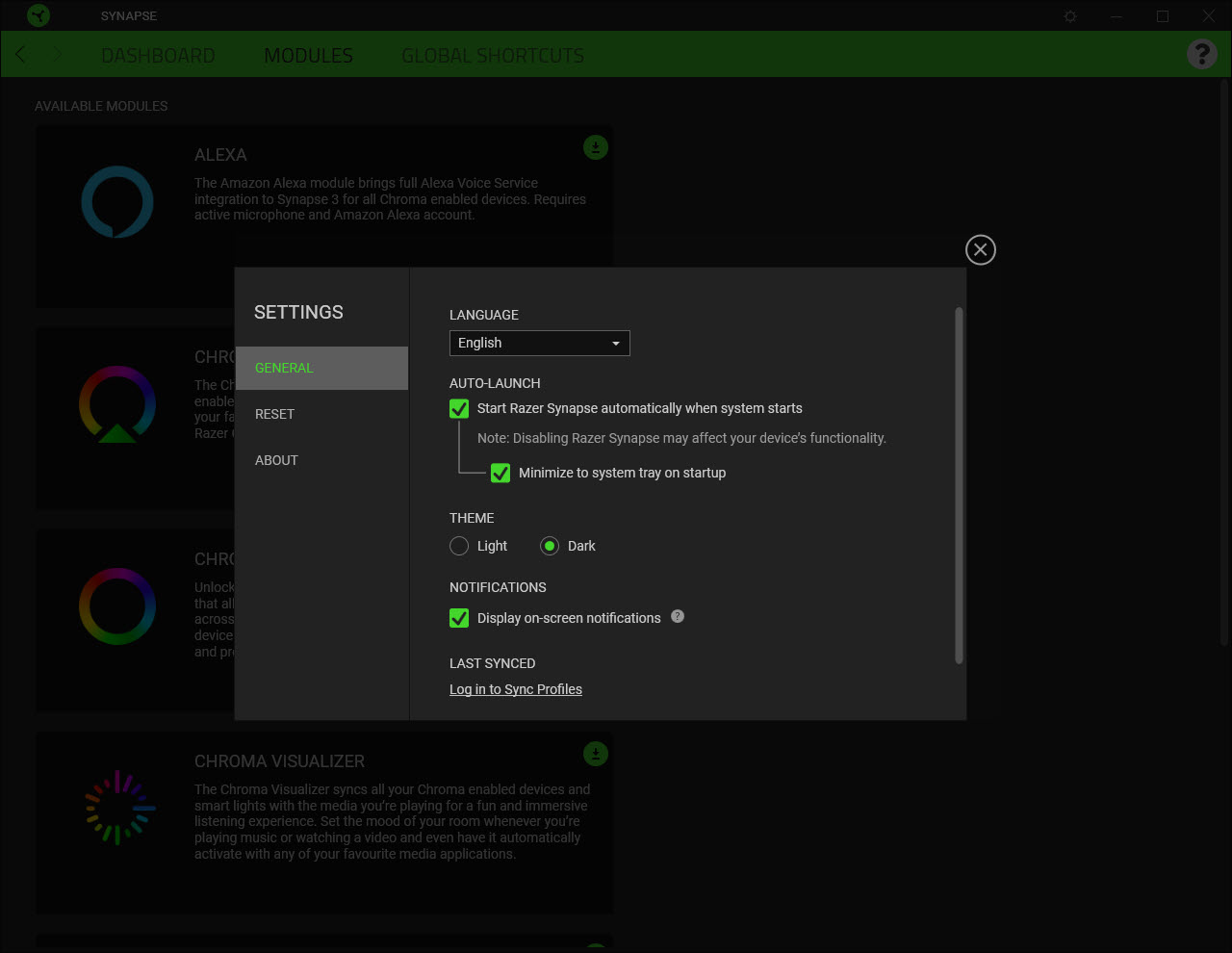
The cloud sync component adds its own network activity. Profile changes upload to your account periodically, and profile retrieval happens on first connection from a new machine. For users who only use one computer, this can be disabled entirely, which also reduces the application’s overall footprint.
Conclusion
Razer Synapse is essential for anyone who owns Razer peripherals and wants to use them beyond their default behavior. The target audience is straightforward: existing Razer hardware owners, gamers building per-game macro profiles, users who care about coordinated RGB lighting across multiple devices, and anyone using sensor calibration or polling rate adjustment on Razer mice.
It’s the wrong choice for users who don’t own Razer hardware (it does nothing for other manufacturers’ devices), for users who want absolute minimum background footprint and don’t need profile management features, or for users who prefer local-only configuration without cloud account requirements.
The application is the right tool for its intended scope, with the same trade-offs that every modern peripheral configuration suite carries: more memory, more background services, and more cloud integration than the lighter past generation of utilities, in exchange for substantially deeper hardware control.
Pros & Cons
- Unified configuration for all Razer peripherals through a single interface
- Macro recording captures input timing and supports per-game profile switching
- Chroma RGB framework synchronizes lighting across compatible devices and integrates with supported games
- Cloud profile sync follows your account across multiple machines
- Hypershift effectively doubles available bindings on supported devices
- Mouse sensor calibration adapts to specific mousepad surfaces
- Background service uses more RAM than minimalist peripheral applications
- Device detection occasionally fails and requires reconnection or service restart
- Cloud account requirement for full functionality bothers users who prefer local-only configuration
- Some older Razer devices require the previous version of the application rather than the current one
- Firmware update process can be slow and occasionally fails mid-update
- Lighting effects from third-party integrations sometimes conflict with manually configured profiles
Frequently asked questions
The application configures Razer peripherals, handling button remapping, macro creation, RGB lighting control through Chroma, sensor settings, polling rate, and profile management. A single Razer device technically works without it, but anything beyond default behavior requires the application.
The most common causes are a stalled background service (restarting it through Task Manager usually fixes this), USB hub issues (try a direct connection to the computer), or firmware mismatches between the device and the application. Reinstalling the application after a full removal of leftover configuration folders resolves chronic problems.
The application can run in a guest mode that allows local configuration without an account. Cloud sync and some integrations require an account. Users who only use one computer and don't want cross-machine profile sync can stay in guest mode permanently.
The macro editor offers both manual sequence building and live recording. Recording captures keystrokes, mouse clicks, and timing between them. After recording, the editor lets you trim, adjust delays, and add loop or trigger conditions before binding the macro to a key.
Chroma is the RGB lighting framework. It coordinates lighting across compatible Razer devices and integrates with supported games and applications that can drive lighting based on in-game events.
Standard removal works through the Windows Programs and Features control panel. The Razer Central component, helper services, and Chroma Connect should all be removed separately. For a fully clean removal, deleting the Razer folders in ProgramData and AppData after uninstall eliminates leftover configuration data.
The application is built specifically for Razer peripherals and doesn't configure other manufacturers' hardware. For unified RGB across multiple brands, third-party utilities like SignalRGB bridge the gap.


