

PrimoPDF
About PrimoPDF
PrimoPDF installs itself as a printer, and that single trick turns every application on your computer into a PDF maker. Anything you can print, a report, a webpage, an invoice, a slide, you can instead “print” to this virtual printer, and out comes a PDF file. There is no need for the original program to know anything about PDFs, because the conversion happens at the printing stage, which every application already supports.
What lifts PrimoPDF above the bare-bones converters is what happens after you hit print. A small dialog appears with useful choices, quality presets tuned for different destinations, password protection with granular permission controls, document information fields, and the quietly brilliant option to append your new pages onto an existing PDF instead of creating a separate file. It is still a simple tool, but it is a simple tool with the right options.
For everyday document work, that combination covers a surprising share of what people pay for in heavyweight PDF suites.
Print to PDF from absolutely anywhere
The virtual printer model is worth appreciating for its reach. Because PrimoPDF lives in the print dialog, it works identically from your word processor, your browser, your spreadsheet, your photo viewer, even crusty old programs that have not been updated in years. If the application can print, it can make a PDF, full stop.
This matters most for the awkward cases. Plenty of software exports to PDF natively these days, but plenty more does not, and the virtual printer is the universal adapter for all of it.
An old accounting program, an internal tool, a niche utility with no export options, they all print, so they all produce PDFs here. The workflow never changes either. File, print, pick the virtual printer, done. Your muscle memory does the work.
Quality presets that actually mean something
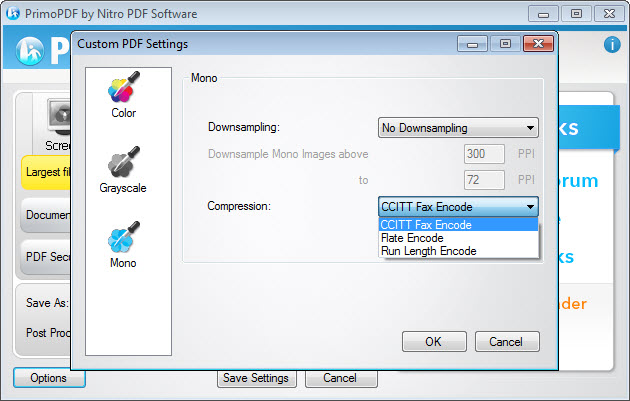
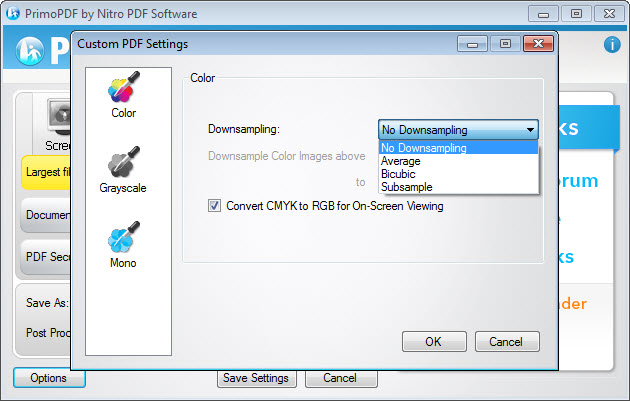
When the dialog appears, the application asks a sensible question. What is this PDF for? The presets answer it. Screen optimizes for small files that look fine on a display, ideal for emailing. eBook strikes a middle balance for comfortable reading. Print prepares higher-resolution output for a desktop printer, and Prepress goes further for professional printing where image quality cannot be compromised. A custom option opens the dials for anyone with specific requirements.
The presets matter because PDF size and quality pull against each other, mostly through how images are compressed and downsampled. A scanned contract destined for email does not need print-grade images bloating it to ten times the size, and a brochure heading to a print shop must not arrive with mushy, over-compressed photos. Picking the right preset takes one click and gets that tradeoff right.
Among the sibling tools, doPDF keeps things even leaner with a similar printing approach, while this one gives you these destination-tuned profiles as its calling card.
Locking a PDF down before it leaves you
Documents travel, and PrimoPDF lets you set the rules before they do. You can require a password to open the file at all, and separately set an owner password with granular permissions, whether the recipient may print the document, copy text out of it, or modify it. The protection uses standard PDF encryption, so it behaves consistently in any proper PDF reader.
The two-password split is more useful than it first appears. A contract can be openable by anyone you send it to but locked against editing. A confidential report can demand a password before showing anything.
You decide at creation time, in the same dialog, with no second tool involved. You can also fill in the document information fields, title, author, subject, and keywords, which sounds cosmetic until you are searching a folder of two hundred PDFs and the metadata is what finds the right one.
Appending pages and rounding out the workflow
Here is the sleeper feature. When you print to PrimoPDF and choose an existing PDF as the destination, it can append the new pages onto that file rather than creating another one. Print a cover letter from your word processor, append the spreadsheet summary behind it, append a webpage confirmation behind that, and you have assembled a single multi-source PDF without ever opening an editor.
That covers light merging duty that would otherwise require a separate utility. For heavier rearranging, splitting, or page-level surgery on existing PDFs, a fuller toolkit like PDF24 Creator picks up where the printer model stops, and an alternative virtual printer such as PDFCreator offers its own spin on the same core idea if you want to compare.
But for the common case, producing clean, secured, well-sized PDFs from any program and occasionally stacking a few sources into one file, this tool handles it within a single print dialog.
Conclusion
PrimoPDF is the kind of utility that quietly becomes part of how you work. By living in the print dialog it reaches every application you own, and the options it adds at that moment, sensible quality presets, password protection, metadata, and append-to-existing, are precisely the ones everyday document work calls for. Most people need exactly this much PDF capability and not a feature more.
Its limits are honest ones. It will not edit what already exists, and assembling complex documents page by page belongs to fuller toolkits. But as the universal PDF maker that sits behind every print command, producing right-sized, properly secured files on demand, it does its job so smoothly you stop noticing it is there, which for a utility is the highest praise available.
Pros & Cons
- Creates PDFs from any application that can print, with no native export needed
- Destination presets balance size and quality for screen, reading, print, and prepress
- Password protection with separate permissions for printing, copying, and editing
- Appends new pages onto an existing PDF, covering light merge jobs
- Document information fields make files findable in crowded folders
- No editing of existing PDFs, since it only creates at print time
- Layout fidelity depends on the source application's own print output
- Appending is linear stacking, not true page-level arranging
- The extra dialog adds a step compared with one-click native exports
Frequently asked questions
It installs as a virtual printer. You print from any application, choose it as the printer, and instead of paper you get a PDF file, with a dialog for quality, security, and destination options.
They tune the file for its destination. Screen makes small files for email and viewing, eBook balances size and readability, Print raises resolution for desktop printing, and Prepress preserves maximum image quality for professional output.
Yes. You can require a password to open the document and set separate owner permissions controlling whether recipients can print, copy text, or modify the file, using standard PDF encryption.
In a linear way, yes. When printing, you can append the new pages onto an existing PDF, so several documents from different applications can stack into a single file in the order you print them.
No. It creates PDFs at print time and can append to existing ones, but it does not open, rearrange, or edit existing files. For that you would pair it with a dedicated PDF toolkit.


