

MultiDesk
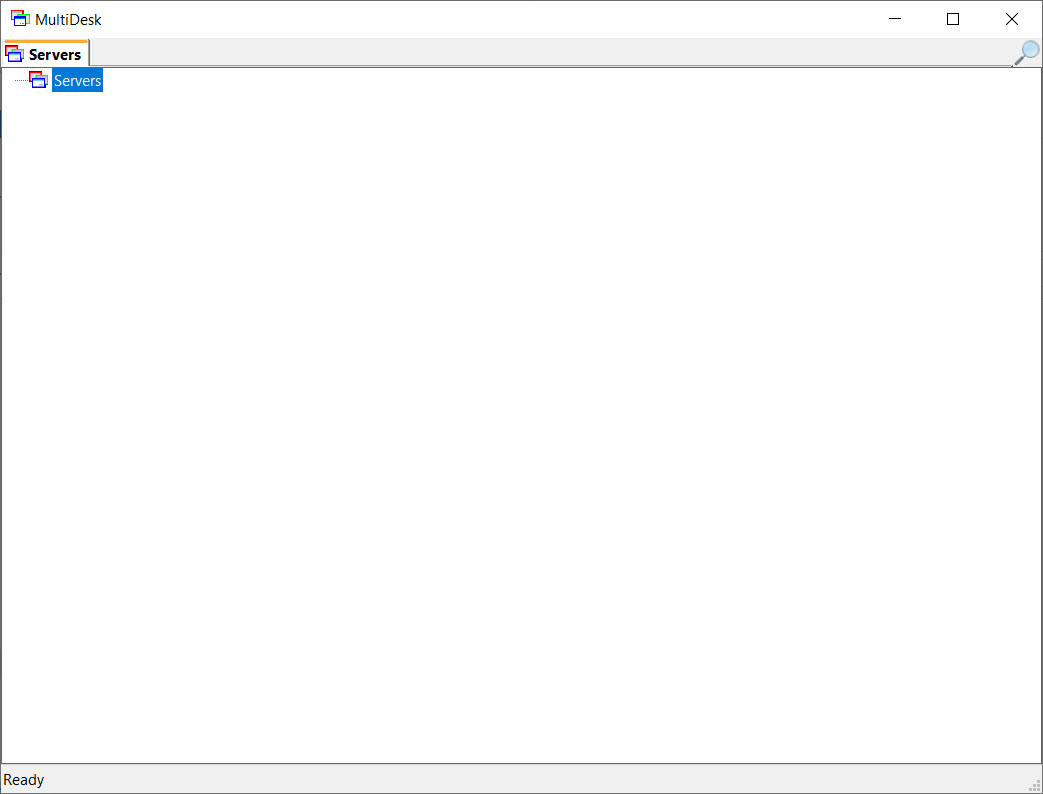
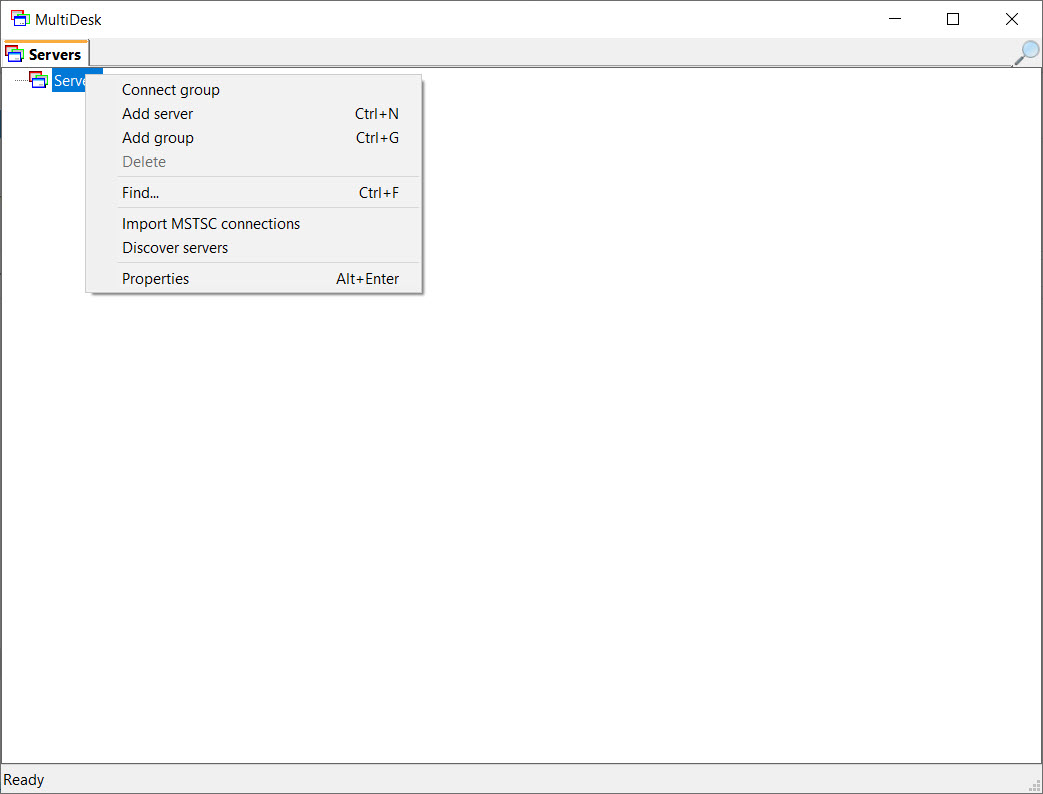
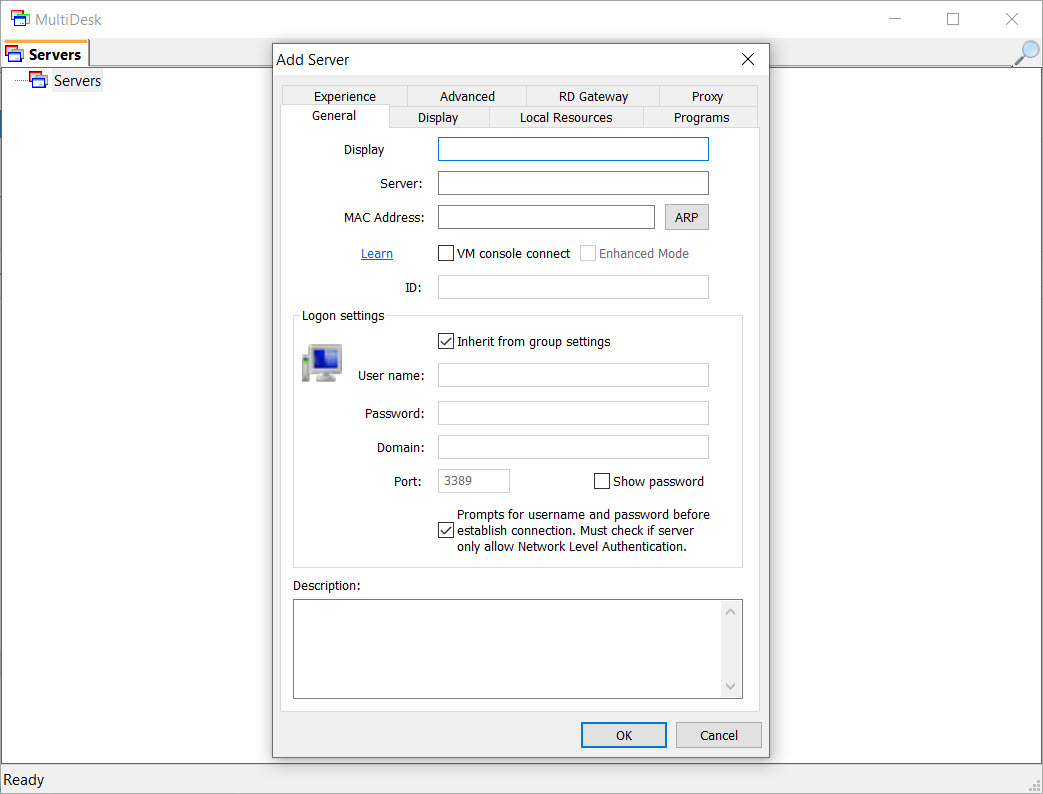
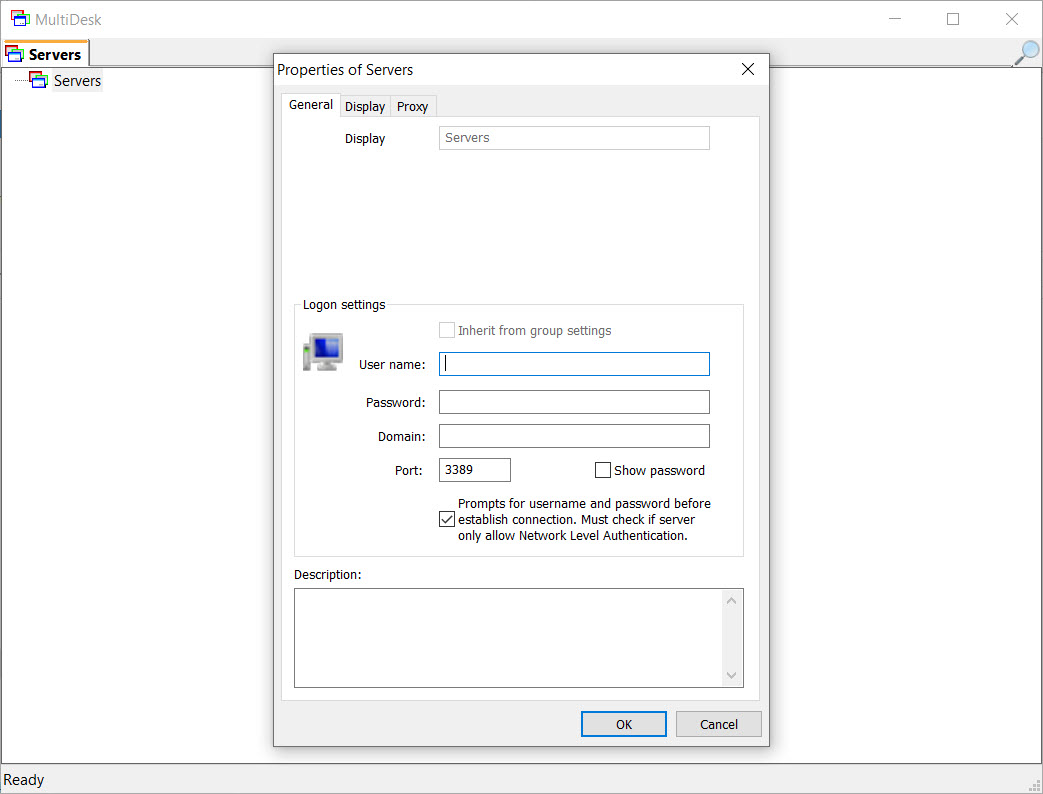
About MultiDesk
Anyone who manages multiple Windows servers or remote desktops as part of their daily work knows how quickly Windows’ built-in Remote Desktop client becomes frustrating. Each connection opens in its own window, taskbar buttons multiply, and switching between sessions involves Alt-Tab gymnastics or hunting through the taskbar. MultiDesk is a small utility that solves this specific problem by wrapping the standard RDP client in a tabbed interface, turning the chaos of multiple RDP windows into a clean, organized experience.
For system administrators, IT support staff, and developers working with multiple servers regularly, this kind of organizational improvement makes a noticeable difference in daily workflow.
The tool doesn’t try to replace the underlying RDP technology or add fancy new capabilities. It just takes what Windows already provides and presents it in a way that respects how people actually work with multiple remote sessions.
Tabbed sessions instead of scattered windows
The defining feature of MultiDesk is its tabbed interface. Each remote desktop connection opens in its own tab within a single application window, with all your active sessions accessible through tabs across the top. Switching between servers becomes a matter of clicking a tab, the same way you switch between web pages in a browser.
This approach replaces the standard Windows behavior of having each RDP connection in a separate window cluttering the taskbar. For users who routinely work with three, five, or ten remote sessions simultaneously, the difference is dramatic. Everything stays organized in one place, and finding the right session becomes immediate rather than a hunt through scattered windows.
Saved connection profiles
Setting up an RDP connection involves entering the server address, username, sometimes domain information, display preferences, and various other settings. The standard Windows tool saves these as separate .rdp files, but managing dozens of these files quickly becomes its own organizational headache.
This software lets you save connection profiles within the application itself, organized in a list you can browse, search, and double-click to launch. Each profile remembers its own settings, including credentials if you choose to store them, display configuration, drive redirection options, and other RDP parameters.
For IT teams maintaining connections to many servers, having all of them in one place rather than scattered across desktop shortcuts and folders is a significant improvement.
Folder organization for many connections
When the connection list grows beyond what fits comfortably in a flat list, the application supports organizing connections into folders. You can group servers by client, project, environment (production versus development versus staging), or any other categorization that makes sense for your work.
This hierarchical organization scales gracefully from a handful of connections to several hundred. For consultants managing multiple client environments or administrators handling enterprise infrastructure with many servers, folder organization keeps things findable rather than turning the connection list into an overwhelming wall of names.
Quick connection without saved profiles
Beyond saved profiles, the tool supports ad-hoc connections through a quick connect dialog. When you need to connect to a server you haven’t configured, entering the address and credentials directly opens a session immediately, without forcing you to create and save a permanent profile for a one-time use.
This flexibility matters because real-world work often involves both regular connections you maintain and occasional connections to servers you’ll never touch again.
Forcing every connection through a profile creation workflow would add friction to one-time tasks unnecessarily.
Drag-and-drop tab reordering
A small but appreciated detail is the ability to reorder tabs by dragging them within the tab bar. When working with multiple sessions, the order in which they appear matters for muscle memory and quick switching. Being able to arrange tabs the way that suits your current task feels natural and is the kind of usability detail that adds up across a working day.
You can also detach tabs into separate windows when you need to view two sessions side by side, then merge them back into the tabbed interface when you’re done with the comparison. This flexibility supports both organized tab-based work and the occasional need to see multiple sessions at once.
Built on standard RDP
Importantly, this software uses the standard Microsoft RDP client under the hood rather than implementing its own protocol. This means full compatibility with Windows servers, support for all the same features the official client offers (drive redirection, printer sharing, audio redirection, clipboard sharing, and so on), and no concerns about protocol-level compatibility issues.
You get all the capabilities of the standard tool with none of the window-management problems. For organizations that have specific RDP requirements due to security policies or infrastructure setup, this approach ensures the tool works wherever the standard RDP client works.
Useful for password and credential management
Connection profiles can store the credentials needed to connect, eliminating the repeated entry that becomes tedious when working with many servers throughout the day. Credentials are stored using Windows’ built-in credential management, which means they benefit from the same encryption and security that other Windows credential storage uses.
For users who connect to dozens of servers daily, automatic authentication through saved credentials saves real time. The savings might be only a few seconds per connection, but multiplied across hundreds of connections per week, the productivity improvement is meaningful.
Conclusion
MultiDesk is one of those tools that does something simple but does it well. For IT professionals, system administrators, and anyone else who regularly manages multiple Windows servers through Remote Desktop, the tabbed interface and connection management eliminate everyday friction that the standard Windows tool introduces.
It’s not flashy, it doesn’t try to compete with elaborate remote desktop management suites, and it doesn’t add capabilities beyond what RDP already provides. But for the specific task of working with multiple RDP sessions efficiently, MultiDesk offers exactly the kind of focused improvement that makes daily work meaningfully better.
Pros & Cons
- Tabbed interface organizes multiple RDP sessions in one application window
- Saved connection profiles eliminate repeated configuration for regular connections
- Folder organization scales gracefully from few connections to several hundred
- Drag-and-drop tab reordering supports flexible workflow organization
- Built on standard Microsoft RDP for full compatibility with Windows servers
- Quick connect option supports ad-hoc connections without profile creation
- Detachable tabs allow side-by-side viewing of multiple sessions when needed
- Lightweight design uses minimal system resources beyond the underlying RDP
- Limited to RDP, with no support for VNC, SSH, or other remote protocols
- Visual design feels utilitarian compared to commercial alternatives
- Lacks advanced features found in paid remote desktop managers
- Limited credential management beyond what Windows itself provides
- Not designed for cross-platform remote access scenarios
Frequently asked questions
This software provides a tabbed interface for managing multiple simultaneous RDP connections, saved connection profiles with folder organization, and various workflow improvements that the standard Windows client lacks. The underlying RDP functionality is identical since it uses the standard protocol, but the management experience is significantly better.
Yes, since the application uses the standard Microsoft RDP client underneath, it works with any infrastructure that the standard client works with. VPN connections, RDP gateways, and other enterprise networking setups all function the same as they would with the official Windows tool.
Credentials saved within connection profiles use Windows' built-in credential management system, which encrypts them with the same protection as other Windows credentials. This means they benefit from operating system-level security rather than relying on the application's own credential handling.
The application supports importing and exporting connection profiles, which can be shared between team members manually. For teams maintaining shared lists of servers, this allows synchronized configurations without each person individually setting up the same connections.
Yes, this software passes through the multi-monitor support provided by the underlying RDP client, which works correctly with the tabbed interface. Sessions can use single monitors or span multiple monitors depending on how each connection is configured.
No, detaching a tab simply moves the existing connection to a separate window without affecting performance. The connections themselves use the same RDP infrastructure regardless of whether they're in tabs or detached windows, so the choice is purely organizational rather than performance-related.
Yes, you can launch multiple instances if you want completely separate windows, each with their own set of tabs. This is occasionally useful for creating logical groupings of sessions that you want to manage as separate units rather than within a single tabbed window.


