

FileToFolder
About FileToFolder
FileToFolder gives every file its own folder, named after the file, and moves the file inside. Point it at a directory, pick the files, press Folderize, and a flat list of two hundred videos becomes two hundred folders each holding one video.
It also runs the other way, pulling files out of their folders back into one directory and deleting the empty folders afterwards. That is the entire program, and it exists because doing either by hand is twenty minutes of right-clicking.
The job comes up more often than it sounds. A media library where each film needs its own folder for the subtitle and the artwork to sit beside it. A photo archive where every RAW file wants a folder for its edits. A downloads directory that has to be sorted before anything else can happen.
Nothing in the file manager does this, and the general renamers such as Bulk Rename Utility rename files rather than rearrange them, so FileToFolder occupies a small gap of its own.
The window and the filter
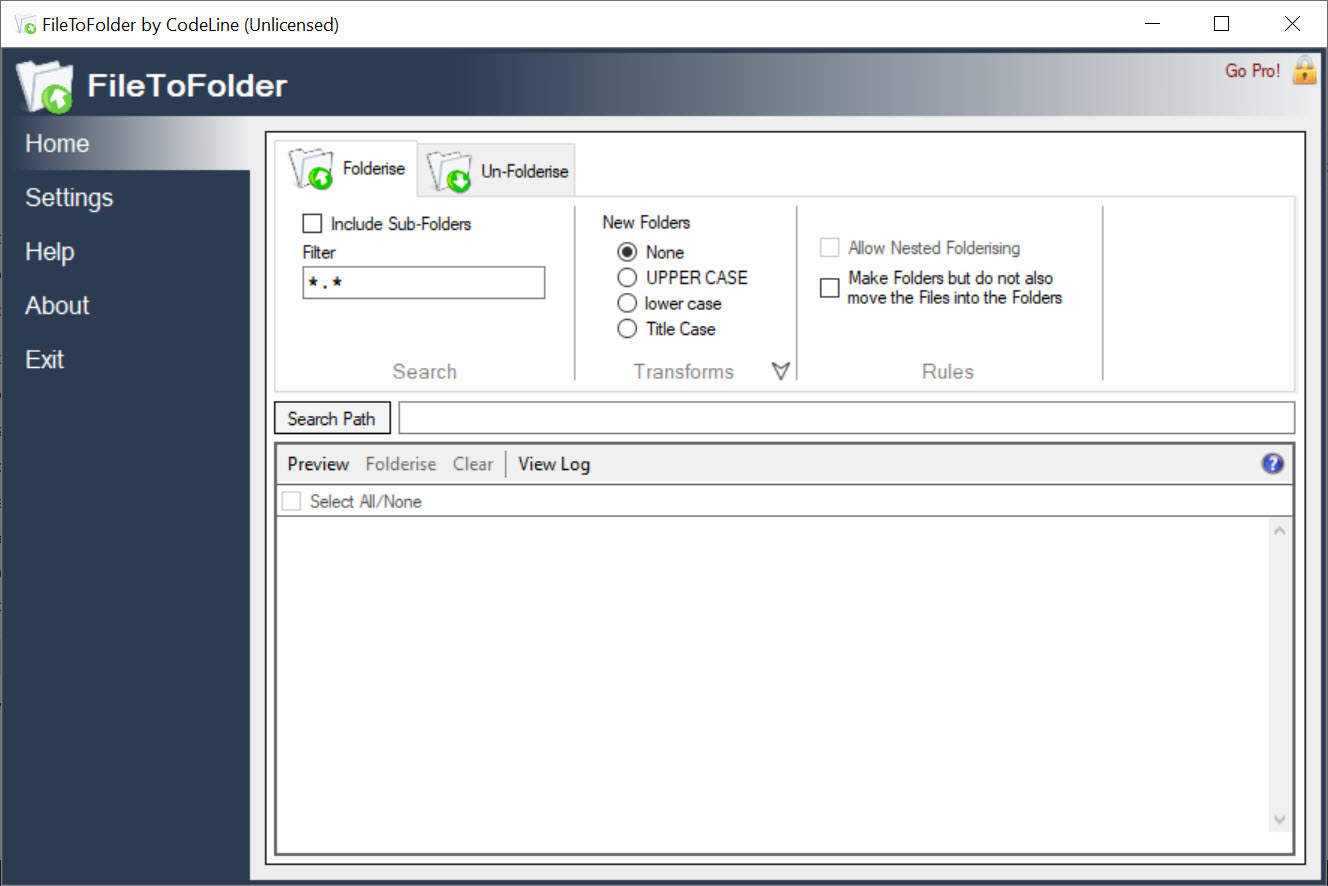
The FileToFolder window is a folder picker, a filter box and a results list. Choose the root folder, type a filter to narrow what is caught, and press Preview to see the matching files with a checkbox each. The filter takes extensions, so only MP3 files or only MKV files are processed, and name fragments, so only files beginning with a particular word are caught.
Subfolders can be included, which turns the operation into a sweep of a whole tree.
Folderize, and the options around it
Folderize does the work on the ticked files. An option creates the folders without moving anything into them, for when you want the structure first. Another deletes empty folders left behind.
A log records every move and every error, which matters when a run touches hundreds of files and one of them was locked.
Same name, same folder
The behaviour that makes it useful for media is the grouping by name. Files that share a name and differ only in extension go into the same folder, so a film, its subtitle file and its cover image all land together rather than in three separate folders.
That single rule is why people with media libraries install it.
Where the grouping stops
The corresponding limit is that FileToFolder groups by nothing else. Two files with different names always get two folders, and there is no way to say that these ten files belong together.
For anything requiring rules about which file goes where, this is the wrong tool and a file organiser with conditions is the right one.
The right-click route
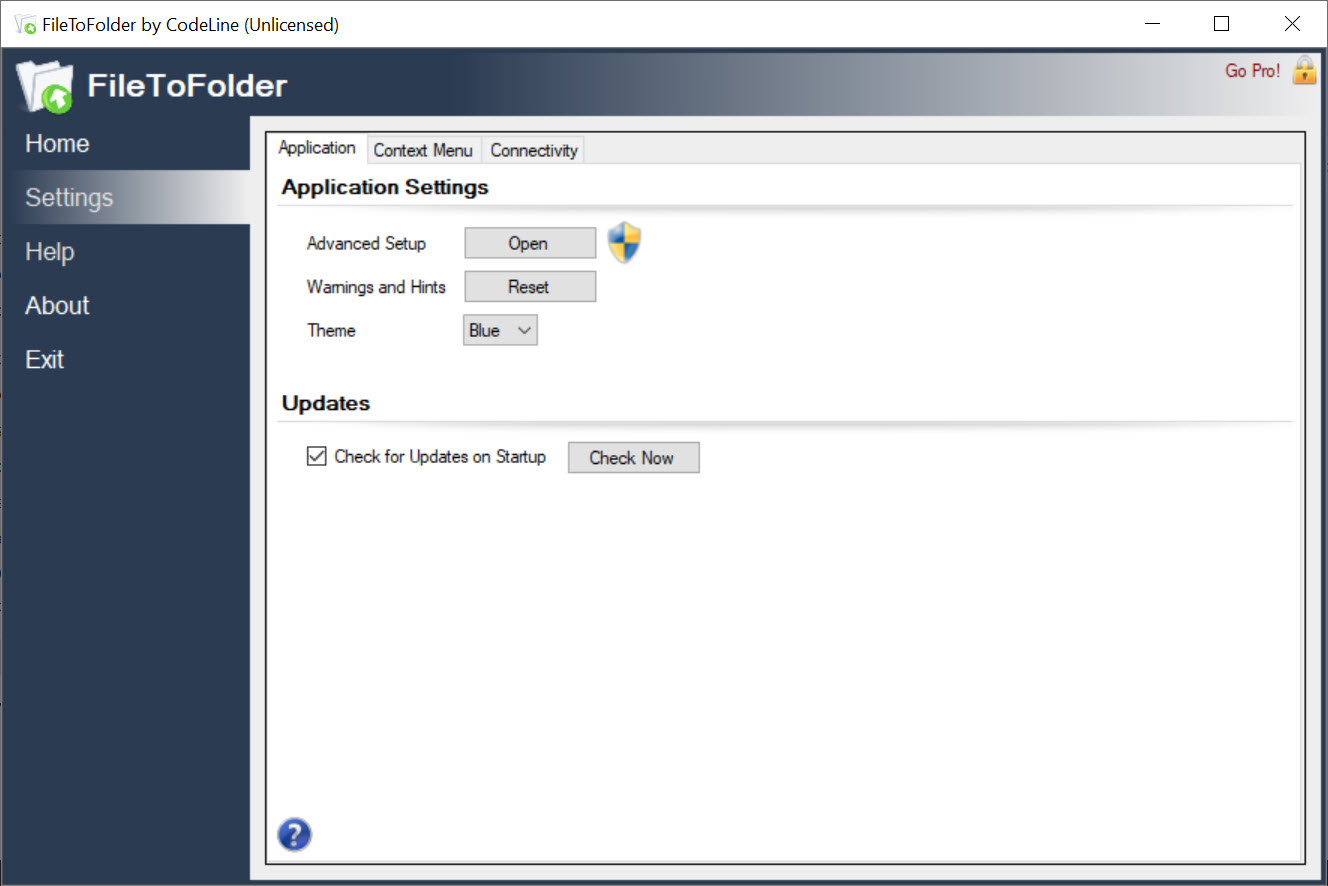
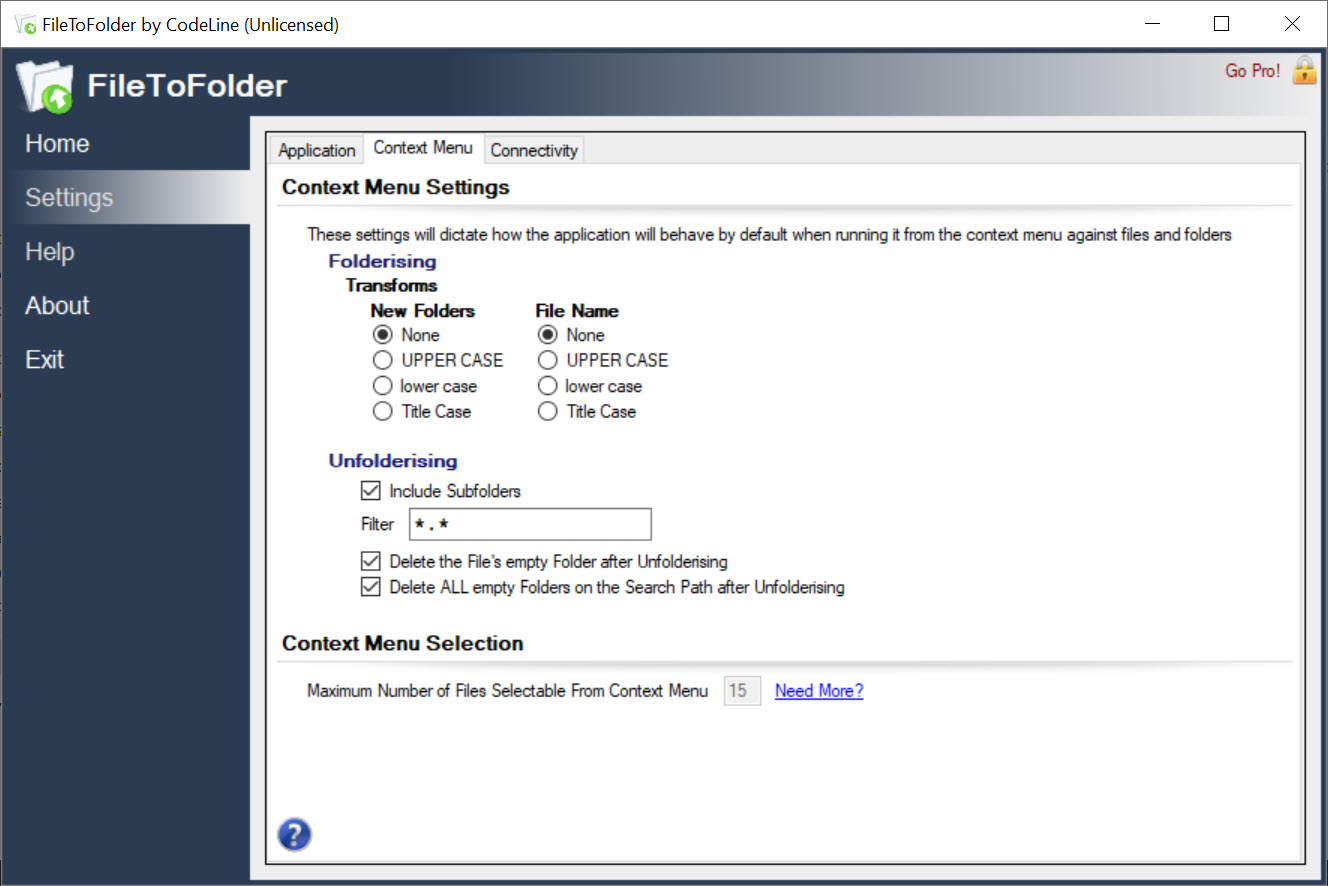
Most of the use happens outside that window. The program registers an entry in the right-click menu, so a selection of files in any folder is folderized without opening anything, and the reverse entry pulls files out of their folders the same way. If the entry does not appear, it is registered from the Options screen with a button, which is the first thing to check after installing.
Two guardrails sit in the way. A warning appears each time the window opens, reminding you that folderizing the wrong selection makes a mess. The program also refuses to operate on the system drive’s root and warns if you aim at a whole partition.
Both are sensible on a tool that moves files in bulk, and the warning on every launch cannot be switched off, which is the most common complaint about the program.
Conclusion
FileToFolder is for the person with a media library, a photo archive or a downloads directory that needs one folder per file. They have done it by hand once and refuse to do it again. The same-name grouping and the right-click entry make it a thirty-second job on any number of files.
It does nothing else, and anyone needing rules about which files belong together should look at a file organiser instead. For this one shape of tidying, nothing is quicker.
Pros & Cons
- Creates a folder per file and moves the file in, in one action
- Files sharing a name go into the same folder, keeping subtitles and artwork with the video
- Reverses the process and deletes the empty folders
- Filter by extension or name fragment, with subfolders optional
- Works from the right-click menu without opening the window
- Cannot group unrelated files into one folder
- Warning screen on every launch cannot be disabled
- No rules or conditions beyond the name filter
- Little use outside this one task
Frequently asked questions
Yes, if they share the same name and differ only in extension. Files matching that way are moved into the same folder rather than separate ones.
It has not been registered. Open the program, go to Options and use the button that registers it in the shell, then try the menu again.
There is no undo, but the reverse operation moves files out of their folders back into the parent directory and removes the empty folders, which returns the layout to what it was.


