

Bitvise SSH Client

 (1 votes, average: 4.00 out of 5)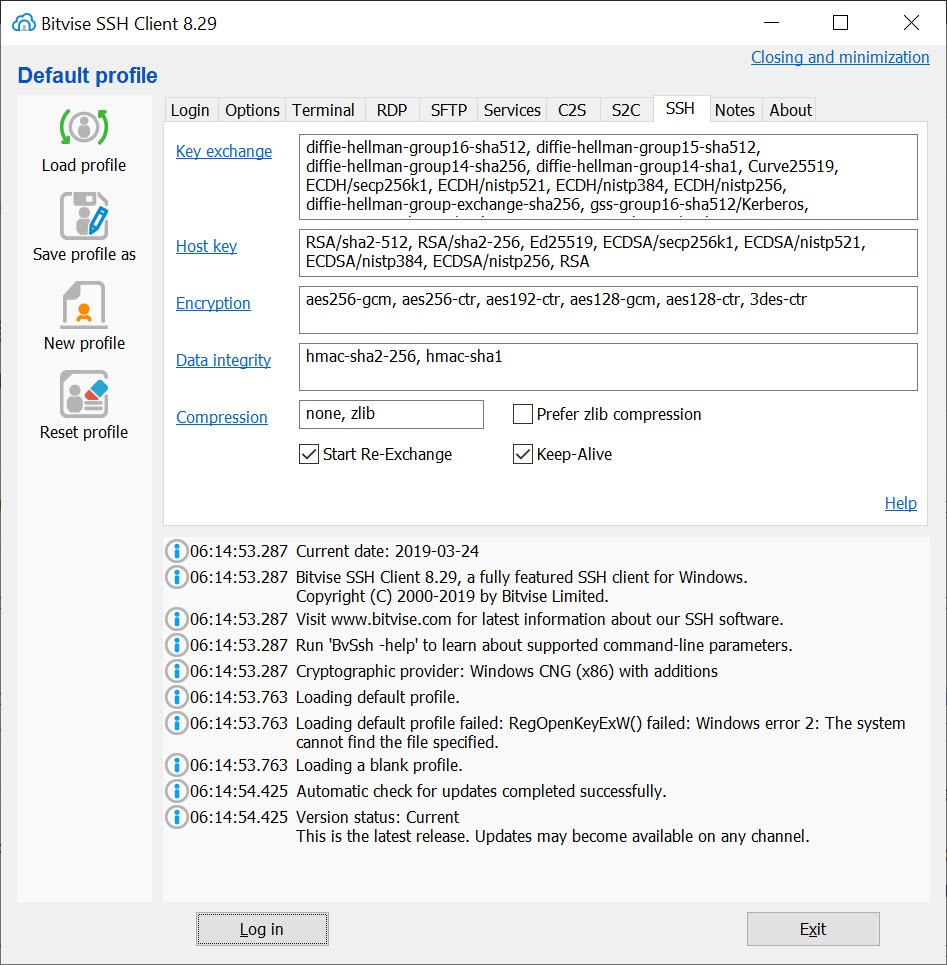
About Bitvise SSH Client
Most SSH clients make you choose your religion, terminal people over here, file-transfer people over there, tunneling people rolling their own. Bitvise SSH Client refuses the split.
One connection profile opens a terminal, a graphical two-pane SFTP browser, and a set of encrypted tunnels at the same time, over the same authenticated session. Log in once, and the shell, your file transfers, and even a remote desktop all travel through that single secure pipe.
That consolidation is the pitch, and the execution is what has kept the client a fixture in administrator toolkits. Where PuTTY gives you a superb terminal and nothing else, this program treats the terminal as one of several doors into the server, all opening from the same login.
The SFTP browser that resumes what broke
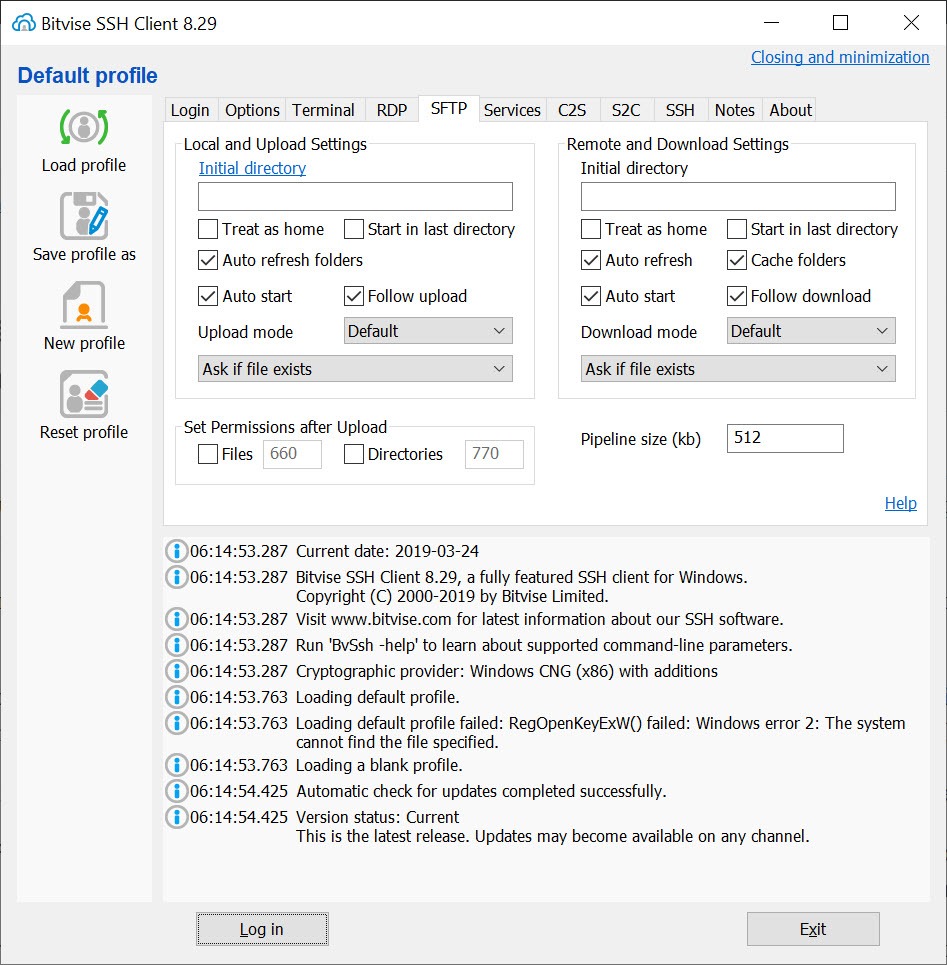
The graphical file window looks like a classic two-pane transfer client, local disk on one side, remote server on the other, drag and drop between them, with a transfer queue underneath. The details are where it earns its reputation. T
ransfers interrupted by a dropped connection resume where they stopped rather than starting over, which turns a flaky hotel connection from a curse into an inconvenience. Speed holds up honorably on large files too, thanks to protocol optimizations that keep the pipe full instead of chattering.
For someone who lives in file transfers all day, a dedicated tool like WinSCP still offers more synchronization ceremony and editor integrations. The difference here is that the browser arrives attached to a terminal and a tunnel engine, so the everyday mix of “edit a config, push a file, restart a service” happens inside one window set instead of three programs.
One checkbox between you and a tunneled remote desktop
Tunneling is where Bitvise SSH Client quietly outclasses the field in convenience. Client-to-server and server-to-client port forwards configure as simple rules in a grid, and a built-in SOCKS proxy handles dynamic forwarding for pointing browsers and other apps through the encrypted session.
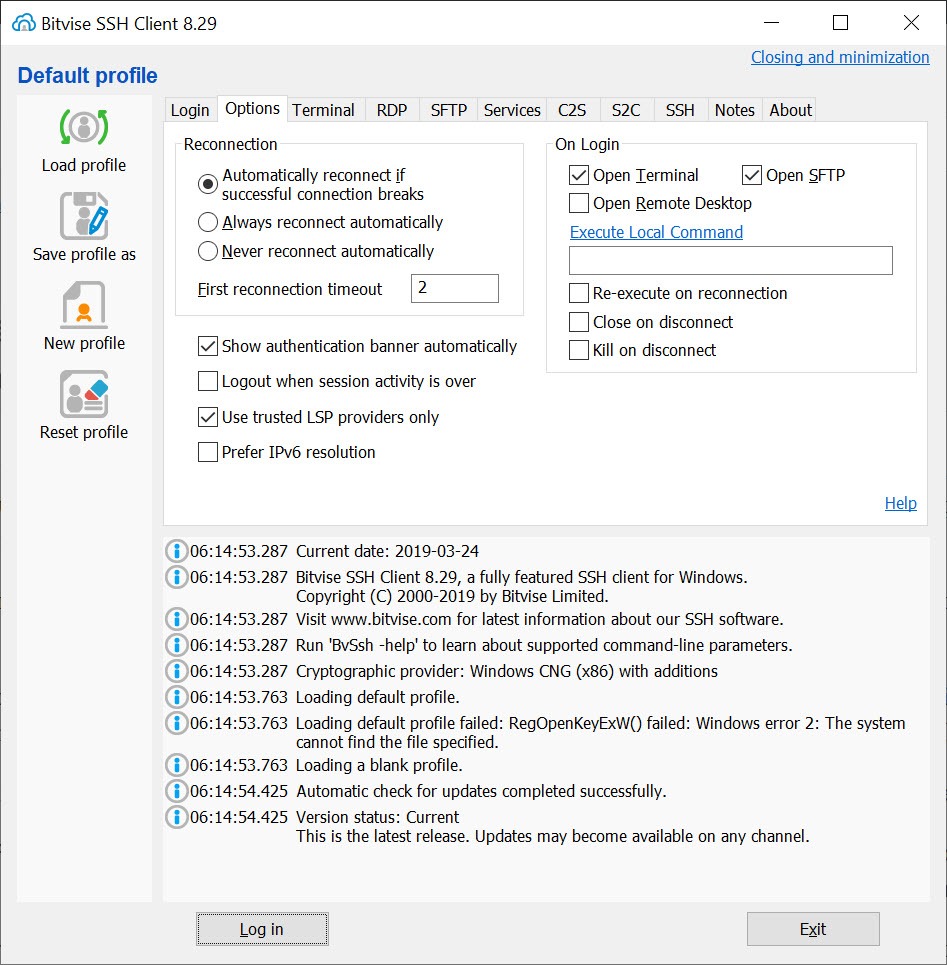
The headline trick is the remote desktop checkbox. Enable it in a profile, connect, and the client tunnels a remote desktop session through SSH and launches it for you, no manual port mapping, no exposed desktop port on the server’s firewall, no third-party glue. For administrators who need a graphical session on a machine that rightly refuses to expose that service to the internet, this single feature justifies the install.
An FTP-to-SFTP bridge plays a similar rescue role for legacy software that only speaks the old protocol, letting it converse with modern secure servers unmodified.
Profiles, keys, and the scripting trio
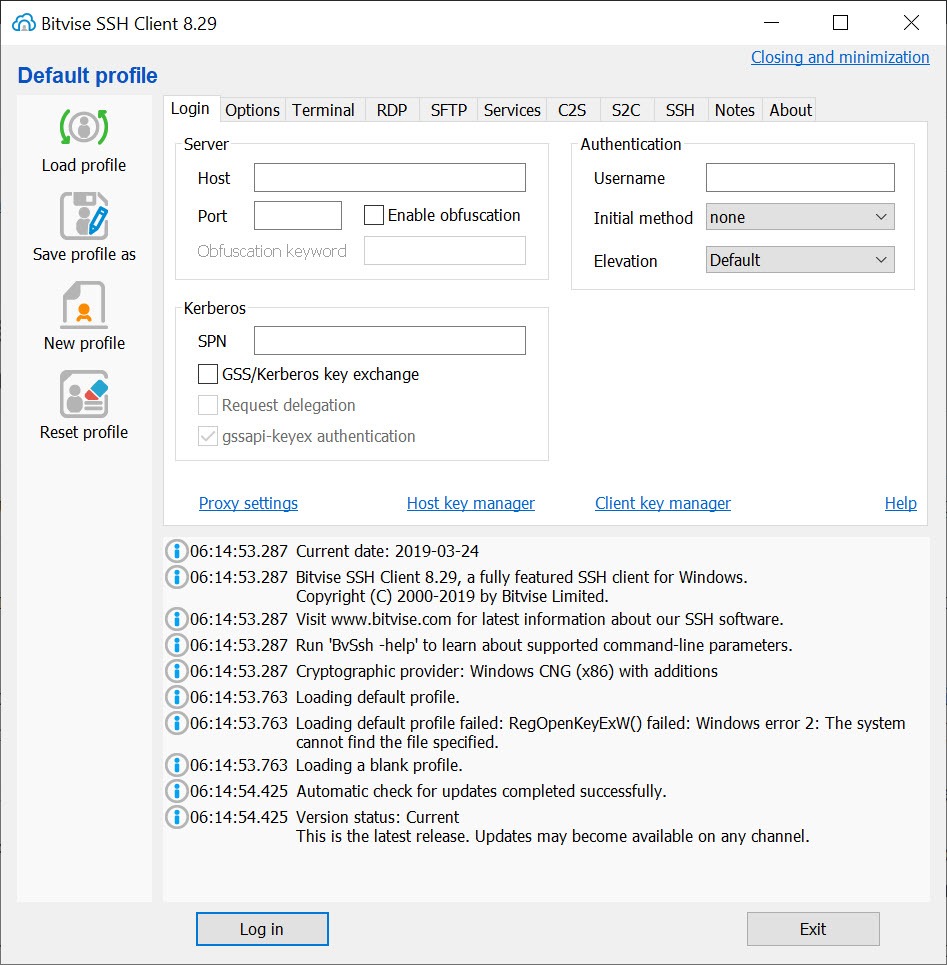
Connection profiles store everything, host, credentials, tunnel rules, window preferences, and load in one click, with the sensitive parts protectable behind a master password. Authentication runs the full modern menu, passwords, public keys with a built-in key manager, two-factor prompts, and single sign-on in domain environments, so the client fits corporate networks as comfortably as home labs.
Automation gets first-class treatment through bundled command-line companions, a scriptable SFTP client, a remote-command runner, and a tunneling utility, all exposing the same engine to batch files and scheduled tasks.
The nightly job that fetches logs from six servers doesn’t need the graphical window at all, and admins who script their routine consider these bundled tools half the product’s value.
The honest trade-offs
The most cited limitation is structural. Each window handles one connection, and there are no tabs, so juggling five servers means five windows on the taskbar. Administrators who live in many sessions at once and want them tiled, tabbed, and broadcast-controlled are the audience Xshell was built for, and the two philosophies truly diverge here, single-connection depth against fleet-wide session juggling.
The interface, meanwhile, is dense in the profile dialog, a long row of tabs covering every option the engine supports, and first-time users will click through more settings than they need. Nothing is hidden, but nothing is decorated either.
Consider it instrumentation rather than design, learn the three tabs that matter for your use, and the rest stays out of the way.
Conclusion
Bitvise SSH Client suits the administrator whose sessions are deep rather than wide, the person who connects to one or two servers and does everything there. Shell work, file pushes, a tunneled desktop, maybe a legacy app bridged along the way, all of it rides the same login. For that pattern, having every channel ride one authenticated login is cleaner than any assembly of specialist tools.
The many-servers-at-once crowd will miss tabs within the hour and should choose accordingly. Everyone else gets one of the most complete single-connection SSH packages ever put in one window, resumable transfers and all.
Pros & Cons
- Terminal, graphical SFTP browser, and tunnels share one authenticated session
- Interrupted transfers resume automatically instead of restarting
- One-checkbox tunneled remote desktop with no manual port mapping
- FTP-to-SFTP bridge modernizes legacy applications transparently
- Bundled command-line tools script the same engine for automation
- Full authentication menu including keys, two-factor, and single sign-on
- One connection per window, with no tab support
- Profile dialog buries newcomers in option tabs
- Terminal customization trails dedicated terminal-first rivals
- Best-experience terminal mode requires the matching server product
Frequently asked questions
Yes, that's its core design. A single login opens the terminal, the two-pane SFTP browser, and any configured tunnels together, all inside the same encrypted session.
A profile checkbox tunnels the remote desktop protocol through SSH and launches the session automatically, so the server never exposes its desktop port to the network at all.
Yes, SFTP transfers broken by connection drops continue from where they stopped once the link returns, which matters enormously for large files on unreliable connections.
Yes, bundled command-line companions handle scripted SFTP, remote command execution, and tunneling, sharing profiles with the graphical client, which makes scheduled jobs straightforward.
No, each connection lives in its own window. Multi-session administrators who want tabs and tiled layouts should look at terminal-first clients built around that workflow.


