

ActivePresenter
About ActivePresenter
ActivePresenter records the screen and then does something most screen recorders never attempt. It turns the recording into a lesson. The capture arrives on a slide, the mouse clicks become callouts and the typed text becomes captions.
The whole thing can be exported as a video, as a web page that runs in a browser, or as a course package a learning management system tracks. Quizzes, branching, drag-and-drop and variables sit in the same editor, so a software demonstration and the test that follows it are one project.
That makes it two products in one window. The recorder and video editor compete with ShareX and the tutorial-capture tools, and they hold up. The authoring half competes with the expensive course-building suites, and it holds up there too, which is unusual for something whose video side needs no licence.
ActivePresenter asks for an hour to learn its slide-based way of thinking, and repays it to anyone who makes training material for a living or a classroom.
Two ways to record the screen
Full motion recording in ActivePresenter captures the screen as ordinary video, with the webcam in a corner if you want it. System audio and the microphone land on separate tracks, and the cursor is tracked for later effects. It is the mode for anything with movement, a game, a scrolling page, a design tool.
Smart capture is the other mode and the one that explains the slide metaphor. It takes a screenshot each time you click or press a key. Each screenshot becomes a slide with the click position recorded and a description of the action generated for you.
Smart capture produces a step-by-step tutorial with almost no editing, and the output can be a document as easily as a video. It is the mode for showing someone how to fill in a form or configure a setting. A ten-minute recording becomes thirty slides that a reader can page through at their own speed.
The two modes can be mixed in one project, and a full motion clip can sit on a slide among smart-captured ones.
Editing on a timeline, one slide at a time
Every ActivePresenter slide has its own timeline with the video, audio, cursor path and every object laid along it. Cut, split, join, crop, change speed, freeze a frame, blur a region that shows a password, and insert zoom-and-pan movements that follow the action.
Cursor effects add highlights and click sounds after the fact, and the cursor path itself can be edited so a wobbly recording looks deliberate. Audio can be normalised, noise reduced and faded, and a green screen behind the webcam feed can be keyed out.
Annotations are the everyday tools. Shapes, callouts, arrows, text captions, spotlights, images, equations, each with entrance and exit animations timed on the slide. Closed captions can be typed or generated from the narration, and narration itself can be produced by text-to-speech from a script, so a tutorial can be voiced without a microphone. A video proxy setting edits against a lower-resolution copy so a heavy recording stays responsive.
It is a competent video editor by any standard, and the slide structure, odd at first, turns out to suit tutorials.
Eleven kinds of quiz question
Here is the half the screen recorders do not have. ActivePresenter offers eleven question types, from multiple choice and true or false through fill in the blanks, drag-and-drop, hotspot, sequence and essay. Each carries feedback and scoring and a limit on attempts.
Question pools and randomisation stop learners memorising the order.
Events, actions and variables
Beyond quizzes, any object can respond to events. Click a button, hover a hotspot, finish a video, get an answer wrong, and an action fires. Jump to a slide, show or hide an object, set a variable, play a sound, submit a score.
Variables and conditions make it a real authoring tool. A learner’s name entered on slide one appears on slide twenty. A path chosen early changes what appears later. Software simulations go a step further. They play back a smart capture as a practice or a test in which the learner has to click the right place and is corrected when they do not.
Building these takes planning and the event editor takes some getting used to. The result is a course rather than a video, and nothing at this level does it more completely.
Exporting to video, web pages and learning systems
Video export writes MP4, WebM, MKV, AVI or WMV at a chosen resolution and quality. The video side of ActivePresenter exports without a watermark or a time limit whether or not a licence has been bought. Slides export as images, or as documents to Word, Excel and PowerPoint, with the smart capture descriptions turned into numbered steps. That is how a printable manual falls out of a recording.
HTML5 export produces a folder that runs in any browser with the interactivity intact. The same output can be wrapped as a SCORM or xAPI package for a learning management system, which then records completion and scores and time spent. Those interactive exports carry a watermark until a licence is entered, and the professional tier is needed for the learning system packaging.
A responsive project mode lays content out for phone and tablet and desktop from one source, with per-layout adjustments.
Themes and the weekly workflow
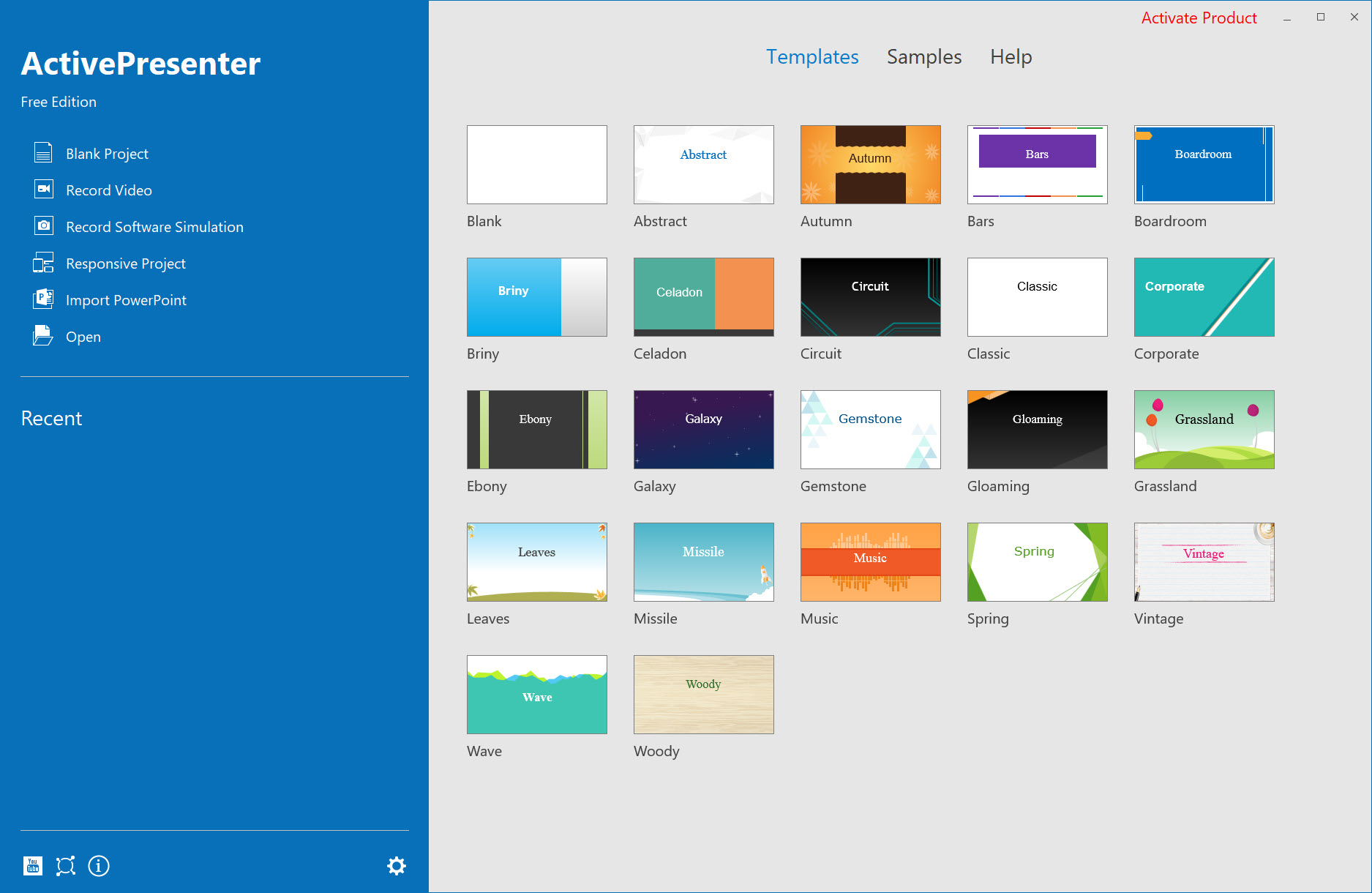
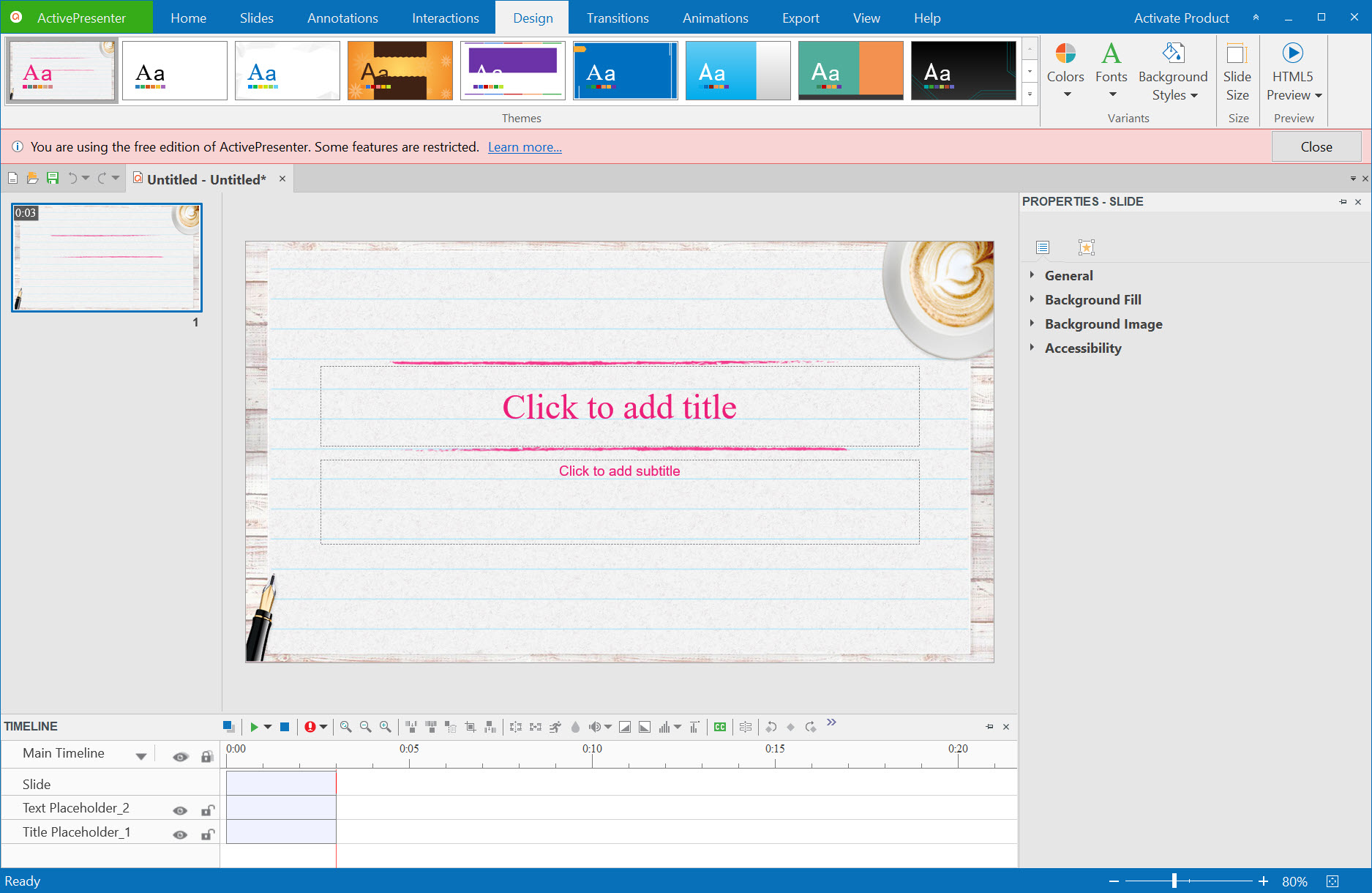
ActivePresenter themes hold colours and fonts and slide masters so a series of lessons match, and a project can switch theme in one step. A built-in library offers icons and characters and backgrounds, and any object can be saved as a template for reuse. Slide masters and object states, hover, pressed, visited, behave as they do in presentation software, which is deliberate, since the people building courses usually come from that world.
The workflow for a typical lesson is record, tidy the cursor and cut the pauses, add captions and callouts, insert a quiz slide or two, preview in the browser, export. For someone doing that weekly, the reusable templates and the text-to-speech shave hours, and the project file keeps everything, including the raw recordings, in one place.
Where it is heavy
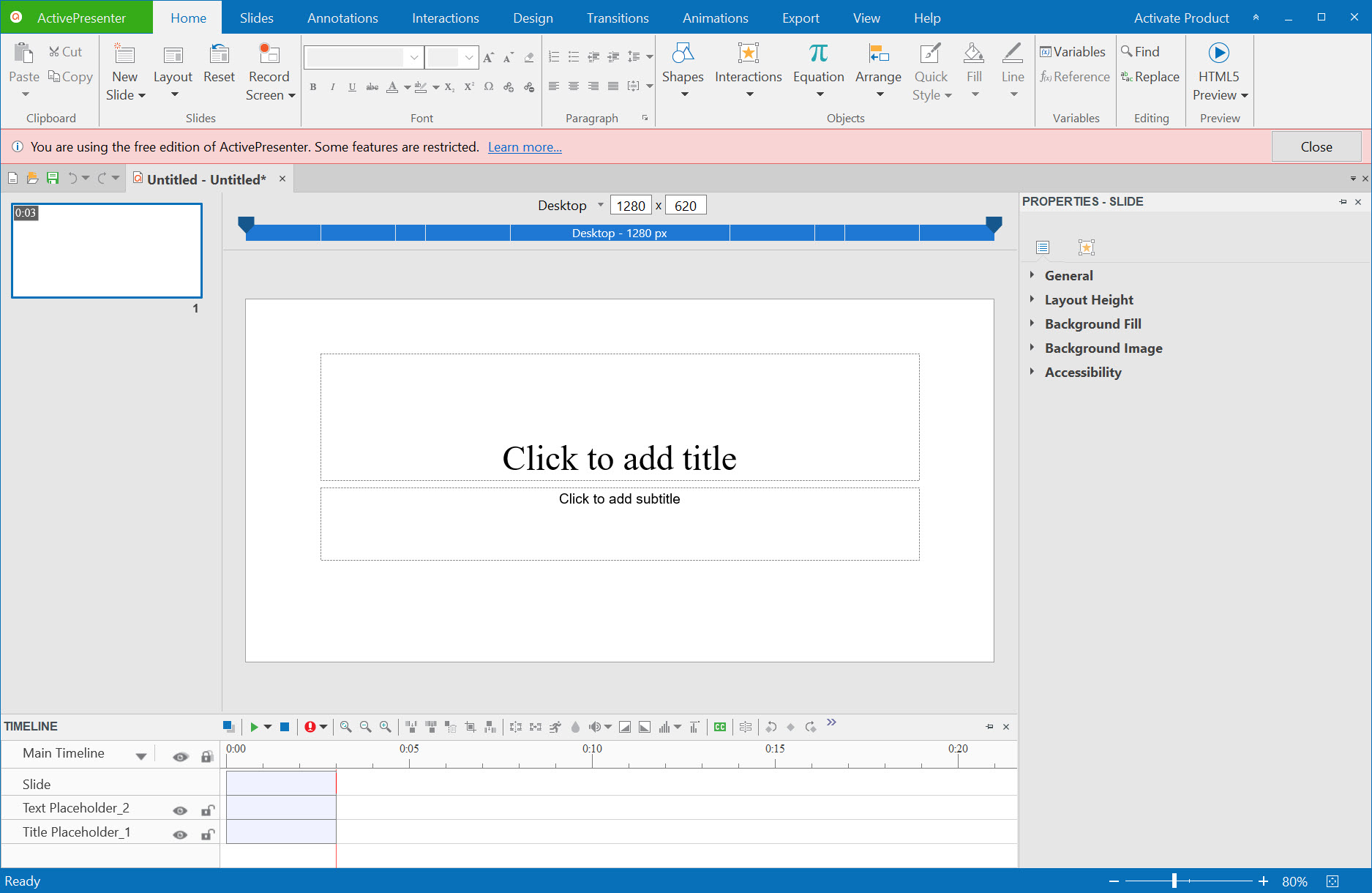
The program is large and the editor wants memory, and a project with an hour of high-resolution capture is slow without the proxy setting. The interface has a great many panels and a ribbon full of tabs, and the first session is spent finding where things are. The slide metaphor confuses people who arrive expecting a single timeline, and the event and variable editors are powerful in the way that a spreadsheet is powerful.
Nothing about it is hard, and all of it takes a few sittings. For a one-off recording with a couple of arrows, a capture tool that uploads and shares in one step is quicker, and this program is the wrong size.
Conclusion
ActivePresenter is for trainers and teachers, and for documentation writers, who record software to explain it. They need the result to be a lesson with a quiz rather than a video with a voice. The smart capture mode and the interactive tools are the reasons to pick it, and the video editor is good enough that nothing else is needed for the recording side.
Anyone who wants a quick clip with an arrow on it should use a lighter recorder and skip the ribbon. For a course that has to be tracked and tested, then revised next term, this is the most complete tool at its level. The learning curve is the fair share of that.
Pros & Cons
- Smart capture turns clicks into step-by-step slides with generated descriptions
- Full video editor with zoom-and-pan, cursor effects, blur, captions, green screen
- Eleven quiz types with question pools, randomisation, detailed feedback
- Event-driven actions and variables for branching and software simulations
- Exports to video, HTML5, SCORM, xAPI and Office documents
- Text-to-speech narration and generated closed captions
- Interactive and course exports carry a watermark without a licence
- Heavy on memory with long high-resolution recordings
- Dense interface with a real first-day learning curve
- Slide-based structure confuses people expecting one timeline
Frequently asked questions
No. Video exports to MP4 and the other formats are free of watermarks and time limits without a licence. The watermark appears on HTML5 and course package exports until a licence is entered.
Full motion records the screen as continuous video. Smart capture takes a screenshot at every click or key press and makes each one a slide with the action described, which suits step-by-step tutorials and printable guides.
Yes. Export as SCORM or xAPI and upload the package to the system, which then tracks completion and scores. The professional tier is required for these packages.
Insert a question slide from the Questions tab, choose one of the eleven types, enter the answers and set the correct one. Then adjust the scoring, the attempt limit and the feedback in the properties pane.
High-resolution video is heavy to scrub. Enable the video proxy option so the editor works with a lower-resolution copy, and split very long captures across slides.


