

jGRASP
About jGRASP
jGRASP is an educational IDE built around one unconventional idea. Instead of just letting you write code and run it, the application generates visual diagrams of your code’s structure as you type, displays the contents of objects in real time as your program executes, and animates the state of data structures while they change. The result is a development environment that sits closer to a teaching tool than to a professional programmer’s workshop, and that intent is what shapes everything about how it looks and feels.
The application primarily supports Java, which is its strongest tier, with secondary support for C, C++, Objective-C, Python, Ada, and VHDL. The visualization features that justify the application’s existence work best on Java code because Java’s object model is what the diagram and viewer engines were designed around.
For other languages, the application functions more as a competent multi-language editor with build integration, less as the unique pedagogical tool it is for Java students.
Most users who reach for jGRASP are computer science students taking introductory or data-structures courses, often because their professor specified it for the class.
Control Structure Diagrams and what they actually show
The headline feature is the Control Structure Diagram, or CSD. Open a Java file, click the generate-CSD button, and the editor overlays your source code with a graphical structure showing every control flow construct. Nested loops, conditionals, methods, and class boundaries each get distinctive visual brackets drawn in the left margin.
The depth of nesting becomes immediately visible because the brackets stack and indent. A method with seven levels of nested conditionals looks alarming in the diagram in a way that the raw source code does not communicate as quickly.
The educational argument for CSDs is that beginning programmers often have trouble mentally parsing the control flow of code they read. The visual brackets show them which closing brace pairs with which opening brace, which else belongs to which if, and how deeply nested any given statement actually is. For a student staring at their first hundred-line method, this can be genuinely clarifying.
The diagram updates as you type, so the structure visibility tracks your edits in real time without requiring an explicit refresh.
For experienced programmers the diagrams add visual noise without adding information they did not already extract from indentation and syntax. Whether you find CSDs useful or distracting depends almost entirely on where you are in your learning journey. The application lets you toggle them off entirely, so the feature does not get in your way if you do not want it.
Object Workbench and the visual debugger
The Object Workbench is where the application’s pedagogical focus pays off more clearly. When your program stops at a breakpoint, you can inspect any object in memory through a graphical viewer that shows fields, their current values, and references to other objects. This is similar to what every modern IDE’s debugger offers, but the presentation is more visual and the viewer can drill down through reference chains by clicking on linked objects rather than expanding tree nodes.
For data structures, this becomes more interesting. The application ships with visualizers for common structures like linked lists, binary trees, stacks, queues, and hash tables. When your code constructs one of these structures, the viewer shows the actual node-and-pointer diagram that students draw on whiteboards in lectures. As your code modifies the structure, the diagram animates, showing exactly which pointers change and where new nodes appear.
For a student learning how a binary search tree balances itself, or how a doubly-linked list handles insertion at the middle, watching the diagram update is more concrete than reading their own console output.
The viewers are extensible. You can write your own viewer for a custom class, which is occasionally assigned as a learning exercise itself. The framework for doing this is documented but not particularly slick. Most users stick with the built-in viewers.
How it compares to other educational Java IDEs
The Java educational IDE space has a few well-known options, and the choice between them comes down to philosophy. BlueJ takes a different approach, presenting classes as boxes in a UML-style diagram on the main canvas and letting you interact with objects by right-clicking them and invoking methods directly without writing a main method. BlueJ is excellent for teaching object-oriented thinking from the first lesson, but it abstracts away the code editor in ways that some instructors find too aggressive.
DrJava goes the other direction, providing an interactions pane where students type Java expressions one line at a time and see results immediately, similar to a REPL. This is great for teaching expression evaluation but offers no visual structure or data-structure animation. jGRASP sits between these, with a more conventional editor surface plus the visualization layer on top, which makes it a less radical departure from professional IDE conventions while still serving the educational use case.
For students who will eventually move to professional Java development, the closest stepping stone from jGRASP is probably IntelliJ IDEA or Eclipse, both of which expect a stronger foundation in editor conventions and project management than any educational IDE assumes.
The transition is non-trivial because the professional IDEs do not have CSDs, do not have data-structure visualizers, and expect you to manage your own project files in a way the application hides behind its simpler workflow.
The editor and basic IDE features
Under the visualization layer, the editor itself is competent rather than impressive. Syntax highlighting works for all supported languages. Auto-indent follows the language conventions. Bracket matching highlights the pair of an opening or closing brace when the cursor is on either. Find and replace handles regex. There is a built-in console for running programs and viewing output.
What is missing or weak compared to modern editors is what you would expect from an application focused on teaching rather than professional productivity. Code completion is basic and not particularly intelligent about Java type information. Refactoring support is minimal, just rename across a file with some help understanding scope.
Project management is per-file or per-folder rather than project-aware in the way Maven or Gradle integration would provide. For students writing single-file or small-project assignments, this is perfectly adequate. For anyone trying to use it on a real codebase, it falls short quickly.
The application is written in Java itself, which means it depends on a working installation of the Java Runtime Environment. For compiling and running programs you need a JDK rather than just a JRE, and configuring the application to find the JDK is the first thing many users have to troubleshoot after installation.
The cross-platform consistency that Java applications get for free does apply here, the application behaves identically on every operating system that runs Java.
C++ and other language support
Outside Java the experience drops noticeably. C and C++ support works through whatever compiler you have installed on the system, typically GCC or Clang or MSVC depending on platform. The application provides syntax highlighting, build integration that calls your compiler, and a console for running the resulting binaries. CSDs work for C++ code with somewhat less accuracy than for Java, because C++ syntax has more ambiguity in its parsing than Java does. The Object Workbench and data-structure visualizers do not work for C++ at all, removing the most distinctive feature of the application for users of that language.
For Python, the support is even thinner. You get an editor with Python syntax highlighting and the ability to run scripts through whatever Python interpreter you have installed. None of the visualization features apply. At that point you are better served by a Python-focused environment unless your specific class requires you to use jGRASP for the assignment.
For decompiling existing Java code to study it, the application has nothing built in, and a separate tool like JD-GUI is what students typically use for that. For working on Java code in a more general-purpose programmer’s editor, jEdit offers a different mix of features without the educational visualization.
The interface and visual presentation
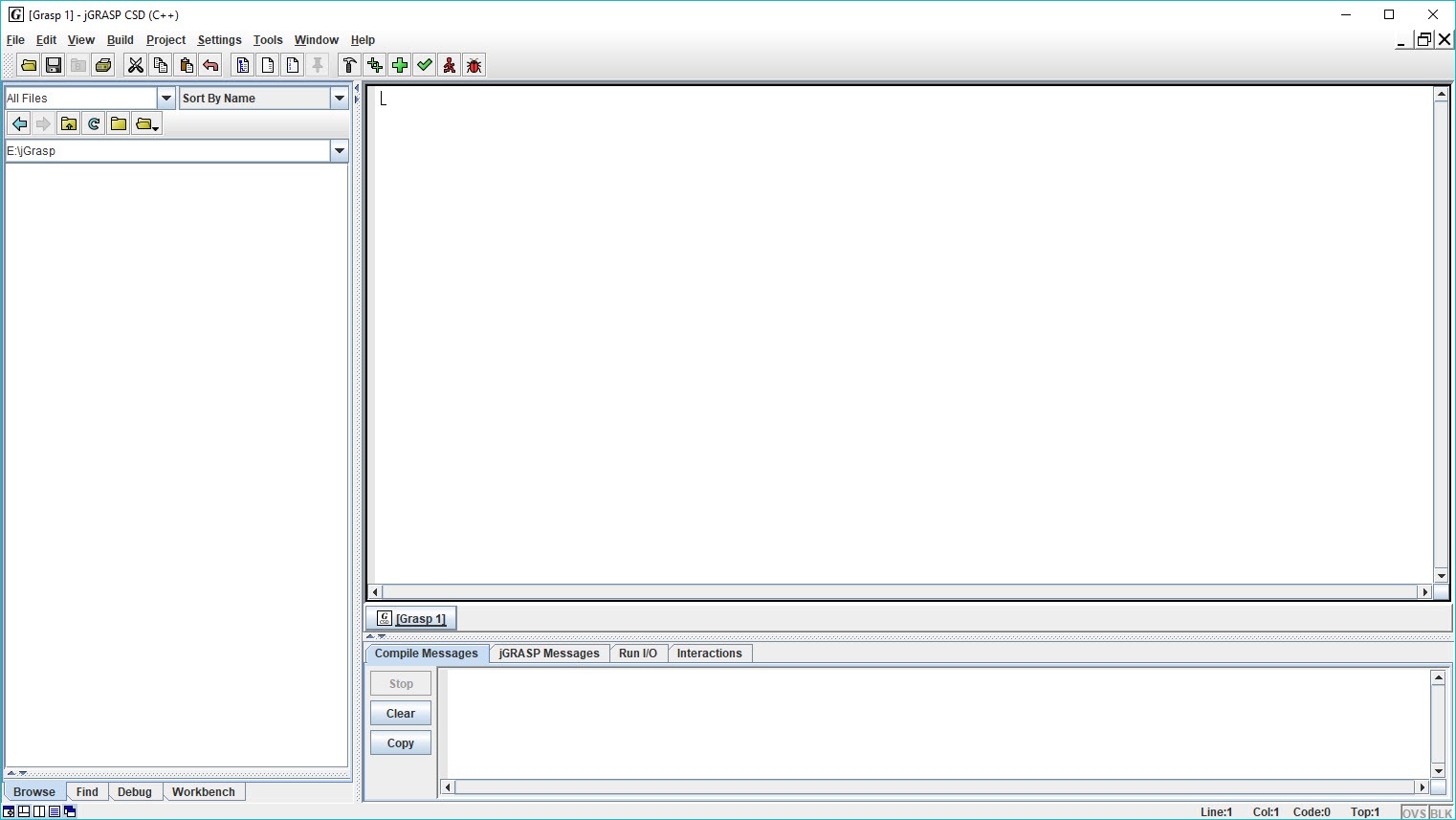
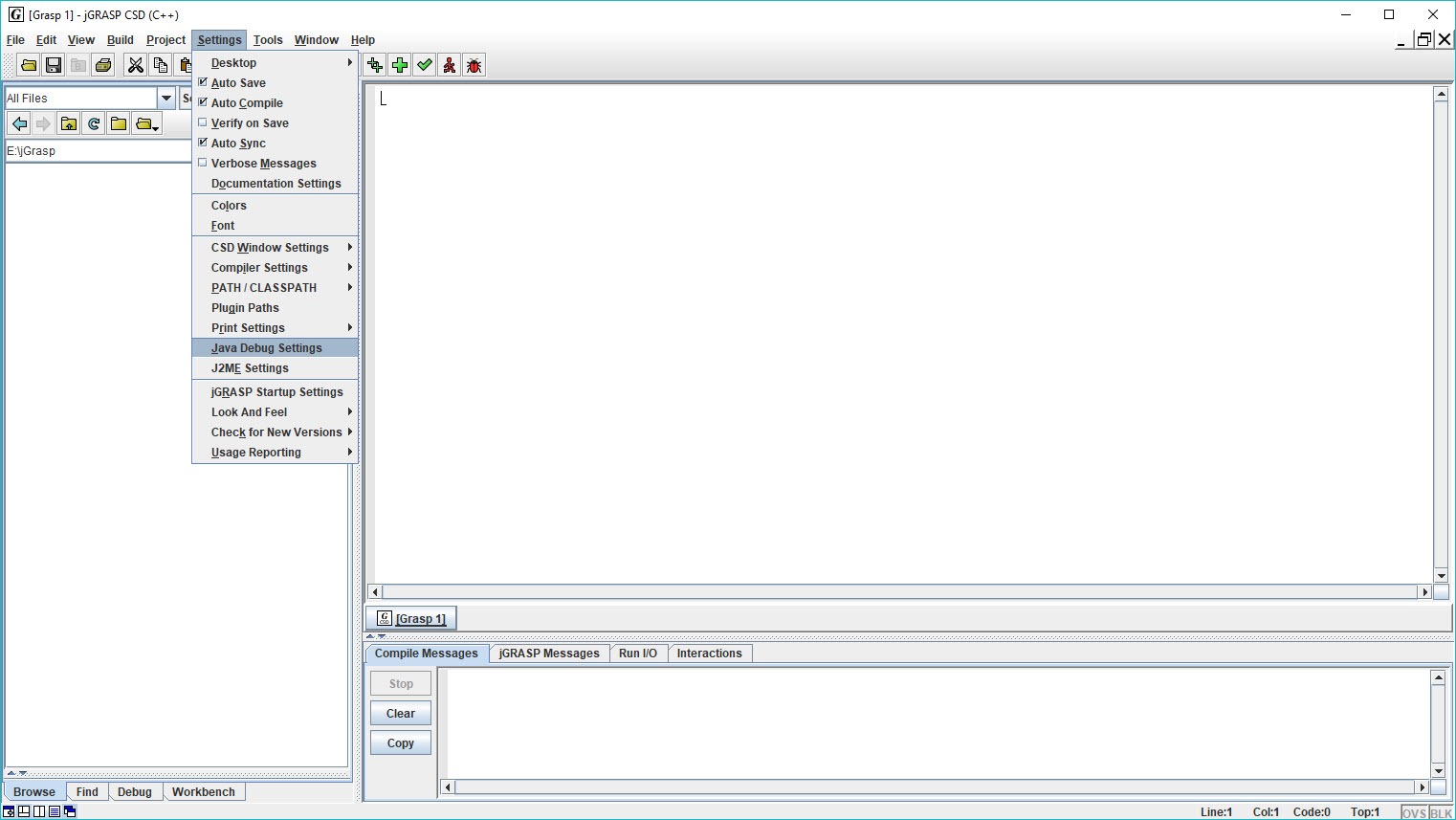
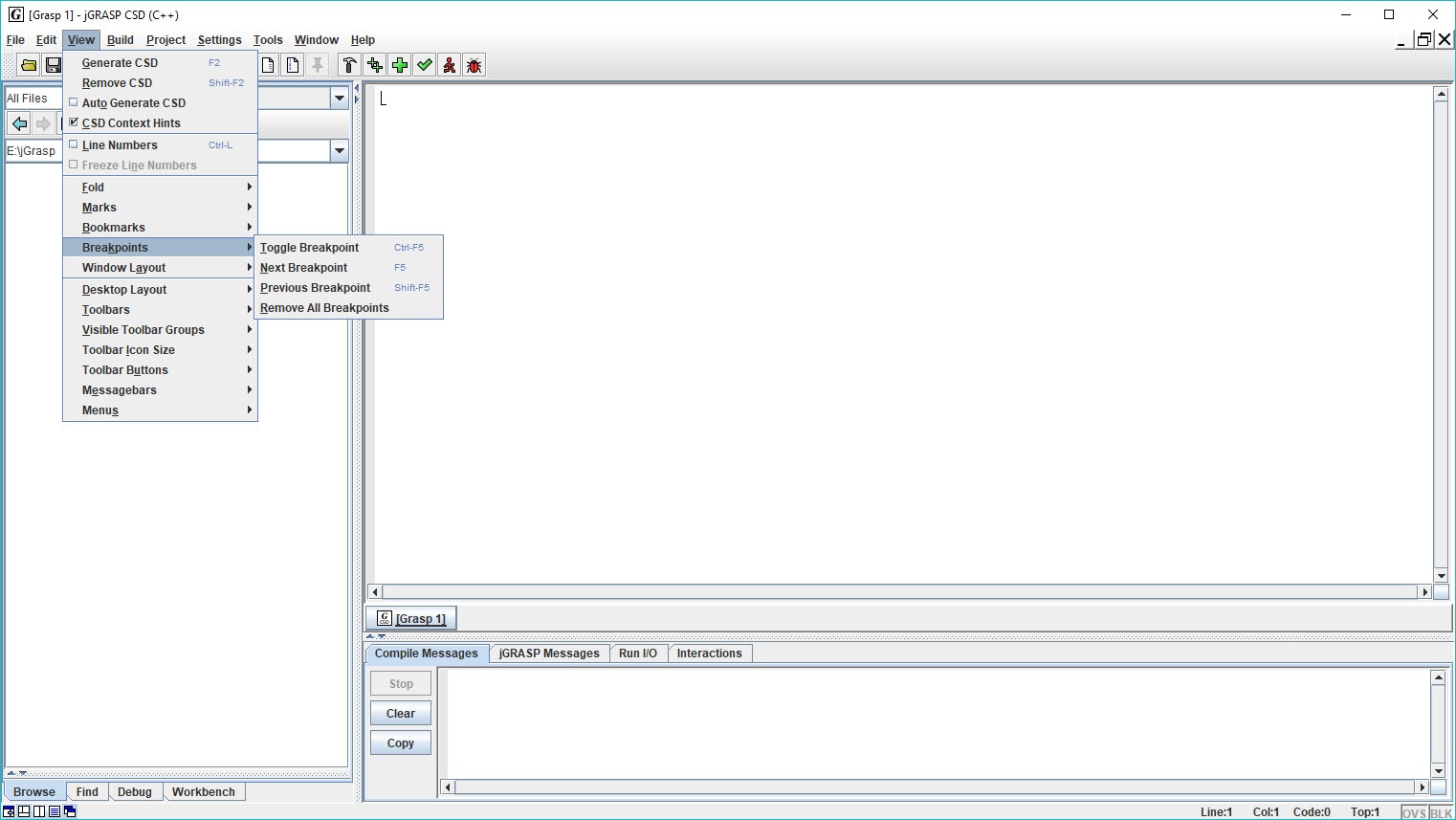
The UI is unmistakably a Swing application, with the Swing application aesthetic that comes with that. Menus are nested deeper than modern conventions, dialog boxes use platform-default styling, and the overall visual language is functional rather than current. Font rendering is acceptable on modern Java versions but not as smooth as native applications.
The default color scheme prioritizes contrast and legibility over visual elegance, which is appropriate for a teaching tool but will look spartan next to commercial IDEs. There is theme support, and the application lets you adjust colors for syntax highlighting, but the depth of customization is well below what modern editors offer.
Limitations worth being explicit about
The application is freeware funded by Auburn University rather than open source. The codebase is not publicly available for audit or contribution. For users or institutions that require open-source software, this is a deal-breaker even if the application is otherwise free to use.
Development pace is steady but unhurried. Updates address bug fixes and Java version compatibility more than they add major features. The fundamental design has remained stable for the audience it serves, which is partly a virtue (students who learn it do not have to relearn it next semester) and partly a sign that the application has reached its design ceiling.
Memory usage is typical for a Java desktop application, in the few-hundred-megabyte range with a reasonable project loaded. On modern hardware this is fine. On the laptops some students still use for their first programming courses, it can feel heavier than necessary.
Conclusion
jGRASP is the right answer for a specific audience. Computer science students taking introductory or data-structures courses, instructors teaching those courses who want their students to see how data structures actually behave during execution, and self-learners working through Java textbooks who benefit from the visual reinforcement that the application provides.
Within that context the application earns its place by offering visualization features that no professional IDE includes, because no professional IDE is built around the same pedagogical assumptions.
Outside that context the application has less to offer. Experienced programmers find the visualizations distracting rather than helpful, the editor falls short of modern professional tools, and the workflow assumes small assignment-sized projects rather than realistic codebases.
Treating the application as what it is, a teaching tool with specific educational features that genuinely help beginning students, makes its strengths and limitations both make sense. Used for the wrong job it disappoints. Used for the right one it earns its position in computer science classrooms.
Pros & Cons
- Control Structure Diagrams give beginning programmers a visual handle on code structure that raw source code does not communicate as directly
- Object Workbench and data-structure visualizers turn abstract data structures into concrete animated diagrams during debugging
- Free to use with no licensing restrictions for students or educational institutions
- Cross-platform with identical behavior wherever Java runs, useful for classes with mixed-platform student populations
- Lower learning curve than professional IDEs, designed specifically for first-time programmers
- Solid Java support including build, run, and debug integration sufficient for educational assignments
- Closed-source freeware, users requiring open-source software cannot use it
- Visualization features work best on Java, much less useful for C, C++, and other supported languages
- Code completion and refactoring tools are basic compared to modern professional IDEs
- Project management is per-file rather than build-system-aware, which becomes awkward beyond small assignments
- Interface is dated Swing styling, no modern visual polish or theming depth
- Transition to professional IDEs requires unlearning the application's simplified workflow
Frequently asked questions
An educational integrated development environment built around code visualization features. It generates Control Structure Diagrams of your source code, displays object contents through visual viewers during debugging, and animates the state of data structures as your program runs. It primarily targets Java but supports other languages with reduced visualization capabilities.
The visualization features serve specific pedagogical goals around helping students see code structure and data structures concretely. For introductory programming courses where the goal is teaching how programs are organized and how data structures behave, the visual approach has real educational value that a professional IDE does not provide.
A graphical overlay that the application draws alongside your source code, showing every control flow construct (loops, conditionals, methods) with distinctive visual brackets in the left margin. Nesting depth becomes immediately visible, and the diagram updates in real time as you edit the code.
Yes. The application is itself written in Java and runs on the Java Virtual Machine, so you need a working JRE on the system. For compiling and running Java programs, you also need a JDK, and configuring the application to find the JDK location is typically the first setup step.
It supports C, C++, Objective-C, Python, Ada, and VHDL with editor and build features, but the signature visualization features (object workbench, data-structure viewers) only work for Java. For non-Java languages the application functions as a competent multi-language editor without the unique pedagogical value it offers for Java.
BlueJ presents classes as boxes in a UML-style diagram and lets students invoke methods on objects without writing a main method, which is a more radical departure from conventional IDE workflows. The application keeps a more traditional editor surface and adds visualization on top. Which approach fits better depends on what your course is trying to emphasize.
Not really. The application is designed for learning programming, and features that professional developers expect (sophisticated code completion, refactoring tools, integrated version control, build-system-aware project management) are weak or missing. For real-world Java development, IntelliJ IDEA or Eclipse are the appropriate choices.


