

HiSuite
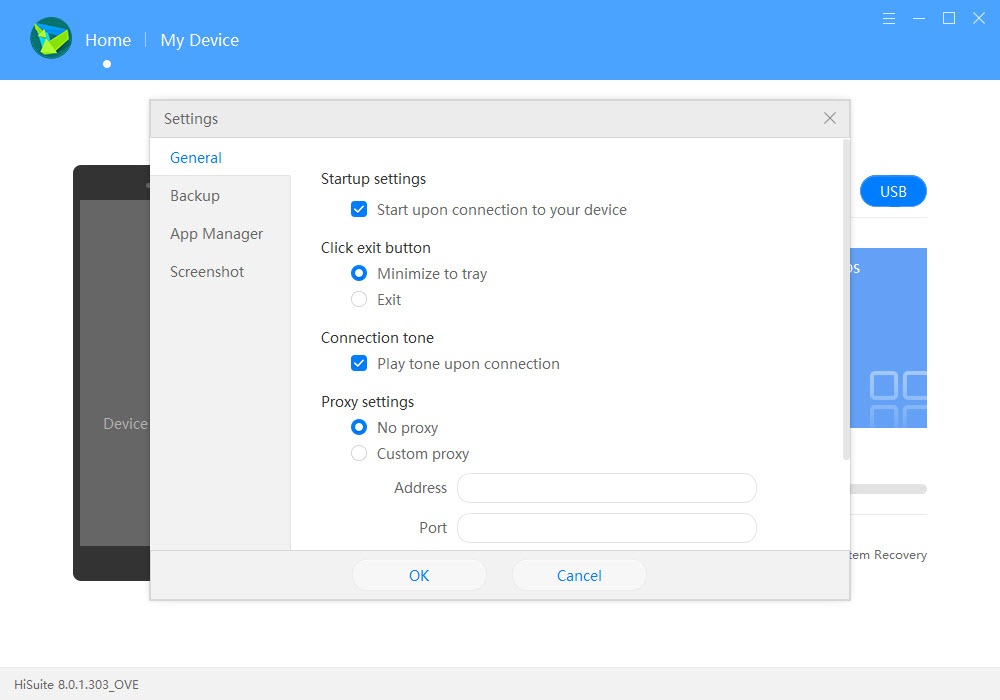
About HiSuite
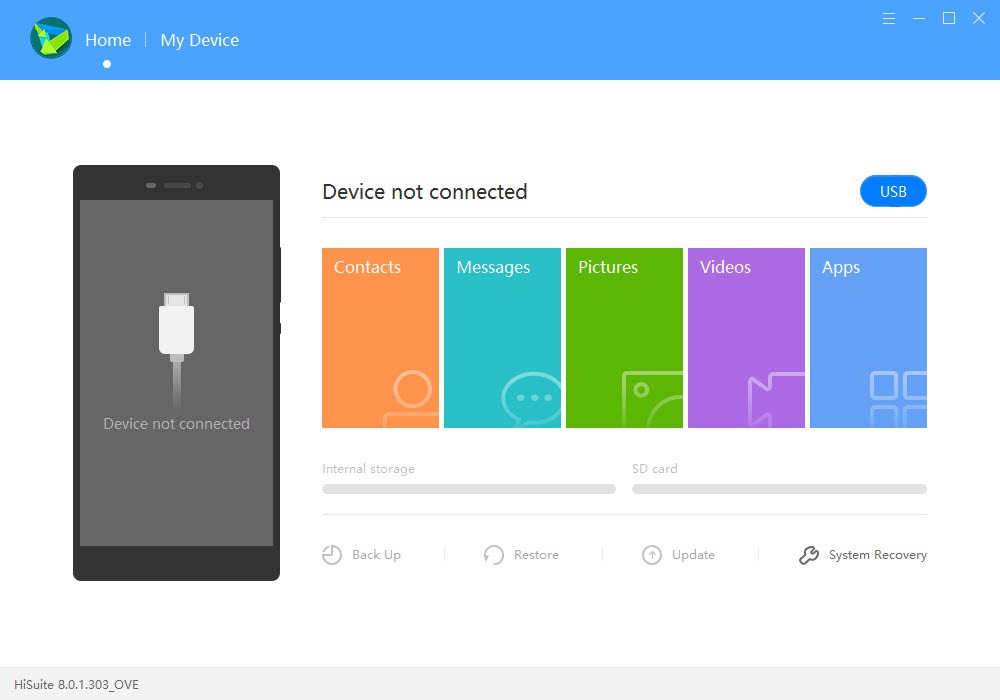
HiSuite is the desktop manager for Huawei phones and tablets. It backs the device up to a folder on the computer, restores that backup later, installs system updates and rolls a phone back to an earlier signed release when an update goes wrong.
Around that core sit the everyday jobs. Copy photos and videos off the phone, edit contacts, reply to text messages from the keyboard, install or remove apps, take screenshots and project the screen to the desktop.
It does all of this only for Huawei hardware, and for the older Honor models that still shipped with the same software layer. Plug in anything else and the window simply waits. That makes it a companion to the phone rather than a general Android tool, the way Samsung Smart Switch is for its own brand.
The comparison to a universal manager such as MyPhoneExplorer only goes so far.
Getting the phone to talk to it
The first hurdle is the connection, and it catches nearly everyone. A Huawei phone does not expose itself to the desktop program through ordinary USB debugging. It uses a separate channel called HDB, which has to be switched on in the phone’s security settings under a toggle labelled Allow HiSuite to use HDB. With that on, the phone shows an authorisation prompt on the first connection, then the HiSuite app on the phone displays an eight-digit code that you type into the desktop window. Only then does the device appear.
Miss any step and the desktop side sits at a connection screen with no explanation. Cable quality matters too, since a charge-only lead never enumerates as a data device. Once paired, the code is remembered, and the authorisation can be revoked from the same settings page whenever you want the computer locked out again.
Backups you can trust, with one warning
Back up and Restore is the reason most people install HiSuite. Tick the categories, contacts, messages, call logs, apps, music, emails and calendar, plus the photo and video folders. Choose a destination and let it run. The backup lands as a folder of files on the computer, not in a cloud, so it is yours to copy to a second drive. Restore reverses the process, and you can restore selectively rather than everything.
The warning is the password. Encryption is offered at backup time and many people accept it. There is no reset. A password hint is stored, but a forgotten password means the backup cannot be opened, ever, and the program says so plainly before you confirm. Write it down.
The second limit is that a backup restores only to another Huawei device, so this is not a route for moving to a different brand.
Data management from the desktop
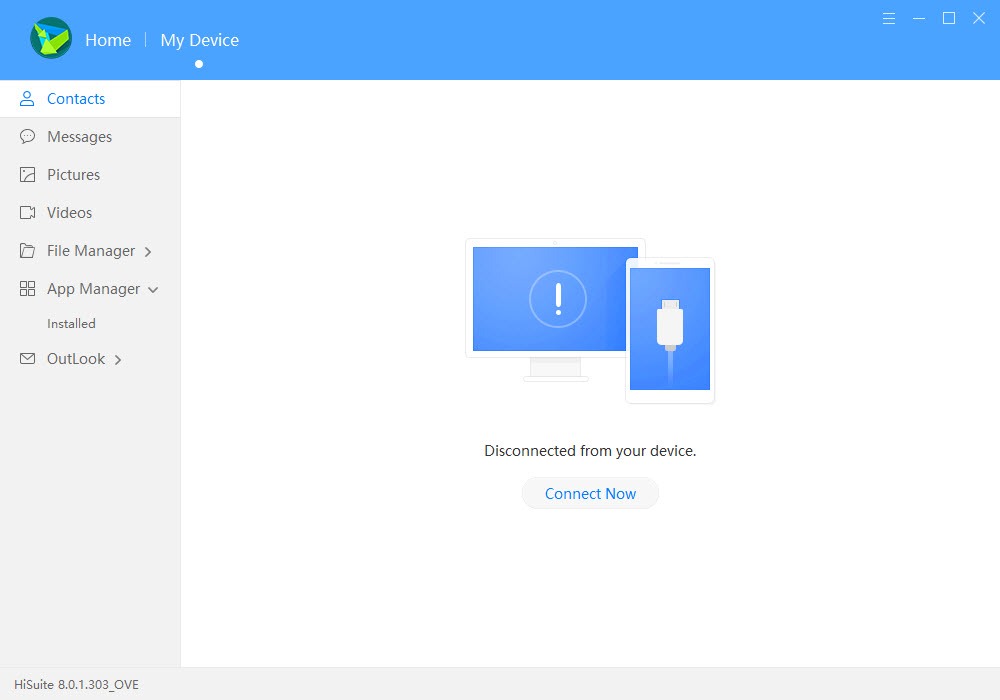
The Contacts view is a full editor with groups and duplicate merging. It syncs both ways with Outlook, still the fastest way to get a corporate address book onto a phone without a cloud account. Messages shows every conversation and lets you type replies from the computer, with the phone doing the sending. Pictures and Videos browse the camera roll and the screenshots folder with thumbnails, and drag and drop moves files in either direction.
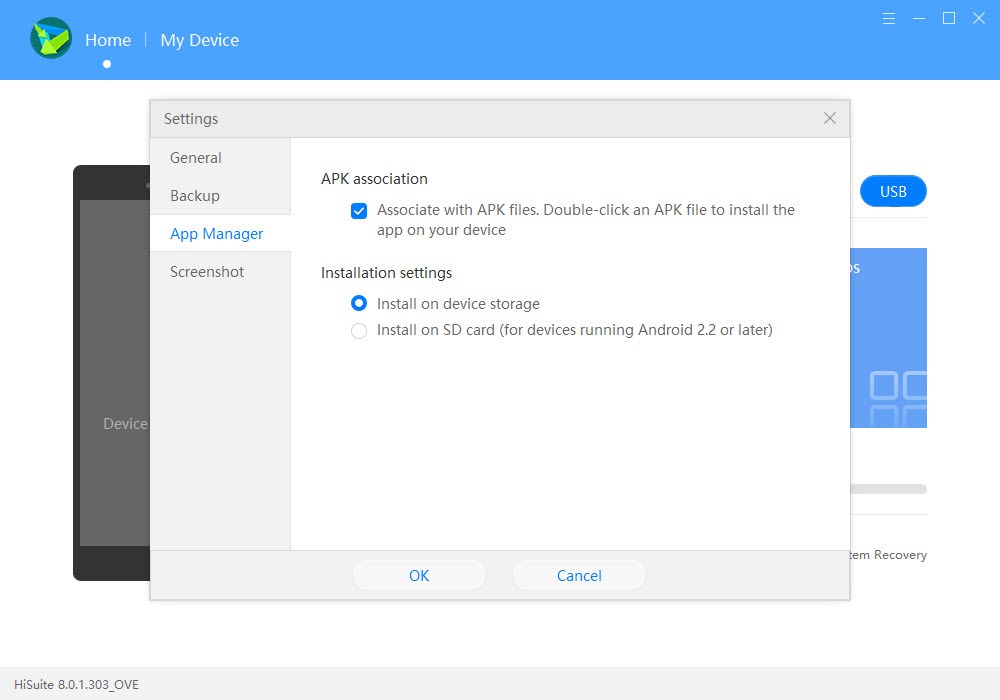
Apps lists what is installed with sizes and versions, uninstalls in bulk and installs an APK file from the computer. File Management gives a plain tree of the internal storage and any memory card. None of it is elaborate, but it is faster than the phone’s own screen for anything involving more than a few items.
Screen mirroring and screenshots
Screen projection in HiSuite shows the phone’s display in a window on the desktop, live, with the phone still in your hand. It is meant for demonstrations and support, and it works for that, though touch has to happen on the phone.
A screenshot button captures the phone’s screen straight to the computer, which is handy for documentation and saves the copy-out step. For remote control rather than viewing, a tool that mirrors and controls the phone is the better fit, and it works on any Android device.
System updates and rollback
The Update view checks for a newer release than the phone is running and installs it over the cable. That helps when the over-the-air update refuses to appear or the phone has no space to download it. System Recovery goes the other way.
It reinstalls the current signed release, or an earlier one where the maker still offers it, and it can do so on a phone stuck at the logo when the recovery menu is reachable. That has rescued a lot of devices after a failed update.
Two limits apply. Only releases signed for that exact model and region are offered, so there is no sideloading and no way to escape a regional variant. And recovery wipes the phone, which is why the backup section above comes first in every guide, including this one.
Conclusion
HiSuite is for the Huawei owner who wants a real backup on a drive they control, a way to send messages from a keyboard and a rescue path when an update fails. For those three jobs it is dependable, and the rollback alone has saved more phones than the marketing ever mentions.
It is not a general Android manager and does not try to be. Owners of other brands should look elsewhere, and Huawei owners should set up the HDB connection on a quiet evening rather than on the day the phone stops booting.
Pros & Cons
- Local, selectable backups of contacts, messages, apps, media, with optional encryption
- System recovery can reinstall the operating system on a phone that no longer boots
- Contacts sync both ways with Outlook
- Send and receive text messages from the desktop
- Screen mirroring and one-click screenshots to the computer
- Works only with Huawei and older Honor devices
- Connection requires HDB, an authorisation and an eight-digit code before anything appears
- Encrypted backups cannot be opened if the password is lost
- Backups restore only to Huawei hardware
- Screen mirroring is view-only
Frequently asked questions
Almost always because HDB is off. On the phone, open the security settings and enable the HDB toggle for it, accept the authorisation prompt, then open the companion app on the phone and type its eight-digit code into the desktop window. Use a data cable, not a charge-only one.
No. The hint you set at backup time is shown, but there is no reset and the backup stays locked without the password. Make a fresh backup and record the new password somewhere safe.
No. Restore works only to Huawei devices. Moving to another brand needs a transfer tool that supports both makes.
Often. Put the phone into its recovery menu, connect it and use System Recovery to reinstall the signed release. The process erases the phone, so any data not already backed up is lost.


I have just downloaded HiSuite 8.0.1.300_OVE.ZIP on my HUAWEI P20 LITE and I extracted the .exe , which does not open!
Can anyone help me?
Hi Vicenzo,, the software must be downloaded on a Windows computer, not on your mobile phone.