

Fire Toolbox
About Fire Toolbox
Amazon sells Fire tablets at a loss to push Prime memberships and lock screen ads. The hardware is decent for the price. The software is the problem. Out of the box the device boots into a launcher dominated by Amazon services, the Play Store is missing, half the home screen is sponsored content, and the lock screen displays “Special Offers” unless you paid an extra fee at checkout.
Fire Toolbox is what most Fire tablet owners reach for once they have lived with the stock experience for a week and decided it is not what they wanted.
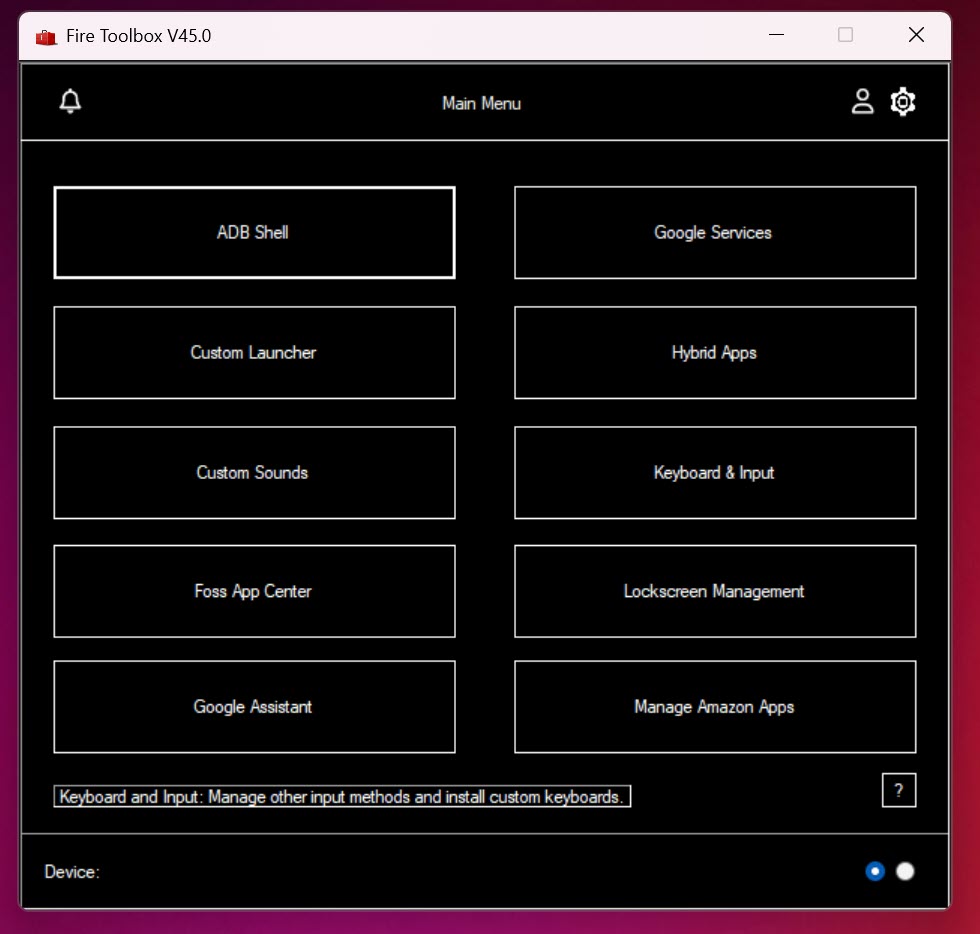
The application runs on a Windows PC, connects to the tablet over USB, and does the heavy lifting through ADB while presenting a tabbed graphical interface that hides every command line behind a button. You plug the tablet in, enable developer mode and USB debugging on the device, launch the application, and it walks through about fifty distinct operations grouped by purpose.
Compared to running raw ADB commands from a terminal with the Android SDK platform tools, the experience is dramatically less hostile.
Google Play Store installation that actually works
The marquee feature is one-click Google Play Store installation. On a Fire tablet, getting Play Services in cleanly is not as simple as sideloading an APK. You need a specific sequence of packages installed in the correct order, with the right versions for your tablet’s API level, plus Google Account Manager and the framework pieces that the Play Store assumes are already present.
Fire Toolbox ships with the right package set bundled for each supported Fire generation and installs them in the correct order. It also activates the system permissions Google Services Framework needs, registers the package list with the system, and waits for the framework to finish initializing before installing the Play Store itself.
The result is a working Play Store that survives reboots and updates itself normally, which is more than you can say for the manual sideload approach where one missing piece typically results in repeated force-close loops.
If your goal is just installing one specific app outside the Amazon Appstore, sideloading the APK directly with a tool like APK Easy Tool is faster. The Play Store install is for people who want the full Google ecosystem on the tablet, with automatic updates and licensed apps.
Removing the lock screen ads
The “Special Offers” lock screen ads cannot be turned off through Settings. Amazon’s official path is paying a fee or contacting customer service. Fire Toolbox does it for free by disabling the specific system packages that fetch and display the offer content, then preventing them from re-enabling on the next boot.
This is one of the toggles most people flip first. It survives daily use without issue. The catch is that Amazon occasionally pushes an OTA update that re-enables the package list, and you have to reconnect the tablet to the application to redisable it. The application has a toggle that blocks OTA updates entirely, which solves the recurrence problem at the cost of also blocking legitimate security updates. You pick your trade-off.
Debloating the system
The Debloat tab lists every preinstalled package the device shipped with, divided into categories: Amazon services, Amazon apps, advertising components, Alexa services, Goodreads, and the various Kids+ pieces that Amazon ships even on adult tablets. You tick the boxes for what you want gone, click Apply, and the application disables those packages cleanly through ADB without rooting the device.
The distinction between disable and uninstall matters here. Fire Toolbox disables packages by default rather than removing them, which means a future repair or factory reset can recover them, and you can re-enable individual packages without reflashing the firmware. There is a more aggressive remove option for users who know what they are doing.
For broader Android debloating across non-Fire devices, Debloater does roughly the same job through ADB. Fire Toolbox wins on the Fire-specific package list, with descriptions of what each Amazon package actually does on the device.
Launcher replacement that survives reboots
Replacing the Fire launcher is more involved than it should be. The stock launcher is hardcoded as the home action and the Amazon system reasserts it after certain events. Fire Toolbox handles the launcher swap by disabling the Amazon launcher’s home permission, granting it to the launcher you chose, and registering the new launcher with the activity resolver in a way that survives reboot.
Nova Launcher is the default suggestion and the one most people end up using. The application can also install and configure Lawnchair, Microsoft Launcher, and a handful of others, or simply prepare the device to accept any launcher you sideload separately.
Together with debloating, the launcher swap is the single change that does the most to make a Fire tablet feel like a regular Android tablet.
Custom DPI, region, and other system tweaks
A pile of smaller settings are exposed through the System tab. Change the screen DPI to fit more on the display or to make UI elements larger. Override the system language and region for users who bought the tablet in one market but use it in another. Toggle the navigation bar between three-button and gesture modes on generations that support it. Enable USB OTG features that Amazon hid in Settings. Adjust the screen-off behavior. Force the screen orientation. Disable specific Alexa wake-word listeners.
None of these is dramatic alone. Together they let you tune the tablet to your specific usage, the same way a desktop user would adjust Windows. The application also has presets for common configurations like “kids tablet” or “ereader” or “minimal browsing tablet” that flip multiple toggles at once.
For sideloading media apps after the tablet is configured, pairing with AdbLink for Kodi-specific work is common in the home theater corner of the Fire community.
OTA blocking, the real long-term concern
Amazon pushes FireOS updates aggressively. New updates routinely re-enable disabled packages, change which apps have home permission, reset DPI to default, and occasionally break the entire Fire Toolbox configuration in ways that take a fresh pass to fix. The application includes an OTA blocker that prevents the tablet from receiving updates over the air.
This is genuinely a double-edged decision. Blocking OTAs protects your configuration. It also stops the device from getting security patches. Amazon’s update history on Fire tablets is mixed, with some generations receiving years of updates and others abandoned within eighteen months. For a tablet that mostly runs Kindle reading, light browsing, and a few sideloaded apps, the security exposure is manageable.
For a tablet handling email, banking, or anything sensitive, blocking updates is a worse trade.
Backup and restore
There is a small backup feature that exports user data, the list of installed APKs, and your current toolbox configuration. Restore brings the same set back after a factory reset or a switch to another tablet of the same model. It is not a full system image like you would get with a rooted device, and it does not preserve app data for most apps because of Android’s storage permissions. For dedicated Android backup work, AirDroid and similar tools have more thorough data export.
Use the Fire Toolbox backup for the configuration itself, not as your only safety net.
The version dance and tablet compatibility
The application supports a long list of Fire tablet generations including older Fire HD 8 models, Fire HD 10 across multiple generations, Fire 7 generations, the Fire Max 11, and Fire TV devices. Each generation has slightly different package lists, different FireOS quirks, and different things that can or cannot be disabled. The application detects the connected device and shows you only the options that apply.
When a new Fire tablet ships or Amazon pushes a major FireOS update, there is usually a lag before a matching Fire Toolbox build supports it cleanly. The active development cycle is rapid, but if you just bought a brand new device on launch day, you may need to wait a few weeks for full support to arrive. Checking the version notes before connecting a new tablet is worth the minute.
Antivirus flags, again
Because the application bundles ADB binaries and triggers low-level USB operations, Windows Defender and some third-party AVs occasionally flag the installer or specific components. The behavior is heuristic, the code is well-documented in the Fire tablet modding community, and the project is mature enough that the false positive rate has dropped from earlier builds.
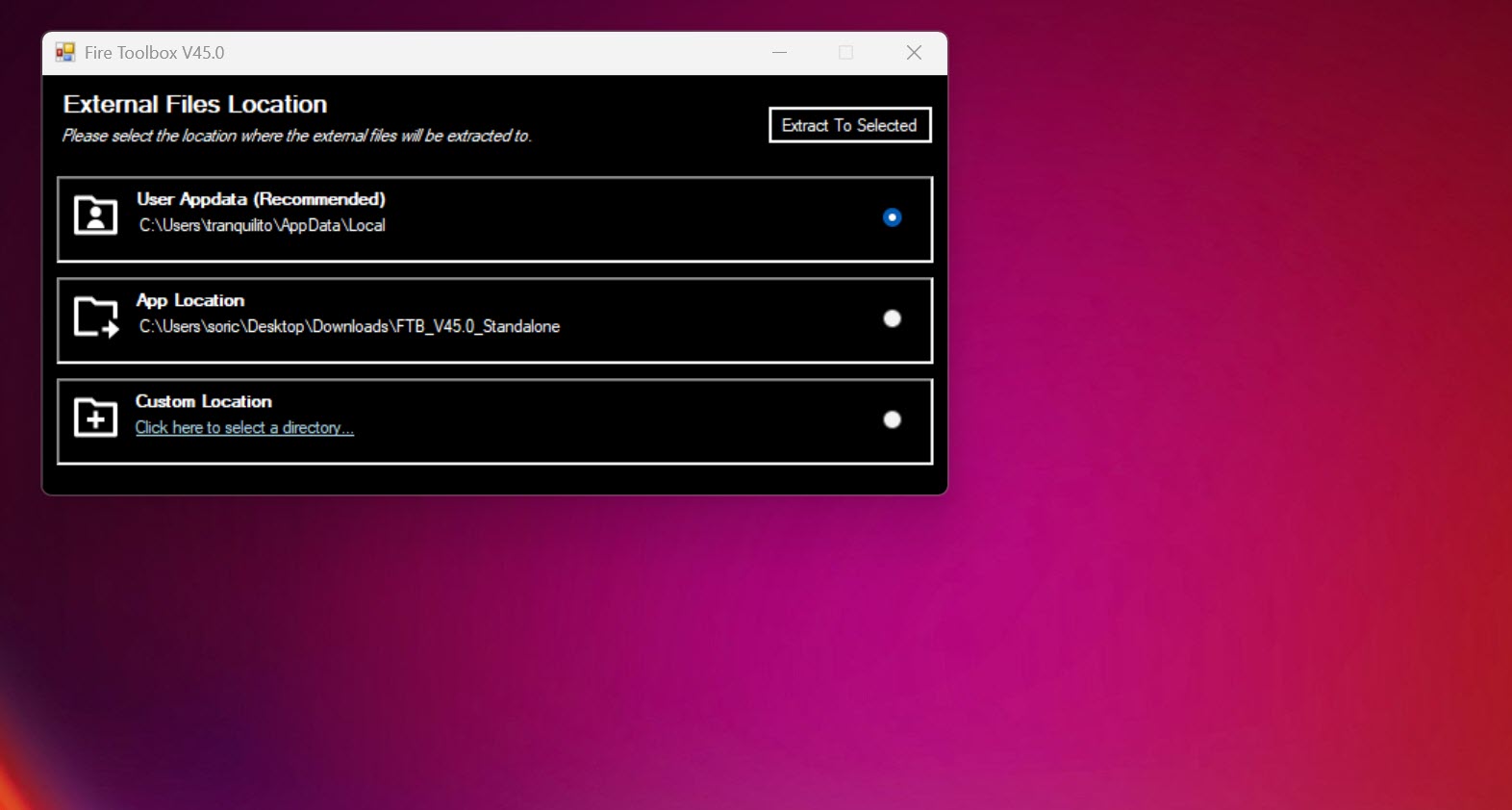
Adding a Defender exception for the application folder is the usual solution if you hit a flag on install.
Conclusion
Fire Toolbox is the difference between a Fire tablet that constantly reminds you Amazon sold it to you and a Fire tablet that behaves like a generic Android device with reasonable software. The Play Store install alone is worth the install for most owners. Adding lock screen ad removal, launcher replacement, and selective debloating turns a frustrating device into a perfectly usable one.
The recurring maintenance against Amazon’s OTA updates is the long-term cost. If you are willing to reconnect the tablet to your PC once every few months to re-run a couple of toggles, the trade is excellent. If you want to set up a device once and never think about it again, the stock Fire experience plus the official Appstore is what you actually want.
The application is built for people in the first category, and within that audience it has no real equivalent.
Pros & Cons
- Working Google Play Store installation on supported Fire tablets
- One-click removal of lock screen Special Offers ads
- Granular debloat list with descriptions of each Amazon package
- Clean launcher swap that survives reboots
- System-level tweaks for DPI, region, language, and navigation
- Free with no nag screens or feature gating
- Active development with new tablet support added regularly
- Windows-only, requires a PC with USB connection to the tablet
- Some operations need to be redone after Amazon OTA updates
- Blocking OTAs to preserve configuration also blocks security updates
- Defender false positives occasionally flag the bundled ADB components
- New tablet generations have a support lag at launch
- The aggressive toggles can soft-brick a tablet if used without reading the warnings
Frequently asked questions
It supports most modern Fire tablet generations including Fire 7, Fire HD 8, Fire HD 10, Fire Max 11, and Fire TV devices. The application detects your specific model and shows only the options that apply. Very new releases sometimes have a support lag.
Disabling system packages and installing the Play Store does not require rooting and does not modify the bootloader, so the device is technically still in its factory state. Amazon does not document a position on this kind of customization. Most operations are fully reversible through a factory reset.
You can sideload the APK set manually, but the order, versions, and permissions all have to be correct, and missing one piece causes the framework to fail silently. The application bundles a tested package set and handles the sequence. Manual installation is possible but error-prone.
Connect the tablet with USB debugging enabled, open Fire Toolbox, navigate to the Lock Screen tab, and disable the ads option. The change applies after the next screen lock cycle. If Amazon pushes an update that re-enables them, run the same toggle again.
No. All operations work through ADB on an unrooted device. There is no bootloader unlock, no system partition modification, and no SuperSU installation. The trade-off is that some changes a rooted device could make are not available through the application.
You will not receive it until you turn OTAs back on. The OTA blocker is reversible at any time. Most users only block OTAs temporarily after configuring the tablet, then re-enable them periodically to catch up on security updates and rerun any configuration that got reset.
The application bundles ADB binaries and triggers USB device operations that look heuristically similar to malware that targets connected phones. The flags are false positives. Adding the installation folder as a Defender exception is the standard fix.


