

Android Studio


 (73 votes, average: 3.58 out of 5)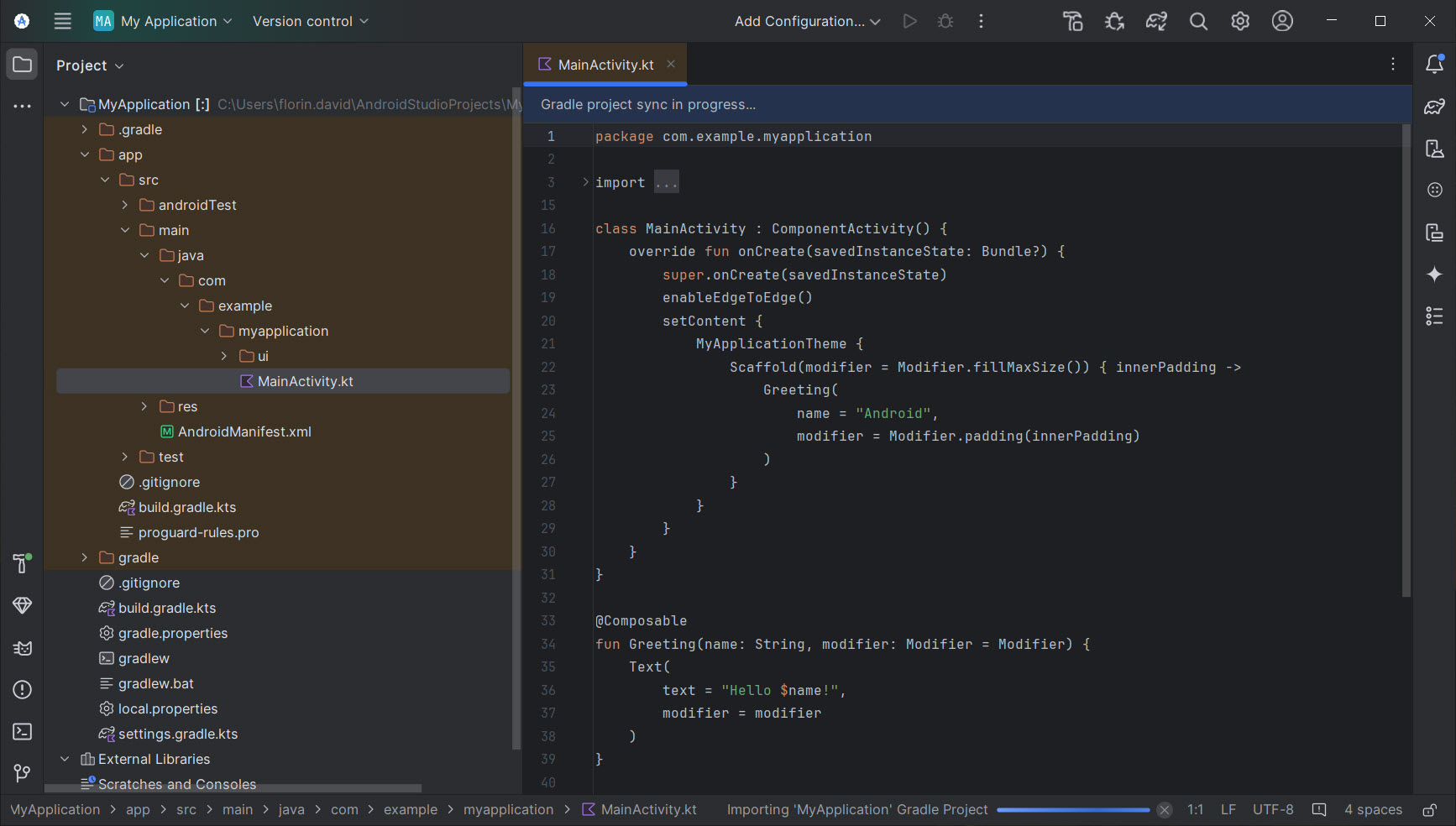
About Android Studio
Mobile app development has consolidated remarkably over the past decade. The early days of Android development involved Eclipse with the ADT plugin, a setup that worked but felt cobbled together from pieces never meant to fit.
The introduction of Android Studio in 2013 changed the development landscape decisively, replacing the Eclipse-based workflow with a purpose-built IDE that took Android development seriously as its own discipline rather than treating it as a side use case for general Java tooling. For anyone building Android applications today, this is essentially the only practical option, with the entire Android development ecosystem having organized itself around the assumptions and capabilities this tool provides.
Developed by Google in partnership with JetBrains and built on the IntelliJ IDEA Community Edition foundation, the IDE has continued evolving across many years of Android platform changes. The tool has accumulated features, improved performance, integrated new technologies like Kotlin and Jetpack Compose, and most recently added AI-assisted coding through Gemini integration.
The result is a development environment that handles the complete Android development workflow from initial project creation through final app store deployment, with the kind of depth that comes from being the official platform tooling rather than a third-party adaptation.
What it actually provides for Android development
The defining feature of Android Studio is comprehensive coverage of the Android development workflow. Project creation through templates that handle the boilerplate setup correctly. Code editing with deep Android-aware intelligence including Kotlin and Java support, XML layout editing, resource management, and Gradle build configuration. Visual design tools including layout previews, theme editors, and increasingly sophisticated Compose preview functionality. Build and packaging through Gradle with appropriate Android-specific plugins. Testing infrastructure for unit tests, instrumented tests, and UI testing.
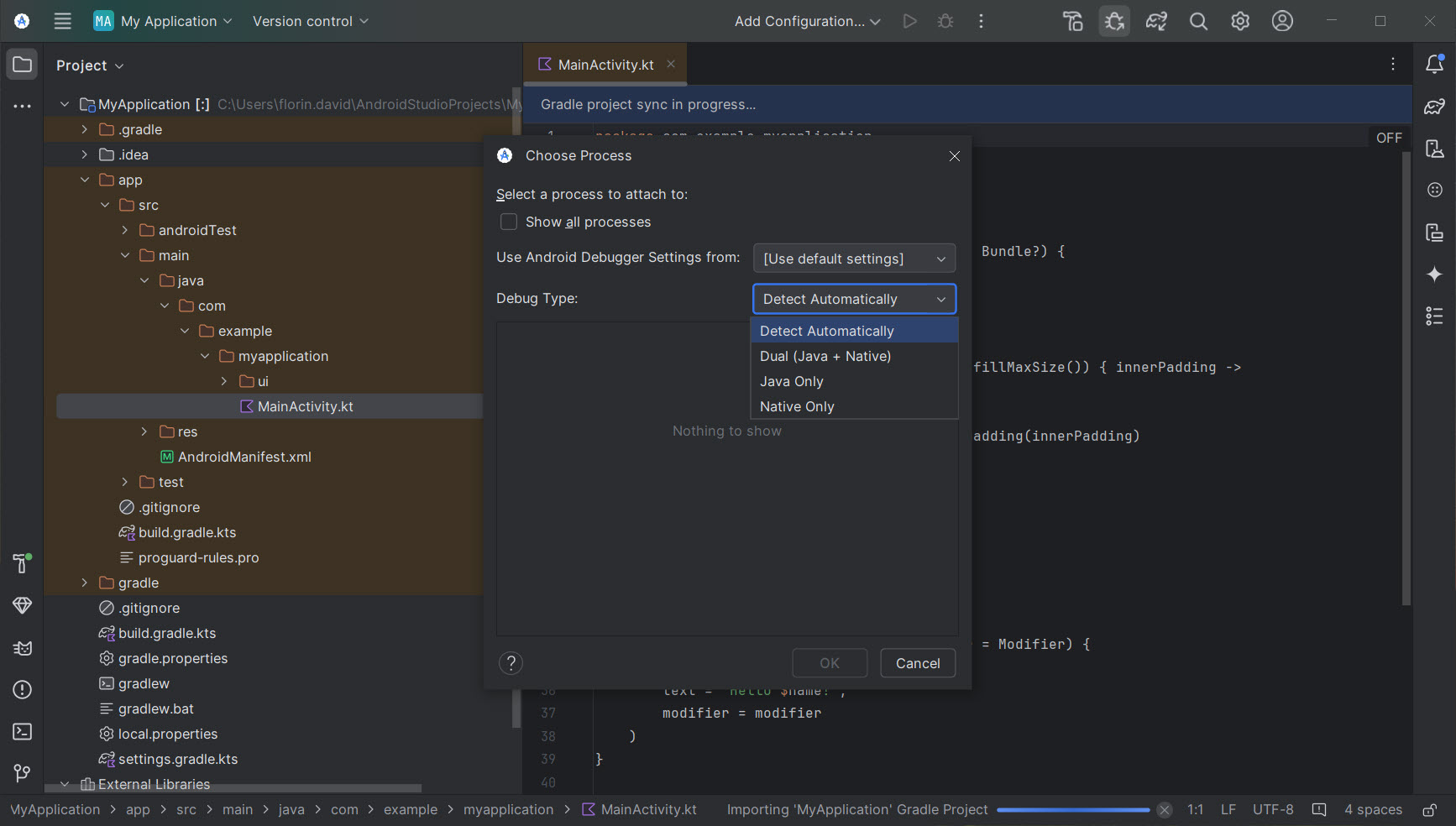
Debugging tools that work across the local development machine and connected devices or emulators. Performance profiling for CPU, memory, network, and battery usage. Deployment to both physical devices and the various Android emulator configurations.
This breadth matters because Android development genuinely requires all these capabilities, and assembling them from separate tools would be enormously painful. The integrated approach means everything works together, with the IDE understanding the relationships between source files, resources, build configurations, and runtime behavior across the full development cycle.
For new developers entering Android development, having all this functionality in a single coherent tool dramatically reduces the learning curve compared to assembling tooling from disparate sources. For experienced developers, the integration produces efficiency gains that accumulate substantially across daily work patterns.
Kotlin as the primary language
The Android development language situation has evolved substantially over the years, with Kotlin becoming Google’s officially preferred language for new Android development since 2019. Android Studio treats Kotlin as a first-class citizen, with the same depth of language support, refactoring tools, and code intelligence that Java has historically had.
For developers coming from Java backgrounds, the IDE’s automatic Java-to-Kotlin conversion makes the transition substantially less painful than it would otherwise be. Paste Java code, the IDE offers to convert it to idiomatic Kotlin.
Open existing Java files and gradually migrate them to Kotlin without disrupting the broader codebase. The bilingual support handles the practical reality that most Android projects involve both languages during transition periods.
For new projects, the default configuration assumes Kotlin, with project templates generating Kotlin code unless you specifically choose Java. The Android development community has largely moved with this preference, with most current libraries, samples, and educational content assuming Kotlin as the working language. Java continues to work fine, but the gravitational pull toward Kotlin is now substantial.
Jetpack Compose for modern UI development
The introduction of Jetpack Compose has fundamentally changed how Android UIs get built, replacing the XML layout system that was standard for over a decade with a declarative Kotlin-based approach. Android Studio has integrated Compose support deeply, with live previews that render your UI as you write code, interactive previews that let you test behavior without building and running the full app, and various other Compose-specific features that streamline the new approach.
The Compose preview system in particular is genuinely impressive when working as intended. Type code defining a UI component, see the rendered result in a side pane within seconds, adjust parameters or theme settings, see the changes reflected immediately. For developers used to the XML-and-build cycle of older Android UI development, this immediate feedback loop is dramatically faster.
The transition from XML layouts to Compose isn’t complete, with many existing projects still using the older system and many developers still preferring it for various reasons. The IDE supports both approaches without issues, letting projects mix UI technologies as appropriate. New projects increasingly default to Compose, but XML layouts remain fully supported for compatibility and developer preference reasons.
The Android emulator and device deployment
Testing Android apps requires running them on actual devices or emulators, and the IDE handles both scenarios through integrated tooling. The Android Emulator launches virtual devices configured for various Android versions, screen sizes, and hardware profiles, allowing testing across the device diversity that real-world Android deployment involves.
The emulator has improved substantially across the years, with current versions running near-native speed on capable hardware and supporting various sensors and inputs that real devices have. Camera simulation, location spoofing, network condition simulation, and battery state simulation all work well enough for most testing scenarios. Hardware acceleration through the host GPU produces frame rates close to physical device performance for typical UI work.
For testing on physical devices, USB debugging connects connected phones and tablets to the IDE for direct deployment and debugging. Wireless debugging over Wi-Fi has matured enough to be reliable in most network environments, removing the cable requirement that constrained earlier development workflows.
Either approach lets you deploy your code to a real device, debug it interactively, and verify behavior on actual hardware rather than simulated environments.
Gemini AI integration for assisted development
Recent versions have integrated Gemini, Google’s AI assistant, directly into the IDE. The integration provides code completion suggestions, explanations of unfamiliar code, generation of boilerplate from descriptions, and various other AI-assisted capabilities that have become standard expectations for modern development tools.
The practical utility of AI assistance varies by developer experience and the specific tasks at hand. For boilerplate code generation, common pattern implementations, and quick syntax reminders, the AI suggestions often provide genuine time savings. For more nuanced design decisions or specialized Android API knowledge, the suggestions need more careful evaluation since AI can confidently produce code that compiles but doesn’t actually work as intended.
For new developers learning Android development, the AI integration provides an additional educational resource that explains code, suggests alternatives, and helps debug issues. For experienced developers, it primarily handles the repetitive aspects of coding while the developer focuses on architecture and harder problems. The exact value depends on how it fits individual workflow preferences.
Build system through Gradle
The build configuration uses Gradle, an open-source build tool that handles the complex dependency management and packaging requirements of modern Android development. Gradle scripts define what libraries your project depends on, how to build for different device configurations, how to sign release builds, how to apply ProGuard or R8 code shrinking, and various other technical details that wrapping up an Android app requires.
For developers who don’t want to think about the build system, the default Gradle configurations work fine for typical apps. Project templates set up sensible defaults, and the IDE’s project structure dialogs handle most common configuration changes through graphical interfaces rather than requiring direct script editing.
For developers who do need to customize the build process, Gradle’s flexibility accommodates essentially anything you might need to do. Custom tasks, multi-module projects, build variants for different deployment targets, and complex CI/CD integrations all work through Gradle’s extension mechanisms. The cost of this flexibility is that Gradle itself is genuinely complex, with some learning required for advanced customization.
Performance profiling and debugging tools
Beyond writing code, Android Studio includes profiling tools that measure how your app actually behaves at runtime. CPU profiling shows which methods consume time, helping identify performance bottlenecks. Memory profiling reveals allocation patterns, identifying potential memory leaks or inefficient memory usage. Network profiling tracks API calls and data transfer. Energy profiling estimates battery impact, which matters substantially for mobile apps where battery drain affects user experience.
These profiling capabilities matter because the difference between an app that feels fast and one that feels slow often comes down to specific bottlenecks invisible without measurement. Optimizing without data leads to wasted effort on non-issues; profiling-driven optimization produces actual improvements where they matter.
The debugging tools include conventional breakpoint-based debugging, but also more advanced capabilities like layout inspection (examining the actual rendered UI hierarchy), database inspection for SQLite databases the app uses, and various other introspection tools that understand Android-specific runtime behavior. For diagnosing issues in running apps, this depth of inspection capability is genuinely valuable.
System requirements and resource demands
The IDE is genuinely demanding on system resources. Recent versions recommend 16GB of RAM as a baseline, with 32GB being increasingly the practical minimum for comfortable work on substantial projects. CPU requirements scale with project size, with larger projects requiring more capable processors to maintain reasonable IDE responsiveness during editing, indexing, and building operations.
Storage requirements include the IDE itself (several gigabytes), the Android SDK and various platform versions you support (tens of gigabytes for typical configurations), the emulator system images for the Android versions you test against (gigabytes per image), and your project files and build artifacts (varies enormously by project complexity). Total disk usage for active Android development typically runs into tens or hundreds of gigabytes.
The emulator specifically benefits from CPU virtualization extensions and ideally a discrete GPU, with performance varying substantially based on host hardware capabilities. Developers working on mobile apps regularly find their hardware investments justified by the productivity gains from capable systems, while constrained hardware produces frustrating development experiences with slow indexing, sluggish editor responsiveness, and laggy emulator performance.
Free and open-source foundation
The IDE is genuinely free with no paid tiers or licensing complications. Google maintains the project as part of their Android platform investment, with the underlying IntelliJ IDEA Community Edition foundation also being open-source. The complete development workflow including project creation, coding, building, testing, debugging, and deployment requires no payments at any stage.
Some advanced JetBrains features that exist in their commercial Ultimate edition aren’t included, but the Android-specific tooling is comprehensive enough that this rarely matters for actual Android development. Developers who want IntelliJ Ultimate features for non-Android work might still pay for that separately, but for Android development specifically, the free version handles everything.
Considerations and limitations
The hardware requirements are genuinely substantial, with constrained systems producing frustrating development experiences. Developers with older or less capable computers should expect that some operations will be slow regardless of how the IDE is configured, and significant time savings come from hardware upgrades rather than software optimization.
The learning curve is real for new developers, particularly those without prior software development backgrounds. The IDE assumes familiarity with concepts like project structures, build systems, version control, and various other foundations that experienced developers take for granted. New developers benefit from supplementing the IDE with broader programming education rather than expecting it to teach development from scratch.
Android development itself involves substantial complexity beyond just the IDE, including platform fragmentation across device manufacturers, API evolution across Android versions, permission models that have changed several times, and various other ecosystem complexities. The IDE handles its part of the workflow well, but mastery of Android development requires understanding the broader platform context.
Conclusion
Android Studio has earned its position as the dominant Android development IDE by genuinely delivering the comprehensive tooling that mobile development demands. The combination of solid foundations through IntelliJ IDEA, deep Android-specific integration, modern features like Compose support and Gemini AI assistance, and complete free availability produces a development environment that has essentially no real competition for Android development work.
It’s not a casual tool. The hardware requirements are substantial, the learning curve is real for new developers, and the broader Android platform complexity that the IDE helps manage remains genuinely complex regardless of how good the tooling is. But for anyone serious about building Android applications, whether as a profession or as personal projects, Android Studio delivers exactly what’s needed, with the kind of mature capability that has come from many years of focused development as the official Android platform tooling.
Other IDEs can technically build Android apps; this one is built specifically for that purpose, and it shows in essentially every aspect of how it works.
Pros & Cons
- Comprehensive coverage of the entire Android development workflow
- Built on solid IntelliJ IDEA foundation with Android-specific extensions
- First-class Kotlin support along with continued Java compatibility
- Jetpack Compose integration with live previews for modern UI development
- Integrated Android Emulator with hardware acceleration support
- Performance profiling tools for CPU, memory, network, and energy usage
- Gemini AI integration provides assisted coding capabilities
- Free with no paid tiers or licensing complications
- Active development with frequent updates following Android platform changes
- Substantial hardware requirements with 16GB+ RAM recommended
- Significant learning curve for developers new to mobile development
- Resource demands during builds and indexing affect responsiveness on modest systems
- Storage requirements run into tens or hundreds of gigabytes for active development
- AI suggestions require careful evaluation rather than blind acceptance
- Gradle complexity affects developers who need build customization beyond defaults
Frequently asked questions
This software is the official integrated development environment (IDE) for building Android applications. It handles the complete development workflow including project creation, code editing for Kotlin and Java, UI design with both XML layouts and Jetpack Compose, building through Gradle, testing on emulators and physical devices, debugging, performance profiling, and packaging for distribution through the Google Play Store or other channels.
Not necessarily. Kotlin has been Google's preferred language for Android development since 2019, with project templates defaulting to Kotlin and most current educational materials assuming Kotlin. Java continues to be fully supported for legacy projects and developers who prefer it. Either language works through the IDE's comprehensive support.
The official recommendation is 16GB minimum, with 32GB being increasingly practical for comfortable work on substantial projects. The IDE itself, the Android Emulator, build processes, and your project all consume memory simultaneously, so capable hardware makes a substantial difference in development experience. Constrained systems produce noticeably slower workflows.
Yes, you can deploy directly to physical Android devices through USB debugging or wireless debugging over Wi-Fi. Many developers prefer testing on real devices rather than emulators because real hardware reveals issues that emulators sometimes miss. The emulator remains useful for testing across device configurations you don't physically own, but isn't required if you have appropriate physical devices available.
Jetpack Compose is Google's modern declarative UI framework for Android, replacing the XML-based layout system that was standard for over a decade. Rather than defining UIs in XML files separate from code, Compose lets you build UIs through Kotlin functions. The IDE provides deep Compose integration including live previews, interactive previews, and various Compose-specific tooling that makes the new approach particularly productive.
Yes, recent versions integrate Gemini directly into the IDE for AI-assisted coding. The integration provides code completion suggestions, explanations of unfamiliar code, generation of boilerplate from descriptions, and various other AI capabilities. The utility varies by task, with AI suggestions being particularly helpful for routine coding while requiring careful evaluation for more nuanced design decisions.


