

Ventoy
About Ventoy
Ventoy changes how you make a bootable USB drive, and once you understand the trick it pulls, going back to the old way feels absurd. You install it to a flash drive one time. After that, you make the drive bootable for any operating system installer or live environment simply by copying the image file onto it, the way you would copy a photo or a document. No reformatting, no rewriting the whole drive, no starting over every time you want a different system.
That is the whole pitch, and it solves a problem that has annoyed people for as long as bootable USBs have existed. The traditional approach writes a single image to the entire drive, wiping whatever was there and turning the stick into a one-image clone.
Want to boot something else next week? Wipe it again. Ventoy throws that model out. One drive holds as many bootable images as it has room for, and a menu at startup lets you pick which one to launch.
The practical upshot of Ventoy is that a single stick can carry an installer, a couple of live systems, a rescue environment, and a disk-cloning utility all at once. For anyone who fixes computers or juggles multiple systems, that means one drive in your pocket instead of a drawer full of labeled USB sticks.
How the copy-and-boot trick works
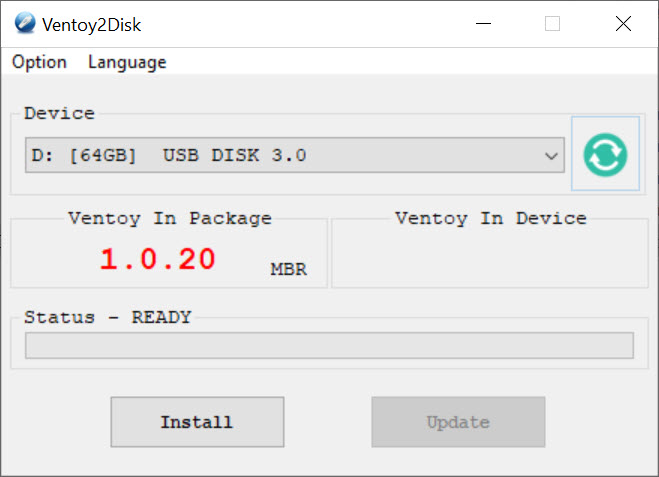
When you install Ventoy, the drive gets split into two partitions. A small hidden one holds the boot menu and the loader. The large one, where your files go, is formatted as exFAT and behaves like a normal drive. You drop image files into that large partition, and at boot time the loader scans the whole partition, finds every bootable image, and lists them in a menu.
Because that storage partition is just a regular file system, the drive does not stop being a drive. You can keep ordinary documents on it alongside the boot images, copy files to and from it on any computer, and generally use it as a plain USB stick when you are not booting from it. The bootable function rides along quietly without claiming the entire drive for itself.
It also does not care where in the partition you put things. Drop images in the root, tuck them into folders, organize them however you like. The loader searches recursively through every directory, so your tidy folder structure does not break anything.
The format and boot support is wide
Ventoy is not limited to standard ISO files. It boots ISO, WIM, IMG, VHD and VHDx, and EFI files directly, with no extraction step. That breadth matters because rescue tools, virtual disk images, and recovery environments do not all ship as plain ISOs, and a tool that only handles one format leaves you stuck with the rest.
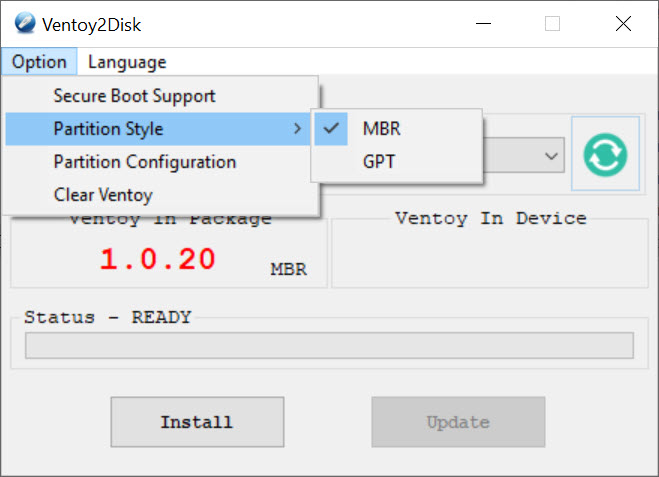
On the firmware side it covers both the older Legacy BIOS style and modern UEFI, handling them the same way so you do not have to think about which machine you are booting. UEFI Secure Boot is supported as well, which removes one of the more irritating reasons a bootable stick sometimes refuses to start on a locked-down machine.
The first boot on a given computer asks you to enroll a key, and after that it just works.
Persistence, auto-install, and plugins
For live environments, Ventoy offers persistence support, which means changes you make in a running session, saved files, installed packages, settings, can survive a reboot instead of vanishing every time. You set it up through a configuration file that points an image to a persistence data file, and a running session then carries your state forward.
Beyond that sits a whole plugin system that turns the simple boot stick into something far more configurable. You can script unattended installations, alias menu entries with friendlier names, apply visual themes to the boot menu, password-protect specific entries, and more. A separate GUI configurator exists for people who would rather click through these options than hand-edit the configuration file. None of it is required. The base behavior of copy-and-boot works with zero configuration, and the plugins are there only if you want to go deeper.
How it compares to the single-image tools
The closest comparison is the crowd of one-image-at-a-time writers. A tool like Rufus is excellent and notably fast at writing a single image, and if you only ever use one system, that speed and simplicity is hard to argue with. Compared to Ventoy, image-writers like balenaEtcher and Win32 Disk Imager take the same overwrite-the-whole-drive approach, cloning one image onto the stick each time.
The multi-boot crowd is where it has real company. Tools like YUMI and UNetbootin chase the same many-systems-on-one-stick goal, and some newer multi-boot tools even build on the same underlying loader.
What sets Ventoy apart within that group is how little it asks of you. There is no per-image setup wizard. You copy a file, and it appears in the menu. That is the entire workflow.
The honest limitations
It is not flawless. A small number of images simply do not play well with the loop-mounted way it boots them, because they expect to find a real physical disk rather than an image being read from a file. For those stubborn cases there is a fallback memory-disk mode that loads the image into RAM, but it is an extra step and it is not always obvious that you need it until something fails to boot.
There is also a learning curve hidden behind the simple surface. The basic copy-and-boot is effortless, but the moment you want persistence or unattended installs, you are editing configuration files and reading documentation.
That is fair for the power it unlocks, yet it means the gap between casual use and advanced use is wider than the friendly first impression suggests.
Conclusion
Ventoy is for anyone who boots more than one system from USB: the technician with a pocket full of rescue tools, the tinkerer who tries a new live environment every weekend, the person who reinstalls often enough to be tired of rewriting a flash drive each time. It replaces a stack of single-purpose sticks with one drive you update by dragging files onto it.
If you only ever write one image and never touch it again, a fast single-image writer will serve you fine and you may not need this at all. But the moment your needs go past that one stick, the copy-and-boot model is a clear step up, and the optional depth underneath, persistence, plugins, unattended installs, means you can grow into it rather than out of it. For a large slice of people who work with bootable media, it is simply the sensible default now.
Pros & Cons
- Install once, then add bootable systems just by copying image files to the drive
- Holds many bootable images on one stick with a boot menu to choose between them
- The drive stays usable for normal file storage at the same time
- Boots ISO, WIM, IMG, VHD, VHDx, and EFI files directly with no extraction
- Works with both Legacy BIOS and UEFI, including Secure Boot
- Optional plugins add persistence, unattended installs, themes, and menu customization
- A few images fail to boot in Ventoy normally and need the fallback memory-disk mode
- Advanced features like persistence require editing configuration files
- The recursive menu can get cluttered if you hoard many images on one drive
- Booting speed depends on the USB drive, which can be slow on cheaper sticks
Frequently asked questions
You install it to the drive once, which sets up a hidden boot partition and a large storage partition. After that you just copy image files into the storage partition, and each one appears in the boot menu automatically.
Yes, that is the main point. You can load a drive with as many installers, live environments, and rescue tools as it has space for, then pick which to boot from a menu at startup.
Yes. The storage partition behaves like an ordinary drive, so you can keep regular documents on it alongside the boot images and use it as a plain USB stick anytime.
It boots ISO, WIM, IMG, VHD, VHDx, and EFI files directly, with no need to extract or convert them first.
Yes. UEFI Secure Boot is supported. The first time you boot on a particular machine you enroll a key, and it works normally after that.
A small number of images expect a real physical disk and stumble on the way they are loaded. Switching that image to the memory-disk mode, which loads it into RAM, usually resolves it.
No. The basic copy-and-boot workflow needs no configuration at all. Configuration files only come into play for advanced extras like persistence or unattended installs.


Awesome tool. You don’t need to format the disk over and over l like that.