

Cryptomator
About Cryptomator
Cryptomator encrypts your files before they ever reach the cloud, so that what lands on Dropbox, Google Drive, or OneDrive is unreadable gibberish to anyone but you. Cloud storage is convenient, but you are trusting the provider with everything you upload. This tool closes that gap. It scrambles your files on your own device first, locally, with a password only you know, and the cloud only ever sees the encrypted result.
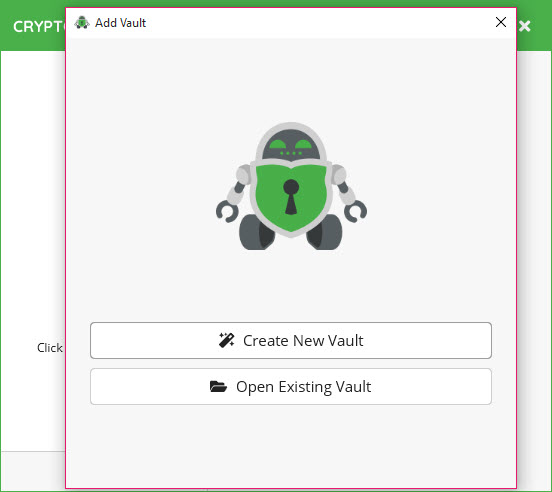
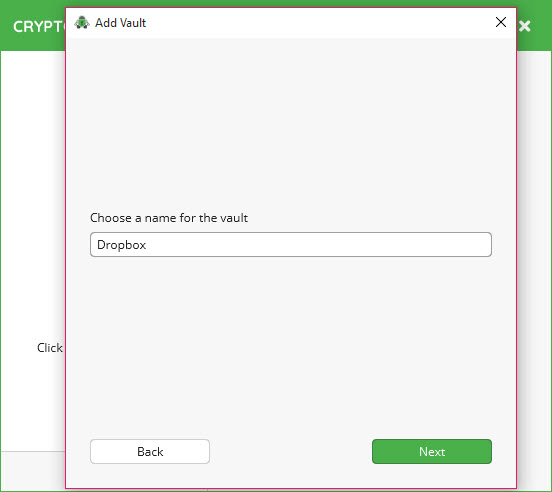
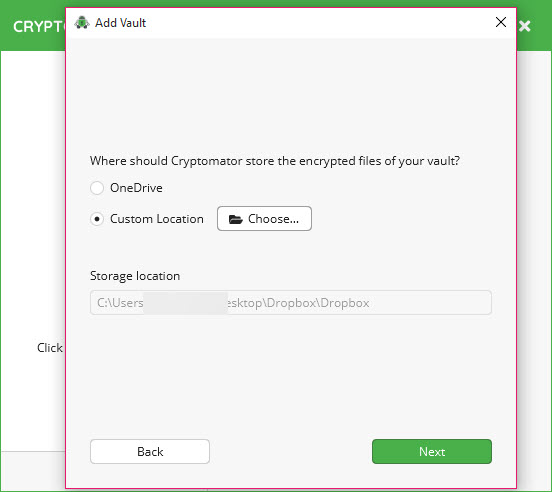
The way it works is built around a clever idea called a vault. A vault is just an encrypted folder, and you place it inside whatever cloud-sync folder you already use. To open it, you enter your password, and Cryptomator presents the contents as a virtual drive, exactly like plugging in a USB stick.
You drag files onto that drive, work with them in your normal applications, and everything you save is encrypted automatically in the background. Lock the vault, and the readable view disappears, leaving only scrambled data behind for the cloud to sync.
That transparency is the whole appeal. You do not have to manually encrypt and decrypt anything, or remember to run a tool before uploading. Once a vault is unlocked, it behaves like an ordinary folder, and the encryption happens invisibly underneath.
When it is locked, your data is fully protected, even from the cloud provider itself.
Why the per-file approach matters for the cloud
Here is the design decision that sets it apart, and it is worth understanding because it is the reason this tool fits the cloud so well. Rather than bundling everything into one giant encrypted container, Cryptomator encrypts each file individually. Every file in your vault becomes its own separate encrypted file.
This sounds like a small detail, but it has big practical consequences. When you change one document, only that one encrypted file needs to sync, not a massive container holding everything. Your cloud provider’s version history keeps working on the individual files.
And if a single encrypted file ever gets corrupted, it does not take the rest of your vault down with it, the way a damaged monolithic container can. For data that lives in the cloud and syncs constantly, this per-file model is far more practical than the all-in-one-container approach of older encryption tools.
What actually gets hidden
The Cryptomator encryption is thorough. File contents are protected with AES at a 256-bit key length, the same standard trusted for serious security work. Crucially, the file names are encrypted too. So someone peering into your cloud folder does not just see locked files, they cannot even tell that “tax-return.pdf” or “passwords.txt” exists. The names are as scrambled as the contents, which stops the folder structure itself from leaking information about what you are storing.
There are limits to be honest about. Because of how it works, a few pieces of metadata are not fully hidden, things like the rough number of files and their approximate sizes can still be inferred from the encrypted blobs.
For the vast majority of users protecting documents and photos, that is a non-issue, but it is worth knowing that “encrypted” here means the contents and names, not absolutely every trace.
No account, no backdoor, no recovery
This is the part that demands real attention. There is no account to create and no central server involved. Your password never leaves your device, and it is used locally to derive the keys that lock and unlock your vault. Nobody behind Cryptomator can see your files or your password, because the whole thing is designed so that they cannot.
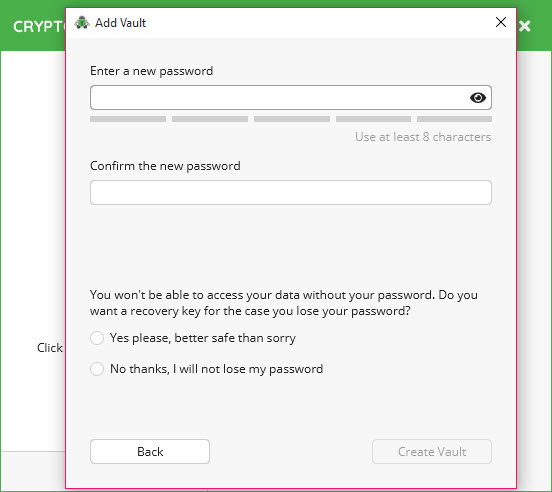
That zero-knowledge design is a real strength, but it carries a hard consequence. If you forget your password, your data is gone. There is no reset link, no support line that can recover it, no backdoor, because a backdoor would defeat the entire purpose.
The tool can generate a recovery key when you create a vault, and you should absolutely save that key somewhere safe. Treat the password like the only key to a safe with no locksmith, because that is exactly what it is.
It works with whatever cloud you already use
One of the most practical things about Cryptomator is that it does not lock you into anything. It is not a cloud service of its own. It sits on top of the storage you already have, whether that is one of the big mainstream providers or something more niche, and it does not need any special permission or cooperation from them. The provider just sees a folder full of encrypted files and dutifully syncs them.
You can create as many vaults as you like, point different ones at different cloud services, and keep separate vaults for separate purposes. It also works perfectly well with no cloud at all, securing a folder on a local disk, a USB flash drive, or a network share.
If you ever switch cloud providers, your vault simply moves with you, encryption intact, with no lock-in to escape.
How it compares to the container encryptors
The obvious comparison is to the classic disk and container encryption tools. VeraCrypt and its predecessor TrueCrypt are superb for encrypting a whole drive or a single large container, and for purely local, offline protection they remain excellent. But that container model fights against cloud syncing, because changing one file inside a large container means the entire container has to re-sync.
That is precisely the problem Cryptomator was built to solve, which is why it has become a go-to for cloud users specifically. For encrypting individual files rather than whole vaults, a per-file tool like AxCrypt covers a different need.
The right choice comes down to where your files live. For the cloud, the per-file vault approach here is hard to beat.
Conclusion
Cryptomator is for anyone who likes the convenience of cloud storage but is not comfortable handing a provider unfettered access to their files. The privacy-minded individual, the professional storing sensitive documents, the person who simply believes their data should be their own. It bolts strong encryption onto the cloud setup you already have, works invisibly once a vault is open, and leaves the provider with nothing but scrambled data.
The trade is responsibility. With no password recovery, the security that protects you from everyone else also means you cannot afford to lose your password, so guard that recovery key. But if you can manage that one duty, it offers something rare, true control over your own data in a world that increasingly asks you to give it up.
For cloud users who care about privacy, it is one of the most sensible tools you can install.
Pros & Cons
- Encrypts files on your device before they ever reach the cloud
- Per-file encryption syncs efficiently and keeps cloud version history working
- Encrypts file names too, so even your folder structure stays private
- Works with any cloud provider, with no account, lock-in, or special permission
- Unlocked vaults behave like an ordinary drive, with encryption happening invisibly
- Also secures local folders, USB drives, and network shares without any cloud
- No password recovery at all, so a forgotten password means lost data
- Some metadata like file count and sizes is not fully concealed
- No built-in file sharing or team-management features
- Relies on a separate cloud client to handle the actual syncing
Frequently asked questions
It encrypts your files locally on your device before they sync, so your cloud provider only ever receives unreadable encrypted data. You unlock a vault with your password to access the readable files.
A vault is an encrypted folder you place inside your cloud-sync folder. When unlocked with your password, it appears as a virtual drive you can drag files into, and everything saved there is encrypted automatically.
No. The zero-knowledge design means there is no password recovery and no backdoor. You should save the recovery key offered when you create a vault, since without it a forgotten password means the data is unrecoverable.
Yes. It is not a cloud service itself. It layers on top of whatever provider you already use, encrypting files before they sync, with no special permission needed from the provider.
Both. File contents and file names are encrypted, so someone looking at your cloud folder cannot tell what files you have stored or infer anything from their names.
Yes. It works just as well encrypting a folder on a local drive, a USB stick, or a network share, so you are not required to use any cloud service at all.


