

PhoneClean
About PhoneClean
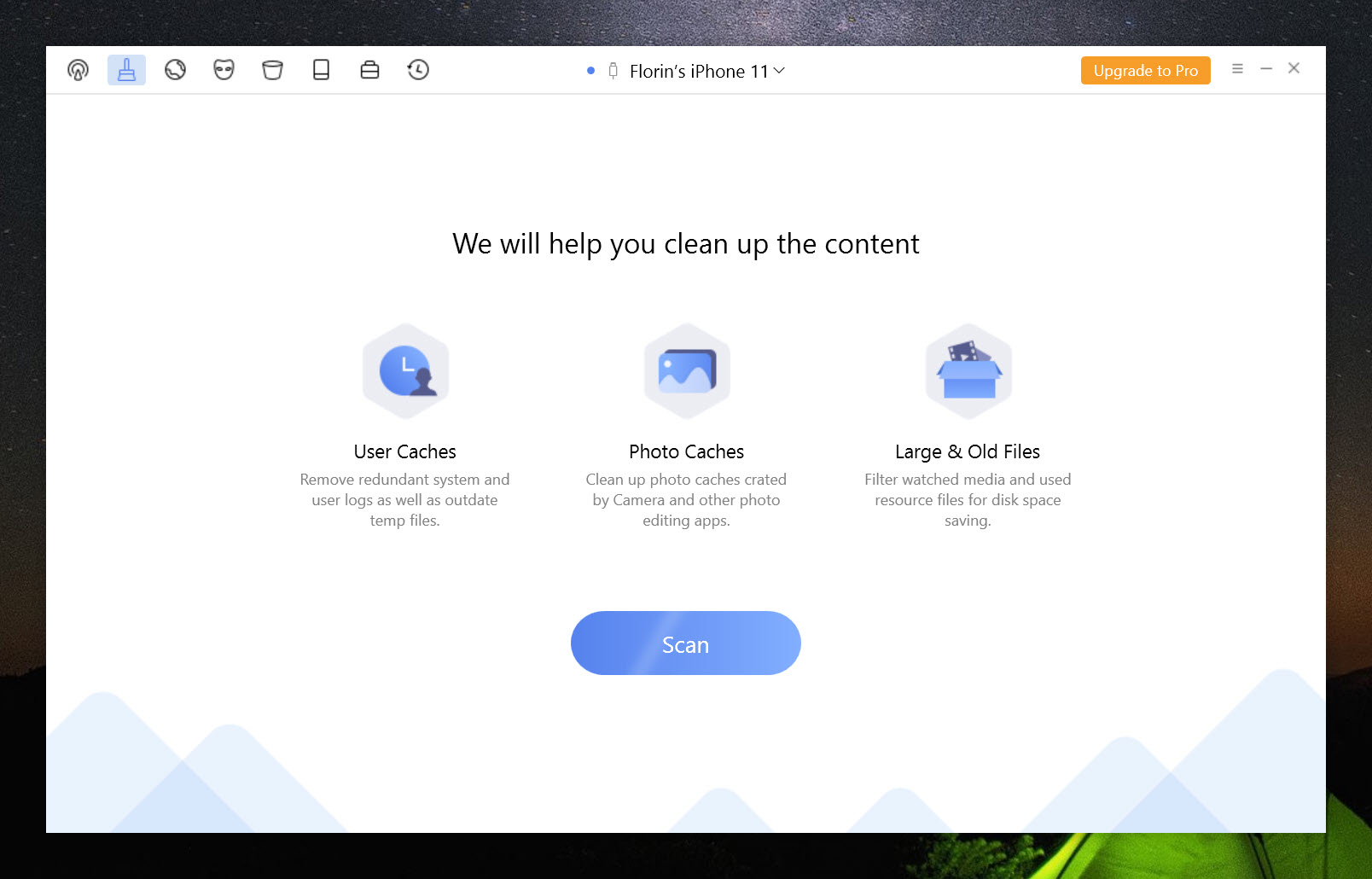
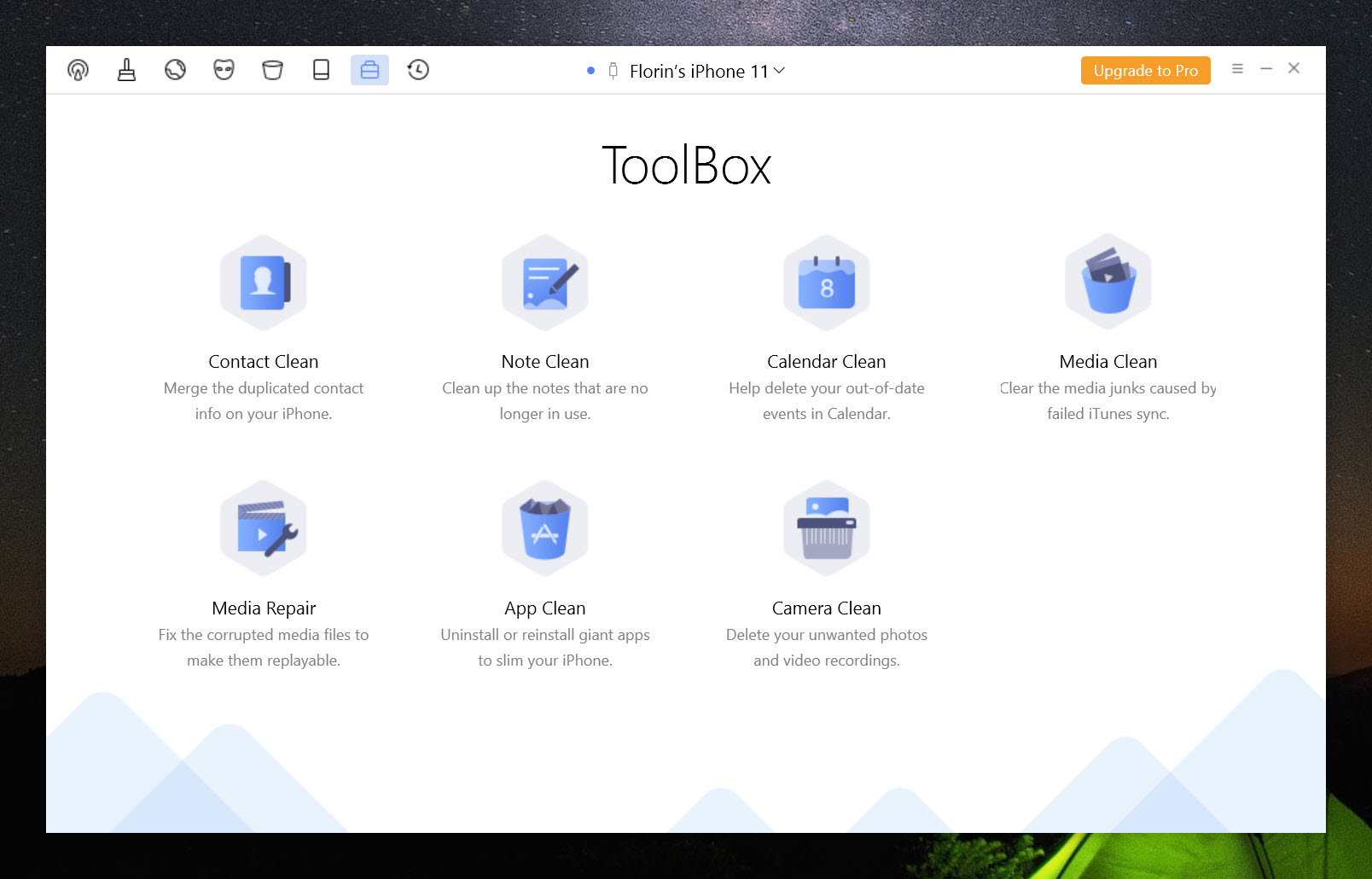
PhoneClean cleans an iPhone or iPad from the computer. Connect the device with a cable and start a scan, and the program looks through the phone for the clutter that builds up over months. App caches, cookies, temporary files, crash logs and media that failed to sync are removed in one pass.
A typical clean recovers a few hundred megabytes to a gigabyte in about ten minutes. Separate modes clear browsing history and private data such as call logs and messages, and a background mode cleans the phone automatically whenever it is plugged in.
Before going further, two plain facts. Modern iOS manages much of its own cache, clearing temporary data when storage runs low, so the space a cleaner finds is smaller than it once was and the gains are modest rather than dramatic. And the program’s strongest tools, the privacy clean and the full erase, delete things permanently.
PhoneClean is useful for reclaiming space and wiping traces before handing a phone on, as long as you know which mode does what. The sections below cover the junk clean, the privacy modes, the automatic clean, the erase tool and where the system’s own tools do the job.
The junk clean
Quick Clean is the everyday PhoneClean mode. It scans the device for the caches apps leave behind, the cookies and temporary files, the crash logs that pile up after app failures, and the photos and videos that started syncing and stopped halfway. The scan shows what it found and how much space each category takes, and you choose what to remove before anything goes.
It is a gentle clean, in the sense that it targets data apps can rebuild. A cleared cache means an app reloads some content the next time it opens, which is the trade for the space. The amount recovered depends on how the phone has been used.
Privacy and browsing data
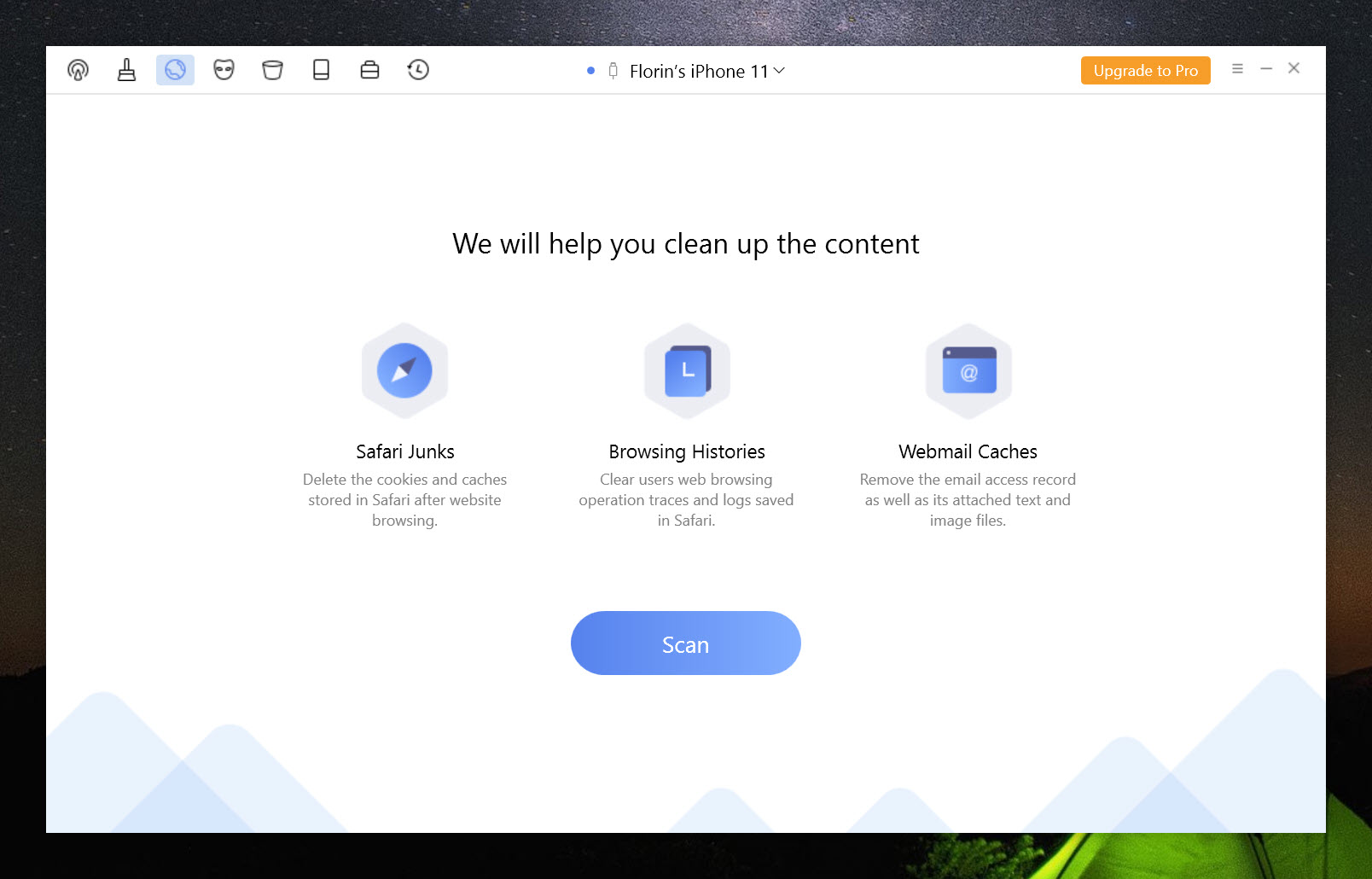
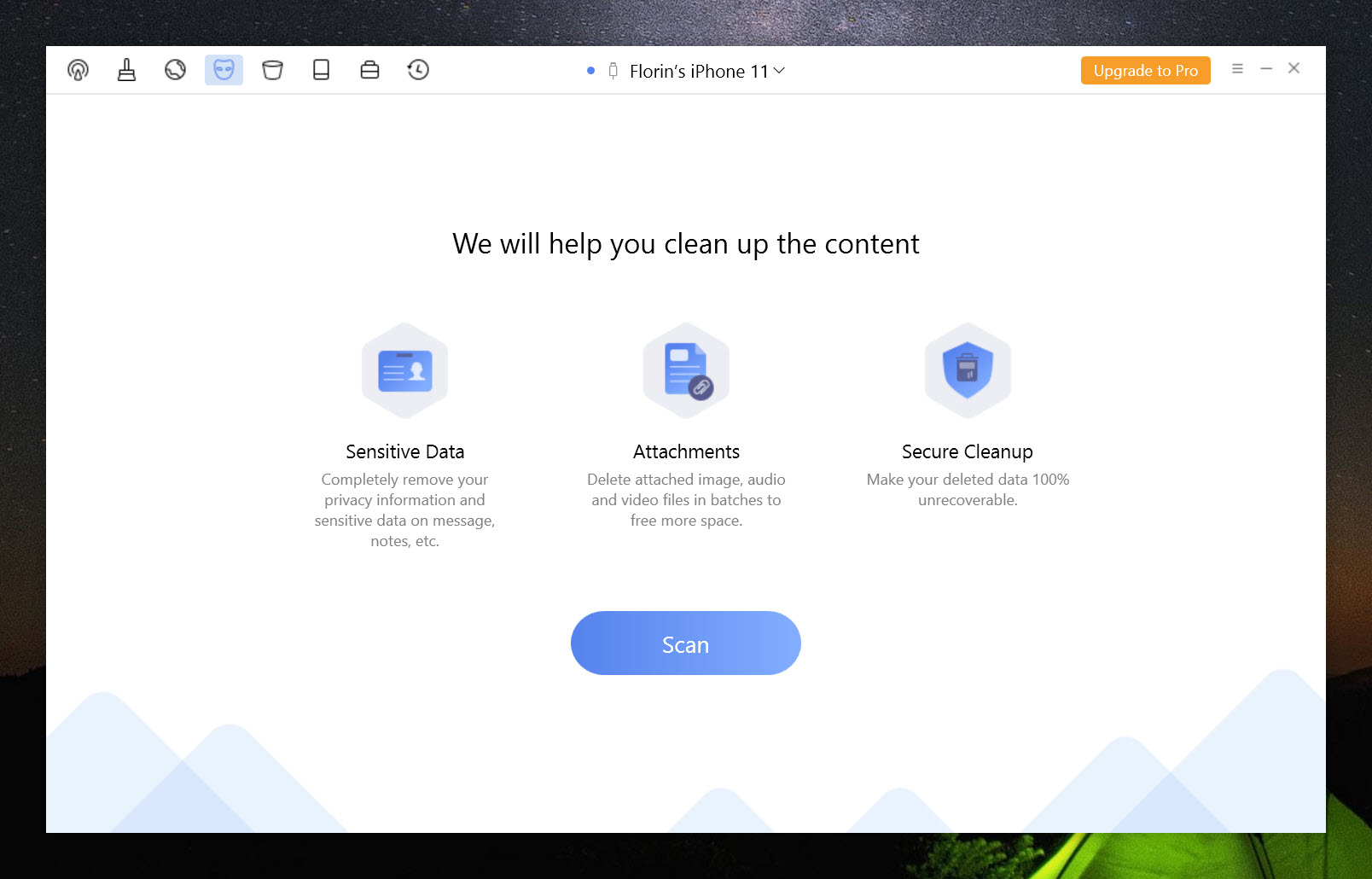
Internet Clean clears the browsing history and cookies from the phone’s browser, the traces that show where you have been online. Privacy Clean goes further, removing call history and text messages, notes and voicemails, with their attachments.
Those are deletions of your own data, not junk, and they are permanent. Use them deliberately, after a backup, and never as a routine clean. For keeping a copy of messages and attachments before clearing them, iTunes backs up the whole device first, which is the step to take before any privacy clean.
Cleaning automatically
PhoneClean Silent Clean runs the junk clean on its own whenever the phone connects to the computer, with no clicks. It suits someone who charges at the desk every day.
Reviewers note one quirk. Even with Silent Clean switched off, the program can still clear junk in the background on connection, so check the setting after installing if you would rather it touched nothing without asking.
Erasing a device
The PhoneClean erase tool wipes the phone’s content permanently, beyond the reach of recovery software, which is the point before selling, giving away or recycling a device. It is the most powerful thing the program does and the one to treat with the most care, since there is no undo.
For an ordinary reset before handing a phone to a family member, the phone’s own erase option in its settings does the job and needs no computer. The program’s erase is for the case where you want extra assurance that nothing can be recovered.
To copy files off the device first, a device file browser reaches its storage directly.
Where the system’s own tools do the job
The phone’s storage settings already show what takes space and suggest what to remove, from offloading unused apps to deleting old message attachments, and they do it without a computer or a cable. For most people, that covers the routine. The program adds the deeper junk scan, the automatic clean and the secure erase.
It needs the device drivers that come with the usual phone sync software installed on the computer, and development has been slow, though it lists support for recent iOS versions. For managing an iPhone’s files and backups more broadly from the desktop, 3uTools covers far more ground.
Conclusion
PhoneClean suits iPhone and iPad owners who want to reclaim some space from caches and junk, clear private traces, or wipe a device securely before passing it on. The category view before cleaning and the secure erase are the parts that earn it a place.
The space it finds is modest on a modern phone, and its strongest modes delete your own data for good. Back up before any privacy clean, check the background-clean setting, and let the phone’s own storage settings handle the routine.
Pros & Cons
- Removes app caches, cookies, temporary files, crash logs and failed sync media
- Shows each category and its size before removing anything
- Clears browsing history and private data such as call logs and messages
- Silent Clean tidies the phone automatically when it connects
- Secure erase wipes a device beyond recovery before it changes hands
- Modern iOS manages much of its own cache, so gains are modest
- Privacy clean and erase delete your own data permanently
- Background cleaning can run even with Silent Clean switched off
- Needs the phone sync software's device drivers installed
Frequently asked questions
Usually a few hundred megabytes to a gigabyte, depending on how the phone is used. Modern iOS clears much of its own cache, so the gains are smaller than they once were.
Not in Quick Clean, which targets caches and junk. Privacy Clean does remove messages, call history and notes permanently, so back up first.
Yes. The erase tool deletes the device's content permanently, beyond the reach of recovery software.


