

Brynhildr
About Brynhildr
Brynhildr is a remote desktop application that takes the opposite design philosophy of TeamViewer and the modern cloud-relay tools. There’s no account to create. No session IDs handed out by a server somewhere. No telemetry. No usage limits that suddenly classify your free use as commercial.
You connect by typing an IP address and a port number, the way remote access worked before everything moved through a vendor’s servers. For some users this is exactly what they want. For others it’s a non-starter. Both reactions are fair.
The whole package weighs in at a fraction of a megabyte, ships as a single executable that contains both the server and the client side, runs without installation from any folder, and uses a custom video codec to push screen updates faster than VNC and competitively with AnyDesk on a fast local network.
It’s the kind of utility you drop on a USB stick and carry around to fix things, which is the use case it was designed around.
The direct-IP connection model
To connect from machine A to machine B with Brynhildr, machine B runs the executable in server mode, picks a port, sets a password, and starts listening. Machine A runs the same executable in client mode, types the IP and port of machine B, enters the password, and connects. That’s the entire workflow. There’s no intermediate server, no NAT punchthrough magic, no globally unique ID system.
On a LAN this is trivial because every machine has a reachable IP. Across the internet it requires either port forwarding on the remote side’s router, a VPN that puts both machines on the same private network, or a public IP on the server side.
Most home setups today sit behind double NAT or carrier-grade NAT, which makes the across-internet scenario meaningfully harder than what tools like TeamViewer handle automatically.
This is the central trade-off. Brynhildr has zero infrastructure dependence, which means zero data flowing through a third party’s servers, which is excellent for privacy and offline reliability. But it also means you handle networking yourself.
For sysadmins managing machines on a corporate network or VPN, that’s fine and arguably preferable. For grandma’s PC across town, it’s not the right tool.
The custom video codec and screen transfer speed
The thing that separates Brynhildr from the older VNC family is the custom video codec. VNC’s traditional encoding schemes (Raw, RRE, Hextile, Tight, ZRLE) were designed for predictable graphics with lots of solid colors and simple updates. They handle a Windows dialog box well and a video playing in a browser badly.
Brynhildr uses a codec tuned for whole-screen video transfer rather than partial graphics updates. The practical effect is that playing back video, scrolling smoothly through a long document, or dragging windows around feels noticeably more fluid than the equivalent operation through TightVNC or UltraVNC on the same hardware and network. Cursor lag is low enough that day-to-day administration feels almost like local use.
The trade-off is bandwidth. The codec assumes a fast connection, ideally LAN speeds or a high-quality broadband link. On a slow or unstable network it adapts by dropping frame rate and quality, but it doesn’t degrade as gracefully as protocols designed for low-bandwidth scenarios. If you’re connecting from a coffee shop on shared WiFi to a server across an unreliable link, you’ll feel it more than you would with a connection-tolerant protocol.
Resolution scaling, color depth selection (8, 16, 24, 32 bit), and frame rate caps are all configurable on the server side. Cranking quality down works well for slow links. Cranking it up works well for LAN where you want it to feel local.
Server and client in the same executable
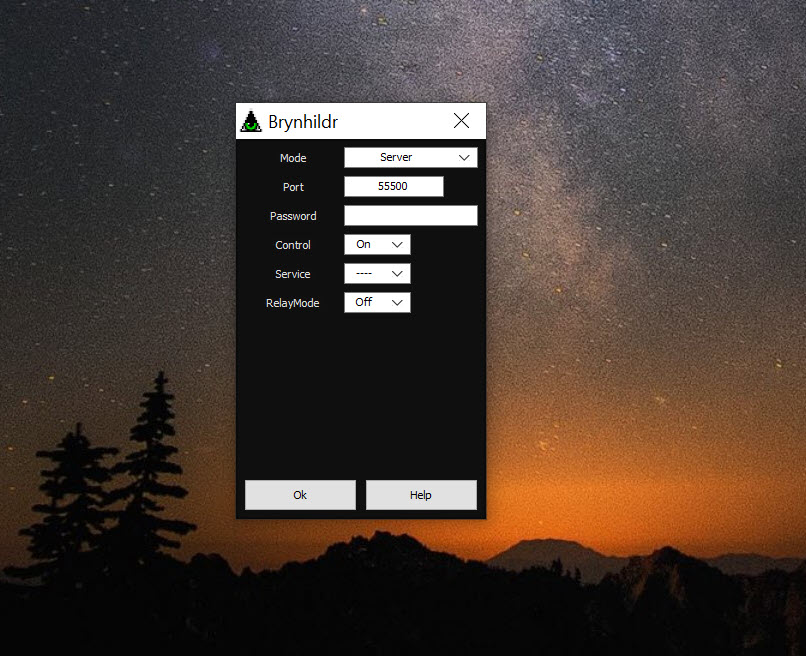
The same .exe is both the server and the client. Switch modes from a dropdown at startup. This sounds like a minor implementation detail but it has real consequences for how the tool gets used.
When you copy the executable to someone else’s machine to do remote support, you don’t need to figure out which of two installers they need. You hand them the file, tell them to set server mode and pick a password, and connect from your side with the same file in client mode. The total setup time on a clean machine is under a minute, which matters when you’re walking a non-technical user through it over a phone call.
The flip side is that the interface is dense. The startup window crams server settings, client settings, and a long list of behavior options into a single dialog. A new user will need to read the documentation or experiment to figure out which fields apply to their use case.
The polish of dedicated client/server applications with separate, focused UIs is missing.
Audio, clipboard, and file transfer
Beyond pure screen-and-keyboard remote control, Brynhildr supports audio transmission from server to client, so you can hear what’s playing on the remote machine. Useful for diagnosing audio problems, reviewing a recording on a remote workstation, or monitoring a media playback. The codec for audio is compact and the latency is generally acceptable for non-musical use.
Clipboard sharing is text-only. Copy text on either side, paste on the other. Binary clipboard content, formatted text from Word, images from screenshots, none of that transfers. For everything binary you use file transfer instead, which works as a separate panel where you push or pull files between the two machines.
File transfer is functional rather than polished. There’s no progress bar that updates smoothly during transfer of large files, no queue management, no synchronization mode.
It’s a simple two-pane file picker that moves bytes from one side to the other. For occasional file moves it works. For systematic large transfers a dedicated file transfer tool or even SFTP through an SSH client will be a better experience.
Multi-monitor and resolution handling
Multi-monitor setups on the server side are recognized and you can choose to view all monitors at once (presented as one wide canvas in the client) or switch between them. Switching while connected works without dropping the session.
Resolution handling on the client side has two modes. Fit to window scales the remote desktop to your local window size, which is convenient but introduces some blur on non-integer scale ratios.
Original size renders pixel-for-pixel, which is sharp but means the remote desktop might be bigger than your local window, requiring scrolling. Both modes are useful in different scenarios.
There’s no built-in support for treating a remote display as an extension of your local desktop, the way some commercial tools do. Brynhildr is single-purpose: you control the remote machine through a window. Cross-machine workflows that mix local and remote applications in a single visual workspace aren’t part of its design.
Encryption and password authentication
Connections are encrypted. The protocol supports password-based authentication where the password is verified on the server side before the screen content starts streaming. There’s no user account system, no role-based access, no audit trail of who connected when. One password per server instance, and anyone with that password and the IP/port can connect.
For LAN or VPN use this is fine. For internet-exposed servers it’s worth being deliberate about: use a long random password, use a non-standard port (default ports get probed by scanners constantly), and consider putting the whole thing behind a VPN rather than exposing the port directly to the public internet.
Tools that integrate with corporate identity providers, multi-factor authentication, or session recording exist in this space, and Brynhildr is not one of them. If those features are requirements, this is the wrong tool.
Plugins and what extends the base
Additional plugins are available that extend the base functionality. The plugin ecosystem is modest compared to what wraps around mature commercial tools, but the available plugins cover useful additions like screen capture, additional codec options, and various behavior tweaks. Each plugin drops into the same folder as the executable and is loaded automatically at startup.
The plugin model is a strength for users who want to customize behavior and a non-issue for users who just want screen sharing. There’s no plugin marketplace or browser inside the application, so you’ll go to documentation pages to find what’s available.
When direct-IP is a feature versus a limitation
This is the central question for anyone evaluating Brynhildr seriously. The direct-IP model is a feature in scenarios where you control both ends of the network and can set up routing, where you don’t want any third party in the data path, where the LAN is your primary connection scope, or where you want a tool you can confidently use offline.
It’s a limitation in scenarios where you’re providing remote support to non-technical users on home networks, where one or both ends are behind NAT you can’t control, where you need consistent connectivity across heterogeneous network environments, or where the convenience of cloud-mediated session IDs outweighs the privacy benefit of avoiding a relay. For those use cases, TeamViewer, AnyDesk, or AeroAdmin handle the NAT problem automatically and are a better practical fit.
Neither approach is universally correct. Brynhildr is honest about what it does and doesn’t do, which is more useful than the alternative of pretending one model works for every scenario.
Conclusion
Brynhildr is for users who specifically want a remote desktop tool that operates without any third-party infrastructure in the middle. Sysadmins managing machines on a private network or VPN, power users who care about keeping their remote sessions off vendor servers, and anyone needing a portable tool to carry on a USB stick will find it does the job efficiently and without bloat.
The custom codec genuinely outperforms older VNC variants on the same hardware, and the package size is small enough to email if you really need to.
It is not the right pick for remote support of non-technical users across the open internet, for environments that require enterprise authentication and audit trails, or for users who want a setup experience that hides the underlying networking.
For those scenarios, the polished commercial tools handle complexity that Brynhildr deliberately doesn’t try to solve. Knowing which side of that line your use case falls on is essentially the whole purchase decision, since the technical execution within its chosen scope is solid.
Pros & Cons
- Tiny executable (under a megabyte) that runs portable from a USB stick
- Single binary contains both server and client, no separate installer
- Custom video codec gives notably smoother screen transfer than VNC
- Audio transmission from server to client at acceptable latency
- Encrypted connections with password authentication out of the box
- No accounts, no telemetry, no cloud relay servers in the data path
- Direct-IP model requires port forwarding or VPN for internet-scale connections
- Clipboard sharing is limited to plain text only
- File transfer interface is functional but lacks polish and progress reporting
- No user accounts, MFA, or audit logging for compliance-heavy environments
- Codec assumes fast network and degrades less gracefully on slow links
Frequently asked questions
Brynhildr is a remote desktop application that includes both server and client in a single small executable. You connect from one machine to another by specifying the IP address and port number of the server, with no intermediate relay server involved.
TeamViewer and AnyDesk route connections through their own servers, which handles NAT traversal automatically and assigns session IDs you can share with the user you're helping. Brynhildr connects directly between the two machines by IP and port, with no third-party server involved. The trade-off is that Brynhildr requires you to handle networking yourself but keeps the entire data path private.
No. The application runs portable from any folder, including a USB stick or network share. There's no registry footprint, no installer, no shortcuts created. You delete the folder and it's gone.
It compresses screen content for transmission to the client using an algorithm optimized for full-screen video and smooth scrolling rather than the partial-update approach used by VNC. The practical effect is smoother visual response when watching video, dragging windows, or scrolling long documents over the connection.
Yes. A separate file transfer panel lets you copy files in either direction between the connected machines. The interface is basic, without queue management or detailed progress reporting, but it works for occasional transfers.
Yes. If the server-side machine has multiple monitors, you can view all of them in the client window as a single wide canvas, or switch between individual monitors during the session.
Yes. Connections are encrypted and authentication uses a password set on the server side. There's no user account system, so the same password applies to anyone who connects, which means you should use a strong password and ideally restrict network access to the listening port.
Yes, but with effort. The direct-IP model means the server-side machine needs to be reachable from the client side, which usually requires port forwarding on the server's router, a VPN connecting both networks, or a public IP. For straightforward across-internet use, tools with built-in NAT traversal are easier to set up.


