

UltraVNC
About UltraVNC
UltraVNC is a remote desktop application that lets you control another computer over a network as if you were sitting in front of it. The mouse moves on the remote screen when you move yours. Keyboard input goes to the remote machine. The display gets streamed back to your local viewer with reasonable performance over typical network connections.
Built on the VNC (Virtual Network Computing) protocol that originated at AT&T’s Cambridge Research Lab decades ago, this software extends the basic VNC capability with file transfer, text chat between the two machines, encrypted connections through a DSM (Data Stream Modification) plugin, Active Directory integration through MS Logon authentication, and a Video Hook Driver that captures screen changes more efficiently than polling-based capture.
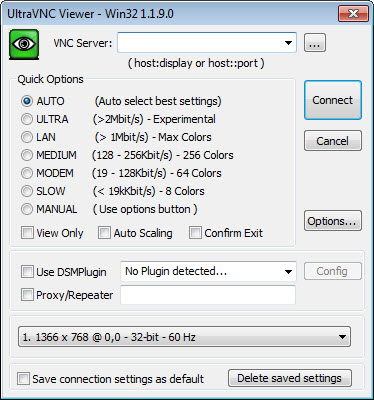
The application splits into two main components that work together. UltraVNC Server runs on the remote machine you want to control, listening for incoming connections and providing access when authenticated clients connect. UltraVNC Viewer runs on the local machine you’re working from, connecting to the server and displaying the remote screen.
The Repeater component handles connections through firewalls and NAT routers when direct connections aren’t possible. Single Click (SC) provides a customizable support agent that end users can run to initiate outbound connections to support technicians, which is essential for help desk scenarios where the user can’t accept incoming connections.
The whole package is free under the GPL license, with active development continuing across more than two decades.
Server, viewer, and how the connection actually works
The basic operation involves installing the Server on the machine you want to control, installing the Viewer on the machine you’re working from, then connecting from the Viewer to the Server using its IP address or hostname. Authentication uses a password configured in the Server settings, with the connection establishing through TCP port 5900 by default.
Once connected, the Viewer window shows the remote desktop and forwards your input to the remote machine in real time.
The Server can run either as a Windows service (always available, starts with the operating system, runs even when no user is logged in) or as a regular application (only available when manually started). For permanent remote access setups, service mode is appropriate. For ad-hoc support scenarios where you want explicit control over when remote access is available, the application mode fits better. Both modes use the same underlying protocol, with the choice affecting availability rather than functionality.
The Viewer supports multiple simultaneous connections to different remote machines, with each connection running in its own window. For technicians supporting multiple machines, this multi-connection support means you can have several remote desktops open at once, switching between them through normal window management rather than disconnecting and reconnecting.
File transfer between local and remote
The file transfer feature is one of the substantial advantages over basic VNC implementations. While connected to a remote server, you can open a file transfer dialog showing both the local and remote file systems. Drag files between them to copy in either direction, with progress indicators showing transfer status for larger files.
The implementation matters for support workflows. When you’re helping someone with a problem, you frequently need to copy diagnostic tools to their machine, pull log files back for analysis, or transfer drivers and patches that solve the issue. Standard VNC requires you to use separate file transfer methods (network shares, email, USB drives) to move files between the two machines. UltraVNC‘s built-in transfer eliminates that round-trip.
For users who frequently move files between systems they administer, the file transfer is faster and more reliable than the typical alternatives. Network shares require pre-existing share configuration. Email has size limits and produces extra steps. Cloud storage adds an external dependency.
The integrated file transfer just works once you have the VNC connection established.
Text chat for communication during sessions
The integrated chat function provides text communication between the two ends of the connection. While supporting a remote user, you can chat with them through the application rather than needing a separate phone call, video conference, or email exchange to coordinate what’s happening.
The chat appears in a small window on both machines, with messages typed on either end appearing on the other in real time.
For help desk scenarios where the support technician needs to ask questions or explain what they’re doing, the chat handles communication without requiring the user to also have phone access or a separate communication channel.
The user can describe their issue, the technician can explain proposed fixes, and the conversation history stays visible during the session for reference.
The chat is text-only without voice or video support. For voice communication during a remote session, separate tools handle that better. The text chat fills the gap for asynchronous communication or for situations where voice isn’t available, with the trade-off being less rich than dedicated communication platforms.
DSM encryption for secure connections
The DSM (Data Stream Modification) plugin system handles encryption for VNC connections. The default VNC protocol transmits screen data unencrypted, which means anyone monitoring the network connection can capture the visual contents and the password authentication. For connections over untrusted networks, encryption is essential rather than optional.
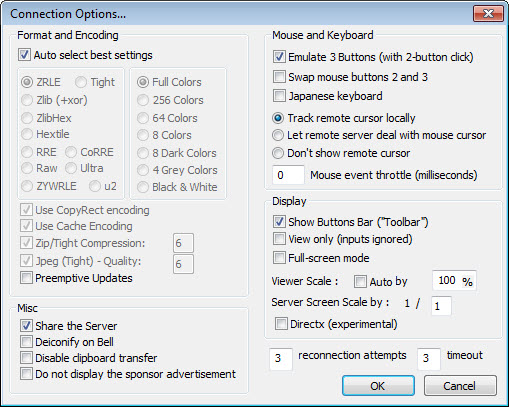
The included encryption plugins support various algorithms including AES-256, AES-128, and various other ciphers. Configure both Server and Viewer with matching plugin settings, and the entire session including authentication and screen data flows through encrypted tunnels. Network observers see encrypted bytes rather than readable VNC traffic, which protects both the credentials and the visual contents.
For users transmitting VNC sessions over the internet, the encryption is genuinely important. Without it, VNC connections expose the same information as plain telnet or unencrypted HTTP.
With it, the connection security matches what SSH or HTTPS provide for their respective use cases. Configuring the encryption requires some understanding of the plugin architecture but produces real security benefits when done correctly.
MS Logon for Active Directory authentication
The MS Logon authentication mechanism integrates with Windows authentication so users can connect to remote machines using their existing Windows credentials rather than separate VNC passwords.
For Active Directory environments where centralized credential management matters, this integration eliminates the need to maintain separate VNC password databases alongside the AD password infrastructure.
The configuration on the Server side specifies which Windows users or groups are allowed to connect. Users in the permitted groups can authenticate with their normal Windows passwords, while users outside the permitted groups can’t connect regardless of any VNC-specific password they might know. The granularity supports various access control scenarios from “any domain user can connect” to “only specific helpdesk personnel.”
For corporate IT environments, this AD integration is the difference between practical deployment across many machines and per-machine credential management chaos. New employees automatically get appropriate access through their normal AD group membership. Departed employees lose access through normal AD account disabling.
The VNC access lifecycle integrates with the broader IAM lifecycle that the organization already manages.
Video Hook Driver for performance
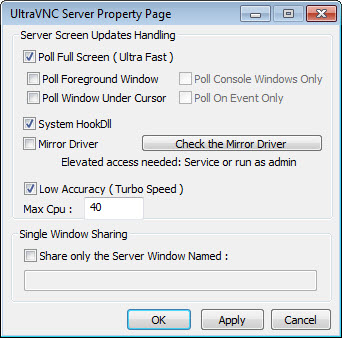
The Video Hook Driver is a kernel-level component that captures screen changes more efficiently than the polling-based capture that standard VNC implementations use. Instead of continuously checking the screen for changes (consuming CPU even when nothing’s happening), the hook driver receives notifications from the graphics system when changes occur and only processes the actual changed regions.
The performance difference is genuine on resource-constrained systems or for low-CPU-impact monitoring scenarios. CPU usage on the Server side drops substantially compared to standard VNC, with the hook driver doing less work overall while delivering similar or better screen update responsiveness. For Server installations on production systems where you don’t want VNC overhead consuming substantial CPU resources, the hook driver matters.
The trade-off is that the hook driver is a kernel-mode component, with the implications that come with any kernel driver. Compatibility with specific Windows versions varies across releases. Driver signing requirements have changed across Windows updates. Some installations work cleanly while others encounter compatibility issues that the standard polling-based capture wouldn’t have.
For users who encounter problems, falling back to standard polling capture eliminates the issue at the cost of higher CPU consumption.
Repeater for firewall and NAT traversal
The Repeater component addresses the practical problem that direct VNC connections often can’t reach machines behind firewalls or NAT routers. The Server can’t accept incoming connections because the router isn’t forwarding the appropriate ports. Configuring port forwarding requires router access that isn’t always available. The Repeater works around these limitations through a different connection model.
In Repeater mode, both the Server and the Viewer connect outbound to a centrally-located Repeater service. The Repeater matches them up and bridges traffic between them. Neither end needs to accept incoming connections, which means firewall and NAT issues become irrelevant. As long as both ends can make outbound HTTPS-style connections to the Repeater, the VNC session works.
For support scenarios where the technician can’t reasonably configure the user’s network, the Repeater is essential. Run a Repeater on a server that both the technician and the user can reach (typically on the public internet), have both the Server and Viewer configured to use that Repeater, and connections work despite whatever firewall configuration is in place.
The Repeater is itself open source and free, with installations possible on whatever infrastructure your organization has available.
Single Click for help desk scenarios
Single Click (SC) is a customized version of the VNC components specifically designed for help desk support. The technician customizes a small executable with the connection details, branding, and appropriate behaviors. The end user receives this executable, runs it once, and the program initiates an outbound connection to the technician’s Viewer. No installation, no configuration, no firewall problems.
For one-off support scenarios where you’re helping someone whose computer you don’t normally access, SC eliminates the setup work that traditional VNC deployment would require. The end user clicks one file. The technician sees their screen. Support happens. When done, the user closes the application and nothing remains installed on their machine.
The customization workflow includes the connection settings, the program name and icon, the help text shown to users, and various other behavioral configurations.
For organizations providing branded support, the SC tool can be customized to look like an organization-specific support utility rather than a generic VNC executable, which improves user comfort with running the tool.
Compatibility with other VNC implementations
The application implements the standard VNC protocol, which means it interoperates with other VNC products. UltraVNC Viewer can connect to RealVNC servers, TightVNC servers, TigerVNC servers, or essentially any other VNC server implementation. Conversely, RealVNC Viewer, TightVNC Viewer, and other VNC clients can connect to UltraVNC Server.
The protocol compatibility matters for mixed environments where different machines run different VNC implementations. Maintain whichever VNC products fit your specific machines, and use any VNC viewer to connect to any of them when appropriate. The advanced features (file transfer, chat, DSM encryption, MS Logon) only work when both ends support them, but the basic remote desktop function works across implementations.
For users with legacy installations of one VNC variant who want to add this software for new deployments, the cross-compatibility means you don’t have to migrate everything at once.
Run the new application alongside existing TightVNC or RealVNC servers, with viewers connecting to whichever server is appropriate for each machine.
Comparison with the alternatives
The competitive context for remote desktop software is substantial. RealVNC offers commercial polish with cloud connectivity that handles firewall traversal automatically through their infrastructure, but with subscription pricing that this software’s GPL licensing eliminates. TightVNC provides similar core functionality with a simpler feature set and smaller footprint.
TeamViewer dominates the commercial remote support market with extensive features and a free tier for personal use, with the trade-off being the strict commercial use restrictions on the free tier and overall closed-source nature.
For users prioritizing open-source licensing and self-hosted deployment, UltraVNC fits better than commercial alternatives. The full feature set is available without subscription costs, the source code is auditable, and self-hosted deployment means no third-party services need to be trusted with your remote access infrastructure.
For users prioritizing polish and convenience over self-hosting, TeamViewer or AnyDesk produce better experiences with less setup effort. The commercial alternatives handle firewall traversal, authentication, and account management automatically through their infrastructure rather than requiring you to configure each component yourself.
For technical users supporting their own organizations or providing IT support services, this software hits a useful middle ground between basic VNC implementations and full commercial remote support platforms.
The advanced features (file transfer, chat, MS Logon, Video Hook Driver, Repeater, Single Click) cover the practical capabilities needed for serious support work without the licensing costs that scaling commercial alternatives would impose.
Considerations and limitations
The configuration complexity is real. Getting the Server, Viewer, encryption plugins, MS Logon, and possibly the Repeater all configured correctly requires more technical work than the click-through setup of commercial alternatives. For technical users this isn’t necessarily a problem, but users without the relevant background struggle to deploy the application reliably.
Default settings are not particularly secure. The application installs with various permissive defaults that need to be changed for production use. Default password is commonly weak. Encryption isn’t enabled by default. Connection logging may not be configured. Users deploying the application need to actively harden the configuration rather than assuming defaults are safe.
The interface design reflects priorities from years ago. Visual polish doesn’t match what current commercial software offers. Configuration dialogs feel dated. Status feedback during operations is minimal. Users coming from polished commercial remote desktop software find the experience less refined.
Some specific advanced scenarios require deeper expertise. Configuring the Repeater for production deployment, customizing Single Click executables, integrating with Active Directory in complex environments, troubleshooting connection issues across NAT and firewall combinations, all require understanding of networking and authentication that the application’s documentation only partially covers. Community forums and third-party tutorials fill the gaps for users who need help.
The kernel-mode Video Hook Driver occasionally causes compatibility issues with specific Windows versions or hardware configurations. When it works it provides genuine performance benefits, but troubleshooting when it doesn’t work can require kernel-level debugging that’s beyond what most users want to do. Falling back to polling-based capture eliminates the issue but loses the performance advantage.
Conclusion
For technical users wanting full-featured remote desktop capability without commercial licensing costs, UltraVNC delivers serious functionality through its combination of file transfer, chat, encryption, AD integration, the Video Hook Driver, the Repeater, and Single Click support tools.
The GPL licensing means no subscription costs at any scale, the open-source code means the implementation is auditable, and the active development across more than two decades means the project isn’t going to disappear unexpectedly.
The reasons to consider alternatives are mostly about specific preferences. Users wanting commercial polish and cloud-managed connectivity find TeamViewer, AnyDesk, or RealVNC’s commercial offerings producing smoother experiences with less configuration work. Users with simple basic remote desktop needs may find TightVNC sufficient without the advanced features they wouldn’t use anyway.
Users in fully cloud-native environments may find browser-based remote access tools fitting their workflow better than installed VNC clients. But for the practical scenario of self-hosted remote desktop with serious capability for support and administration work, this software remains one of the strongest options available, with the price tag being unbeatable for any organization comfortable with the configuration requirements.
Features & benefits
Pros & Cons
- Free open-source under GPL license with active development across two decades
- File transfer between local and remote machines integrated into the connection
- Text chat for communication during support sessions without separate tools
- DSM encryption plugins protect connections over untrusted networks
- MS Logon authentication integrates with Active Directory for centralized credential management
- Video Hook Driver reduces CPU consumption compared to polling-based capture
- Repeater handles firewall and NAT traversal for connections that direct routes can't
- Single Click feature provides customizable help desk support workflow
- Compatible with other VNC implementations through standard protocol support
- Multiple simultaneous Viewer connections for technicians supporting multiple machines
- Configuration complexity is higher than commercial alternatives
- Default settings require active hardening for production use
- Interface design feels dated compared to current commercial software
- Video Hook Driver occasionally causes compatibility issues on specific systems
- Advanced scenarios require networking and authentication expertise to configure correctly
- Less polish and convenience than commercial alternatives like TeamViewer or AnyDesk
Frequently asked questions
This software is a free open-source remote desktop application based on the VNC protocol, allowing one computer to control another over a network. It includes a Server component for the remote machine, a Viewer component for the local machine, file transfer between connected machines, text chat, DSM encryption for secure connections, MS Logon for Active Directory authentication, a Video Hook Driver for efficient screen capture, a Repeater for firewall traversal, and Single Click for help desk support workflows.
The Server component runs on the remote machine you want to control. It listens for incoming connections from authorized clients, providing access to the remote desktop when properly authenticated. The Server can run as a Windows service (available continuously and starts with the operating system) or as a regular application (only available when manually started). Configuration includes the password, encryption settings, allowed users, and various other security and behavioral options.
The Viewer component runs on the local machine you're working from. It connects to a Server on a remote machine and displays that remote machine's desktop in a window, forwarding your mouse and keyboard input to the remote machine. The Viewer supports multiple simultaneous connections to different Servers, lets you transfer files in either direction, includes the chat feature for communicating during sessions, and provides various viewing options including different display quality settings.
The Repeater is a separate component that bridges connections between Servers and Viewers when direct connections aren't possible due to firewalls or NAT routers. Both the Server and Viewer connect outbound to the Repeater rather than directly to each other, with the Repeater matching them up and bridging traffic between them. For support scenarios where neither end can accept incoming connections, the Repeater handles the connection challenge by leveraging outbound connectivity that's typically allowed by default.
Install the Server on the remote machine and configure a strong password. Install the Viewer on the local machine you'll be working from. Connect the Viewer to the Server's IP address or hostname using the configured password. The Viewer window then shows the remote desktop, with mouse and keyboard input flowing to the remote machine. For connections over untrusted networks, configure the DSM encryption on both ends. For Active Directory environments, configure MS Logon on the Server with appropriate user permissions.
Both applications target similar remote desktop scenarios, but with different feature scopes. TightVNC has a smaller footprint and simpler feature set, with the focus being basic remote desktop functionality without elaborate additions. UltraVNC has a substantially larger feature set including file transfer, integrated chat, DSM encryption plugins, MS Logon authentication, the Video Hook Driver, the Repeater, and Single Click support tools. For users wanting basic remote desktop, TightVNC is sufficient and arguably simpler. For users wanting advanced features like file transfer or AD integration, this software covers more ground.
RealVNC offers commercial polish with their cloud-based VNC Connect service handling firewall traversal automatically through their infrastructure. The trade-off is subscription pricing for commercial use. UltraVNC is free under GPL with self-hosted deployment, requiring more configuration but eliminating subscription costs. For users prioritizing convenience and willing to pay for it, RealVNC may fit better. For users prioritizing open-source licensing and self-hosted deployment, this software fits better.
Single Click (SC) is a customized version of the components specifically designed for help desk support scenarios. The technician customizes a small executable with the connection details, branding, and appropriate behaviors, then provides this executable to the end user needing support. The user runs the executable once, which initiates an outbound connection to the technician's Viewer. No installation or complex setup is required on the user's end. When the support session ends, the user closes the application and nothing remains installed.
The Video Hook Driver is a kernel-level component that receives notifications from the Windows graphics system when screen changes occur. Instead of polling the screen continuously to detect changes (which consumes CPU even when nothing's happening), the driver only processes actual changes when they happen. This produces lower CPU consumption on the Server side compared to standard polling-based VNC capture. The driver requires installation as part of the Server setup, with compatibility varying across Windows versions. When it works, the performance benefits are genuine. When compatibility issues arise, falling back to polling-based capture eliminates the driver but loses the efficiency advantage.


