

Wii Backup Manager
About Wii Backup Manager
A homebrew-enabled Wii runs its games happily from a USB drive, but getting a shelf of disc images onto that drive in a shape the console accepts is where most people stall. Formats multiply (ISO here, WBFS there, something split into chunks somewhere else), drives fill up, and the loader on the console refuses half of it.
Wii Backup Manager exists to untangle exactly this. It moves, converts, shrinks, and organizes Wii disc images between your PC and USB storage, so backups of your own discs end up where a USB loader can actually see them.
The scope is deliberately narrow. This is not an emulator and it doesn’t play anything (for playing Wii U titles on a PC there’s Cemu). Think of it as the librarian that prepares and shelves the files.
Judged as that librarian, it’s one of the most complete tools the scene has produced.
Three tabs, two drives, one checkbox list
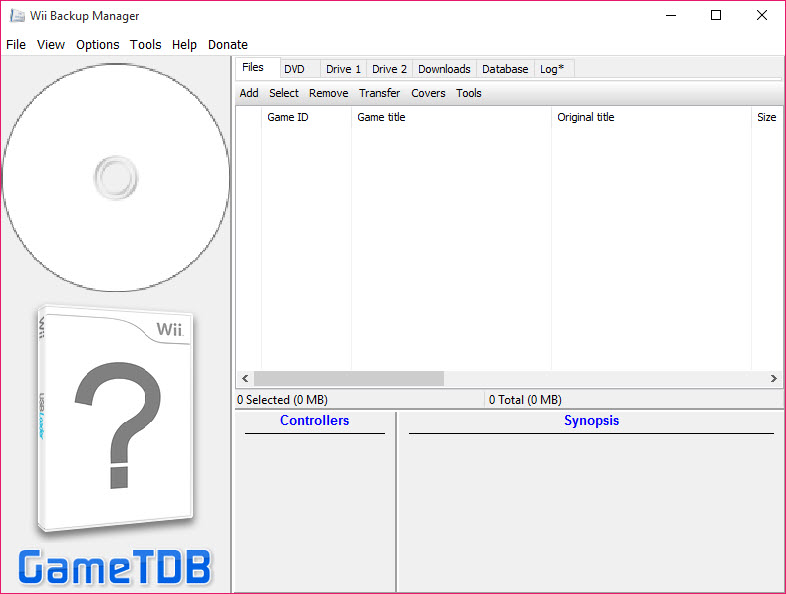
The window is split into Drive 1, Drive 2, and Files tabs, and that layout is the whole workflow. Load a folder of images into Files, point Drive 1 at your USB drive, tick the checkboxes next to the games you want, and hit Transfer.
Because two drives can be open at once, consolidating a collection is a direct copy from one tab to the other, with no intermediate dumping to your desktop.
Everything works in batches. Queue twenty conversions before dinner and they’re done before the dishes are, each one ticking off in a progress list. The application even opens archives on its own, so a compressed image doesn’t need manual extraction before it joins the queue.
ISO, WBFS, CISO, and why your games suddenly shrink
Format conversion is the feature people actually come for. Wii Backup Manager reads and writes ISO, WBFS, CISO, and split WBFS chunks, and converts freely in every direction, including WBFS back to a full ISO when some other tool demands one.
The shrinking surprises first-timers. A raw disc image is always the same size, roughly 4.4 GB, because that’s the size of the disc, padding included. Converting to WBFS throws away the empty padding and keeps only real game data, so a party game that barely fills the disc can collapse to well under a gigabyte, while a sprawling adventure stays close to full size. Across a large collection the reclaimed space adds up to entire drives you don’t have to buy.
Nothing playable is lost in the process, which is what separates this from crude compression.
The FAT32 problem, handled with a splitter
Most USB loaders want the drive formatted as FAT32, and FAT32 refuses any single file over 4 GB. That combination would make full-size games impossible, so the tool splits oversized images into sequential chunks that loaders read as a single game. It’s automatic during transfer, and it’s the detail that saves beginners from the most common “why won’t my game show up” evening.
If your drive arrived formatted as something else, a utility like FAT32Formatter prepares it in one step, and from there Wii Backup Manager handles the rest of the pipeline. Dedicated WBFS-partition drives are supported too, for anyone still running that older setup, which makes the tool a bridge between the old way and the current one.
Migrating a legacy WBFS drive to a FAT32 layout is a checkbox-and-transfer job rather than a weekend project.
Covers, titles, and a library that looks finished
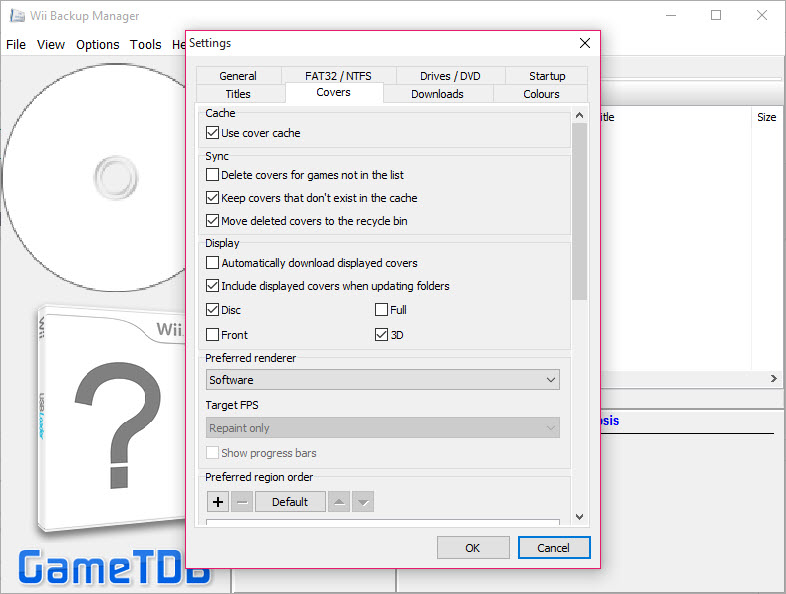
File management is only half of a good library. The application connects to the GameTDB database to pull proper titles, region information, and cover art (flat, 3D, and full-box variants) for every game it recognizes, storing the images where popular USB loaders expect to find them. The difference on the console is night and day. You browse a wall of box art instead of a text list of cryptic file names.
There’s also a verify function that checks images for corruption before you’re standing in front of the TV wondering why a title freezes. Run it on anything that traveled through old drives or ancient downloads of your own rips. Ripping fresh copies from your original discs is the cleaner path, and something like ImgBurn covers the disc-to-ISO step for consoles with a compatible drive.
The rough edges are cosmetic rather than functional. The interface is dense, dialogs are terse, and the cover downloader occasionally misses artwork for obscure regional releases. None of it blocks the core work.
Conclusion
Wii Backup Manager is the tool for anyone maintaining a homebrew Wii library from their own discs. Collectors consolidating drives, parents building a kid-proof shelf of backups, and tinkerers migrating an old WBFS drive to a modern FAT32 setup all fit the profile. It does the unglamorous conversion and organization work so the console side just works.
It won’t win design awards and it explains nothing, but it converts everything, splits what needs splitting, and dresses the result in proper cover art. For this specific job, there’s no better-rounded option.
Pros & Cons
- Converts in every direction between ISO, WBFS, CISO, and split formats
- WBFS scrubbing reclaims serious drive space without touching game data
- Automatic 4 GB splitting makes full-size games work on FAT32 drives
- Two-drive layout turns collection moves into a single copy operation
- GameTDB integration fetches titles, regions, and cover art for loaders
- Batch queue handles dozens of transfers or conversions unattended
- Utilitarian interface with little explanation for newcomers
- Cover art lookups can miss obscure regional releases
- No playback or emulation of any kind, strictly a file manager
- Terse error messages when a drive or image misbehaves
Frequently asked questions
Yes. Conversion works in both directions, so a scrubbed WBFS file can be rebuilt into a standard ISO whenever another tool or workflow requires one.
Disc images include empty padding that fills the physical disc. WBFS conversion strips that padding and keeps only actual game data, which is why some titles shrink dramatically while others barely change.
Yes, and it automatically splits any game larger than 4 GB into chunks that USB loaders treat as a single title, working around the FAT32 file size limit.
It fetches flat, 3D, and full-box covers plus title and region data from GameTDB, and saves them in the folder structure that common USB loaders read.
Yes. Open one drive in each drive tab, tick the games you want, and transfer straight across without staging files on your computer first.


