

WipeFile
About WipeFile
There’s a small category of utilities built around a single idea, and WipeFile is one of the cleanest examples. The premise is that pressing Delete in Windows doesn’t actually delete a file, it just marks the storage as available for reuse. Until something else writes over that space, the original data is still there, recoverable with any number of free undelete utilities.
WipeFile exists to close that gap by overwriting the file’s storage with deliberate patterns before removing it, making the original content unrecoverable through normal means.
What “wiping” actually means
The difference between deleting and wiping is the part that matters most to anyone considering this kind of tool, and it deserves a real explanation rather than the surface-level definition most reviews give.
When you delete a file normally on Windows, the operating system updates the file system’s allocation table to mark the storage clusters as free. The actual data stays where it was until another file gets written to those same clusters. On a half-empty drive, that might never happen. Recovery utilities scan for these orphaned data blocks and reconstruct the original file from them.
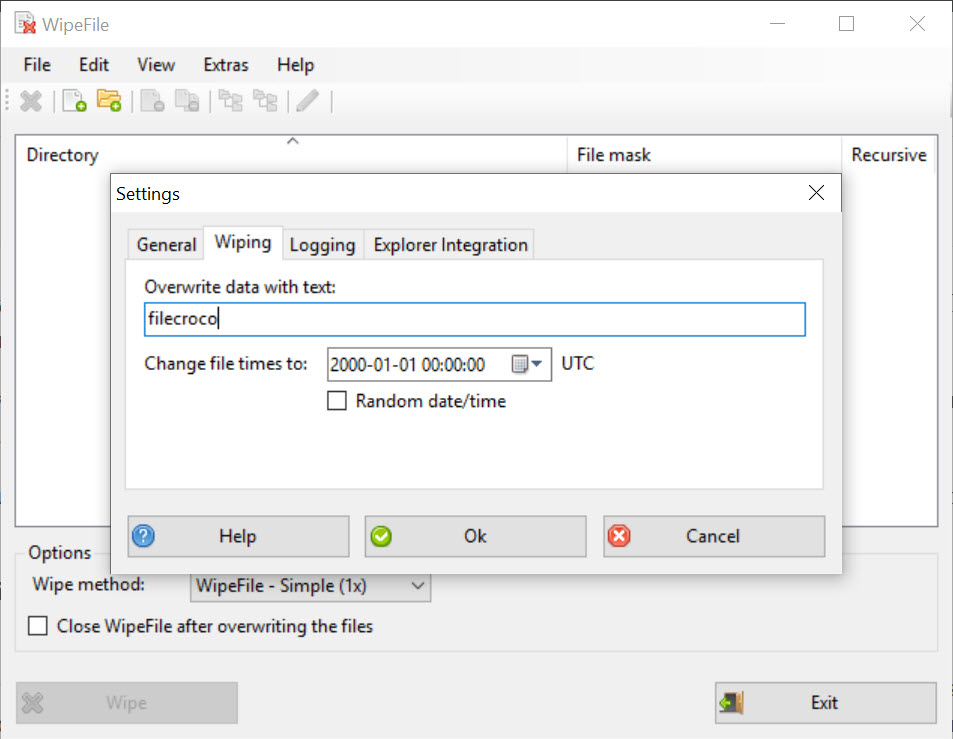
Wiping forces an overwrite. WipeFile writes new data (zeros, random bytes, or specific patterns depending on the algorithm) over the storage clusters before flagging them as free.
After the overwrite, the original content is no longer present on disk, so no recovery utility can read it back. The file is also removed afterward, so the directory entry disappears too.
This matters when you’re disposing of sensitive documents on a working machine, before selling or donating a computer where a full disk wipe would be overkill, or when you need to handle data covered by deletion requirements (GDPR, HIPAA, internal data classification rules). For everyday file deletion, the standard Recycle Bin is fine.
For specific files you actively don’t want recoverable, you need a tool like this.
The algorithm question and how many passes you actually need
WipeFile offers 14 wipe algorithms ranging from a single overwrite to the 35-pass Gutmann method. This is where most reviews skip past the important context.
The Gutmann algorithm was designed in 1996 by Peter Gutmann for magnetic recording technology that was current at that time, MFM and RLL encoded drives from the early 1990s. The 35 passes target specific encoding patterns those old drives used. On any drive made in the last 20 years (PRML or EPRML encoded), the patterns are meaningless, and the additional passes don’t add security beyond what a single random-data overwrite achieves. Gutmann himself has written publicly that the full method is unnecessary on modern hardware.
For practical purposes on a current HDD, a single random overwrite is essentially as secure as a 35-pass wipe against software-based recovery. The DoD 5220.22-M standard (three passes) is the typical compromise for compliance-driven scenarios. The British HMG Infosec No. 5 (one pass for baseline, three for enhanced) gives similar guidance.
On an SSD, the entire concept of multi-pass overwriting falls apart. SSDs use wear leveling, which moves data around physically to extend the lifespan of memory cells. When you “overwrite” a file, the SSD controller often writes the new data to a completely different physical location and leaves the old data in place, simply marking it as logically inaccessible.
The only reliable way to wipe data from an SSD is the drive’s built-in Secure Erase command or full-drive encryption from the start. Tools like WipeFile running at the file level cannot guarantee SSD data destruction, and the documentation is honest about this limitation.
The interface and how the work actually flows
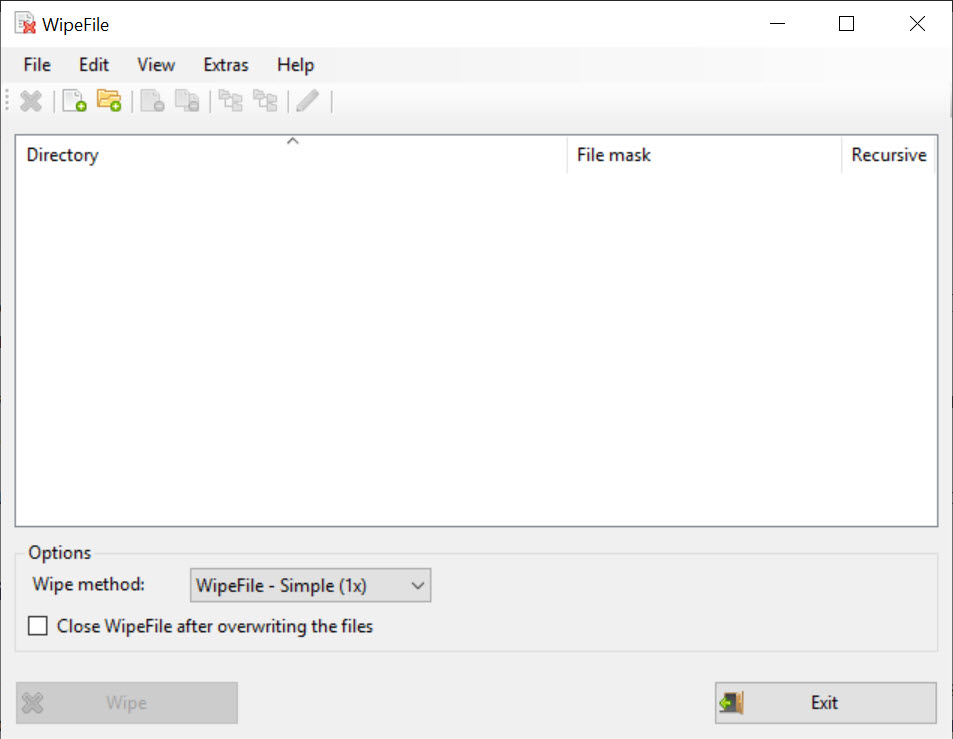
The interface is plain. A single window with a file list area, an algorithm dropdown, a few options for handling folders and free space, and Start/Stop buttons. You drag files or folders into the window, or use the menu to add them, then pick your method and run.
For folder operations, WipeFile can wipe the contents recursively, including subfolders, and optionally remove the empty directory structure afterward. The free space wipe (which writes patterns to all unallocated space on a selected drive) handles the case where you’ve previously deleted files normally and want to clean up after the fact, since the original data could still be sitting in unallocated clusters.
Progress reporting is per-file with an overall percentage. Time estimates depend heavily on file size and the algorithm chosen, a 1 GB file with single-pass random overwrite takes roughly the time of writing 1 GB to the drive, while the same file with Gutmann’s 35 passes takes 35 times longer.
On modern SATA SSDs that’s still bearable, on a USB stick or external HDD it can mean several minutes per gigabyte.
Portable design and what it does and doesn’t touch
WipeFile runs from any folder without installation. There’s no registry interaction, no service registration, no startup entries. Extract the ZIP, run the executable, close it when done. Drop it on a USB drive for use on multiple machines without leaving traces. This makes the tool useful in scenarios where you can’t install software on a machine (work computers with restricted privileges, public terminals, friends’ computers where you want to wipe a file before leaving).
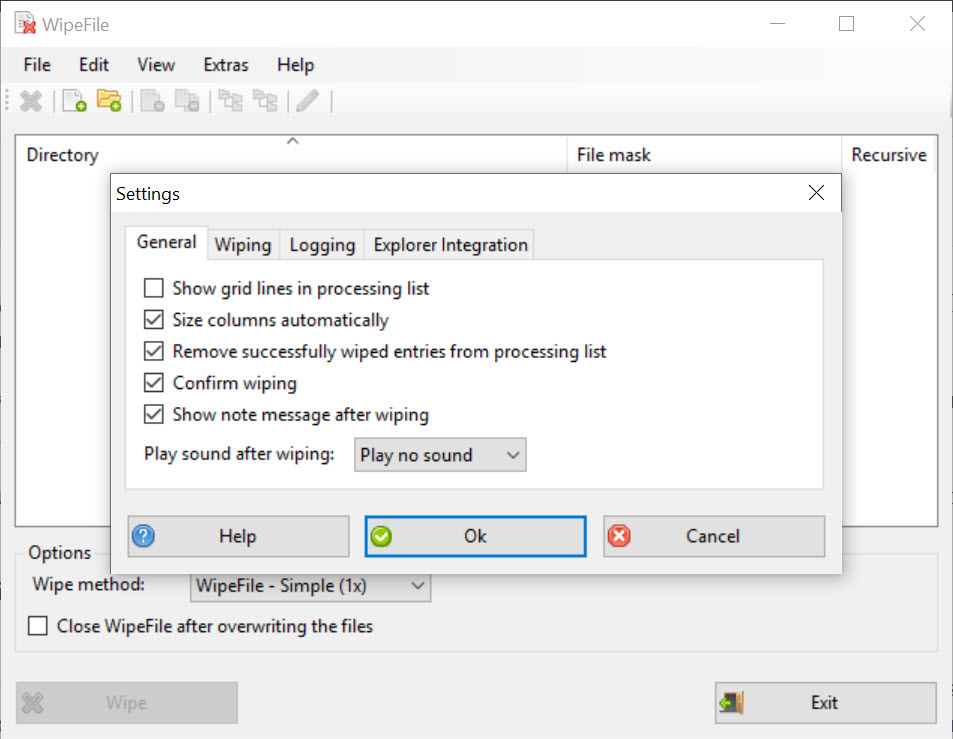
The portable behavior also means settings don’t persist between sessions by default. Your preferred algorithm, language, and option set get reset each time. There’s an INI file generation option that stores configuration alongside the executable, which solves this when you want it.
Comparison with the broader category
The secure deletion category includes a range of tools with different scopes. Eraser is the open source heavyweight, with scheduled wipes, Explorer right-click integration, and a larger set of features. It’s more capable but also installs more deeply into the system.
BleachBit approaches the same goal from a different angle, system-wide cleanup with secure deletion as a feature, rather than a dedicated wiping tool. PrivaZer does the deep-cleaning angle with privacy-focused additions like cleaning previously-deleted file traces from the master file table.
For full-drive wiping (selling a computer, disposing of a drive), Active KillDisk or DBAN operate at the partition or whole-disk level and are the right tools for that job. WipeFile is the file-level option, which is a different use case.
Where WipeFile wins on its own terms is the minimalism. No installation, no background services, no telemetry, no premium features locked behind upgrade prompts. Run it, do the work, close it. For a use case that should be occasional rather than continuous, that’s exactly the right shape.
Conclusion
WipeFile is the tool you install when you have a specific reason to need secure file deletion on a working machine, and you want a utility that does only that without trying to expand into other categories.
The portable design, the honest treatment of the SSD limitation, and the absence of any monetization pressure put it in a good position for occasional use, the scenario where you’re handling a sensitive document a few times a year rather than running constant wipe schedules.
The decision usually comes down to whether you want a focused single-purpose utility or a more featureful suite. For users who prefer right-click integration in Explorer or scheduled automatic wipes, a fuller-featured alternative is the better fit. For users who just want a portable tool that does file-level secure deletion when called upon, this one has held its position for a reason.
Pros & Cons
- Portable single-executable design with no installation or registry writes
- Fourteen wipe algorithms covering all standard compliance requirements
- Free space wiping handles already-deleted files that might still be recoverable
- Honest documentation about SSD limitations rather than overpromising
- Recursive folder wipe with optional directory removal after content destruction
- Cannot guarantee secure deletion on SSDs due to controller-level wear leveling
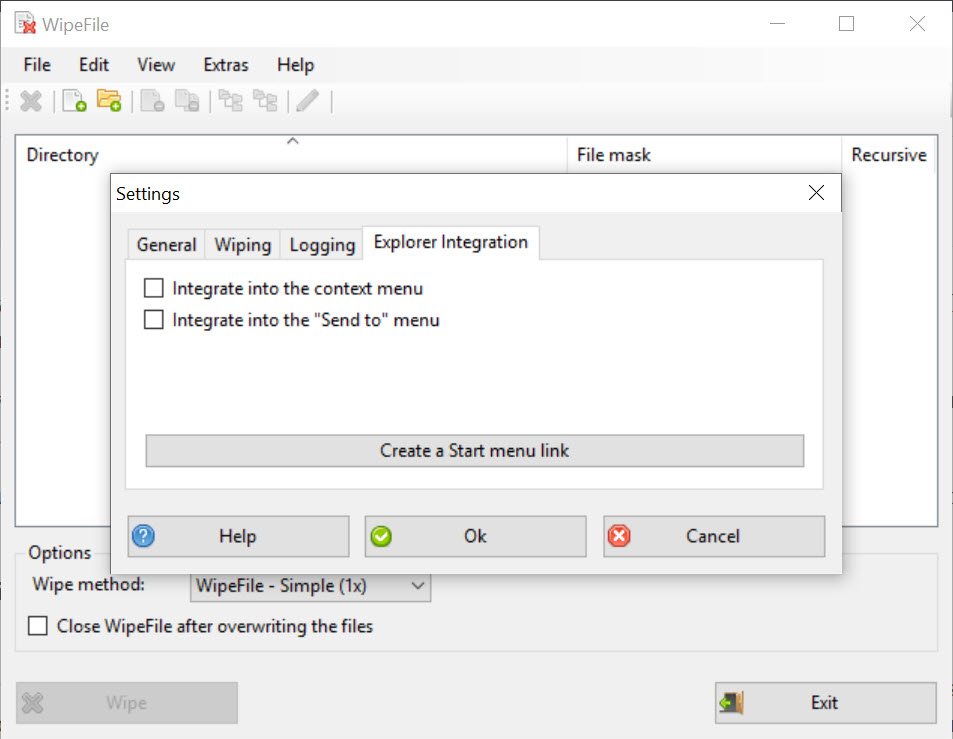
- No Explorer right-click integration, you have to open the application to wipe files
- Settings don't persist between sessions without manually enabling INI file storage
- UI is dated and lacks the polish of newer alternatives
- Lacks scheduling or automation features that some competitors offer
Frequently asked questions
Normal deletion only marks the storage as available for reuse, leaving the original data intact until something else overwrites it. Wiping overwrites the storage with new data first, making the original content unrecoverable through standard means.
On modern HDDs, a single random-data overwrite is sufficient against software-based recovery. The three-pass DoD method is the typical compliance baseline. The 35-pass Gutmann method was designed for hardware from the early 1990s and adds no security on current drives.
The application runs on SSDs, but cannot guarantee data destruction due to how SSDs handle storage internally. For SSDs, the drive's built-in Secure Erase command or full-disk encryption are the reliable approaches.
Yes. The application runs from any folder without installation, does not write to the Windows registry, and can be carried on a USB drive for use on multiple machines.
Yes. The free space wipe option overwrites all unallocated storage on a selected drive, which handles files that were previously deleted normally and might still be recoverable from unallocated clusters.
Yes. Each wipe pass requires writing data over the file's storage, so wiping takes roughly the same time as writing a new file of the same size, multiplied by the number of passes in the chosen algorithm.


