

iSlide
About iSlide
iSlide adds a tab to the PowerPoint ribbon and fills it with the things a slide designer reaches for most. One button tidies a whole deck, unifying fonts and colours, and paragraph spacing, across every slide. Another lays out a selected shape in a ring or a grid with the spacing you type in.
A pane of alignment and layout tools sits beside them. Behind the tools are libraries of ready-made themes and diagrams, plus icons, pictures and colour schemes, each of which drops into the slide and takes on the deck’s own colours. It works inside the presentation program you already use, not as a separate editor.
The add-in splits into two halves, and it helps to know which half you are using. The design tools work on your own slides and need nothing from the internet once installed. The libraries live online, behind an account, and they are where the paid tier lives.
iSlide gives the basic account the icons and the tools in full, while the richer themes and diagrams and the download allowances belong to the paid tier. The sections below cover the tools, the libraries one by one, the export options and the places where the add-in slows you down.
The design tools
The iSlide Design Tools pane gathers the layout functions that PowerPoint scatters across its menus. Align and distribute, match sizes, set margins, rotate by a number, and snap to guides, all from one panel. Smart Select picks every shape of the same type or colour across a slide, which turns a dozen clicks into one. Shapes can have their corner radius and edges adjusted in bulk.
Design Layout handles repetition. Select a shape, choose ring or matrix, type the count and the spacing, and the copies appear around a centre or across a grid, evenly placed. That is how a circle of eight icons or a four-by-three grid of photos gets built without dragging anything. For users who already know PowerPoint, these tools alone justify the install, since they remove the fiddly part of layout.
One-click optimisation
The iSlide one-click optimiser walks a deck and makes it consistent. It applies a single font pair and colour scheme, with uniform paragraph spacing and line height, which rescues a presentation assembled from three people’s slides. Each change is a setting, so you choose what it touches.
Treat the result as a first pass. It cannot know which slide was meant to look different, and a deliberately contrasting section can be flattened along with the accidental mess. Run it, then check the slides that were supposed to stand out.
Themes and diagrams
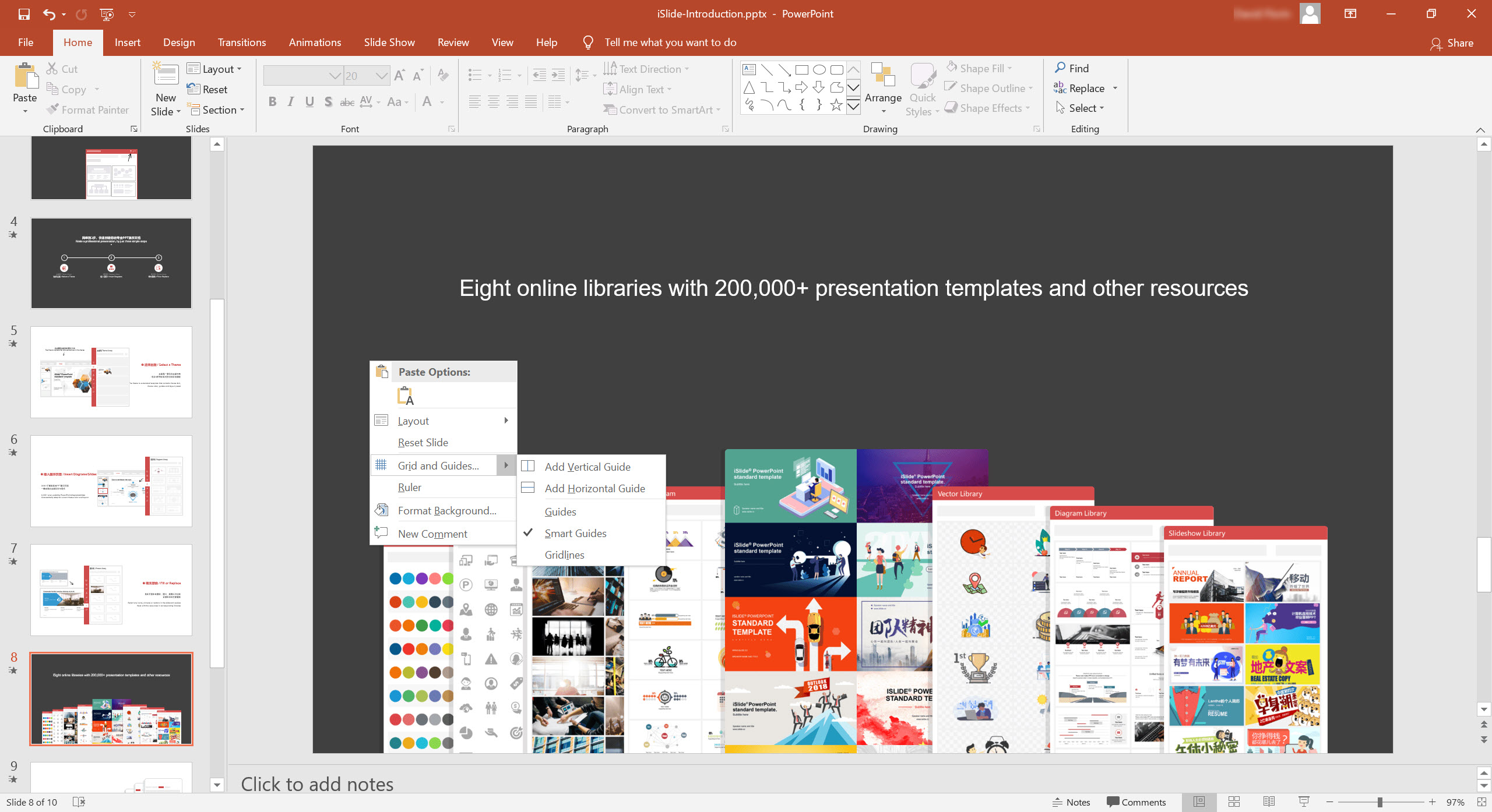
The iSlide Theme Library applies a complete look to a deck, with fonts and colours together with guides and layout presets, from a catalogue sorted by use, from marketing to education. Pick one and the whole deck changes clothes. The Colour Library swaps the colour scheme alone, which is the quickest way to try a different palette.
The Diagram Library holds thousands of vector diagrams, from process flows to comparisons and timelines, that adapt to the deck’s colours when inserted. Smart Diagrams go further. They are data-driven, so change a value and the chart redraws, and the icons inside them can be swapped from the icon library. A product comparison or a percentage ring becomes a live object rather than a picture. Many of the themes and diagrams are marked as premium, and the basic account can browse them but not insert them.
Icons and pictures
The iSlide Icon Library is the generous one. More than a hundred thousand flat icons are available to every account, searchable by keyword, and they insert as editable shapes, so the colour follows the theme. The Picture Library collects photographs released under licences that allow any use, and the Vector Library holds illustrations and clip-art-style graphics. Both have daily download limits on the basic account.
For heavier editing of a vector once it is on the slide, a vector graphics editor opens the exported graphic and reshapes it. For most decks the built-in recolouring is enough.
Export and the extras
A Security Export writes the deck as an uneditable file, as pictures or as a video, with options for resolution and watermarking. That suits a deck sent to clients who should see it but not change it. Batch picture cropping and a watermark tool handle the housekeeping of a large deck. The add-in also runs inside a popular alternative office suite’s presentation program.
For a different kind of PowerPoint add-in, one that turns a schedule into a timeline slide, Office Timeline occupies the project-management corner that this one leaves alone.
Where it slows you down
The ribbon tab is crowded, and reviewers call the layout less organised than the standard tools. The libraries need an account and a connection, and the premium labels appear often enough that browsing them can feel like window shopping. Daily limits on pictures and vectors stop a long design session on the basic account. Themes can also be a crutch, since a deck built entirely from the library looks like every other deck built the same way.
None of that touches the design tools, which work offline, carry no limits and are the add-in’s quiet strength. For a presentation program with its own templates and no account, LibreOffice Impress covers the basics without the libraries.
Conclusion
iSlide suits anyone who builds slides regularly and wants layout tools and ready-made graphics inside PowerPoint rather than in a separate program. That covers a marketer tidying a shared deck and a teacher who needs a clean diagram in a minute. The design tools, the optimiser and the icon library are the parts that earn it a place on the ribbon.
The libraries lean on an account, a connection and a paid tier for the best of them, and a deck built only from themes will look like the others. Use the tools for the layout, the icons freely, and the themes as a starting point rather than the finish.
Pros & Cons
- Alignment and sizing tools, with guides and rotation, gathered in one pane, with Smart Select
- Ring and matrix layout places evenly spaced copies in one step
- One-click optimiser unifies fonts and colours, plus spacing, across a deck
- Data-driven Smart Diagrams that redraw when values change
- More than a hundred thousand icons that insert as recolourable shapes
- Security Export writes an uneditable file, pictures or a video
- Richer themes and diagrams belong to the paid tier
- Daily download limits on pictures and vectors for the basic account
- Libraries need an account and an internet connection
- Crowded ribbon tab, and library themes make decks look alike
Frequently asked questions
The design tools do. The theme and diagram libraries, like the icons and pictures, are online and need an account.
Pictures and vectors on the basic account are limited per day, and themes and diagrams marked as premium cannot be inserted. The design tools, the optimiser and the icon library have no limits.
Yes. Security Export writes the deck as an uneditable file, as pictures or as a video, with resolution and watermark options.
Only when you ask. The one-click optimiser applies a chosen font and colour scheme, with spacing, across the deck, and you pick which of those it touches.


